


"Why is my Spotify not working on PC? When opening it, the home section does not load at all. What happened?" - From community user
It is definitely frustrating when sitting down to enjoy your favorite music or podcast, only to find that Spotify fails to function. You might find the Spotify web player not opening, songs playing with no sound, or the app getting stuck on loading.
Fortunately, most Spotify app problems can be fixed quickly. This 2026 troubleshooting guide will explain the most common causes and provide proven solutions to help you quickly fix Spotify not working on PC, Mac, Android, iPhone, and more devices.
Why Is Spotify Not Working?
So, why is the Spotify app not working all of a sudden? Actually, this Spotify issue is more common than expected. Here are the most likely reasons why it does not run on your device.
- Spotify Server Outage. Sometimes Spotify fails to work due to a temporary server outage. If you notice people discussing the same issue on social media, this is likely the reason.
- Unstable Network Connections. A weak or unstable internet connection is another major cause of Spotify music not working. A slight network interruption can cause Spotify to not respond, fail to load, or stop playing entirely.
- Corrupted Cache Files. Spotify stores temporary data to speed up performance. However, over time, these files can be corrupted, leading to Spotify crashing or becoming unresponsive.
- Outdated Spotify App. When was the last time you updated Spotify? If you are using an outdated version, you may encounter problems like a black screen or malfunctioning features.
- Incompatible Device OS. Likewise, Spotify may stop working if the app version is not compatible with your device's operating system. Additionally, some older devices may not fully support the latest Spotify updates.
- Account & Login Conflicts. Using one account across too many devices simultaneously can trigger security flags, which can prevent Spotify from working properly.
Don't worry. No matter what is causing the Spotify not functioning problem, you can try the following fixes to get Spotify back to normal.
Quick Fixes for Spotify Not Working (1-5 Mins)
Now that you understand the common causes of Spotify not working, let's walk through the quickest fixes you can try to get it back up and running.
Note: If you have confirmed a server-side outage, your only option is to patiently wait for Spotify's team to fix the issue.
Fix 1. Restart Spotify
Like any app, Spotify can sometimes experience temporary glitches or frozen processes, causing it to malfunction. Simply restarting the Spotify app usually solves these problems and restores everything to normal. If Spotify is not working, this should always be your first move.
Fix 2. Check Your Internet Connection
When you encounter a Spotify not loading situation, check your network connection. If possible, it is best to use a more stable network environment with a stronger signal. For example, switch from cellular data to a stable 5G or Wi-Fi network.
Additionally, if you are using a VPN or proxy service, try temporarily disabling them, as these services may interfere with Spotify's network connection.
Fix 3. Log out and log back in
Logging out and signing back in forces Spotify to refresh your account session and re-sync your playlists and settings.
On Windows/Mac
Step 1. Open the Spotify app and click on your profile picture.
Step 2. Select "Log out".
Step 3. Close the app and reopen it. Then, sign back into your account.
On Android/iPhone
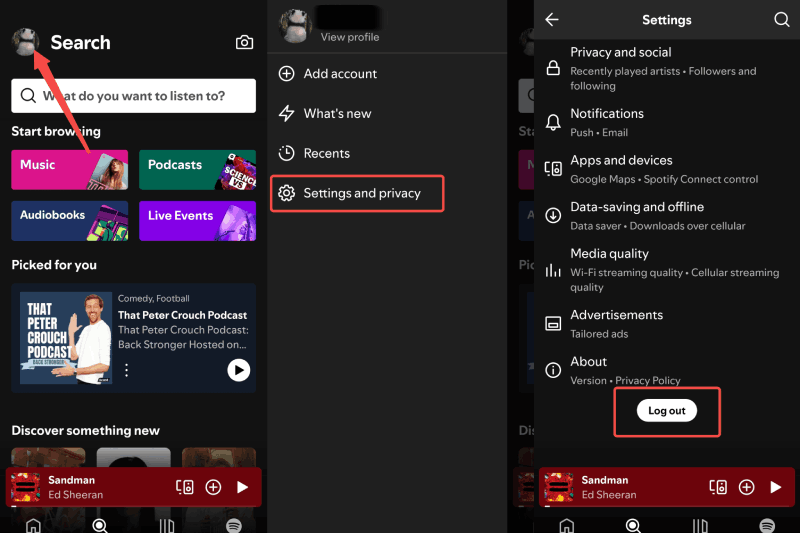
Step 1. On the Spotify app, tap on your profile picture.
Step 2. Choose "Settings and privacy" and then "Log out".
Step 3. Force close the app and wait for a while.
Step 4. Sign back in with your Spotify credentials.
Fix 4. Update Spotify
Trying to update your Spotify app to the latest version is another common way to fix the Spotify not working issue. App updates usually include bug fixes, performance optimizations, and compatibility enhancements, so keeping the app up-to-date is crucial.
On Windows/Mac
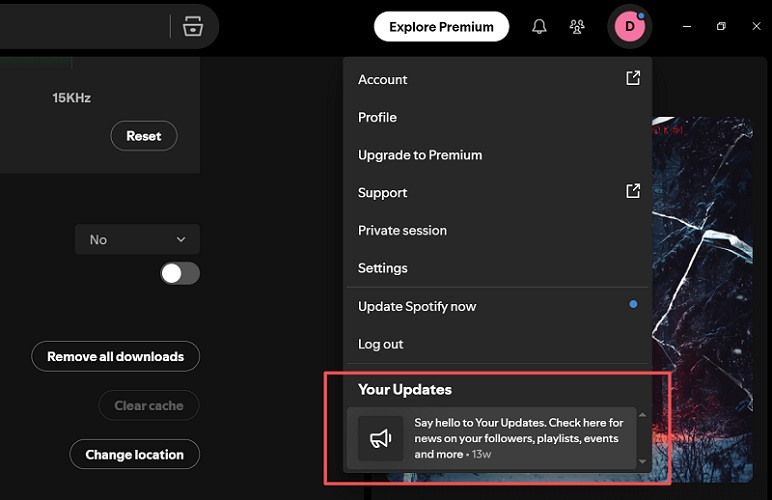
Step 1. Open Spotify and click your profile picture.
Step 2. If an update is available, you will see the latest release in "Your Update".
Step 3. Click on it and follow the instructions to complete the Spotify update.
On Android/iPhone
Step 1. Go to the App Store (iPhone) or Google Play Store (Android).
Step 2. Search for Spotify and tap "Update" if available.
Step 3. Open the updated app to see if Spotify is still not working.
Fix 5. Clear Spotify cache
Clearing the Spotify app cache can also help fix the problem. This is because corrupt or outdated temporary files can interfere with its functionality, causing frequent crashes or loading failures. By clearing the Spotify cache, you can effectively remove these glitches. Don't worry, this will not delete your downloaded songs. Here are the specific steps:
On Windows/Mac
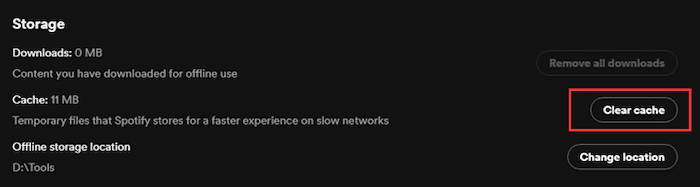
Step 1. Click your profile icon to enter "Settings".
Step 2. Scroll down to the "Storage" section.
Step 3. Hit the "Clear cache" button.
On Android/iPhone
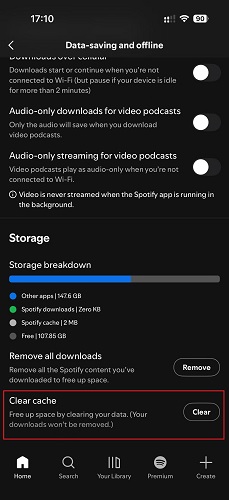
Step 1. Open the Spotify app, tap your profile icon, and then tap "Settings and privacy".
Step 2. Go to "Data-saving and offline" > "Storage".
Step 3. Tap the "Clear" option under "Clear cache".
Fix 6. Restart device
If you have tried all the methods above but Spotify is still not functioning, the problem may be related to your device's memory management. A full system reboot can delete temporary RAM and reset audio drivers. This method is especially effective if Spotify does not work after running for a long time on iPhone or Android devices.
Common Problems When Spotify is Not Working and Solutions
When Spotify is not working, the issue can appear in many different ways. So, if the basic fixes above didn't help, you can explore more Spotify troubleshooting guides below. Simply jump to the problem that best matches your case.
- Spotify App Not Responding
- Spotify Black Screen Issues
- Spotify No Sound During Playback
- Spotify Search Not Working
- Spotify Web Player Connectivity Problems
- Spotify Not Working on iPhone/Android
Spotify App Not Responding
One of the most frustrating issues is when the Spotify app is not responding or freezes completely. This often happens when the app is overloaded, outdated, or conflicting with system processes. If you are experiencing this issue, check the full troubleshooting guide here:
👉 Effective Ways to Fix "The Spotify Application Is Not Responding"
Spotify Black Screen
A Spotify black screen is a common sign that the Spotify app is not loading its UI components correctly, often caused by hardware acceleration glitches or outdated graphics drivers. If your Spotify keeps crashing to a black screen after launch, follow the full guide:
👉 How to Fix Spotify Black Screen on Windows/Mac/iOS/Android
Spotify No Sound
Sometimes Spotify appears to be functioning normally, but songs play with no sound. When this problem happens, please first check the output device settings. Get complete fixes in this article:
👉 Spotify No Sound: Ultimate Solutions for Computer/iPhone/Android/Web Player
Spotify Search Not Working
When Spotify search is not working, you cannot find songs, playlists, or podcasts. Search results may fail to load, remain blank, or display errors. To fix Spotify not working properly when searching, see this detailed guide:
👉 Spotify Search Not Working? Proven Ways to Fix It!
Spotify Web Player Not Working
If you turn to the browser version, but still find Spotify web player is not working on Chrome, Safari, or other browsers, it is likely a browser cookie, protected content setting, or incompatible extension issue. The following guides provide solutions for different browsers:
👉 How to Fix Spotify Web Player Not Working
Spotify Not Working on iPhone/Android
On mobile devices, the issues often occur after an update. If updating the app doesn't fix the problem, you may need to perform further troubleshooting. Follow these device-specific guides for step-by-step solutions:
👉 Proven Fixes for Spotify Not Working on iPhone
👉 Spotify Not Working on Android: Common Problems and Fixes
Pro Tip: Enjoy Spotify Music Offline Without Any Issues
Let's be honest: all the fixes above are temporary. If you are tired of searching for "how to fix Spotify not working" every few weeks, there is a more permanent solution: download Spotify songs as local files. In this case, a reliable third-party tool is necessary.
TuneFab Spotify Music Converter is such an option that can download and convert songs, playlists, and podcasts from Spotify to MP3 320kbps and more formats. More importantly, it also supports Spotify free accounts. Once your music is saved on your device, you can listen anytime without worrying about the Spotify app not working on iPhone, Android, PC, or Mac.
Discover More Benefits of TuneFab Spotify Music Converter
- Include the built-in official Spotify web player, no extra app needed.
- Save Spotify songs to MP3, M4A, FLAC, WAV, etc, with 100% original audio quality.
- Support batch conversion at up to 35X faster speed.
- Keep ID3 tags for better music management.
- No Spotify Premium required for offline playback.
- Stable performance that avoids Spotify music not working during conversion.
Learn More: TuneFab Spotify Music Converter Review: Is It Worth It?
So, how to download Spotify music to avoid the Spotify not working issue? Here is a simple guide:
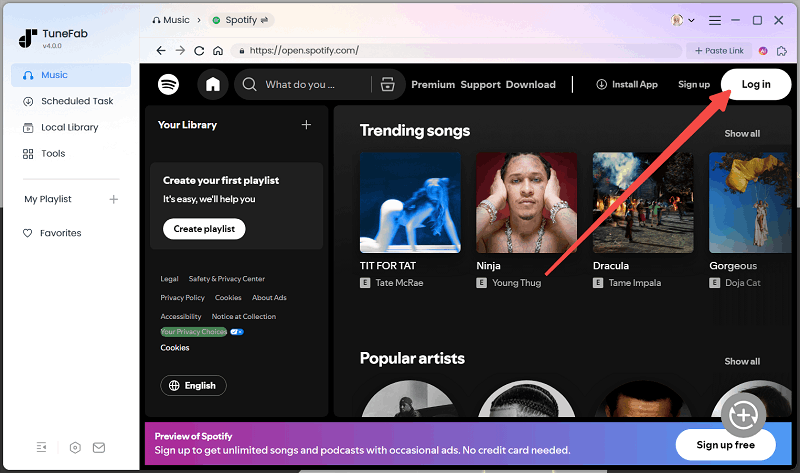
Step 1. Log in to Spotify on TuneFab
Launch TuneFab Spotify Music Converter and log in to your Spotify account through the built-in web player.
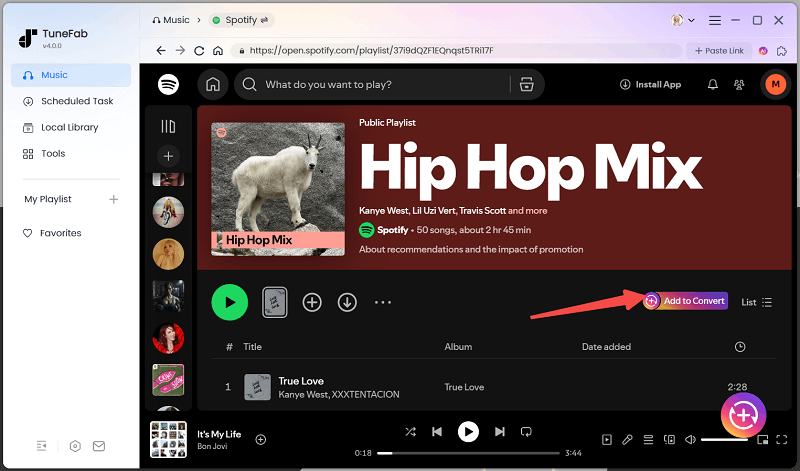
Step 2. Add Spotify Songs or Playlists
Browse Spotify music and click "Add (to Convert)" of your favorite playlists.
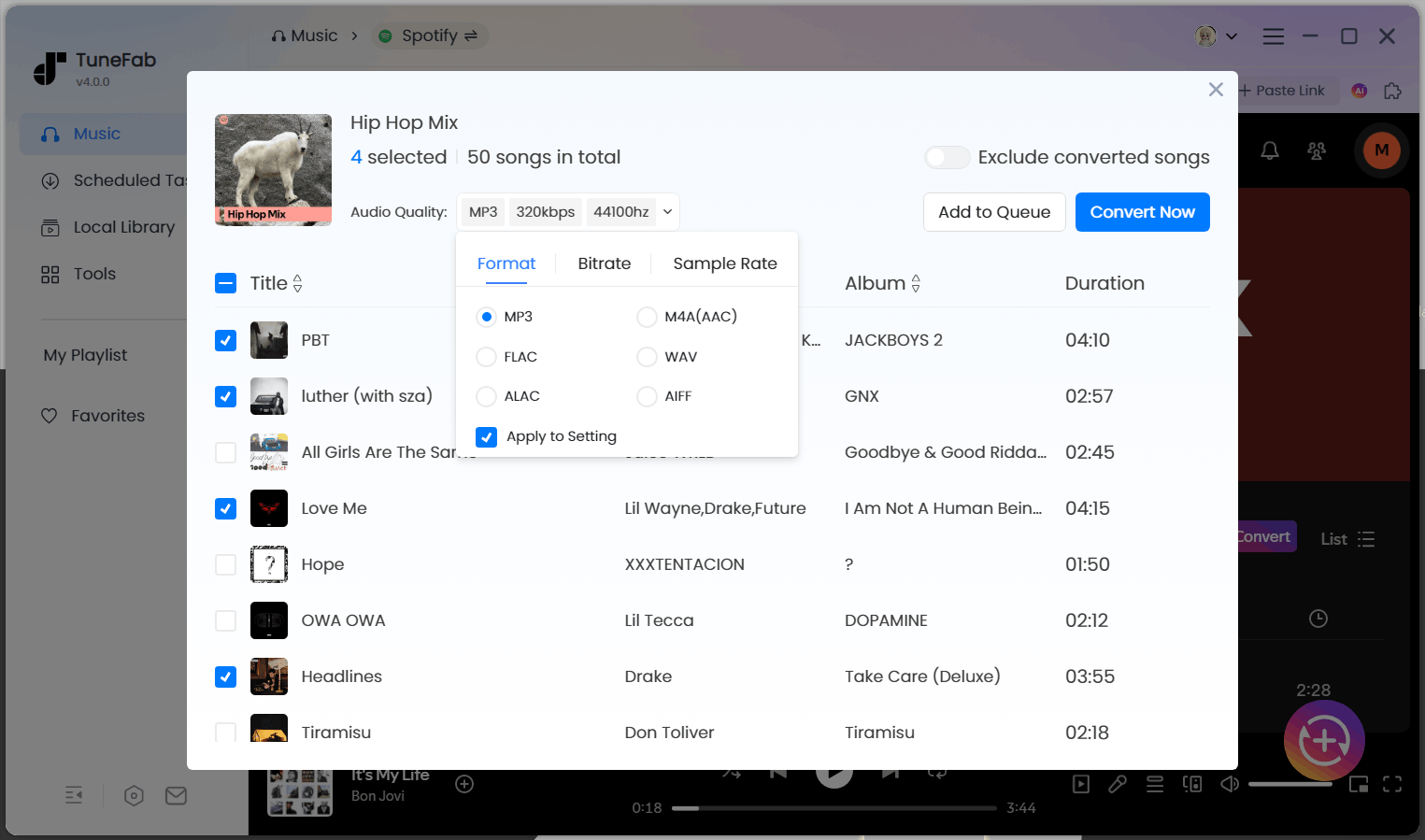
Step 3. Choose Output Format and Quality
In the pop-up conversion panel, select your preferred format (such as MP3) and adjust audio quality settings if needed.
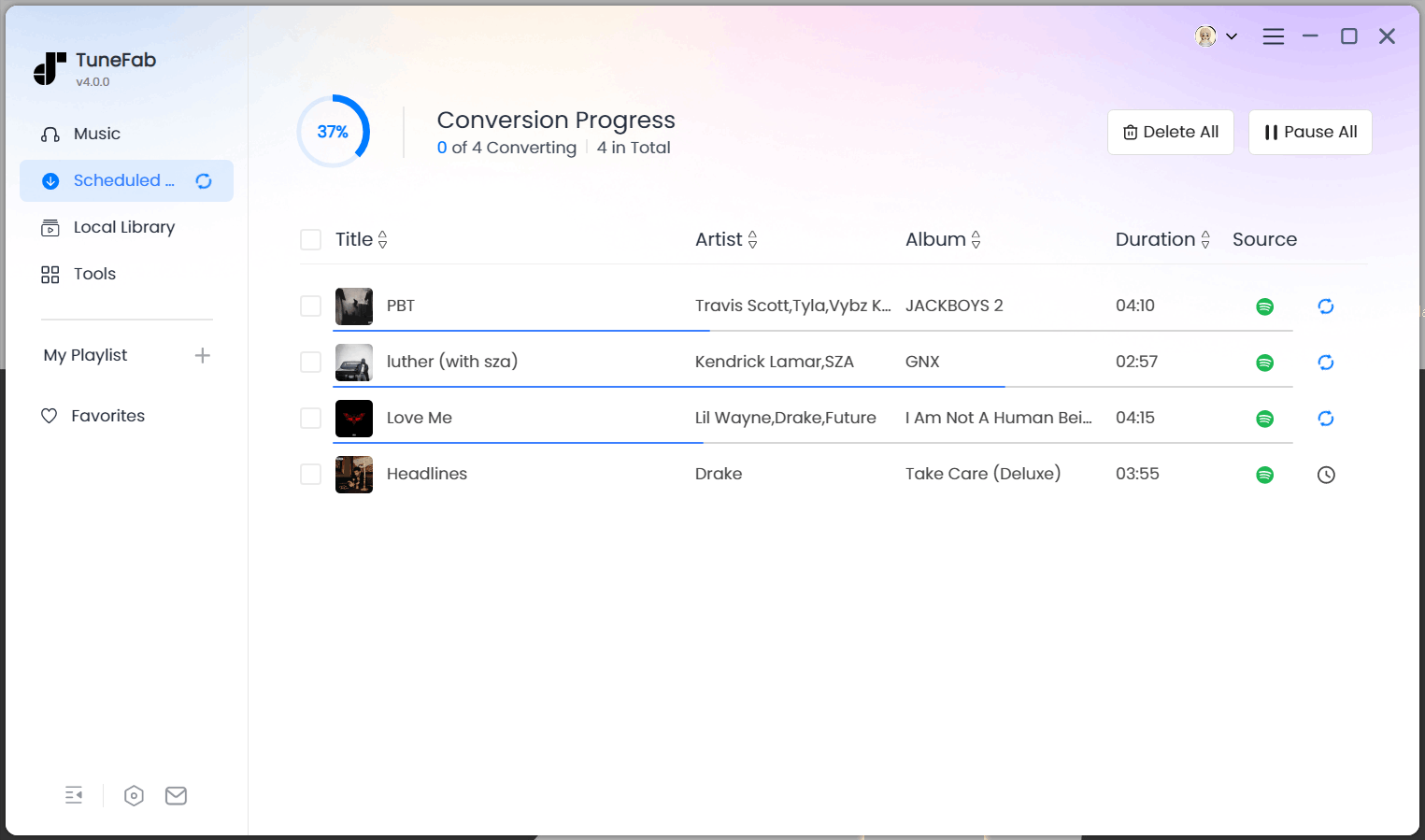
Step 4. Starting Downloading
Click "Convert Now" to download Spotify music to your device as local files. Once downloaded, you can play your tracks on any device or media player without ever worrying about Spotify problems again.
Conclusion
When Spotify is not working, it can disrupt your music experience. Fortunately, most problems can be fixed with basic troubleshooting. However, if the issue keeps coming back, a more reliable option is to download your favorite music in advance. Tools like TuneFab Spotify Music Converter allow you to save Spotify songs in common audio formats, enabling you to listen anytime, anywhere, without ever having to worry again about Spotify failing to work on your iPhone, Android, PC, or Mac.

