


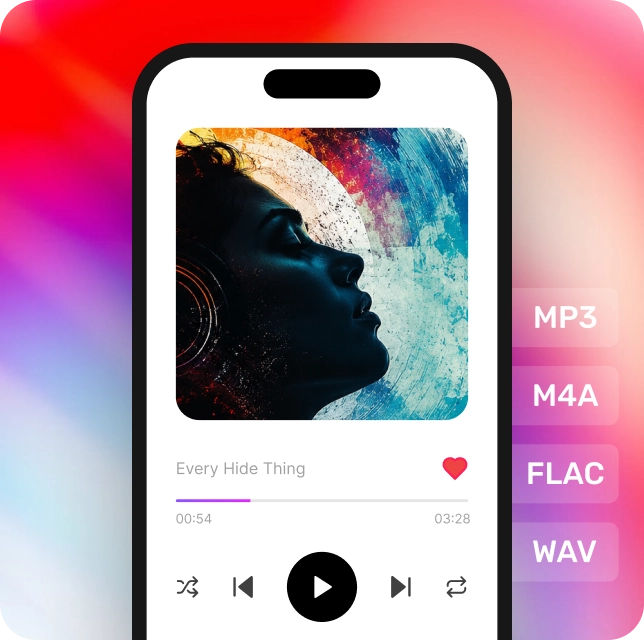
One Library for Music from Every Platform
Bring together songs from Spotify, Apple Music, Amazon Music, YouTube Music, and more.
Build a personal music library that stays with you, regardless of platform changes, regional restrictions, or licensing limitations.
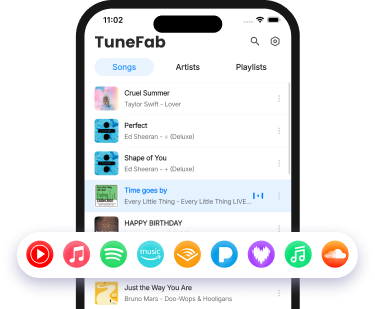
Follow the Lyrics. Sing Along
Generate time-synced lyrics with AI and adjust the original vocals for a more personal sing-along experience.
AI-Powered Lyrics
Missing lyrics? Use AI to generate time-synced lyrics for your songs.
Vocal Reduction — Beta
Lower the original vocals with one tap and enjoy a simple way to sing along.
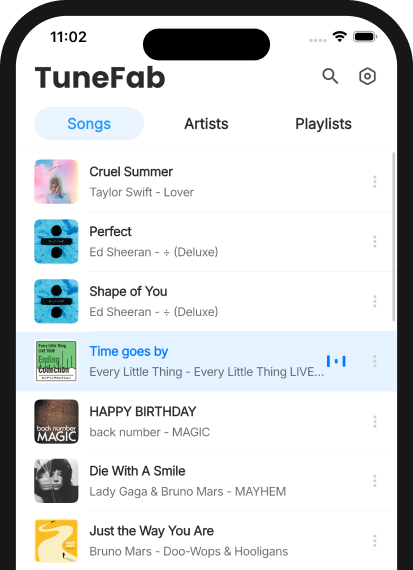
Made for your local music collection
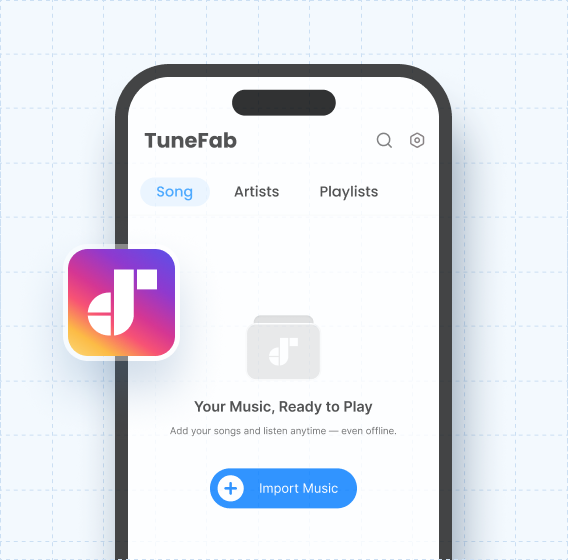
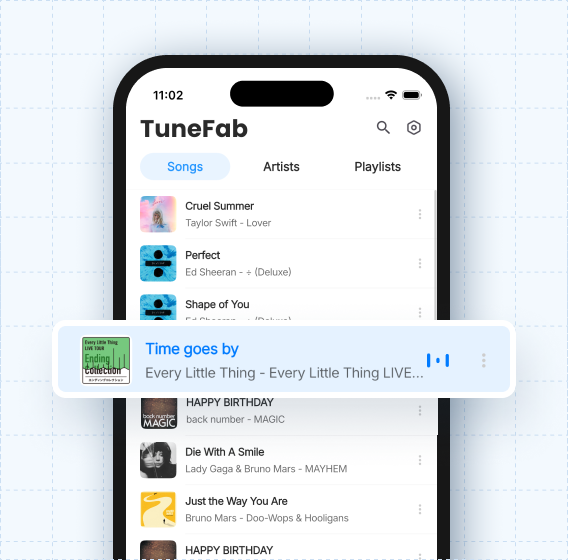
Import, transfer, and play your music with a simple offline workflow.
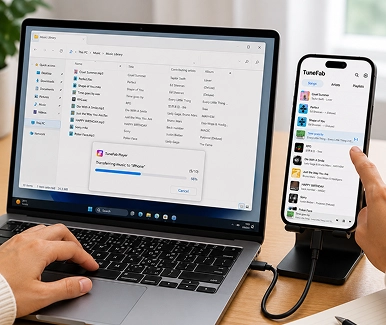
Import Local Music
Import MP3, M4A, FLAC and other audio files downloaded from Spotify, Apple Music, Amazon Music, and more.
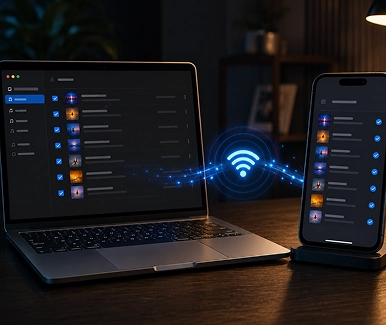
Send Music to Phone
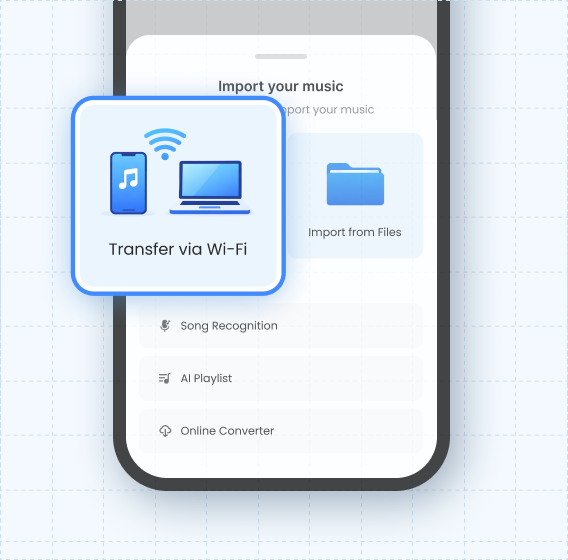
Transfer songs from your computer to TuneFab Player over the same WiFi — no cables required.

Offline Playback
Play your saved music anytime, without streaming or ads. Pure, distraction-free listening.
Made for Everyday Listening
From building your music library to listening anywhere, TuneFab Player keeps your music within reach.
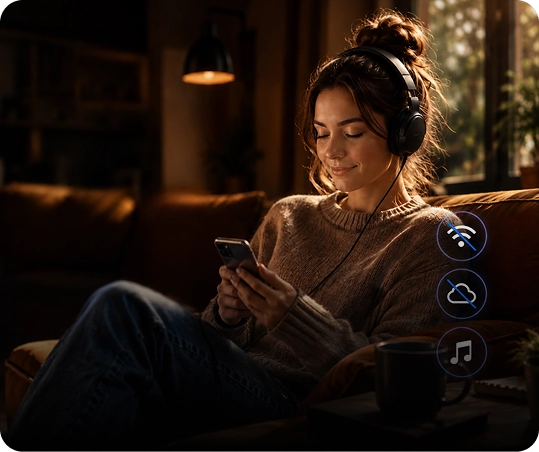
Offline Library
Keep a personal offline music library without relying on streaming subscriptions.
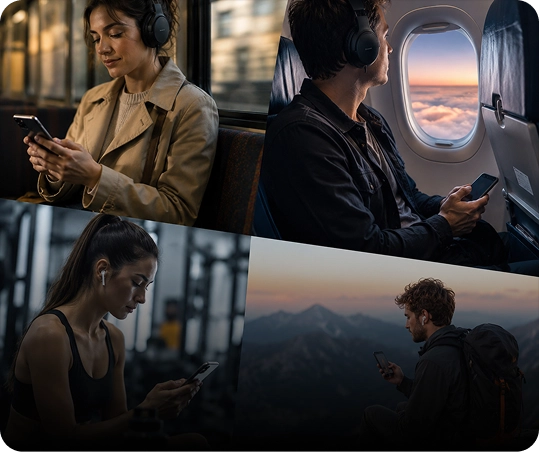
Listen Anywhere
Listen to music during commuting, flights, workouts, or weak network conditions.
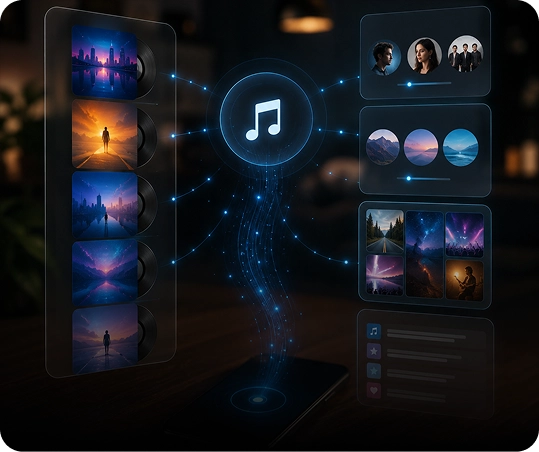
Smart Organization
Automatically scan and organize local songs by albums, artists, and playlists.
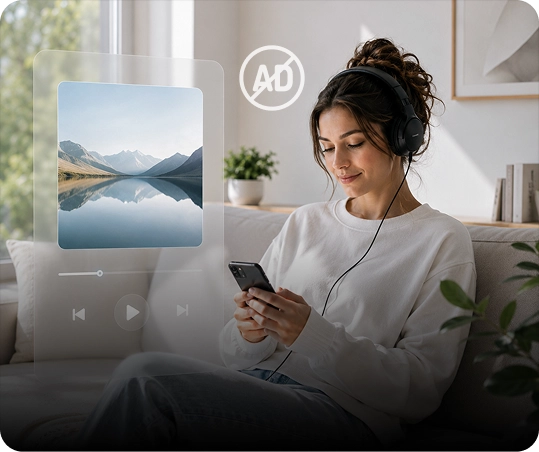
Ad-Free Listening
Use a clean, lightweight music player without ads, pop-ups, or recommendation feeds.
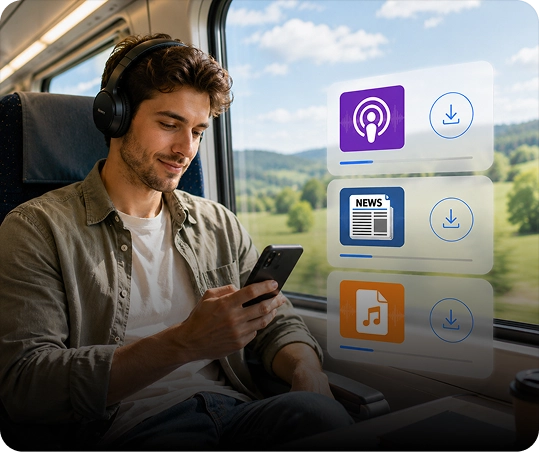
Offline Audio
Save podcasts, news programs, and audio files for offline listening anytime.
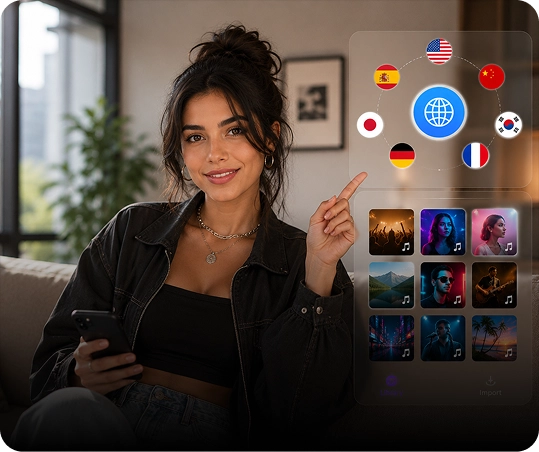
Multilingual Library
Manage multilingual music collections in one organized local library.
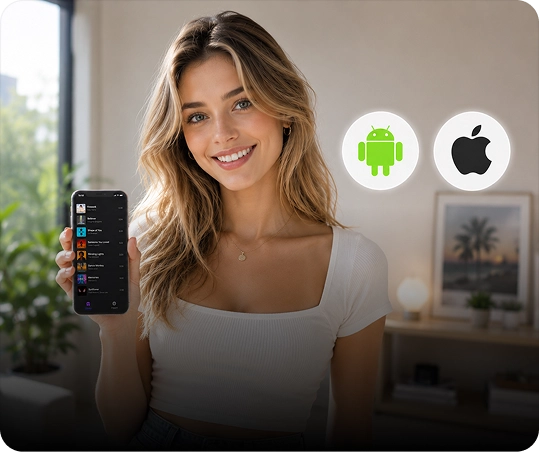
Cross-Device Control
Maintain full control over personal audio files across Android and iOS devices.

Background Playback
Play background music while gaming, studying, working, or browsing social media.
Offline Library
Keep a personal offline music library without relying on streaming subscriptions.
Listen Anywhere
Listen to music during commuting, flights, workouts, or weak network conditions.
Smart Organization
Automatically scan and organize local songs by albums, artists, and playlists.
Ad-Free Listening
Use a clean, lightweight music player without ads, pop-ups, or recommendation feeds.
Offline Audio
Save podcasts, news programs, and audio files for offline listening anytime.
Multilingual Library
Manage multilingual music collections in one organized local library.
Cross-Device Control
Maintain full control over personal audio files across Android and iOS devices.
Background Playback
Play background music while gaming, studying, working, or browsing social media.
Start listening in 3 steps
From download to playback in under a minute — TuneFab Player keeps your offline music workflow effortless.
1
Download & Launch TuneFab Player
Get TuneFab Player on your phone and open the app.
2
Bring Your Music In
Transfer songs from your computer or import audio files already stored on your device.
3
Enjoy Offline Playback
Your music is ready to play. Listen anywhere, anytime — no internet, no ads, no interruptions.


Frequently asked questions
- Player & Transfer
- AI Features
1. How to Transfer Music from Your Computer to Your Phone
You can send local music from your computer to TuneFab Player in two ways:
- Transfer via Wi-Fi— Best when your phone and computer are connected to the same Wi-Fi network. No cable needed.
- Transfer via USB— Useful if the Wi-Fi connection is unstable, restricted by school/company networks, or if you're transferring a large number of songs.
Method 1: Transfer via Wi-Fi
- 1. Make sure your phone and computer are connected to the same Wi-Fi network.
- 2. Open TuneFab Player on your phone.
- 3. Tap Importat the bottom.
- 4. Select Transfer via Wi-Fi.
- 5. A transfer address and QR code will appear on your phone.
- 6. Open the address in your computer’s browser, or scan the QR code with another device.
- 7. Select the music files you want to transfer.
- 8. Once uploaded, the songs will appear in your TuneFab Player library.
Note
Please keep TuneFab Player open and stay on the Wi-Fi transfer screen during the transfer process.
Do not lock your phone, switch apps, or change networks while transferring.
Method 2: Transfer via USB Cable
If the Wi-Fi transfer fails or can’t connect, you can also transfer music files using a USB cable.
- On Android, TuneFab Player will automatically scan and detect local music files after they’re copied to your device storage.
- On iPhone / iPad, due to iOS limitations, TuneFab Player cannot automatically scan all local files. You’ll need to tap Import from Filesinside the app and manually select songs from the Files app.
2. Why Can’t My Phone Connect to My Computer?
If your phone can’t connect to your computer, the Wi-Fi transfer connection may not have been established properly. Try checking the following:
- 1. Make Sure Both Devices Are on the Same Wi-Fi
- Wi-Fi transfer only works when your phone and computer are connected to the same network.
- 2. Avoid Public or Restricted Networks
- Some office, school, hotel, or public Wi-Fi networks block devices from communicating with each other.
- 3. Turn Off VPNs or Network Accelerators
- VPNs or proxy tools may change your network route and prevent your computer from accessing the transfer address.
- 4. Open the Correct Transfer Address
- Make sure you enter the full address shown in TuneFab Player into your computer’s browser.
- 5. Keep the Transfer Screen Open
- If your phone locks, switches apps, or leaves the transfer page, the connection may disconnect.
- 6. Try Another Browser
- Some browsers may block local network access. Try Chrome, Edge, or Safari instead.
- 7. Refresh the Transfer Address
- If too much time has passed without connecting, reopen Transfer via Wi-Fiin TuneFab Player to generate a new address.
- 8. Make Sure Another Device Is Available
- Wi-Fi transfer requires another device — such as a computer, tablet, or second phone — to open the transfer address or scan the QR code.
If you opened the transfer page on your phone but didn’t have another device ready, you can come back and try again later.
3. Do My Phone and Computer Need to Be on the Same Wi-Fi Network?
Yes.
TuneFab Player’s Wi-Fi transfer feature only works when your phone and computer are connected to the same local network.
For example:
- Your phone connects to Wi-Fi A
- Your computer also needs to connect to Wi-Fi A
If your phone is using mobile data while your computer is connected to Wi-Fi, the connection usually won’t work.
Even if both devices are connected to the same router, different guest networks may still prevent them from communicating with each other.
For the best experience, we recommend using a home Wi-Fi network.
Some public networks — such as offices, schools, hotels, or airports — may block local device connections.
4. Can I Import Songs from the Files App on iPhone?
Yes.
Due to iOS system restrictions, TuneFab Player cannot automatically scan all music files on your iPhone like Android devices can. Instead, iPhone users can manually import songs through the Files app.
How to Import Songs from Files
- 1. Open TuneFab Player.
- 2. Tap Importat the bottom.
- 3. Select Import from Files.
- 4. Choose music files from the iPhone Files app.
- 5. Once imported, the songs will appear in your TuneFab Player library.
Supported File Sources
You can import audio files from:
- iCloud Drive
- On My iPhone
- Downloads folder
- Audio files saved by other apps in the Files app
If your music is stored on a computer, you can also use Transfer via Wi-Fito send songs to your iPhone wirelessly.
5. What Audio Formats Does TuneFab Player Support?
TuneFab Player supports most common local audio formats, including:
- MP3
- M4A
- LAC
- WAV
- AIFF
If a file can’t be played, possible reasons may include:
- The format is not supported
- The file is corrupted
For the best compatibility, we recommend using MP3, M4A, or FLAC files.
6. Where Are Imported Songs Stored?
After importing or transferring music, your songs will be saved in the TuneFab Player library.
You can view all imported songs in the Librarysection inside the app.
If your songs don’t appear after importing, try the following:
- Pull down to refresh the library
- If you used Wi-Fi transfer, make sure the upload has fully completed on your computer
If the computer still shows “Uploading” or “Transfer Failed,” the songs may not have been transferred successfully yet.
7. Does TuneFab Player Support Music Downloaded from Streaming Platforms?
Yes.
TuneFab Player can play local audio files transferred from platforms like Spotify, Apple Music, Amazon Music, YouTube Music, and more.
You can add these audio files by:
- Transferring them from your computer via Wi-Fi
- Importing them from the Files app on iPhone
- Scanning local music storage on Android
1. What is AI Lyrics in TuneFab Player?
AI Lyrics transcribes vocals and generates time-synced lyrics for local songs without lyrics or with lyrics that aren’t synced. Once generated, each line is highlighted in time with the music during playback.
2. Can I use AI lyrics offline?
An internet connection is required to generate new lyrics. Once generated, the lyrics are saved in TuneFab Player and linked to the song, so you can view them during offline playback.
3. Can I edit AI-generated lyrics?
Yes. If the generated lyrics aren’t accurate, you can edit both the lyric text and timestamps. Accuracy may vary depending on vocal clarity, language, pronunciation, background instruments, and audio quality.
Editing is only available for lyrics created with AI lyrics. Lyrics embedded in the original audio file cannot be edited.
4. How long does it take to generate lyrics?
Processing time depends on the song’s length, audio quality, and your internet connection. Keep TuneFab Player open while the lyrics are being generated.
5. How do AI minutes work?
AI minutes are based on the song’s length. For example, generating lyrics for a 3-minute song uses approximately 3 AI minutes. Minutes are only deducted when lyrics are generated successfully. Failed attempts won’t use any AI minutes.
6. What languages does AI lyrics support?
AI Lyrics supports multiple languages, but accuracy may vary depending on the language, pronunciation, vocal clarity, and audio quality.
Download TuneFab Player today
Take control of your music and enjoy offline listening anywhere.