


If you're looking to download Apple Music to your iPhone, chances are you want your music available offline, maybe for a flight, a commute, or a place with poor signal. On iPhone, downloading Apple Music means saving songs inside the Apple Music app for offline playback with an active subscription. These downloads are protected streaming files, and they won't appear in the "Files" app or as transferable audio you can move to a car stereo, USB drive, or other devices.
What you need to do next depends on your goal. If you simply want to listen offline on your iPhone, just scroll down to the next part to download songs manually or in bulk. If you're trying to keep Apple Music tracks after your subscription ends, save them as local files, or use them beyond the Apple Music app, you'll need a different workflow, which we'll explain in 👉 Approach 3 👈.
Related Reading: Check out how to download Apple Music and use it on more mobile devices!
- 1. Download Apple Music on iPhone for Offline Listening (Official)
- 2. Download All Songs from Apple Music on iPhone (2 Options)
- 3. Keep Apple Music Songs Permanently (Save as Local Files) 🔥
- 4. Comparison: Apple Music Offline Download vs. Local Files
- 5. Bonus: Apple Music won't Download on iPhone? Fix It Fast
- 6. Conclusion
Approach 1. Download Apple Music on iPhone for Offline Listening (Official)
If you have an active Apple Music subscription, the official in-app download feature is the most direct way to listen offline on your iPhone. It allows you to save songs, albums, or playlists inside the Apple Music app so they can play without an internet connection.
Before downloading, it's worth checking your audio quality and storage settings. Higher-quality formats use more space and take longer to download:
- High Quality – Smaller file size, faster downloads. Best for everyday listening and limited storage.
- Lossless – Better audio fidelity, but significantly larger files. Ideal if you use wired headphones or higher-end audio gear and have enough storage available.
To avoid running out of space mid-download, go to Settings > General > iPhone Storage and make sure you have enough free space, especially if you plan to download entire albums or large playlists.
Step 1. Open the Apple Music app on your iPhone, and log in with your Apple ID that has an available subscription.
Step 2. Find the song, album, or playlist you want, tap "Add to Library" next to the single song or at the top of an album or playlist.
Step 3. After adding, tap "Library" and find the playlist where you added your songs to, and tap the "Download" button at the top.
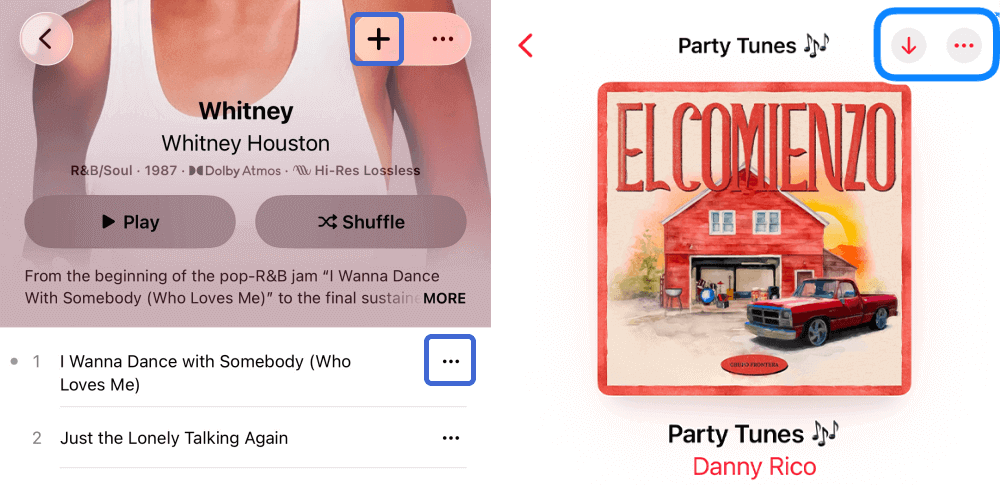
Once downloaded, you'll see the download icon disappear or change, indicating the music is saved for offline playback within the app.
Note: If a song or album supports Dolby Atmos, you may see the Dolby icon next to it. Whether you can download in Dolby Atmos depends on the track's availability and your download settings. Keep in mind that the actual listening experience also depends on your iPhone model and the headphones or audio device you're using. If Dolby Atmos or Lossless is enabled, downloads may consume more storage and take longer to complete.
Approach 2. Download All Songs from Apple Music on iPhone (2 Options)
If you're searching for how to download all songs on Apple Music on iPhone, you're probably trying to avoid tapping the Download button hundreds of times. While Apple doesn't offer a single "Download Entire Library" button, there are two practical ways to make bulk downloading much easier.
Option A: Turn on Automatic Downloads (best for newly added)
Automatic Downloads won't instantly download your entire existing library, but it ensures that any new music you add to your library is automatically downloaded to your iPhone. To enable it:
1. Go to "Settings" on your iPhone.
2. Scroll down to the bottom, tap "App" and find "Music".
3. Turn on "Automatic Downloads".
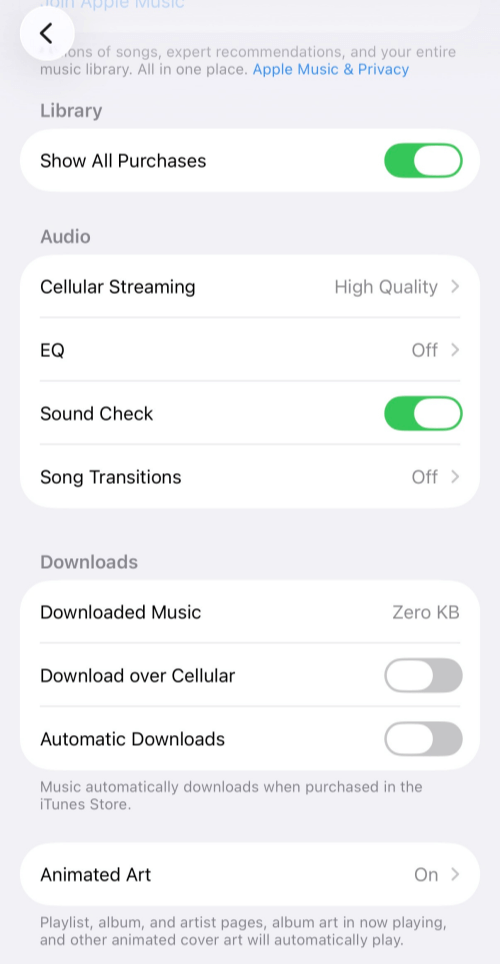
From that point on, whenever you add a song, album, or playlist to your library, it will download automatically for offline listening. If you haven't organized your music yet, this is a good time to start managing your library more systematically, for example, adding songs to curated playlists instead of keeping everything scattered. Once Automatic Downloads is enabled, you won't need to manually download each new addition in the future.
Option B: Shortcuts Trick (best for large libraries)
If you already have a large Apple Music library and want to download everything at once, a practical workaround is to create a single playlist that contains your entire library, then download that playlist with one tap. Here's the simplified process:
1. Create a new playlist in Apple Music and name it something like "Full Library".
2. Install the shortcut on your iPhone, then use it to add all songs from your library to that playlist.
3. Open the "Full Library" playlist and tap "Download" at the top to save all songs offline.
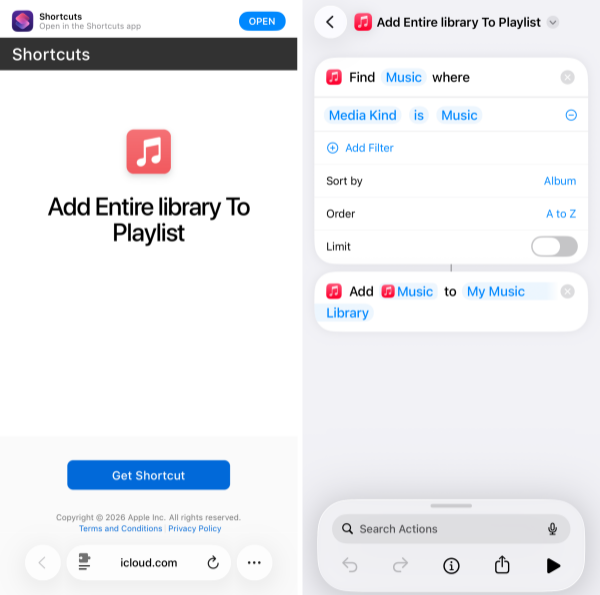
This approach doesn't change how Apple Music stores downloads; they remain inside the app, but it significantly reduces the manual effort required to download an entire collection.
Note:
- If your library is very large, connect to Wi-Fi, plug your iPhone into a charger, and allow plenty of time for the downloads to complete.
- In some cases, the shortcut may not automatically detect your "Full Library" playlist. If that happens, open the shortcut "edit" and manually select the correct target playlist before running it again.
Approach 3. Keep Apple Music Songs Permanently (Save as Local Files)
Offline playback within the Apple Music app may not be enough, especially if you want to keep your songs even after your subscription ends, manage them directly in the Files app, transfer them to a car stereo or USB drive, use them on an MP3 player, or simply create a long-term backup of your music library. The key limit is that official Apple Music downloads remain protected streaming files that cannot be saved as local audio files.
If your goal is to have full control over your Apple Music as standard audio files (such as MP3, WAV, or FLAC), you'll need to download them locally on a computer first, then transfer those files to your iPhone. This approach creates manageable audio files that can be backed up, moved between devices, and played in more environments beyond the Apple Music app.
One practical way to do this is by using a desktop converter such as TuneFab Apple Music Converter, which allows you to export songs from your Apple Music library into common audio formats for personal use and device compatibility.
100% Secure
100% Secure
Download Apple Music Locally with TuneFab (on PC/Mac)
Step 1. Install TuneFab Apple Music Converter on your PC or Mac and log in with your Apple ID inside the built-in web player.
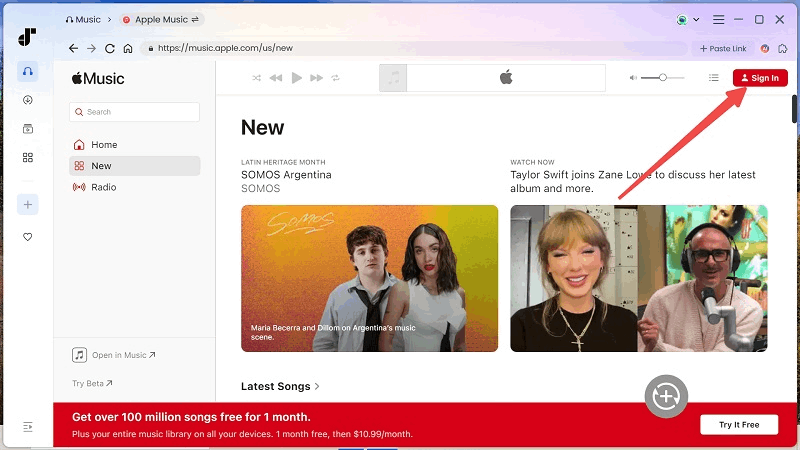
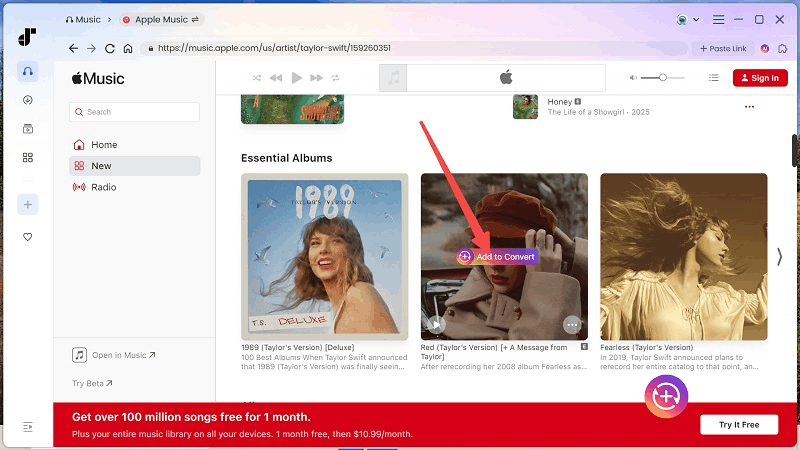
Step 2. Find the songs, albums, or playlists you want to download and click the "Add to Convert" icon.
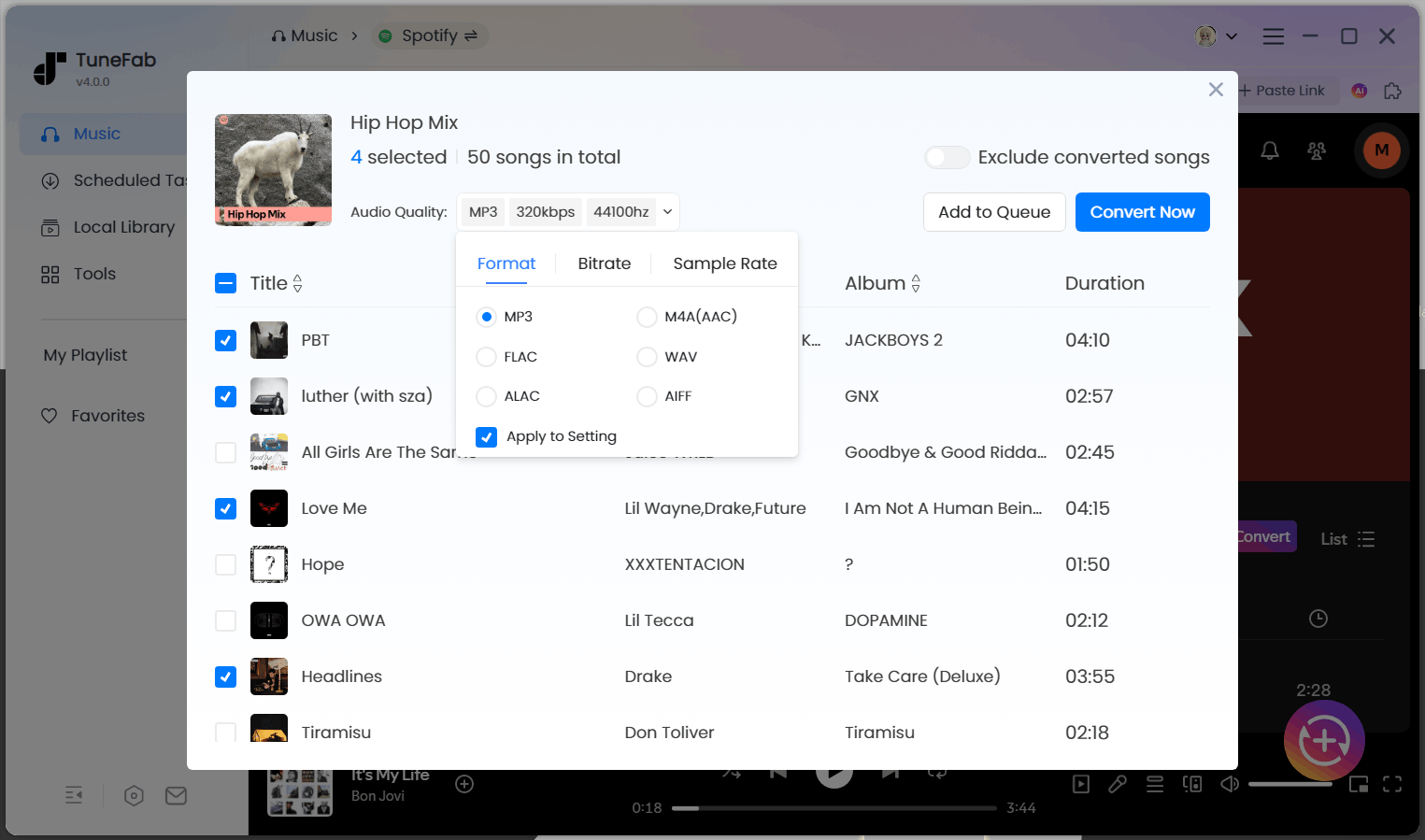
Step 3. Customize your output settings, including audio format (MP3, M4A, WAV, FLAC, ALAC, AIFF), output quality, and download location.
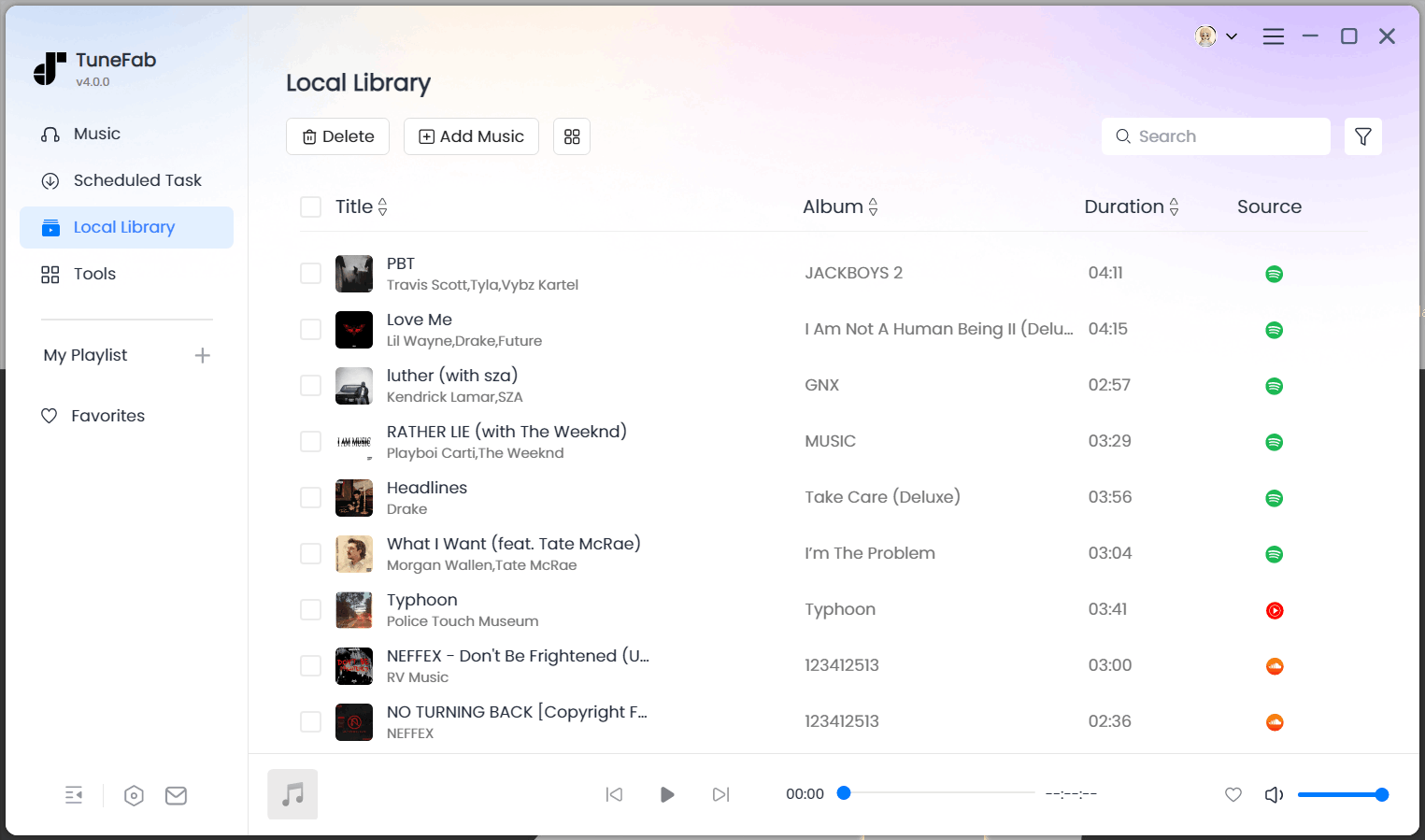
Step 4. Click "Convert Now" to start batch downloading your selected tracks as local audio files. Once finished, you can find them in the "Library" section within the program and in your chosen output folder on your computer.
Tips: If you need a more detailed walkthrough on downloading Apple Music to PC or Mac, check out the posts as follows:
Transfer the files to iPhone (Finder / iTunes / iCloud Drive)
Once you have local audio files on your computer, you can move them to your iPhone using one of the following methods, depending on how you prefer to manage your music:
- Finder (macOS Catalina and later): Connect your iPhone to your Mac, open Finder, select your device, and sync selected music files.
- iTunes (Windows or older macOS versions): Import the converted files into iTunes, then sync them to your iPhone via USB.
- iCloud Drive (for Files app management): Upload your converted songs to iCloud Drive, then access them directly in the "Files" app on your iPhone. This method is useful if you want your Apple Music songs saved as local files in the "Files" app rather than inside the Apple Music library.
After transfer, your music exists as standard audio files on your device — not protected streaming downloads — giving you more flexibility for playback, backup, and device compatibility.
Comparison: Apple Music Offline Download vs. Local Files on iPhone
There are three practical ways to handle Apple Music on iPhone: downloading songs manually inside the app, using bulk or shortcut-based methods to download your entire library, or converting tracks into local audio files for long-term use. The right choice depends on what you actually need: simple offline listening, full-library access, or permanent, transferable music files.
Below is a side-by-side comparison based on common user goals rather than technical features:
| User Goal | Official Manual Download | Official Bulk Download (Auto / Shortcut) | Local Audio Files (Converted on PC/Mac) |
| Just offline listening on iPhone | ✅ Yes | ✅ Yes | ✅ Yes |
| Bulk download the whole library | ❌ Manual tapping required | ✅ More efficient | ✅ After conversion |
| Keep songs after subscription ends | ❌ No | ❌ No | ✅ Yes |
| Save as MP3 in Files app | ❌ Not supported | ❌ Not supported | ✅ Yes |
| Play on car stereo / USB / MP3 player | ❌ Limited to Apple Music app | ❌ Limited to Apple Music app | ✅ Yes |
| Best for large libraries | ⚠️ Time-consuming | ✅ Practical workaround | ✅ Good for long-term management |
| Best for travel (no internet) | ✅ Yes | ✅ Yes | ✅ Yes |
| Best for backup or archiving | ❌ No | ❌ No | ✅ Yes |
If you only need music offline on your iPhone while your subscription is active, the official download options are simple and fully supported. If you manage a large library and want everything saved locally, the bulk workaround makes it easier. And if long-term access, device flexibility, or backup control matters to you, downloading Apple Music as audio files via TuneFab Apple Music Converter and then moving to your iPhone provides a different level of flexibility.
Bonus: Apple Music won't Download on iPhone? Fix It Fast
If Apple Music won't download songs on your iPhone, the issue is usually related to network settings, storage limits, account status, or regional restrictions. Use the quick checks below to identify and fix the problem.
Check network & "Download over Cellular"
Problem: Songs stay stuck on "Waiting" or won't start downloading.
Possible Cause: Weak Wi-Fi connection or cellular downloads disabled.
What to Do:
- Switch to a stable Wi-Fi network.
- Go to "Settings > Music" and enable "Download over Cellular" (if you're not on Wi-Fi).
- Make sure the "Low Data Mode" isn't restricting background downloads.
Free up storage (and Optimize Storage if needed)
Problem: Downloads fail immediately or stop midway.
Possible Cause: Not enough available storage on your iPhone.
What to Do:
- Go to "Settings > General > iPhone Storage" and check free space.
- Delete unused apps or large files.
- In "Settings > Music", enable "Optimize Storage" to automatically remove rarely played downloads if space runs low.
Content restrictions or region/license issues
Problem: Certain songs won't be downloaded, even though others do.
Possible Cause: Licensing restrictions or regional availability differences.
What to Do:
- Confirm the track is available in your current region.
- Try removing the song from your library and adding it again.
- Make sure Screen Time or content restrictions aren't blocking downloads.
Sync Library/account status (and re-toggle if stuck)
Problem: The "download" button doesn't appear, or songs disappear unexpectedly.
Possible Cause: Sync Library disabled or Apple Music subscription issue.
What to Do:
- Go to "Settings > Music" and ensure "Sync Library" is turned on.
- If it's already enabled, toggle it off and on again.
- Check your Apple ID subscription status in "Settings > (Your Name) > Subscriptions" to confirm it's active.
Conclusion
If you're an active Apple Music subscriber and simply want your songs available offline on your iPhone, the official options to download Apple Music to iPhone are usually all you need. You can download individual albums or playlists in seconds, enable Automatic Downloads for future additions, or use a bulk workaround to save your entire library more efficiently, all within the Apple Music app.
If your needs go beyond offline listening, such as keeping your music after your subscription ends, saving tracks as local files, or transferring songs to a car stereo, USB drive, or other devices, then downloading songs from Apple Music as audio files via TuneFab Apple Music Converter offers more flexibility. Choose the method that matches how you actually use your music, and you'll avoid unnecessary limitations later on.
TuneFab Apple Music Converter
Download Apple Music as local files and freely move them to iPhone/iPad.

