


Many Android users start looking into Apple Music when free streaming options no longer meet their needs, especially when offline listening becomes essential. Whether it's for commuting, traveling, or saving mobile data, the ability to download music to an Android phone is often the deciding factor.
At the same time, Apple Music works differently on Android than many people expect. There's no iTunes app, and the usage of the Apple Music Android app can be confusing at first. This guide focuses specifically on how downloading Apple Music on Android actually works, what limitations to be aware of, and what your options are if you need more control over your Apple Music library.
Related Reading: Check out how to download Apple Music and use it on more mobile devices.
Can You Download Apple Music on Android?
Yes, you can download Apple Music on Android, as long as your device runs Android 5.0 or later and you sign in with an Apple ID that has an active Apple Music subscription. After installing the Apple Music app from Google Play, you can add songs, albums, or playlists to your library and download them for offline listening inside the app. Without a subscription, downloads aren't available.
That said, it should be noted that there is no iTunes app for Android, and simply owning purchased songs from the iTunes Store doesn't automatically unlock full access in the Android app. In most cases, you'll need an active subscription and "Sync Library" enabled to see everything in one place. While a free trial may be available to new users, Apple Music on Android cannot be used fully for free. Without a subscription, you can preview or browse content, but you can't stream the full catalog or download music offline.
Note: Sync Library Isn't Available on Android
The Apple Music app on Android does not include a visible "Sync Library" switch in its settings. If you need to enable it, you must turn it on from another device that supports it, such as an iPhone, iPad, Mac, or Windows PC running the Apple Music or iTunes app.
Once Sync Library is enabled under the same Apple ID with an active Apple Music subscription, your music library will automatically appear in the Android app after you sign in. If songs are missing, try signing out and back in, or updating the app to the latest version.
How to Download Apple Music on Android (Official Way)
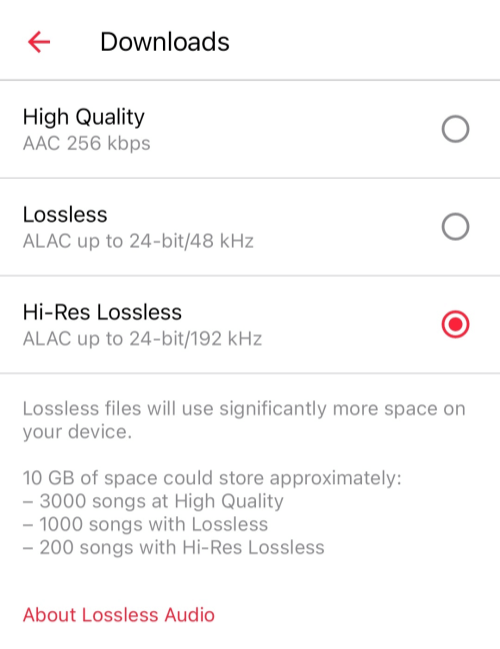
The official way to download Apple Music on Android is through the Apple Music app available on Google Play. With an active subscription, you can download songs, albums, and playlists for offline listening directly inside the app. Before downloading, it's worth checking your storage space — especially if you plan to enable Lossless or Hi-Res Lossless audio. Higher audio quality means larger file sizes and longer download times, so make sure your device has enough available storage.
It's also important to understand the limitation: downloaded music stays inside the Apple Music app. You can't change the download location to a specific folder or manually manage the files in your Android file manager. In most cases, downloads are stored within the app's internal storage system rather than as accessible MP3 files, and playback is restricted to the Apple Music app.
Steps to Download Apple Music on Android
1. Install the Apple Music app from the Google Play Store.
2. Sign in with the Apple ID that has an active Apple Music subscription.
3. Tap the three-dot menu (⋮) in the top-right corner of the app, go to Settings > Audio Quality > Download, and choose your preferred download quality (Standard, Lossless, or Hi-Res Lossless if supported).
4. Browse or search for the songs, albums, or playlists you want, then tap Add to Library.
5. Go to your Library, open a playlist or album, and tap Download at the top. For individual songs, tap the three dots (⋮) next to the track and select Download.
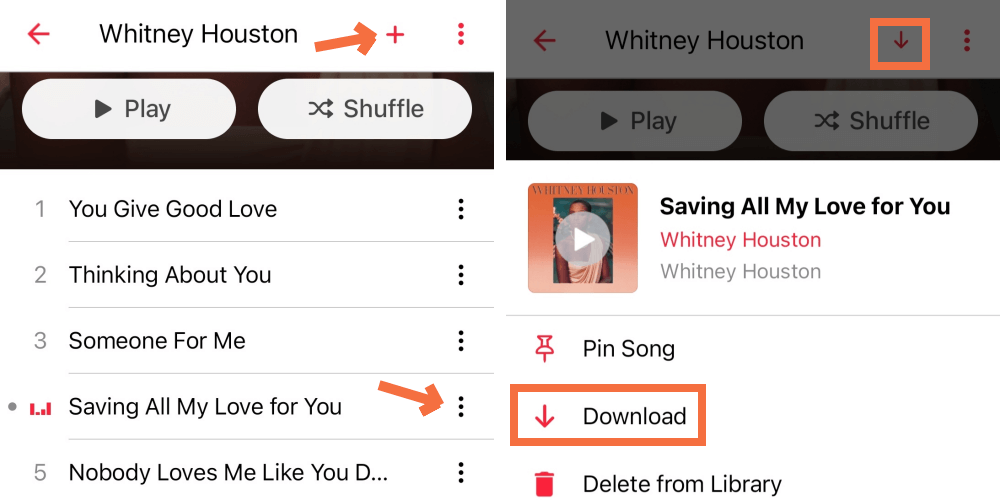
Once downloaded, the music will be available for offline listening within the Apple Music app on your Android device.
Can You Download the Entire Apple Music Library on Android?
No, there is no one-click button to download your entire Apple Music library on Android, nor does it offer an automatic download feature that saves every song you add to your library.
If you want to download your full library for offline listening, the common workaround is to create a new playlist (for example, "Full Library"), manually add all your songs or playlists to that playlist, and then tap "Download" at the top of the playlist to save them in bulk. This method works, but it can take time, especially if your library is large, and it still keeps all downloads inside the Apple Music app.
If you're looking for a more efficient way to download and manage your entire Apple Music library, the next section covers an alternative approach.
Keep Apple Music Songs Permanently on Android (Save as Local Files)
As explained earlier, there's no built-in way to download your full library in bulk, and the official Apple Music downloads on Android are designed for in-app playback only. They aren't saved as audio files, don't appear in your device's file manager, and can't be freely moved to an SD card, USB drive, or other players. If you want more flexibility, like keeping your Apple Music after a subscription ends or saving your Apple Music library as manageable local files, you'll need another way out.
One practical option is to download your tracks on a PC or Mac using a desktop tool - TuneFab Apple Music Converter. It includes a built-in web player that lets you access your Apple Music library and download the songs, albums, or playlists you need. Instead of staying locked inside the app, your music can be saved as standard local audio files such as MP3, M4A, WAV, or FLAC. These files can then be transferred to your Android phone or other devices like an MP3 player, SD card, or USB drive, giving you full control over your music library.
100% Secure
100% Secure
Key Features of TuneFab for Android Users
- Download Apple Music as real local files (MP3, M4A, WAV, FLAC, etc.) instead of in-app downloads.
- Batch convert entire playlists or large libraries without manual tapping.
- Keep original audio quality, including Lossless tracks (up to 320kbps MP3 or lossless formats).
- Built-in Apple Music web player, so no extra iTunes installation is required.
- Preserve ID3 tags (artist, album, artwork) for easier file management on Android.
- Flexible output location, making it easy to transfer Apple Music songs to Android via USB, SD card, or cloud storage.
Save Apple Music Songs as Local Files via TuneFab
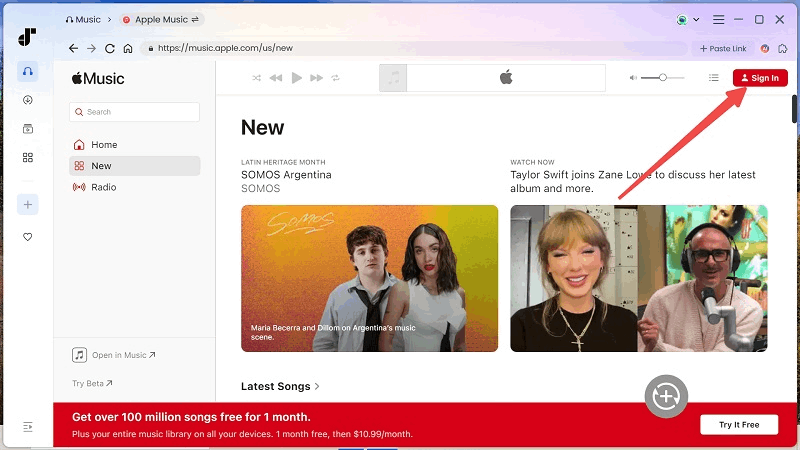
Step 1. Download and install TuneFab Apple Music Converter on your PC or Mac. Choose "Apple Music", open the built-in Apple Music web player, and log in with your Apple ID.
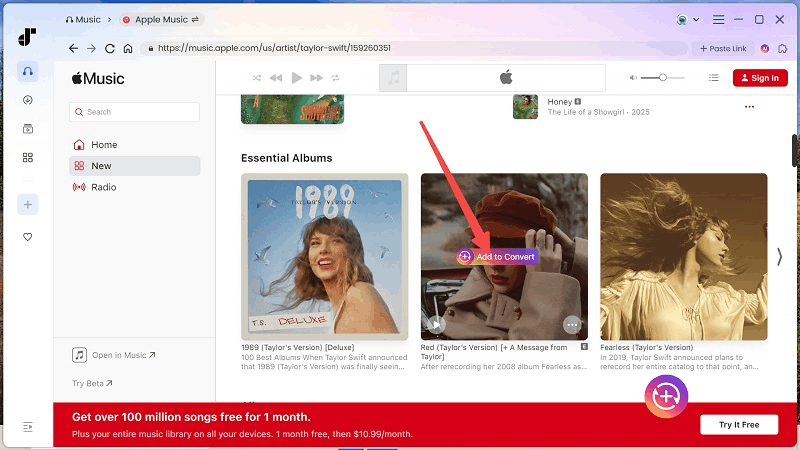
Step 2. Find the songs, playlists, or albums you want, and click "Add to Convert" next to them.
Step 3. Adjust your output settings, including audio quality, format (MP3, M4A, WAV, FLAC, etc.), and download location.
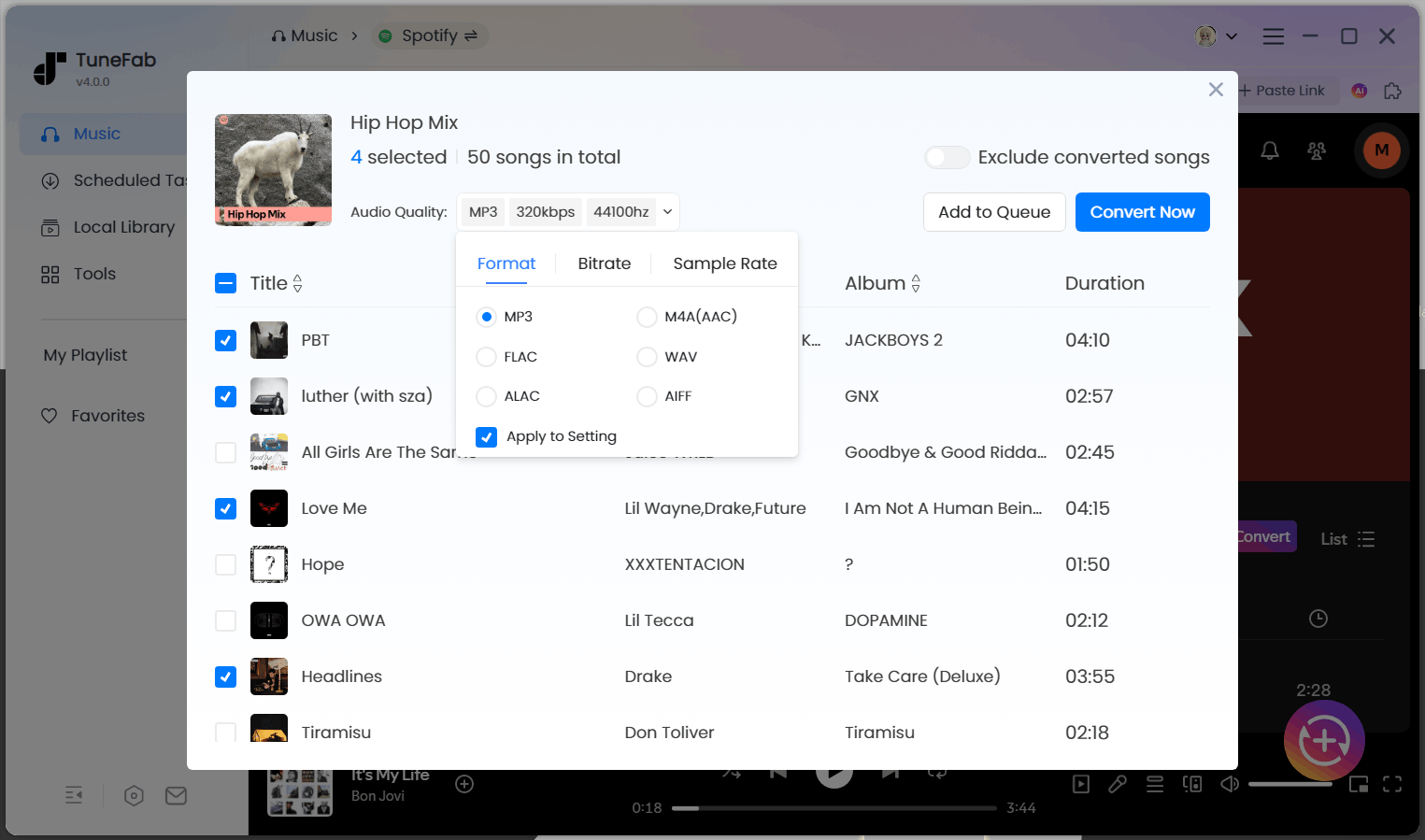
Step 4. Click "Convert Now" to start the batch conversion to download Apple Music songs as local files. Once finished, go to the "Library" tab to locate all downloaded files.
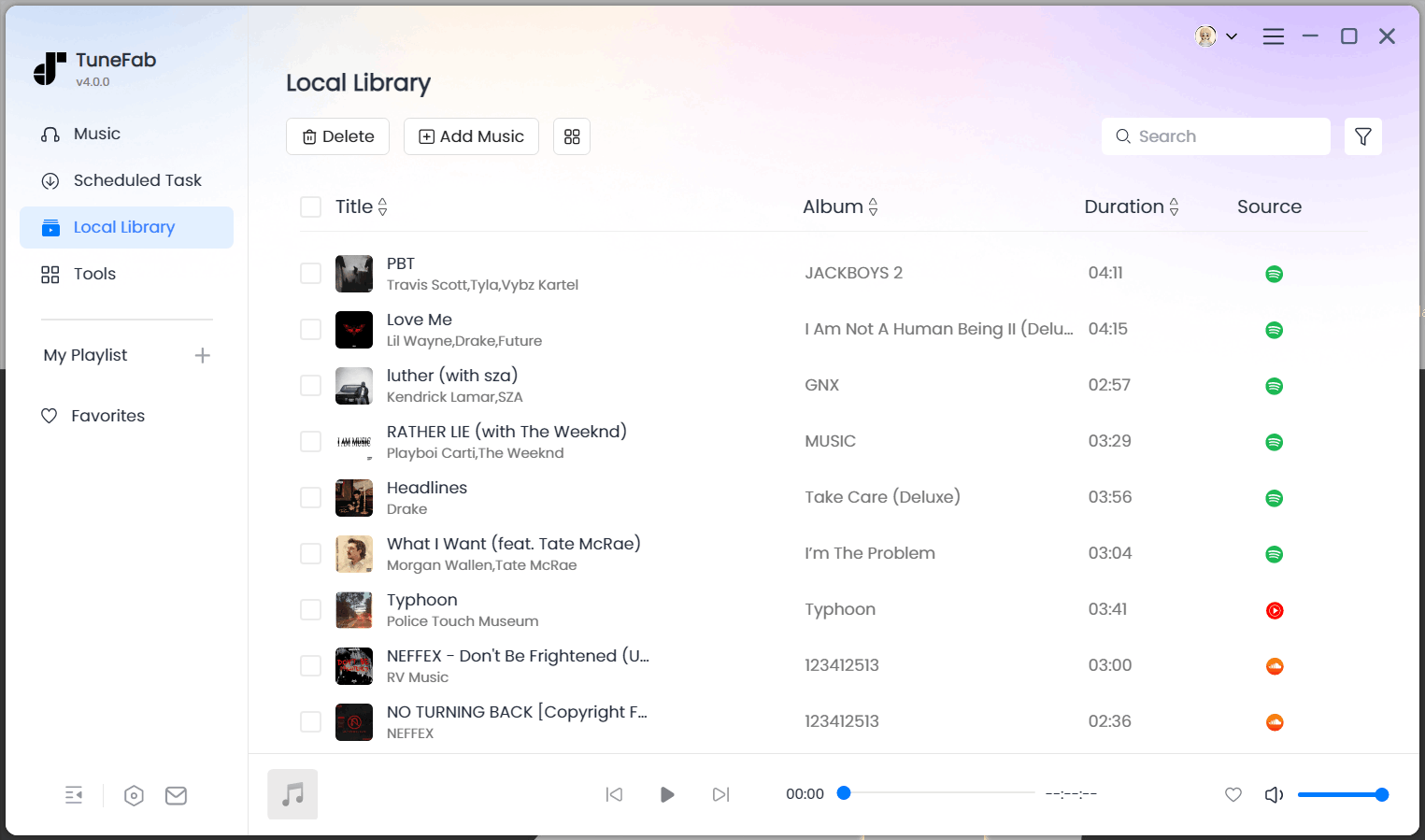
Tips: To learn more details about downloading Apple Music songs on your PC or Mac, check out the full tutorials as follows.
Transfer Downloaded Apple Music Files to Android
Step 6. Transfer the files to your Android device, then play them with any Android music app.
Option A: Transfer via USB cable (most stable):
1. Connect your Android phone to your PC or Mac using a USB cable.
2. Select File Transfer (MTP) mode on your phone if prompted.
3. Drag and drop the converted music files into the Music folder (or your preferred folder) on the device or SD card.
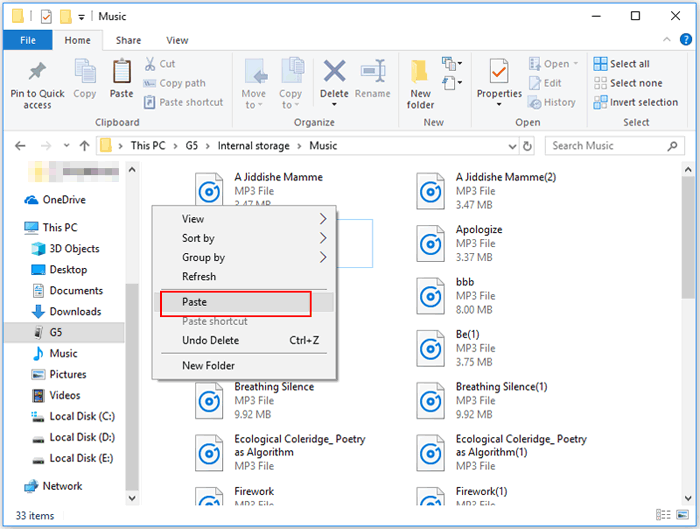
Option B: Transfer via cloud storage (no cable needed):
1. Upload the converted files to Google Drive, Dropbox, or another cloud service.
2. Download them to your Android phone.
3. Open them with any local Android music player.

Once transferred, the files can be managed directly in your file manager and played offline without the Apple Music app.
FAQs About Downloading Apple Music on Android
Can I use Apple Music for free on Android without an Apple ID?
No. You need an Apple ID to sign in to the Apple Music app on Android. Even if you only want to browse content or start a free trial (if available), you must log in with an Apple ID. When the free trial ends, an active paid Apple Music subscription linked to that Apple ID is required for full streaming access and offline downloads.
How do I transfer my Apple Music library to my Android?
If you're using an active subscription, simply sign in to the Apple Music app on Android with the same Apple ID, and your synced library (playlists, saved albums, etc.) will appear automatically. However, downloaded songs inside the app cannot be transferred as files.
If you want to transfer Apple Music songs as local files to Android, you'll need to download Apple Music as local files first, then move the converted files to your phone via USB cable or cloud storage. Once transferred, they can be played with any Android music app.
How to access iTunes on an Android phone without a computer?
There is no iTunes app for Android. You can't directly access iTunes software on an Android phone. If you have previously purchased songs from the iTunes Store, you can either subscribe to Apple Music and enable Sync Library (from a supported device) to see them in the Apple Music app, or download the purchased files on a computer and manually transfer them to your Android device.
How do I get Apple Music on my Samsung phone?
You can install Apple Music on any Samsung phone running Android 5.0 or later. Simply open the Google Play Store, search for Apple Music, install the app, and sign in with your Apple ID. Once signed in with an active subscription, you can stream and download music for offline listening.
Why won't Apple Music download on Android?
If Apple Music won't download songs on Android, common causes include an inactive subscription, insufficient storage space, an unstable internet connection, or an outdated app version. Make sure you're signed in with the correct Apple ID, confirm your subscription is active, check available storage, and update the app. Clearing the app cache or restarting your device can also help resolve download issues.
Conclusion
Apple Music works smoothly on Android as long as you sign in with an Apple ID that has an active subscription. You can install the app from Google Play, add songs to your library, download Apple Music on Android for offline listening, and enjoy features like Lossless audio, Android Auto, and Chromecast support. However, downloads stay inside the app; there's no one-click option to download your entire library, and music isn't saved as accessible local files.
If you simply want to stream and download music for offline listening within the app, the official method is straightforward and fully supported. But if your goal is to keep Apple Music songs permanently, transfer your library to Android as local files, or play tracks on SD cards, USB drives, or other devices, then using a desktop tool like TuneFab Apple Music Converter offers greater flexibility and long-term control. With its help, you can save all your tracks from Apple Music as local audio files, and then freely move them anywhere you want.
TuneFab Apple Music Converter
Download Apple Music as local files and freely move them to Android.

