


Quick Verdict: Is TunesKit a Good Apple Music Converter?
TunesKit Apple Music Converter can work with Apple Music, but it's essentially an audio capture tool rather than a true converter. It may be worth trying for occasional single-track recordings, but it's not the most efficient way to save full playlists or albums. The free version is limited to 1-minute recordings, and the process relies on real-time playback, making it less suitable for a faster, more streamlined Apple Music conversion experience.
If you've ever searched for ways to convert Apple Music to MP3, you've probably noticed how many tools claim to do the job. Some promise fast, lossless conversion and simple workflows, making it hard to tell which ones actually deliver, and which ones come with hidden limitations.
One of the names that often comes up is TunesKit Apple Music Converter. But how does it really perform in practice? Is it truly a converter, or something else? And more importantly, is it worth your time or even your money? In this review, we'll take a closer look at TunesKit Audio Capture through real testing, break down where it works and where it falls short, and help you decide whether it fits your needs. We'll also introduce a better alternative if you're looking for a more efficient Apple Music converting experience.
More Apple Music Converter Reviews:
HitPaw | Sidify | ViWizard | UkeySoft | NoteBurner | DRmare | myFairTunes
- Overview: What TunesKit Apple Music Converter Actually Is
- Hands-On Test: How TunesKit Works to Convert Apple Music
- Where TunesKit Works Well and Falls Short for Apple Music Users
- A Wiser Alternative for Apple Music: TuneFab Apple Music Converter 🔥
- Final Verdict: Can TunesKit Really Fit Your Apple Music Needs?
- FAQs About TunesKit Apple Music Converter
Overview: What TunesKit Apple Music Converter Actually Is
First of all, what many users don't immediately realize is that the actual product behind this name works quite differently from a typical converter. Let's make it clear.
It's Not a Direct Converter, but an Audio Capture Tool
Although commonly referred to as a "music converter", TunesKit Apple Music Converter is actually called TunesKit Audio Capture, a tool designed to record system audio rather than directly process Apple Music files. Instead of accessing your Apple Music library and converting tracks at high speed, it follows a different workflow:
- Select a capture source (e.g., Apple Music)
- Play the song manually
- Record the audio in real time
- Save the recording as a local file
At a glance, this may seem similar to conversion, but the underlying mechanism is fundamentally different. And this difference directly affects how the tool performs in real-world use.
What This Means for Apple Music Users
Because TunesKit relies on audio capture rather than direct conversion, the experience can feel quite different depending on your needs:
- Workflow: Requires manual playback and recording instead of one-click batch conversion /li>
- Time Efficiency: Limited by real-time recording rather than accelerated processing
- Batch Handling: Less convenient for playlists or albums
- Consistency: Recording-based output may vary depending on playback conditions
If you only need to save a few tracks occasionally, this approach can still work. But if you're expecting a scalable Apple Music converter, it's important to understand these trade-offs upfront.
Pricing Plans of TunesKit Audio Capture
TunesKit offers three main pricing options, depending on how long you plan to use the software:
| Plan | Price | License | Best For |
| Monthly Plan | $14.95/month | 1 PC | Short-term use or quick testing |
| Annual Plan | $29.95/year | 1 PC | Occasional long-term use with lower cost |
| Perpetual Plan | $89.95 (one-time) | 1 PC | Long-term use without recurring fees |
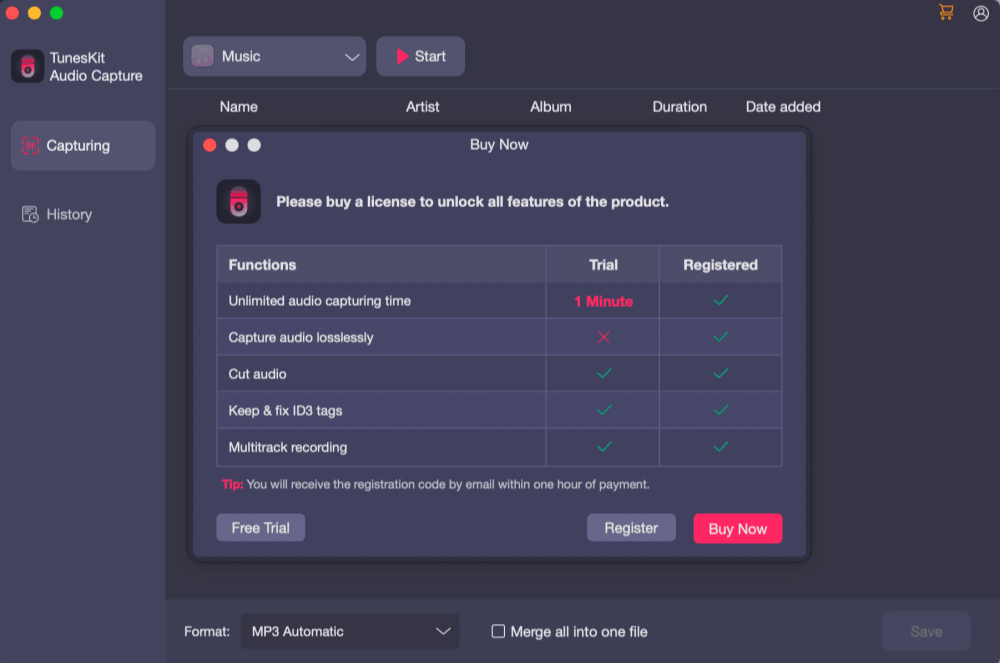
All plans include basic support and updates, while the free trial version is limited to recording only the first minute of each track.
Before deciding whether these trade-offs are acceptable, it's worth taking a closer look at how TunesKit actually performs in practice. In the next section, we'll walk through a real hands-on test to see how it works with Apple Music step by step.
Hands-On Test: How TunesKit Works to Convert Apple Music
To understand how TunesKit actually performs with Apple Music, I tested it on macOS from setup to recording and file export. The overall process is fairly straightforward once everything is configured, but there are a few details worth knowing before you start.
Setup and Permissions
After installing and launching TunesKit for the first time, I had to go into System Settings > Privacy & Security and manually click "Allow" to let the app run. Without this step, the software wouldn't open properly. Then, TunesKit required additional App Management permissions to control and capture audio from Apple Music. Until this was enabled, the recording simply wouldn't work, even though everything else seemed ready.
This doesn't take long to fix, but it does mean the experience isn't as seamless as some converters that work immediately after installation. If you're on macOS, expect a bit of setup before your first successful recording.
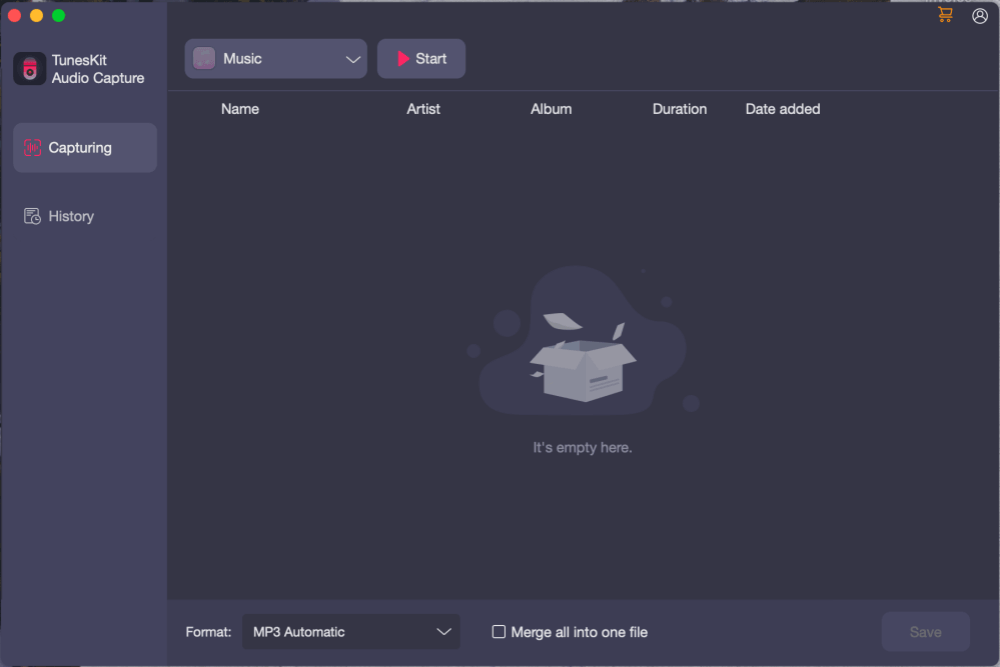
How the Recording Flow Actually Works
Once permissions are sorted, the actual recording process is fairly easy to follow, but it works quite differently from what most people expect from an "Apple Music converter". Here's how it plays out step by step in real use.
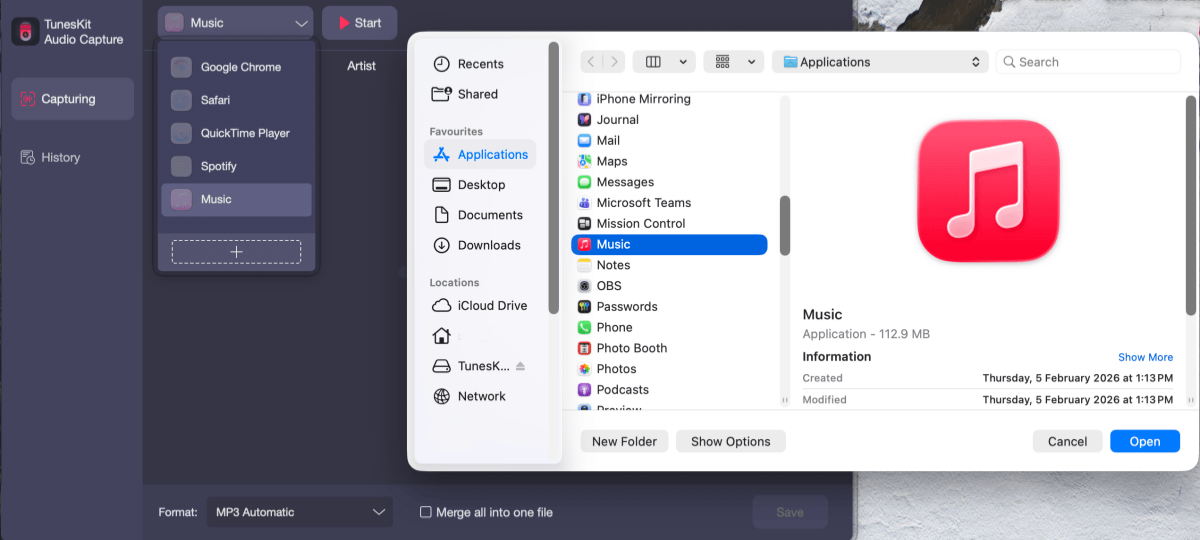
Step 1. From the top menu, choose a capture source and manually add Apple Music as the target app.
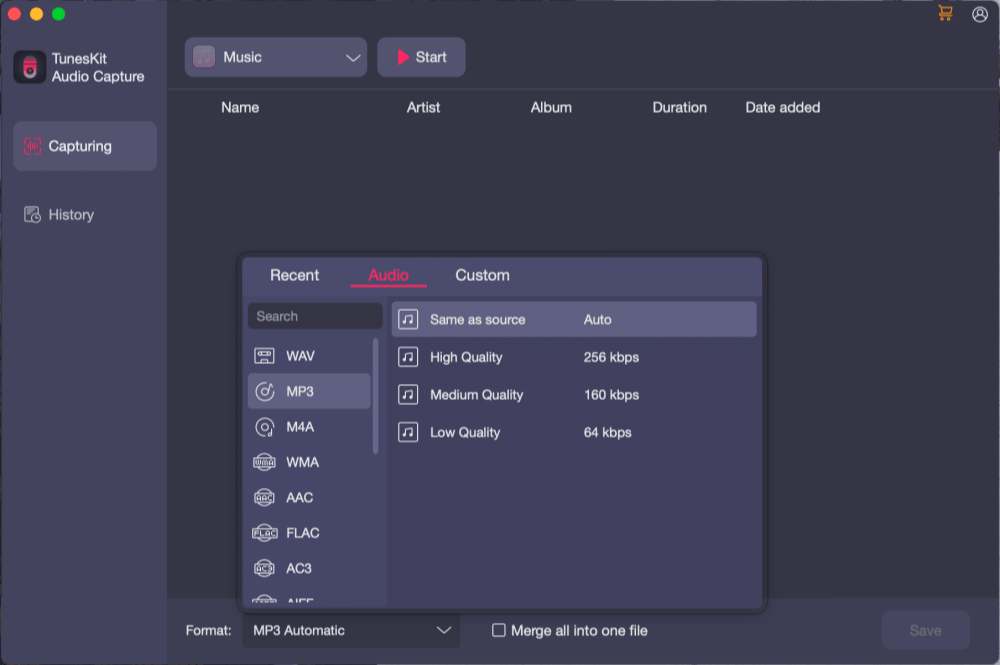
Step 2. Before recording, you can select your preferred output format and audio quality based on your needs.
Step 3. Click "Start", and a window showing the free trial limits will appear. Here you can choose to buy it now or try it for free.
Step 4. The Apple Music app will automatically open, and you need to manually play the track you want to save. TunesKit detects the audio and starts recording. The process runs in real time, meaning the recording duration matches the track length. After the song finishes (or whenever you choose), click "Stop" to end the recording.
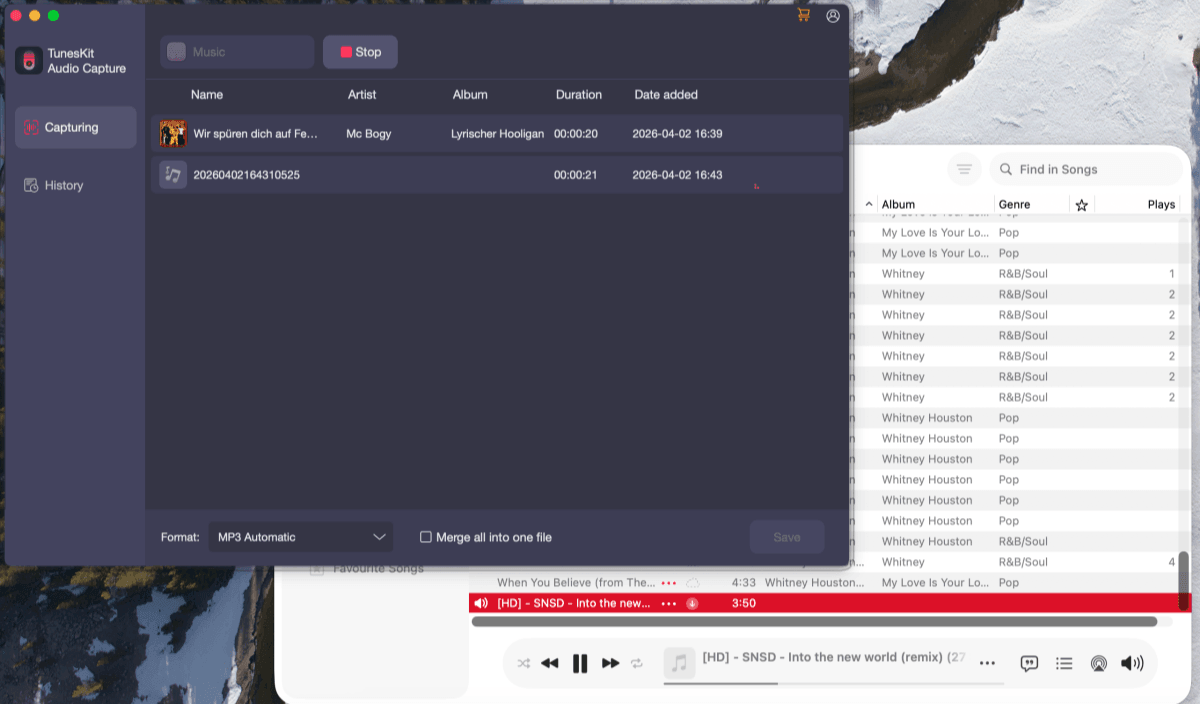
Step 5. After recording stops, the audio appears in the "Capturing" panel. Here, TunesKit automatically detects and fills in ID3 tags like title, artist, and album, which helps organize your files and also renames the file.
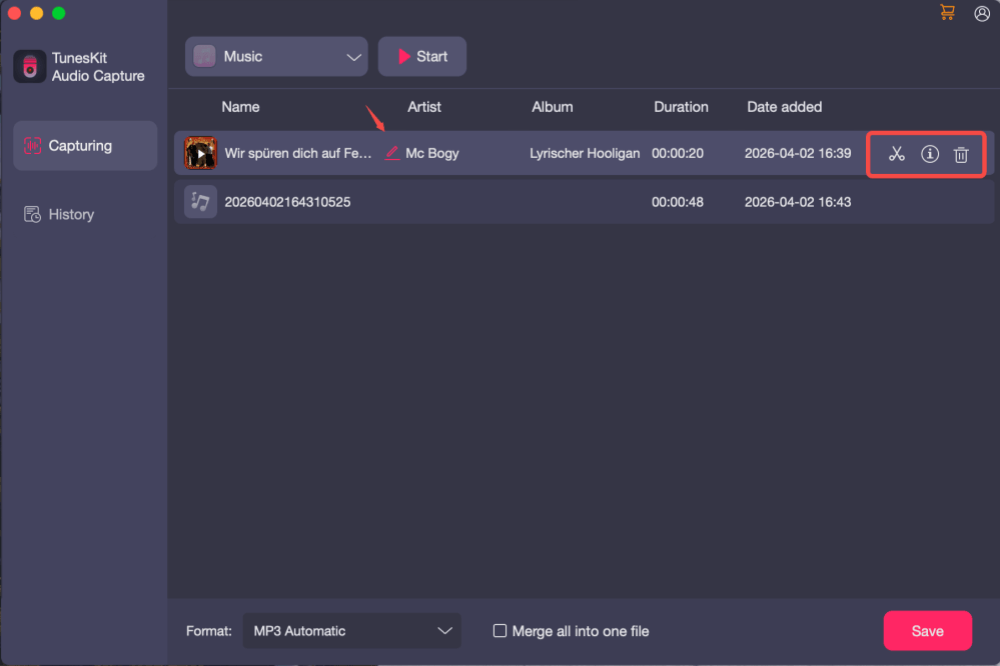
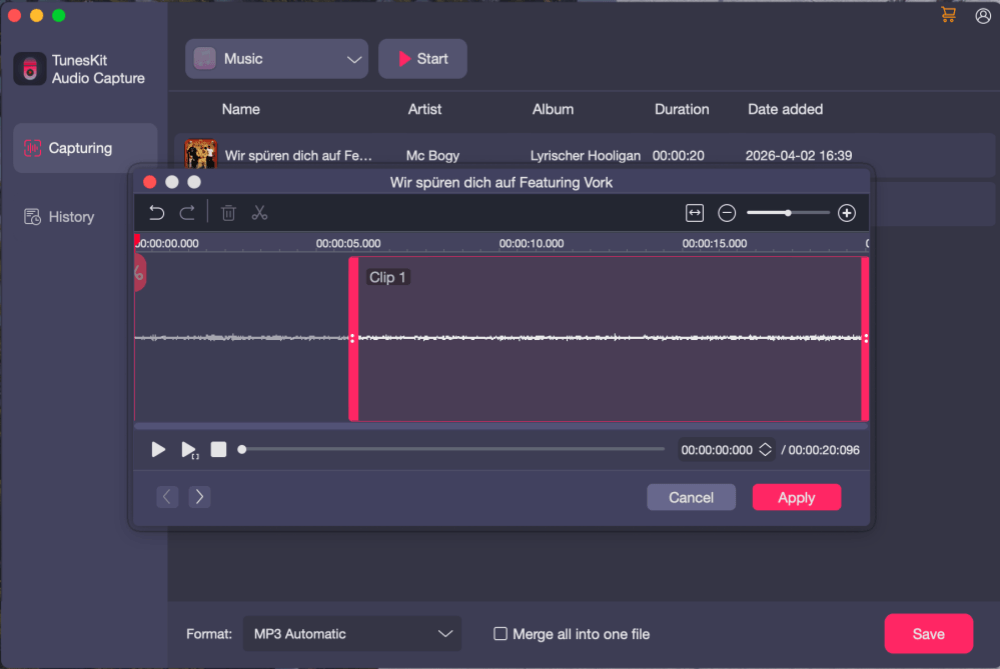
What's more, on its menu bar, you can also use the built-in "Trim" function for basic editing.
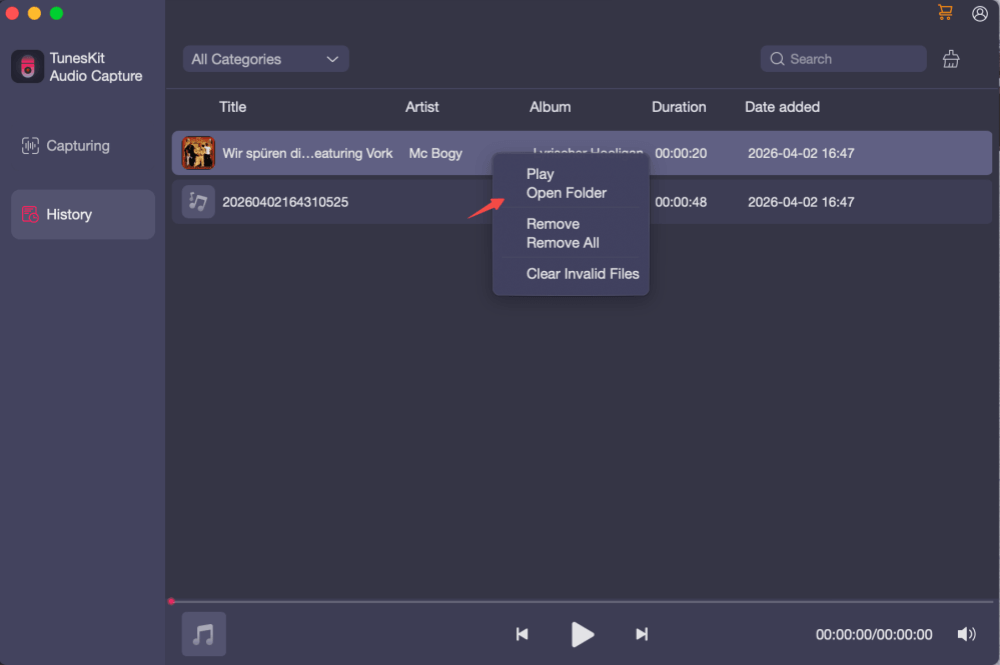
Step 6. Click "Save" after your editing, and the recording will be moved to the "History" section. From there, you can play the file immediately or open the folder to locate it on your computer.
Overall, while the recording-based workflow requires a bit more manual involvement upfront, the post-recording experience is clean and user-friendly, making it easy to manage and access your saved audio.
One macOS Issue You Should Know Before Testing
There's one small thing I ran into that's worth mentioning, especially for Mac users.
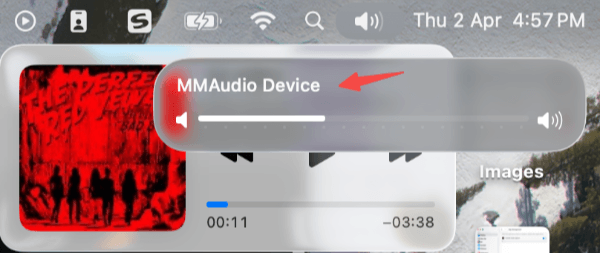
After quitting TunesKit, my system audio output stayed set to "MMAudio Device" (the virtual device used for recording). As a result, when I tried to play music normally through my speakers or headphones, the sound didn't behave as expected.
The fix is simple: just go to System Settings > Sound and switch the output back to your usual device. This isn't a major issue, but actually quite common with audio capture tools. But if you're not expecting it, it can feel a bit confusing at first.
Where TunesKit Works Well and Falls Short for Apple Music Users
After testing TunesKit with Apple Music, it becomes clear that the tool isn't simply good or bad. It does a few things quite well, but its core design also limits its suitability as a full Apple Music converter.
Where TunesKit Works Well
From a usability standpoint, TunesKit is actually quite approachable, especially if you're new to audio tools.
The interface is clean and not overloaded with options. Once you understand the basic idea of selecting a source and recording audio, the overall workflow is fairly intuitive, making it easy to get started without a steep learning curve.
- Beginner-friendly workflow: simple capture and recording process with minimal setup
- Automatic ID3 tag recognition: detects and fills in song info after recording
- Basic editing tools built in: rename files, trim audio, and adjust metadata
- Flexible beyond Apple Music: can capture audio from browsers, media players, and more
Overall, if your goal is to occasionally save a few tracks or capture audio from different sources, TunesKit can be a practical and easy-to-use option.

Where TunesKit Falls Short for Apple Music Users
At the same time, several limitations become more noticeable when you evaluate TunesKit specifically as an Apple Music converter.
- Real-time recording only: every track must be played and recorded at normal speed
- Limited free trial: only the first minute can be recorded, making full testing difficult
- Extra setup on macOS: permissions and audio output adjustments add friction
- Not ideal for batch conversion: inefficient for playlists and full albums
In practice, this means that while TunesKit works fine for occasional use, it's less suitable for users who want a faster, more scalable way to convert Apple Music libraries. That said, it simply means its strengths lie in occasional recording rather than large-scale music conversion.
A Wiser Alternative for Apple Music: TuneFab Music Converter
If you've read this far, you've probably realized that while TunesKit can work with Apple Music, it doesn't behave like what most users expect from a "converter". Instead of directly processing tracks, it relies on recording, which naturally affects speed, batch handling, and overall efficiency.
For users searching for a real Apple Music converter, the goal is often to find a tool that can handle Apple Music more directly, especially when dealing with playlists, albums, or long-term offline libraries. In that context, a dedicated solution like TuneFab Apple Music Converter aligns more closely with that expectation, offering a workflow that feels much closer to a true conversion process rather than manual recording.
100% Secure
100% Secure
Compared to recording-based tools, TuneFab follows a more straightforward and scalable process.
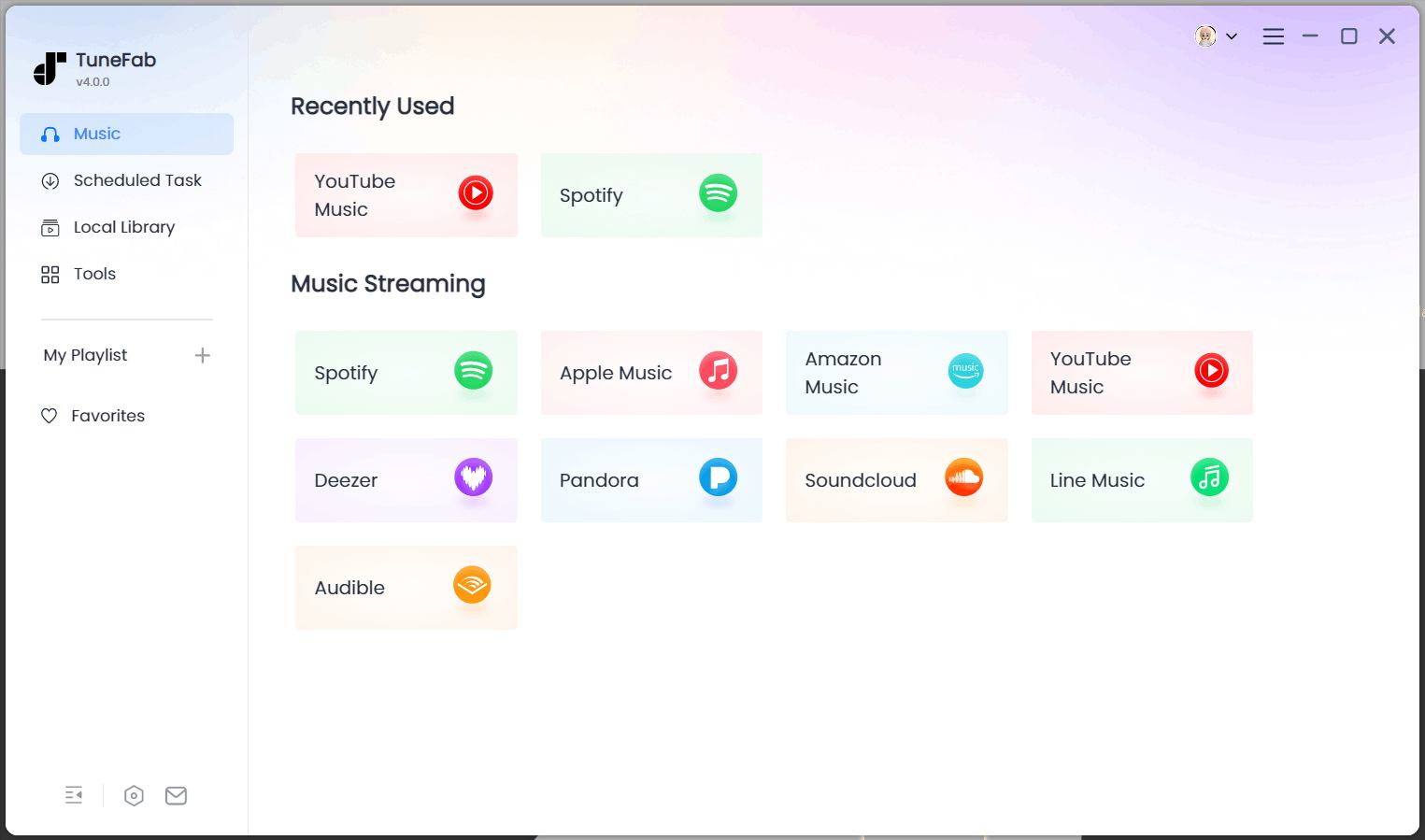
Step 1. Launch the program and access the built-in Apple Music web player, then log in to your account directly within the app.
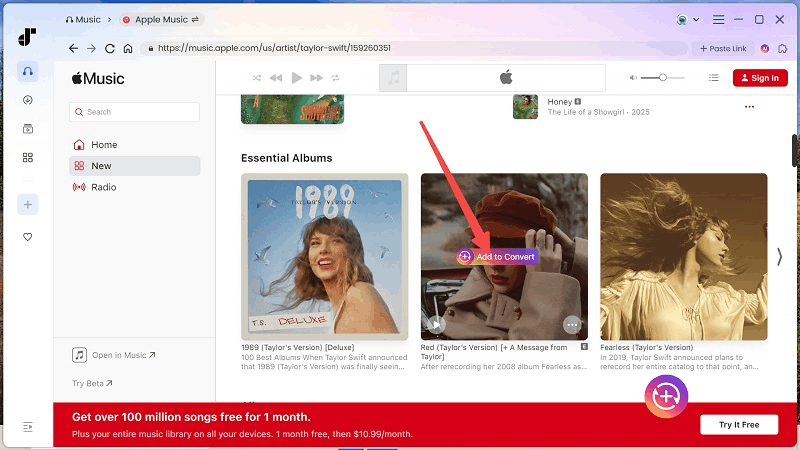
Step 2. Browse your library and add multiple tracks, or entire playlists and albums, to the queue in one go.
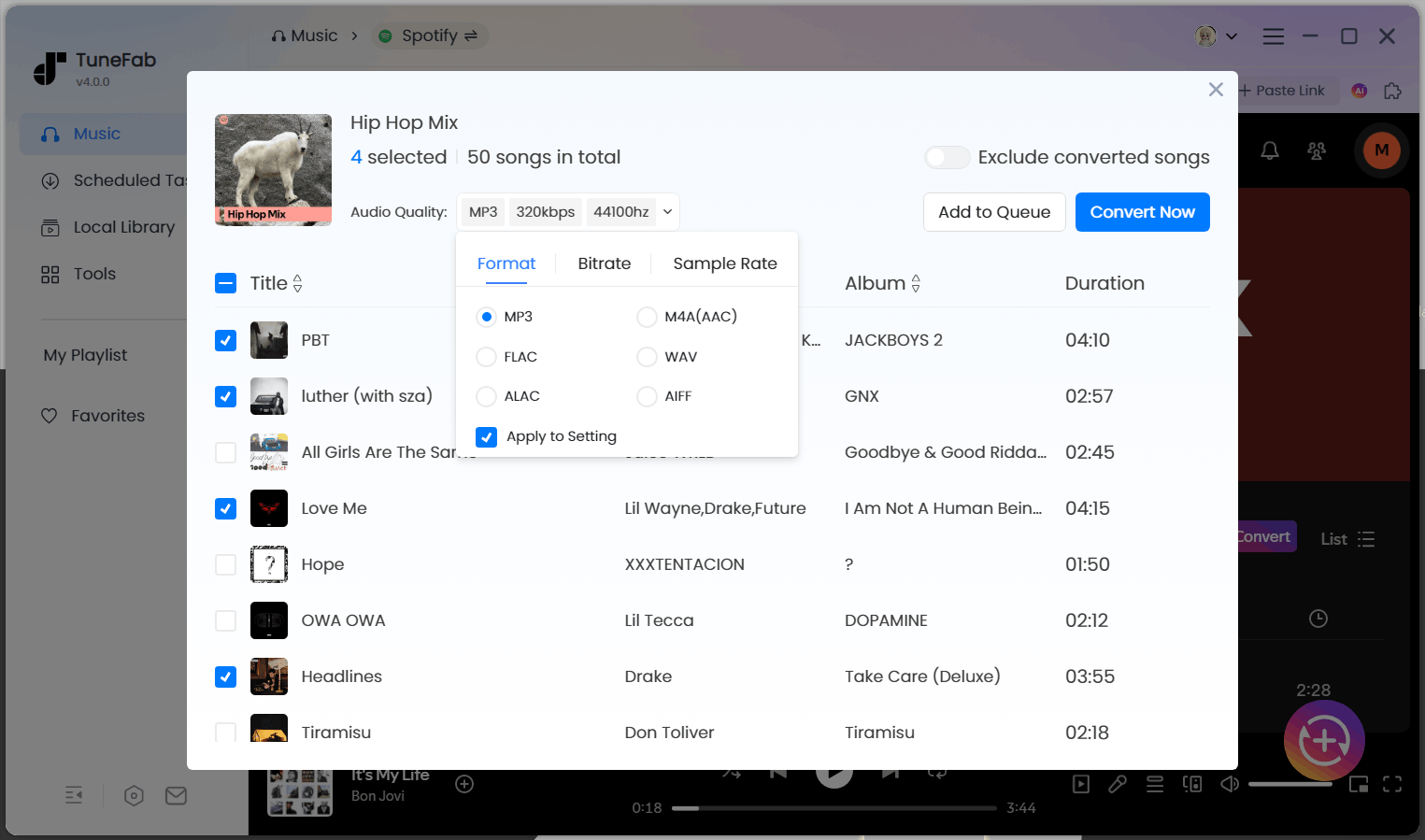
Step 3. Select your preferred format and audio quality, then click "Convert Now". The tool processes multiple tracks efficiently, without relying on real-time playback.
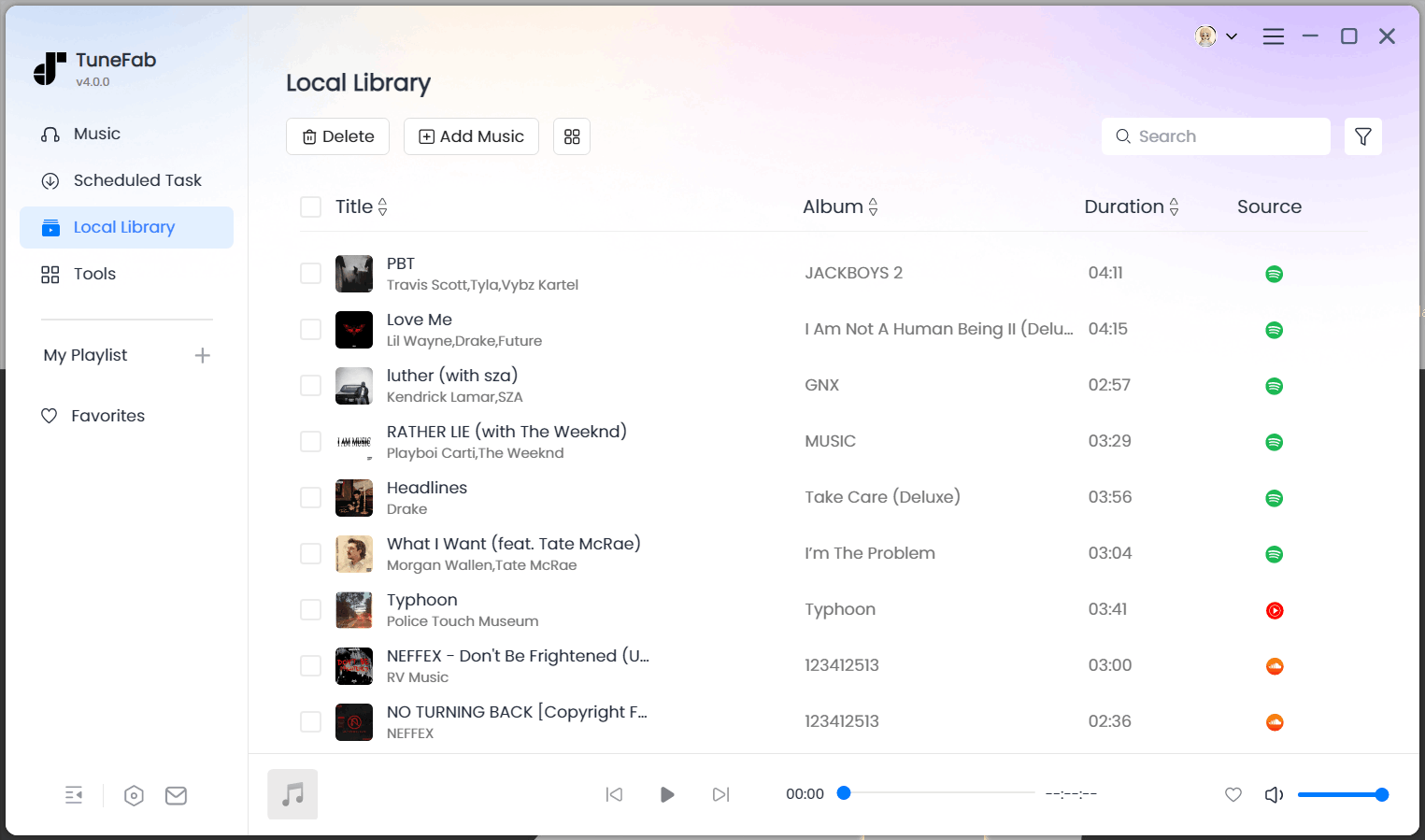
Step 4. Once finished, all files appear in the Library tab. From there, you can play them instantly or locate them in your local folder for further use.
Final Verdict: Can TunesKit Suit Your Needs or Not?
In practice, whether TunesKit suits your needs comes down to what you expect from an Apple Music converter.
If you're only looking to capture a few songs occasionally or need a flexible tool that can record audio from different sources, TunesKit can still get the job done. Its workflow is simple once set up, and the built-in tagging and editing features make it usable for light, one-off tasks.
However, if your goal is closer to what most users actually mean when searching for an Apple Music converter review, such as saving playlists, albums, or building a long-term offline music library, then a dedicated tool like TuneFab Apple Music Converter offers a more practical and efficient experience. Instead of recording each track in real time, it provides a more direct, batch-oriented workflow that reduces both time and manual effort.
| Feature | TunesKit Audio Capture | TuneFab Apple Music Converter |
| Core Method | Audio recording (real-time capture) | Direct conversion via built-in player |
| Conversion Speed | 1× (real-time) | Faster batch processing |
| Batch Conversion | ❌ Not supported | ✅ Playlists & albums supported |
| Workflow | Play → Record → Stop → Save | Add → Convert → Access files |
| Free Trial | 1-minute recording limit | Full-track trial available |
| Setup Experience | Requires permissions & audio setup | More streamlined in-app process |
| Best For | Occasional audio capture | Efficient Apple Music conversion |
Ultimately, TunesKit works best as a general-purpose audio capture tool, while TuneFab is better aligned with users who want a true Apple Music converter experience. Choosing between them depends less on which tool is better and more on which workflow matches your actual needs.
FAQs About TunesKit Apple Music Converter
Is TunesKit Audio Capture safe to use?
In general, TunesKit Audio Capture is safe to use when downloaded from its official website. It doesn’t contain malware and performs as expected for audio recording tasks. However, since it requires system permissions (especially on macOS) to capture audio, users should still follow basic safety practices—such as downloading from trusted sources and avoiding unofficial or cracked versions.
Can I use TunesKit for free?
TunesKit offers a free trial, but it comes with noticeable limitations. The trial version only allows you to record the first minute of each track, which makes it difficult to fully test the output quality or overall workflow. To unlock full functionality, including complete track recording, you’ll need to upgrade to a paid plan.
Can TunesKit convert Apple Music to MP3?
TunesKit can save Apple Music as MP3 files, but it does so by recording the audio rather than directly converting it. This means the process relies on real-time playback, which can be slower and less efficient compared to tools that support direct batch conversion. It works fine for individual tracks, but may feel less practical for larger playlists or albums.

TuneFab Apple Music Converter
One click to remove DRM from Apple Music without quality loss.

