


Amazon Music offline playback can be convenient on mobile devices, as you only need to install the official app and subscribe to Amazon Music's membership, and then you are able to access the resources and download Amazon Music only by tapping your fingers. However, for Mac users, you may wonder if the download function is also available. If not, how can we download and play Amazon Music on Mac?
Fortunately, playing Amazon Music offline on Mac is not a difficult job as there are several methods working to help! In the following, let's check all 3 easy ways and select the most convenient one to download Amazon Music to Mac immediately!
Method 1. Download Music on the Amazon Music Application for Mac
The first and most direct way to download Amazon Music to Mac is by using the official Amazon Music app for Mac. Although Amazon has removed the app from the App Store, you can still download and install it directly from Amazon Music's official website. However, pay attention that you need to be a subscriber of Amazon Music Prime, Unlimited, or have purchased single songs on the Amazon platform in advance. Otherwise, the download function is not available.
Note: If the Amazon Music app is not compatible with your latest macOS system versions, turn to this page to purchase Amazon Music for Mac (don't worry as it is free to get), then you can install it and access the offline playback function as well.
Now, you can continue reading the tutorial below and follow step by step to download Amazon Music to Mac, and then have a more convenient offline playback experience.
Step 1. To begin with, install the official Amazon Music app on your Mac computer.
Step 2. Open the app after installation, and then sign in with your account (with an Amazon Music subscription activated).
Step 3. Now, search for the songs or playlists you like in the app. Once access them, just click the provided download buttons next to the songs or on the playlist page, then they will be saved offline.
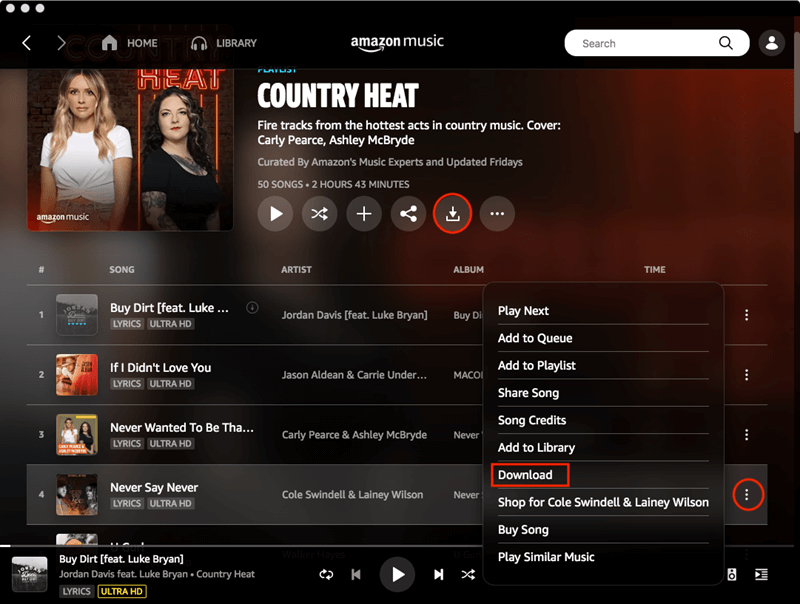
When the download completes, you can play the songs offline even when there is no Internet connection!
Note: The downloaded songs can only be played within the Amazon Music app because of DRM protection. You can't move them outside the app and play them with any other media player at all.
Method 2. Download Amazon Music to Mac in MP3/FLAC Freely
Directly using the official download function is convenient. However, the download limits can also be a trouble to offline playback on Mac - for example, you can only access the downloads within the official app, and they will all be deleted once your membership subscription is over.
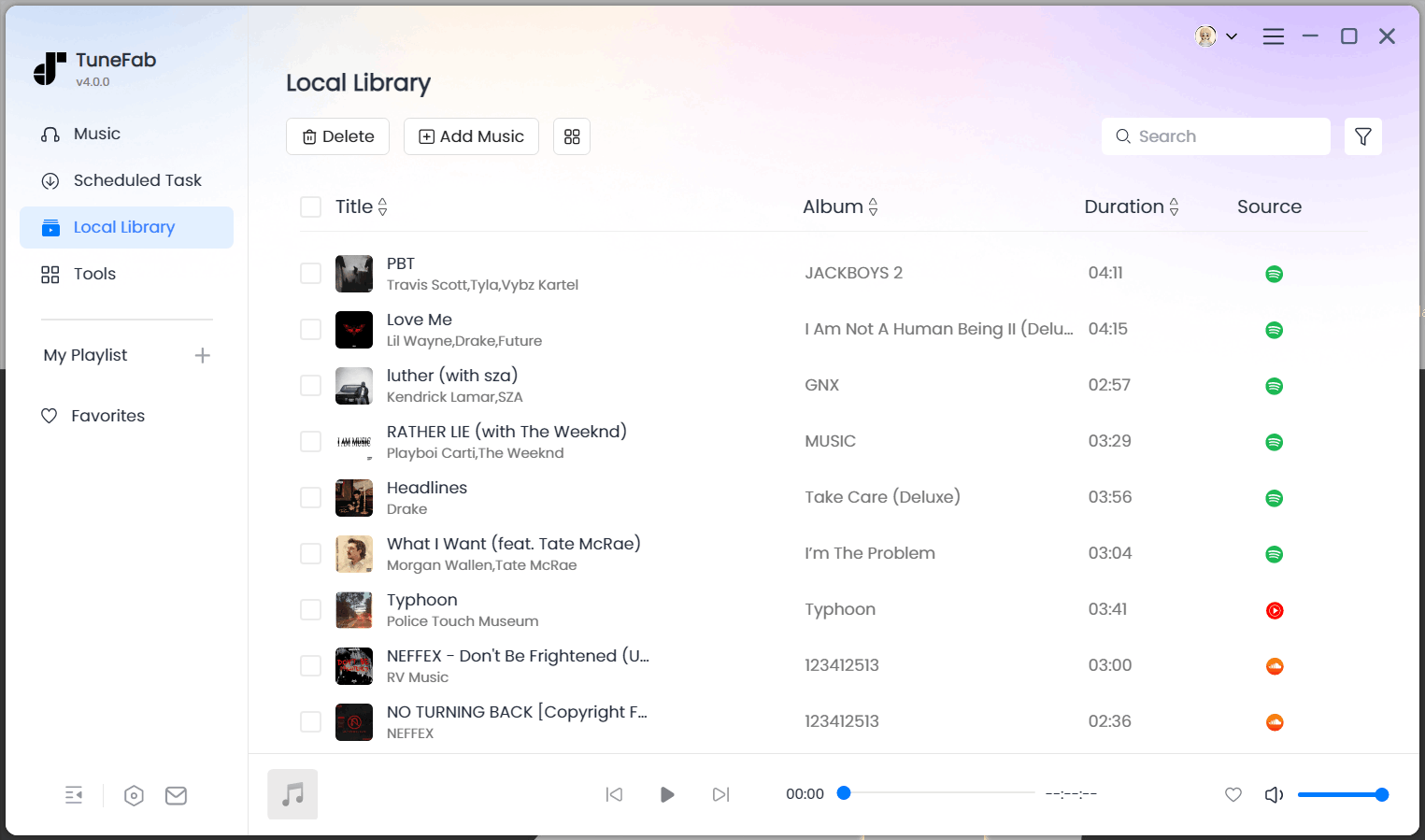
If you want to download Amazon Music to computers like on Mac and Windows for keeping forever, play them more flexibly, or even use them as alarms without limitations, it is a good idea to output them offline in common audio formats like MP3 or FLAC. Here, TuneFab Amazon Music Converter is the tool you can surely try.
TuneFab Amazon Music Converter directly adds the embedded Amazon online web player inside itself, allowing you to access the official library and then choose the songs or playlists you like to download immediately. It provides common formats that can be supported on Mac and most Mac media players, including MP3, FLAC, M4A, and so on to output Amazon Music downloads. Besides, the output quality will be maintained at the best condition to ensure an enjoyable playback experience using Mac's advanced audio system!
Key Features:
- Directly sign in to the Amazon Music player to download all songs and playlists without limitations
- Provides widely supported audio formats such as MP3, M4A, FALC, and others to save music downloads
- Keeps lossless quality at up to 320Kbps and 48kHz to output Amazon Music files
- Speeds up the batch downloading speed to at least 35X faster and saves your time
- Keeps ID3 information for all music downloads to help you manage the offline files more conveniently
Now, also read the tutorial guide and use TuneFab Amazon Music Converter to download Amazon Music to Mac with just a few clicks:
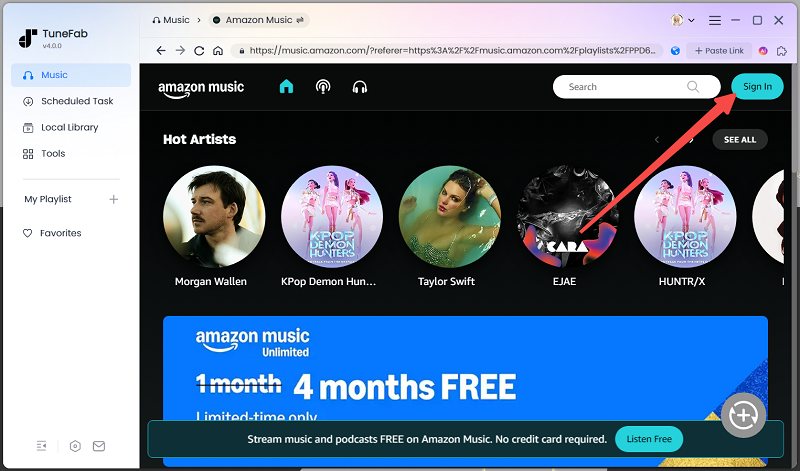
Step 1. Sign in to Amazon Music Player
Once you have installed TuneFab Amazon Music Converter on your Mac computer, open it and select the Amazon Music platform to sign in. Then you can access its built-in web player and select songs.
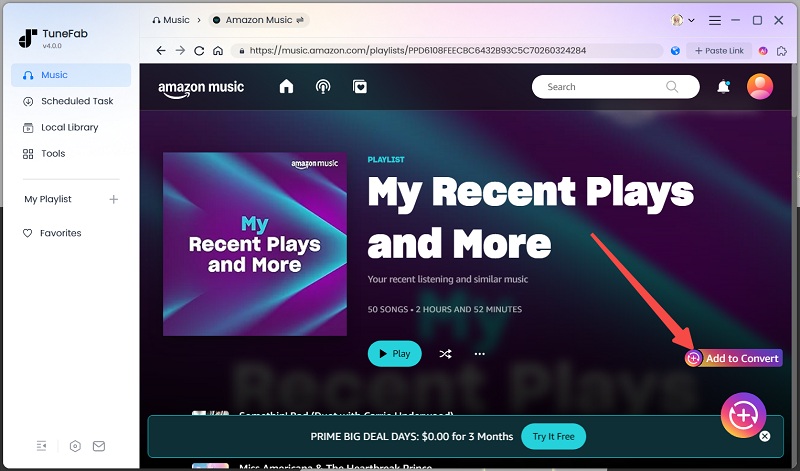
Step 2. Add Amazon Music Songs to Download
In the web player, simply search for your favorite songs or playlists you'd like to download and play or use offline on Mac. To add them to the conversion list, you can tap the "Add to the conversion list" button or directly drag them to the converting window on the right side.
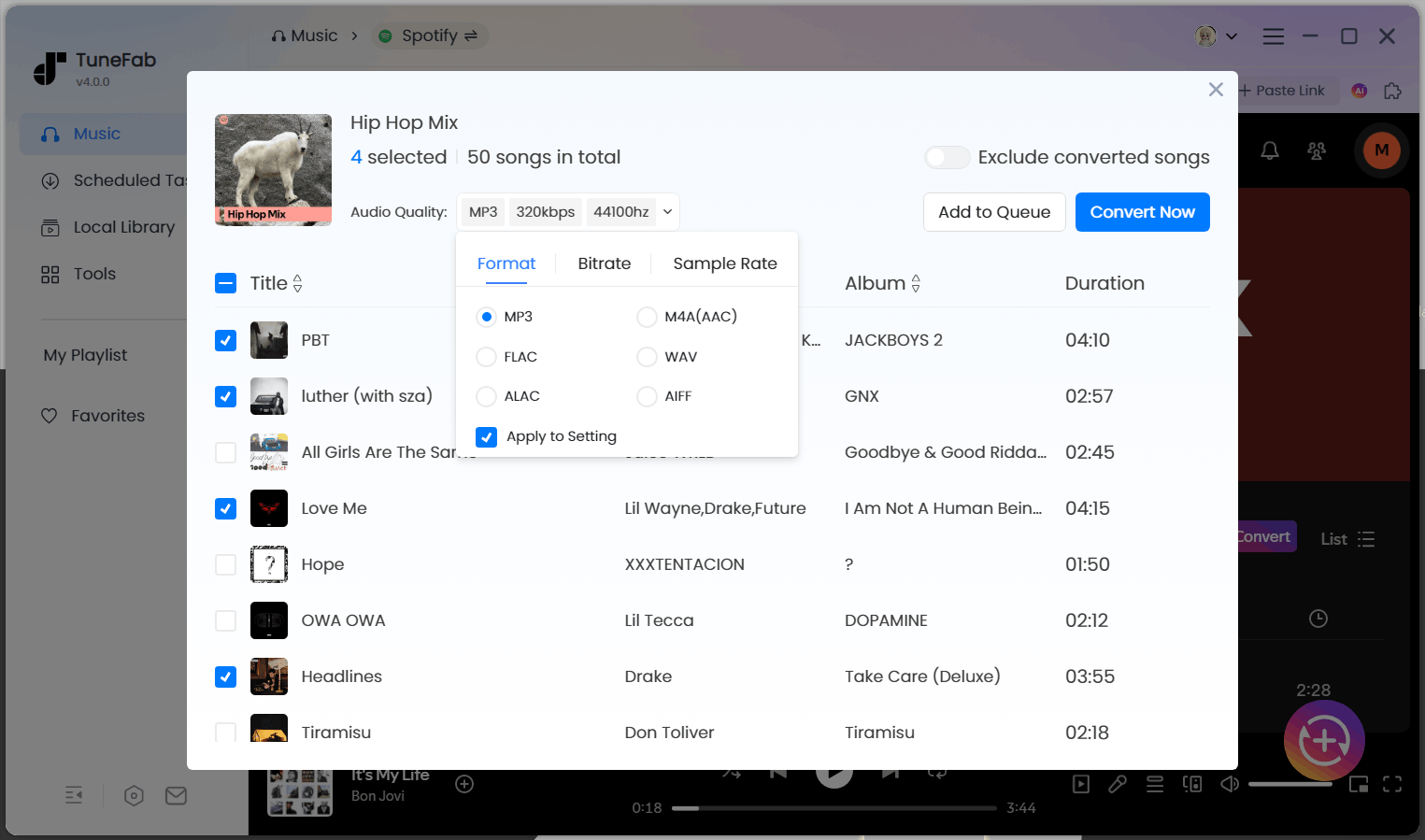
Step 3. Select Output Format and Quality
When you have added Amazon Music songs to the conversion list, in the "Converting" window, you can directly choose the output format and quality for them before downloading. You are recommended to choose MP3 (the most widely supported format) or FLAC (the one that can keep lossless audio quality) to save your Amazon Music downloads.
Step 4. Download Amazon Music to Mac Offline
When the settings are also done, simply click the "Convert All" button to download the songs immediately! Once finished, you can access the local files and play Amazon Music offline on Mac with any installed media player freely!
Method 3. Download Purchased Amazon Music on Mac
Except for its convenient streaming services, Amazon also allows users to buy individual songs and albums in MP3 format. Once purchased, these tracks are DRM-free and can be downloaded directly to your Mac. This method is best for those who prefer owning their music permanently. So if you get some purchased Amazon Music in your library, you don't need to install any extra software but can directly download Amazon Music to MP3 files on Mac now! See the steps below to do it properly:
Step 1. Firstly, go to Amazon Digital Music Store in a web browser and also sign in to your Amazon account.
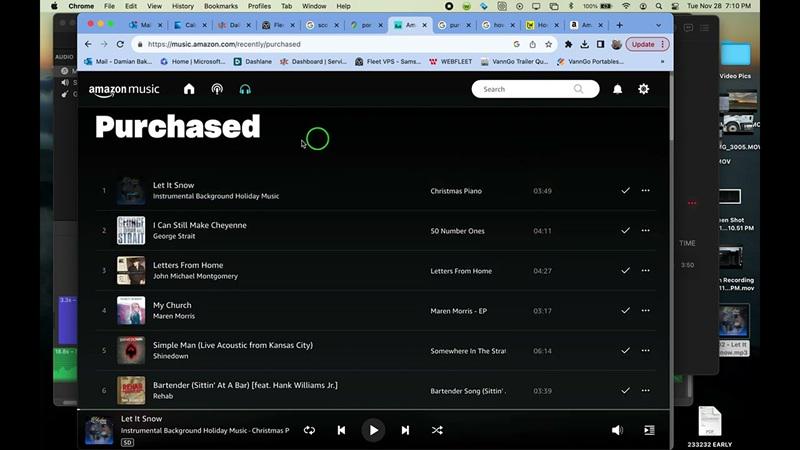
Step 2. Once you purchase an Amazon song or album, go to "Library" and then switch to the "Purchased" section.
Step 3. Find the purchased songs on the list and tap the "Download" buttons next to them, then they will be downloaded on your Mac as common MP3 files immediately.
But for sure, purchasing single songs can be much more expensive than subscribing to the streaming service, especially when you have lots of songs to download offline.
Conclusion
To download Amazon Music to MP3, no matter for the streaming resources or purchased media items, you can find the appropriate methods to get them offline in MP3 or other common audio formats easily in this tutorial. Taking use of TuneFab Amazon Music Converter can surely save much of your time and effort, and ensure the best offline playback experience. Now, freely install it and have a try!

