


You may be wondering if you can directly convert Spotify to AIFF for high-fidelity offline playback. Unfortunately, the answer is no. Spotify streams are stored in a protected Ogg Vorbis or FLAC format, which allows in-app playing only. This is why many users turn to third-party solutions.
To find the best solution, we tested multiple converters in 2026. In the following, you can find the detailed steps on how to download Spotify songs as AIFF for unrestricted offline use.
Quick Summary:
Although Spotify's Ogg Vorbis format makes it challenging to save Spotify music to AIFF, there is a workaround. The process can be:
1. Download and launch the trustworthy Spotify music converter to AIFF on your PC/Mac.
2. Select the song, playlist, or album from Spotify, and add it to the conversion queue.
3. Choose AIFF as the output format. Then, start Spotify to AIFF lossless conversion with ease.
What Is AIFF Format? Why Convert Spotify to AIFF?
AIFF (Audio Interchange File Format) is a lossless, uncompressed audio format originally developed by Apple. Unlike MP3 or AAC, AIFF preserves full audio data without compression, making it ideal for studio-grade sound quality.
So, why do people want to export Spotify music to AIFF format?
While Spotify rolled out the Spotify Lossless feature for a high-fidelity listening experience, it is for Premium users only. Moreover, when Spotify songs are all encrypted by DRM technology, there can be limitations in streaming and downloading them for offline playback, professional editing, or permanent access beyond the Spotify app.
In these cases, converting Spotify songs to AIFF helps overcome many of these limitations. This also makes it the preferred choice for:
- Audiophiles: Who demand the purest sound quality.
- DJing: Compatible with professional software like Serato and Traktor.
- Editing: Seamless performance in Logic Pro or Final Cut Pro.
Note.
Because AIFF is uncompressed, file sizes are significantly larger. If you prefer smaller file sizes or broader compatibility, formats like MP3 or M4A may be more practical. Check out the tutorials:
Best Way to Save Spotify Music to AIFF Format
Finding a reliable and safe Spotify to AIFF converter was far more challenging than we expected. While countless tools claim to get the job done, our team spent two weeks testing over 50 options and only a handful actually lived up to their promises. After evaluating each tool based on output quality, conversion efficiency, device compatibility, security, and ease of use, we finally narrowed down the few options truly worth considering.
TuneFab Spotify Music Converter is our top pick. Available for both Windows and Mac, this tool integrates an advanced decoding engine that can easily extract music from Spotify to AIFF or other mainstream formats like MP3, FLAC, and WAV. This can effectively save your curated playlists as high-quality local audio files for permanent offline backup.
It is worth mentioning that TuenFab works with Spotify Free and Premium accounts. Moreover, it performs well for Spotify playlist to AIFF batch conversion. In our latest testing, it can preserve the original quality and retain full ID3 tags, ensuring you the optimal offline listening experience anywhere. If you look for the best Spotify music converter for AIFF, then TuneFab is a feasible option.
Highlights of TuneFab Spotify Music Converter
- Handle AIFF conversion losslessly in the built-in Spotify web player.
- Download all Spotify songs, playlists, and podcasts without restrictions on PC/Mac.
- Support converting Spotify music to AIFF, MP3, M4A, WAV, and FLAC to fit any device or player.
- Automatically retain original ID3 tags and metadata for seamless offline library management.
- Batch download Spotify playlists to AIFF at 35X faster speed efficiently.
Plus, TuneFab is easy to use for anyone. Now, you are also able to grasp the brief guide to get AIFF audio from Spotify songs quickly.
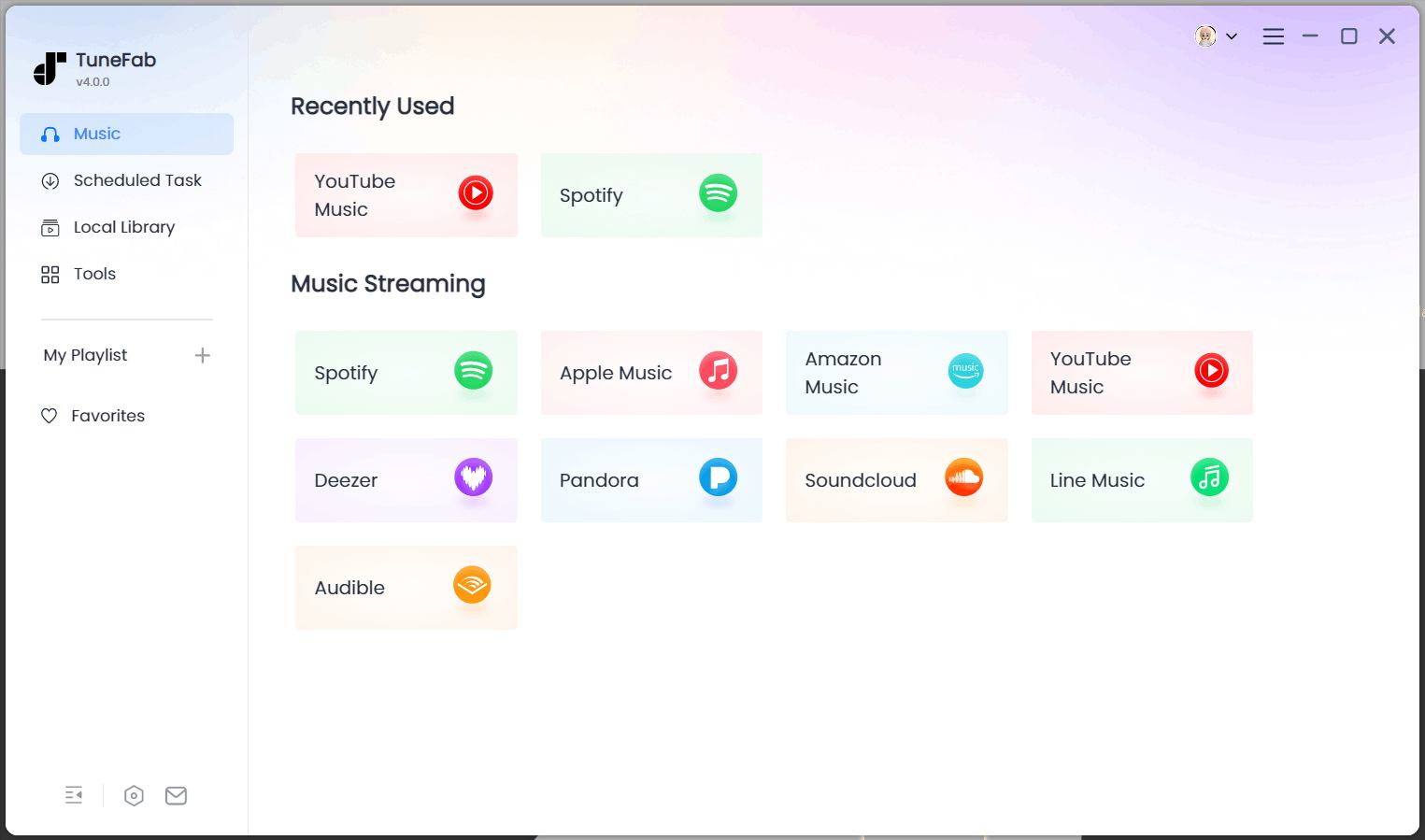
STEP 1. Set up Converter
Install TuneFab Spotify Music Converter and launch the software. From the main interface, open the built-in Spotify web player and log in via your Spotify account (the Spotify Free account is possible).
STEP 2. Select and Add Spotify Songs and Playlists
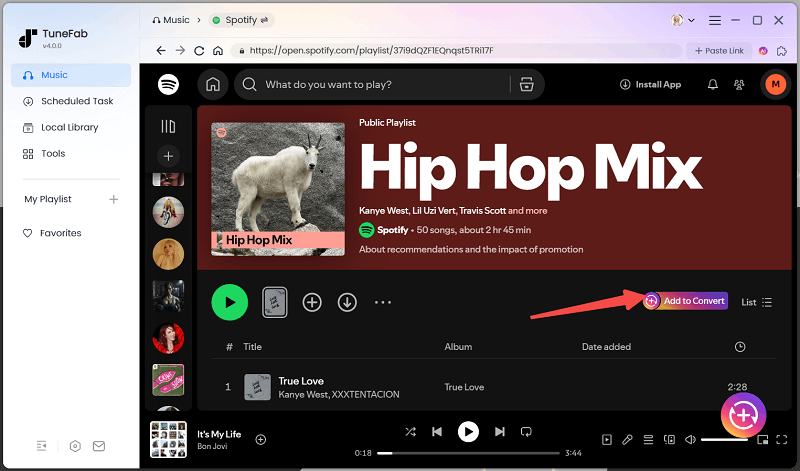
Browse the library and select songs and playlists you’d like to download offline in AIFF format. Then click the "Add (to Convert)" button or the floating "+" icon to fetch music information.
STEP 3. Configure AIFF as Output Format
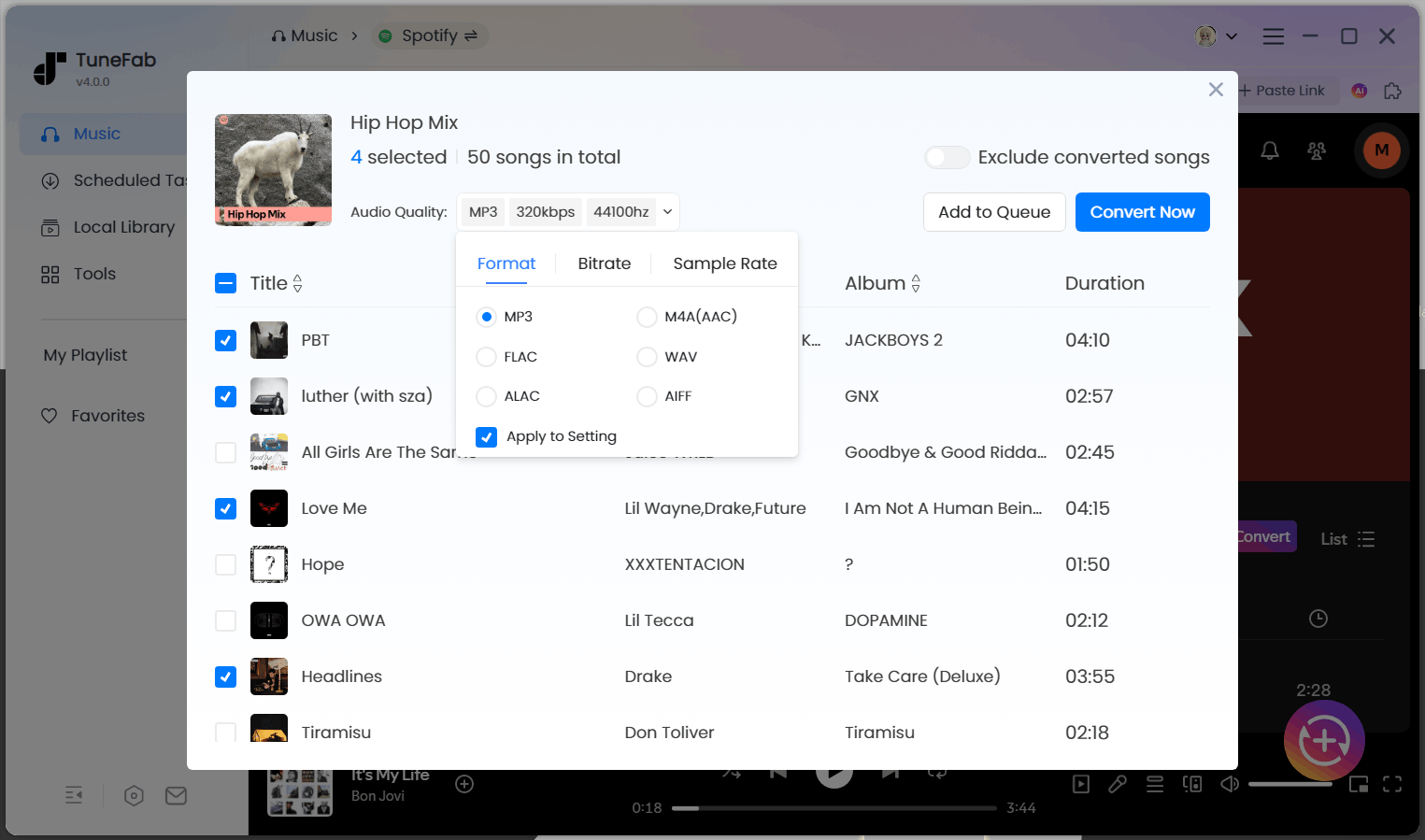
In the converting window, you are able to adjust the output parameters here, such as the output format (AIFF), bitrate, and sample rate, as you desire.
STEP 4. Start Saving Spotify Music to AIFF
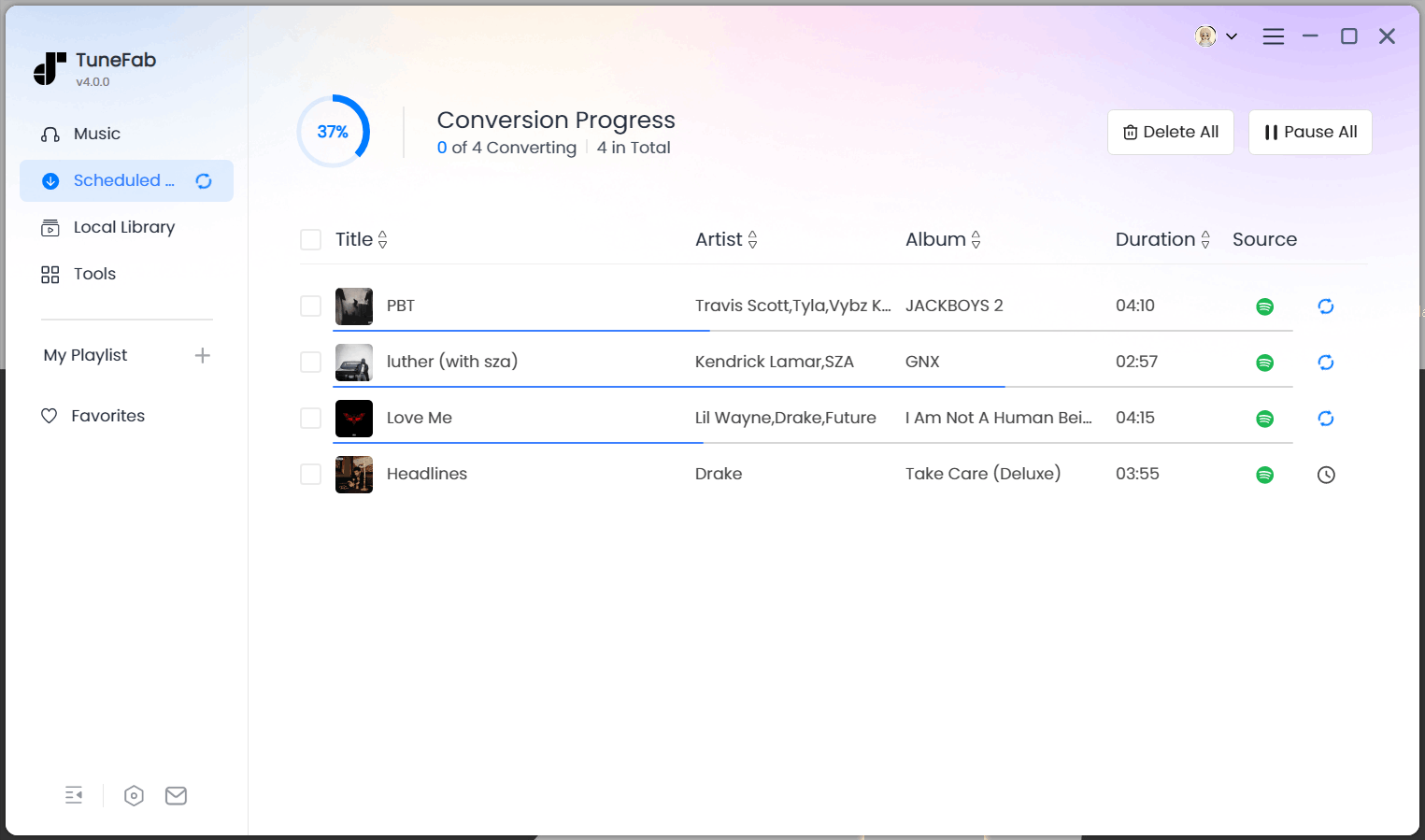
Click the "Convert Now" button. TuneFab will immediately process the batch conversion of Spotify to AIFF for you in one go. Wait for a short moment, and you can find all the successful downloads in the "Local Library" tab. You can then listen to them offline anywhere or even import the AIFF files to iTunes/Apple Music for effortless playback.
Are There Other Spotify to AIFF Converters Available?
Apart from the professional TuneFab Spotify Music Converter, you might also wonder if there are other ways to convert Spotify music to AIFF for free. spotDL and Audacity are viable options based on our testing. However, their trade-offs may make them less competitive.
Download Spotify Songs to AIFF via spotDL
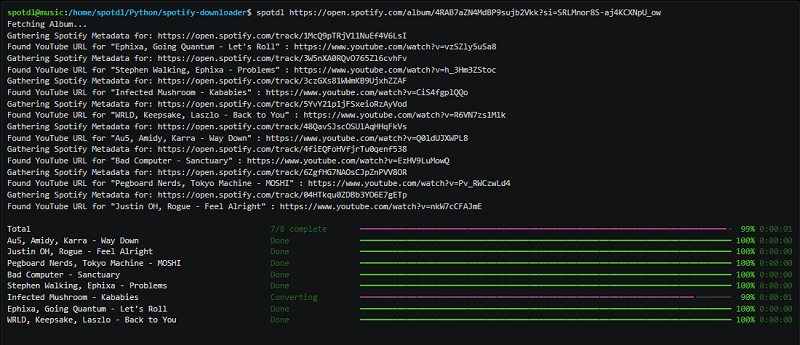
For tech-savvy users looking for a converter free solution, spotDL on GitHub is a popular open-source tool worth mentioning. It can extract music from Spotify content to AIFF by fetching the audio metadata and finding the matching track from YouTube.
Here is how to download Spotify songs as AIFF using spotDL:
STEP 1. Install Python, FFmpeg, and SpotDL on your Windows or Mac computer.
STEP 2. Open Command Prompt on Windows or Terminal on Mac. Then, run the line: pip install spotdl, to finish installation.
STEP 3. Copy the URL of the Spotify song, album, or playlist you want to download.
STEP 4. Type spotdl (Spotify Link) --format aiff in the terminal and press Enter to start the process. Wait for SpotDL to fetch and convert matching tracks for offline playback.
👍 What We Like:
- Free and open-source.
- Supports downloading entire Spotify playlists.
- Preserves basic ID3 tags and metadata.
- Offers a highly flexible and customizable download process.
👎 What We Don't Like:
- The command-line interface can feel complicated.
- Require a steeper learning curve.
- Rely on YouTube as an audio source, leading to low output quality.
Record AIFF Spotify Files via Audacity for Free
Another flexible way to convert Spotify to AIFF for free is to use a recorder. Audacity is an open-source recorder that lets you record Spotify playback manually and export Spotify songs to AIFF in uncompressed format. Unlike some dedicated tools, Audacity gives you full control over recording either specific segments or entire tracks.
In the following, see how to use Audacity’s recording function to save Spotify music to AIFF:
STEP 1. Launch Audacity on the desktop. Then, adjust the recording settings, such as the audio volume, in the menu as you desire.
STEP 2. Play the Spotify song and then tap the REC button in Audacity to capture it.
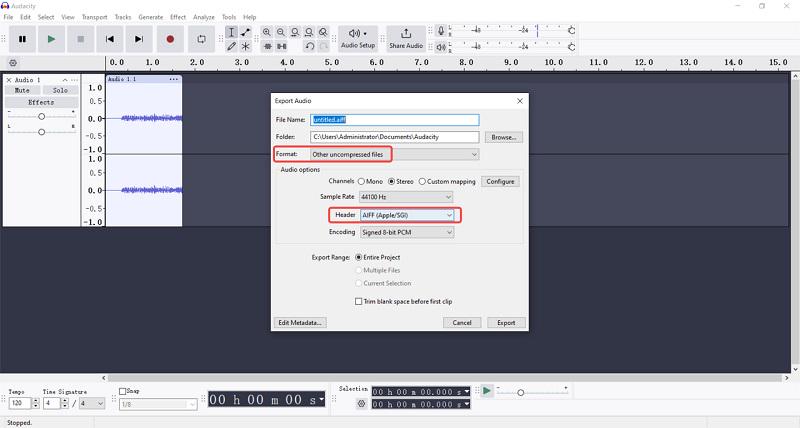
STEP 3. Once the recording is over, click "Stop" and select "File" > "Export" "Other uncompressed Files" and save the lossless AIFF Spotify songs right away!
👍 What We Like:
- Completely free with audio editing features.
- Great for recording specific song segments or loops for DJing.
- Works on Mac and Windows.
👎 What We Don't Like:
- Real-time recording is slow.
- No support for Spotify playlist to AIFF in one go.
- Cannot fully retain music metadata and ID3 tags after conversion.
FAQs About Spotify to AIFF
Is it legal to convert Spotify music to AIFF?
Generally speaking, converting Spotify songs to AIFF breaks Spotify’s Terms of Service. However, if you use converted files for offline listening or personal backup, this typically falls under fair use or personal use exceptions in many regions. In other words, distributing, selling, or using converted Spotify music for commercial purposes is definitely illegal. To stay in the safe zone, please always review your local law and Spotify's Terms of Service beforehand.
Can you convert Spotify to AIFF lossless online for free?
No. True lossless audio conversion from Spotify requires decrypting the Ogg Vorbis stream and then saving it as an uncompressed AIFF file. Based on our actual test, most of the so-called online converter free options can only output the MP3 format. Therefore, desktop Spotify Music Converter tools like TuneFab remain ideal.
AIFF vs WAV vs FLAC: which is better for Spotify?
This can be tough to decide, as all three formats are lossless or uncompressed. Below is a detailed comparison to help you choose whether to save Spotify songs in AIFF, WAV, or FLAC.
| Feature | AIFF | WAV | FLAC |
| Full Name | Audio Interchange File Format | Waveform Audio File Format | Free Lossless Audio Codec |
| Developer | Apple | Microsoft & IBM | Xiph.Org Foundation |
| Audio Quality | Lossless (Uncompressed) | Lossless (Uncompressed) | Lossless (Compressed) |
| Compression Type | None | None | Lossless Compression |
| File Size (for 3-min song) | Large (~30-35 MB) | Large (~30-35 MB) | Smaller (~15-20 MB) |
| Metadata Support | Good | Limited | Excellent |
| Platform Compatibility | Best on Apple devices | Broadest across Windows devices | Excellent on modern players, less native on Apple |
| Editing Performance | Excellent | Excellent | Good, but may require decoding first |
| DJ Software Compatibility | High | High | Limited |
In general, the "best" format depends on your workflow and needs.
- Choose AIFF if: You mainly use Apple devices for professional-grade editing/listening or DJing on popular software like rekordbox and Serato.
- Choose WAV if: You use Windows DAWs (Digital Audio Workstation) or need raw, uncompressed audio for sound design without caring about metadata.
👉 Check the related guide: How to Convert Spotify to WAV Losslessly
- Choose FLAC if: You are an audiophile looking at the same lossless quality with smaller file sizes to build a high-quality offline music library on any device.
👉 Check the related guide: How to Convert Spotify Music to FLAC Easily
Conclusion
To convert Spotify music to AIFF lossless for iTunes, Apple Music, or DJing, the key is to choose the right tool. According to our tests, TuneFab Spotify Music Converter stands out as the top recommendation. It offers the most seamless solution for batch Spotify playlist to AIFF conversion without quality loss. Additionally, other popular options like spotDL and Audacity also provide effective ways to convert music from Spotify to AIFF for free. For the right one, try it yourself.

