

 Windows/Mac Users Top
1 Pick
Windows/Mac Users Top
1 Pick 




Although Spotify delivers user-friendly playback controls and lossless music quality to stream songs online, according to Nielsen Music 2025 consumer report, there are still some situations when users need to play music with unstable or unavailable network connections. For example, 71% of users will play Spotify while driving, while 56% of Spotify audiences prefer to access the streaming service while doing sports. For DJs, 74% of them will choose to download Spotify songs in lossless 320Kbps MP3/FLAC for use to perform and mix tapes.
Definitely, Spotify also provides the download feature for Premium subscribers to access the offline music streaming function to avoid cases like these, the download limits like expiration and restrictions to play without the Spotify app can still be problems. Hence, instead of subscribing to Spotify Premium, this review has collected the 12 best Spotify rippers of 2026 for all devices (computers and mobiles included) to convert Spotify to MP3 and audio files of other mainstream formats. Now, let’s dive in and see who they are!
If you want to learn more, press play on the video. It will explain everything.
- What Can Spotify Music Ripper Do for You?
- 6 Best Rippers for Spotify for Windows & Mac
- 3 Best Spotify Music Rippers Online
- 4 Top Spotify Song Rippers for Android/iPhone
- What Should Be Considered When Choosing the Best Spotify Ripper?
- Comparison of the 12 Spotify Rippers
- FAQs About Ripping Music from Spotify
- Conclusion
What Can Spotify Music Ripper Do for You?
Spotify Ripper, apparently, is a music ripper specially designed to extract music from Spotify and recode the music as lossily compressed. With a correct tool, you can:
- Download music off Spotify as MP3 or other formats
- Listen to music not only on the Spotify app but also on other music players
Some excellent rippers like TuneFab Spotify Music Converter can directly rip music from Spotify web player without copying and pasting song URLs with great efficiency and high stability as well as success rate. Moreover, it can also rip Spotify playlists in batches to save time and preserve the original ID3 tags for better management offline. Generally, professional rippers can achieve the features above and you can get from the following part to begin extracting Spotify music.
6 Best Rippers for Spotify for Windows & Mac
Firstly, let’s first go through the 6 top-rating Spotify audio rippers for Windows and Mac desktops. They are all safe to install and contain secure in-app performance to rip songs from Spotify. Let’s begin with the most professional one, TuneFab Spotify Music Converter.
TuneFab Spotify Music Converter (Best for Playlist Ripping)
EDITORS' NOTE: February 23, 2026: TuneFab Spotify Music Converter remains one of the most reliable and professional Spotify rippers for Windows and Mac. It has been thoroughly tested to rip tracks, playlists, albums, and podcasts from Spotify to MP3, M4A, WAV, FLAC, AIFF, AAC, and ALAC without DRM, delivering up to 320 kbps high-quality audio.
Why We Picked It
TuneFab Spotify Music Converter stands out for its built-in Spotify web player, allowing users to rip Spotify songs directly without installing the Spotify app or syncing playlists. Its all-in-one features, high-speed batch conversion, and ID3 tag preservation make it the most versatile ripper for both free and premium users. With up to 35X conversion speed and output options in multiple formats, it covers almost all use cases for offline music enjoyment.
🔎 Spotify Ripping Process
TuneFab Spotify Music Converter delivers one of the most streamlined Spotify ripping experiences we’ve tested. There’s no need to install the Spotify desktop app or deal with syncing issues. During testing, we were able to browse playlists, albums, and podcasts directly inside the software interface and simply drag tracks into the conversion panel.
The parsing process was fast and accurate. Once music was added, TuneFab automatically analyzed track information, preserved full ID3 metadata (including artist, album, and cover art), and prepared files for batch conversion. Even when importing large playlists with dozens of songs, the program remained responsive and stable.
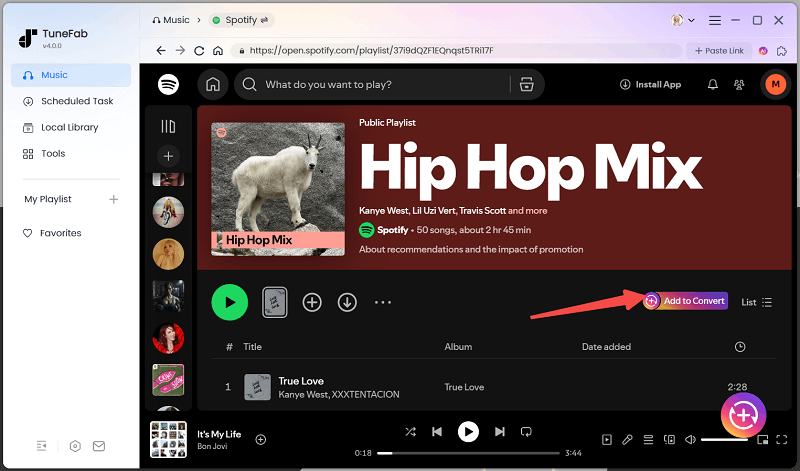
Audio customization is easy to access. Users can quickly adjust output format, bitrate (up to 320 kbps), and sample rate before starting the rip. Applying settings to all tracks takes just one click, which is helpful for maintaining consistent quality across an entire playlist.
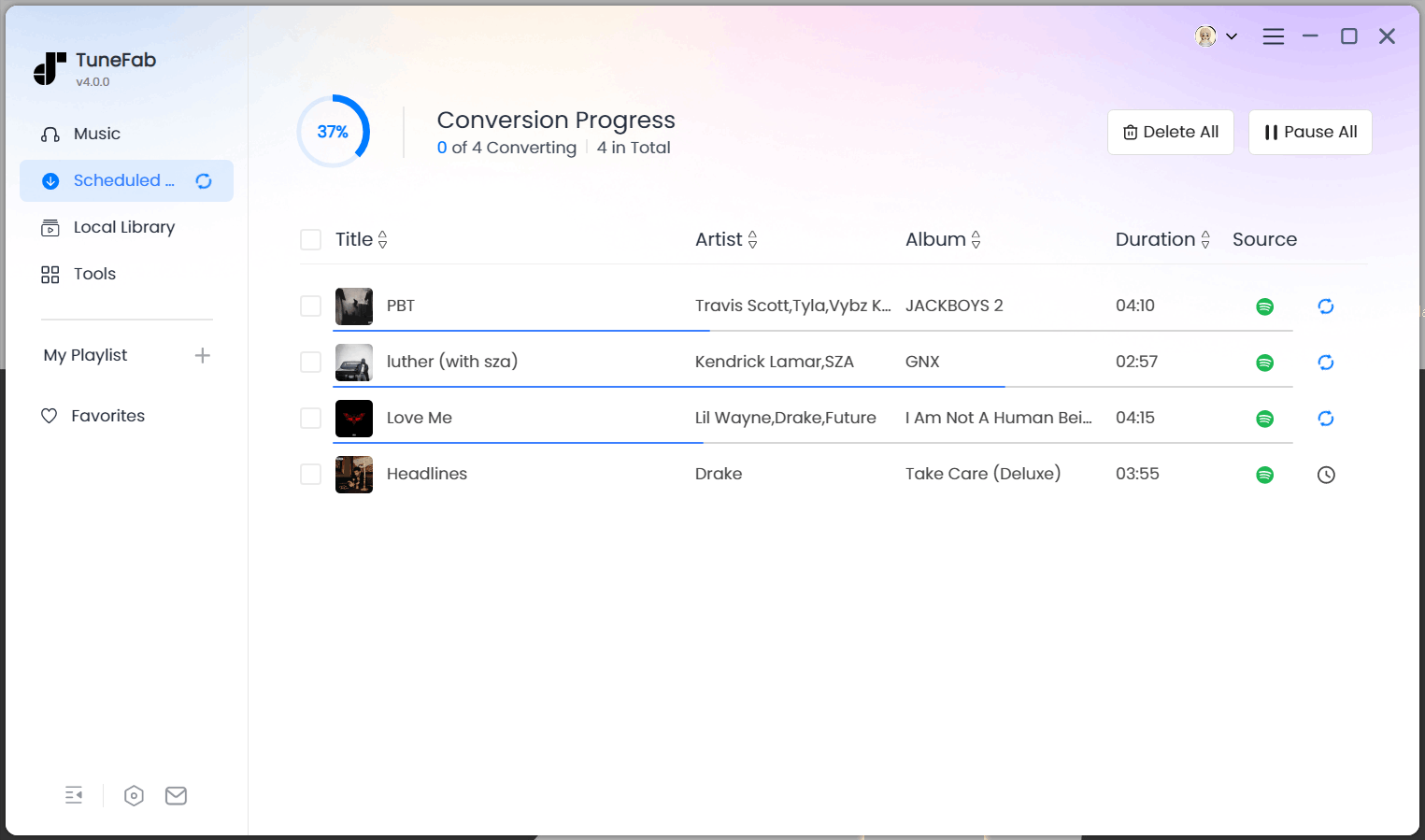
Conversion speed is where TuneFab clearly stands out. With hardware acceleration enabled, we observed conversion speeds reaching up to 35X faster than real-time playback. Unlike browser recorders or real-time capture tools, ripping does not require the song to play through entirely. Large playlists completed in minutes rather than hours.
Who It’s For
- Spotify free users who want to enjoy DRM-free music offline without upgrading to Premium.
- Spotify Premium subscribers looking to back up playlists, albums, or podcasts to local devices in high quality.
- Music collectors and DJs who need to archive large Spotify libraries efficiently.
- Users who want cross-device compatibility, such as transferring Spotify tracks to phones, MP3 players, car stereos, or USB drives.
Key Features & Specs
| Feature | Description |
| Supported Platform | Windows 11/10/8/7, macOS 10.15 or later |
| Installation Required | Yes, desktop software |
| Input Source | Spotify web player (no Spotify app needed) |
| Output Formats | MP3, M4A, WAV, FLAC, AIFF, AAC, ALAC |
| Output MP3 Bitrate | Up to 320 kbps |
| Sample Rate | Up to 48000 Hz |
| Playlist/Album Supported | Yes, batch conversion supported |
| Conversion Speed | Default 35X speed with hardware acceleration |
| Metadata Preservation | Full ID3 tags retained |
| Batch Conversion | Supported, multiple tracks at once |
| Custom Output Options | File naming, folder organization rules |
| DRM Removal | Yes, fully automatic |
| User Interface | Clean, ad-free, intuitive drag-and-drop |
| Customer Support | Quick E-mail response, online guides available |
| Pricing | Free trial (3 full songs); paid license with hidden 10% off code: TFWELCOME |
Pros and Cons of TuneFab Spotify Music Converter
Pros:
- Rip Spotify Music to MP3 and other popular formats, perfectly meeting your needs to enjoy Spotify on other media players.
- Offer nearly lossless quality audio, with customized settings ranging from 128kbps to 320kbps for MP3s.
- Support up to 35X conversion speed and even batch ripping features to save time.
- Well reserve the ID3 tags of the ripped Spotify music.
- Provide you with a user-friendly main interface without ads interrupting.
- Offer quick after-sale E-mail customer service when you unexpectedly run into some trouble.
Cons:
- Only support you converting 3 full songs losslessly for free
NOTE: After the free trial, if you want to keep using the software, don’t miss TuneFab’s hidden 10% off discount code: TFWELCOME – available for a limi0ted time!
Recommended: 4.8 Points
Check the full review: TuneFab Spotify Music Converter Review: Is It Good & Safe?
Zotify (Best for Advanced Customization via Command Line)
Why We Picked It
Zotify earns its spot for offering full command-line customization and free Spotify ripping at up to 320 kbps (for Premium accounts). Unlike GUI-based tools such as TuneFab Spotify Music Converter, Zotify gives users deeper control over download behavior and configuration. However, its terminal-based workflow and occasional authentication issues mean it’s best suited for experienced users.
🔎 Installation & Setup Process (Windows)
Installing Zotify on Windows isn’t difficult, but it does require familiarity with PowerShell and command-line tools. The setup involves installing Scoop (a Windows package manager), then adding dependencies like Python, FFmpeg, and Git, followed by configuring pipx to manage the Zotify package itself.
During testing, the process was manageable for users comfortable with CLI environments, but it’s clearly more technical than installing standard desktop software. After reopening PowerShell to activate pipx, Zotify can be installed via command and accessed using zotify --help to view available options. Most documentation is provided through its GitHub README file.
Once installed, Zotify allows you to extract Spotify songs to MP3 for offline playback. However, compared to GUI-based tools, the entire workflow—from installation to command usage—has a steeper learning curve.
Who It’s For
- Developers and advanced users comfortable with Terminal or Command Prompt.
- Linux users who prefer open-source command-line tools.
- Users who want a free Spotify ripper and don’t mind manual configuration.
Not ideal for:
- Beginners unfamiliar with CLI tools.
- Users who prefer drag-and-drop interfaces.
- Anyone looking for stable, long-term commercial support.
Key Features & Specs
| Feature | Description |
| Supported Platform | Windows, macOS, Linux |
| Installation Required | Yes (Python environment & dependencies) |
| Interface Type | Command-line (Terminal/CLI) |
| Output Format | MP3 only |
| Output MP3 Bitrate | Up to 320 kbps (Premium); 160 kbps (Free) |
| Playlist/Album Supported | Yes |
| Batch Download | Supported via command input |
| Metadata Preservation | Basic ID3 tags retained |
| Conversion Speed | Depends on system/network performance |
| DRM Removal | Yes (via stream extraction method) |
| Stability | May encounter login/authentication issues after inactivity |
| Customer Support | Community-based (GitHub issues) |
| Pricing | Free (open-source) |
Note:
- If you haven't used this Spotify music ripper for a long time, it may fail to work when you try to use it again. At this time, remember to enter your Spotify email address, not your username and password.
- If you are less familiar with command-line interfaces or programming concepts, it's advisable for you to use another program with easier operation, like TuneFab Spotify Music Converter, instead.
Pros and Cons of This Free Spotify to MP3 Ripper
Pros:
- Rip Spotify songs to MP3 for free.
- Get ripped songs at the highest 320kbps (for premium accounts).
Cons:
- Complicated to use.
- You may fail to rip Spotify songs if you don't log in for a long time.
- Ripped songs are limited to 160kbps if you are a free Spotify user.
Recommended: 4.5 Points
SpotDL (Best Open-Source Alternative)
Why We Picked It
SpotDL earns its “Best Open-Source” label because it combines Spotify metadata matching with YouTube-based audio downloading. Unlike fully integrated rippers, it doesn’t extract audio directly from Spotify’s stream—instead, it locates corresponding tracks on YouTube and downloads them as MP3 files. This approach keeps it free and cross-platform, but audio quality depends heavily on the available YouTube source.
🔎 Installation & Spotify Ripping Process
Setting up SpotDL requires a few technical steps, as it runs through Python and Command Prompt. First, you’ll need to install Python 3.7 or later (making sure it’s added to your system PATH). After that, SpotDL can be installed via pip install spotdl, followed by installing FFmpeg using the built-in spotdl --download-ffmpeg command.
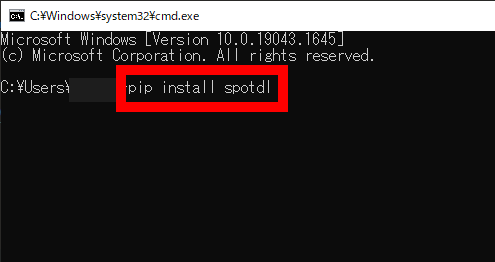
In our testing, the installation process was straightforward for users familiar with command-line environments, but it may feel intimidating for beginners. Once configured, ripping Spotify songs is as simple as entering a command with the Spotify track or playlist URL. SpotDL will then match the music via YouTube and download MP3 files at a default quality of 128 kbps (higher quality depends on source availability).
For users who prefer a more visual experience, SpotDL also offers a web UI version. While this makes the downloading process more intuitive, the initial setup still requires technical preparation.
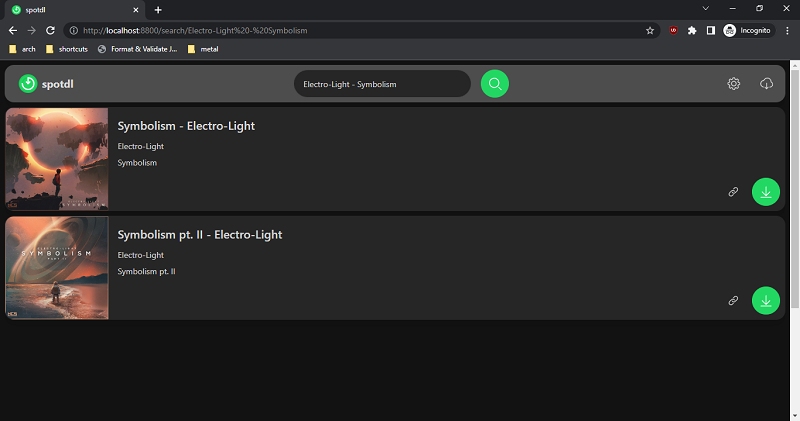
Overall, SpotDL’s ripping workflow is efficient once installed, but the setup process demands more hands-on configuration compared to traditional desktop Spotify rippers.
Who It’s For
- Tech-savvy users comfortable with command-line tools.
- Open-source enthusiasts who prefer community-driven software.
- Users who want a free way to download Spotify playlists in MP3 format.
Not ideal for:
- Users who require guaranteed 320 kbps audio quality.
- Beginners who prefer graphical interfaces.
- Anyone needing direct Spotify stream extraction rather than YouTube-sourced audio.
Key Features & Specs
| Feature | Description |
| Supported Platform | Windows, macOS, Linux |
| Installation Required | Yes (Python + FFmpeg dependency) |
| Interface Type | Command-line (CLI) |
| Audio Source | YouTube (matched via Spotify metadata) |
| Output Format | MP3 |
| Output MP3 Bitrate | Up to 256 kbps (YouTube Music Premium); ~128 kbps standard |
| Playlist/Album Supported | Yes |
| Batch Download | Yes |
| Metadata Preservation | Yes (Title, Artist, Album, Cover Art auto-embedded) |
| Conversion Speed | Depends on network & YouTube availability |
| DRM Removal | Not direct DRM removal (relies on YouTube sourcing) |
| Customer Support | Community-based (GitHub) |
| Pricing | Free (open-source) |
Note: SpotDL depends on FFmpeg to process audio files, which you can either install manually or set up by running the command spotdl --download-ffmpeg. Keep in mind that SpotDL sources music from YouTube, so the audio quality will depend on what’s available there.
Pros and Cons of SpotDL
Pros:
- Rip Spotify songs and playlists to MP3 for free.
- Support various output formats such as MP3, M4A and OPUS.
- Support multiple platforms, including Windows, macOS, and Linux.
- Automatically retrieve metadata (such as cover art and album name) from Spotify and embed it in the files.
Cons:
- Complicated to install.
- Only supports output quality 128kbps and 256kbps (YouTube Music Premium required).
- Rely on YouTube as the music source, which may not match Spotify's audio quality standards, and the audio quality can be inconsistent.
- Require Python and FFmpeg installation, which might pose a challenge for those who are not tech-savvy.
Recommended: 3.5 Points
Spotify2MP3 (Best for Simple Free MP3 Ripping)
Why We Picked It
Spotify2MP3 earns its spot as a lightweight Spotify ripper for users who want a quick, no-frills MP3 download solution without installing Python, FFmpeg, or other technical dependencies. It supports Windows and Mac and allows users to process playlist downloads efficiently. While its setup is simpler than command-line tools like SpotDL or Zotify, the required CSV workflow may feel inconvenient for some users.
🔎 Spotify Ripping Process
Using Spotify2MP3 is relatively simple once your files are prepared, but the workflow starts outside the program. Before launching the tool, you’ll need to export the Spotify tracks you want to extract into a CSV file. This extra preparation step can feel slightly inconvenient compared to URL-based downloaders.
After importing the CSV file into Spotify2MP3 via drag and drop, the interface allows you to select your preferred output format (MP3 or M4A) and adjust basic settings such as generating an M3U playlist or excluding instrumental versions. The conversion process itself is quick for small to mid-sized playlists, and the tool efficiently saves Spotify songs as local files.
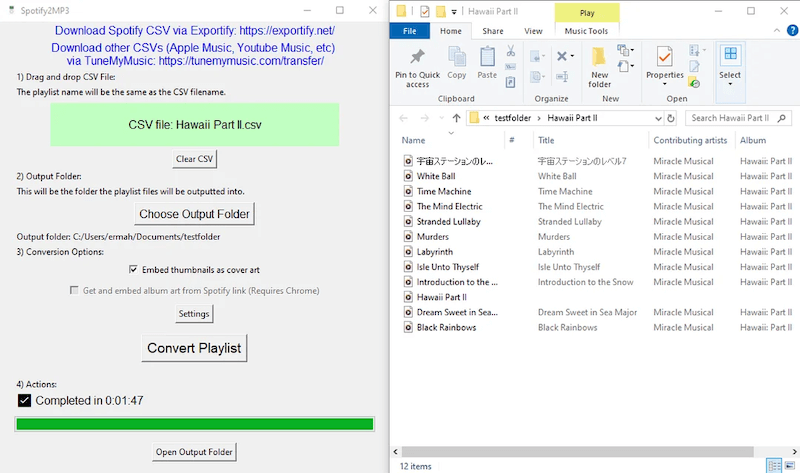
Overall, Spotify2MP3 offers a straightforward ripping experience once the CSV file is ready, but the pre-export requirement adds an extra layer compared to more direct Spotify rippers.
Who It’s For
- Casual users who want a simple Spotify-to-MP3 solution.
- Users who don’t want to install extra dependencies like Python or FFmpeg.
- People downloading small playlists occasionally rather than large libraries.
Not ideal for:
- Users seeking high-quality 320 kbps audio.
- Beginners unfamiliar with CSV file preparation.
- Users who prefer direct URL pasting instead of file-based workflows.
Key Features & Specs
| Feature | Description |
| Supported Platform | Windows, macOS |
| Installation Required | Yes (no additional bundled extensions required) |
| Interface Type | Desktop application |
| Input Method | CSV file import (Spotify track data required) |
| Output Formats | MP3, M4A |
| Output MP3 Bitrate | 128 kbps |
| Playlist/Album Supported | Yes |
| Batch Download | Yes (via CSV import) |
| Metadata Preservation | Basic metadata supported |
| Conversion Speed | Fast for small-to-medium playlists |
| DRM Removal | Yes |
| Customer Support | Limited documentation/support info |
| Pricing | Free |
Pros and Cons of Spotify2MP3
Pros:
- No bundled software to install;
- Python is not required to rip Spotify songs;
- Entirely free to use;
- Compatible with batch download;
- Efficient speed will be guaranteed.
Cons:
- Unavailable to rip Spotify music at original quality;
- You need to prepare the songs in CSV document and this can be troublesome as well as time-consuming to process.
Recommended: 3.5 Points
Chrome Audio Capture (Best for Quick Browser Recording)
Why We Picked It
Chrome Audio Capture makes the list as a simple browser-based recording solution for Spotify users who don’t want to install full desktop software. Instead of directly ripping Spotify streams, it records audio playing in your browser and exports it as MP3 or WAV. This makes it easy to use but also means recordings happen in real time and depend on playback quality.
🔎 Spotify Recording Process
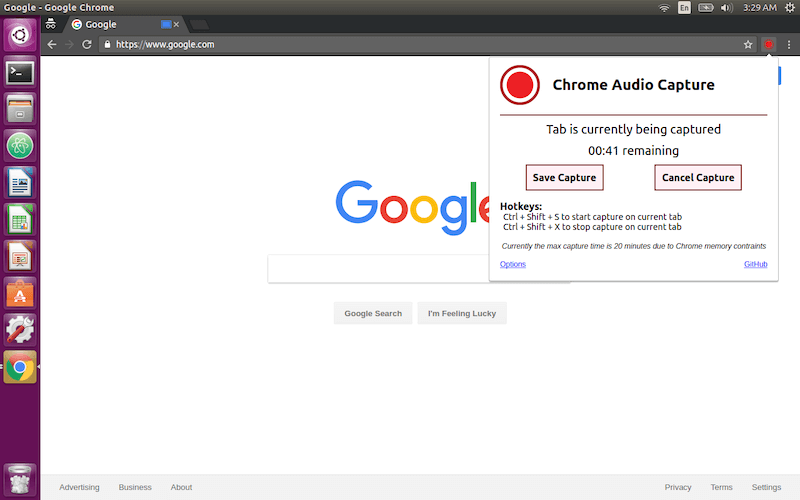
Ripping Spotify songs with Chrome Audio Capture is straightforward but works differently from dedicated Spotify rippers. After installing the extension in Chrome, you simply open the Spotify Web Player, start playing a track, and click the extension icon to begin recording. Before recording, you can choose the output format (MP3 or WAV) and adjust quality settings.
Because it records system playback, the entire process happens in real time—a 4-minute song takes 4 minutes to capture. Once the track finishes, you stop the recording and save the audio file locally for offline playback.
Overall, the workflow is easy to understand and beginner-friendly, but it lacks batch support and high-speed conversion, making it better suited for occasional single-song recording rather than large playlist extraction.
Who It’s For
- Casual desktop users who use Spotify Web Player in Chrome.
- Users who only need to record a few songs occasionally.
- People who prefer browser extensions over standalone software.
Not ideal for:
- Users who need batch playlist downloads.
- Anyone looking for fast, high-speed conversion (non–real-time).
- Users who want guaranteed original Spotify stream quality.
Key Features & Specs
| Feature | Description |
| Supported Platform | Windows, macOS (via Google Chrome browser) |
| Installation Required | Yes (Chrome extension) |
| Interface Type | Browser extension |
| Audio Source | Records Spotify Web Player playback |
| Output Formats | MP3, WAV |
| Output MP3 Bitrate | Up to 256 kbps (depends on recording settings) |
| Playlist/Album Supported | No (manual recording only) |
| Batch Download | No |
| Metadata Preservation | No automatic ID3 tagging |
| Conversion Speed | Real-time recording only |
| DRM Removal | No direct DRM removal (records playback audio) |
| Stability | Generally stable; may stop if browser tab closes |
| Customer Support | Community/extension store support |
| Pricing | Free |
Pros and Cons of Chrome Audio Capture
Pros:
- Mainstream formats such as MP3 and WAV support to save recorded Spotify songs;
- Free to use;
- Good quality will be preserved;
- Available to detect Spotify tracks played from both the web player and the desktop software.
Cons:
- Unavailable to resolve batch recording at the same time;
- No acceleration mode available so the recording can be time-consuming.
Recommended: 3.5 Points
Leawo Music Recorder (Best for Flexible Audio Recording)
Why We Picked It
Leawo Music Recorder makes the list as a flexible system audio recorder that can capture Spotify playback as MP3 or WAV files. Instead of directly ripping Spotify streams, it records whatever is playing on your system sound card. This allows broader compatibility with multiple streaming platforms—but it also means recordings happen in real time without batch acceleration.
🔎 Spotify Recording Process
Recording Spotify music with Leawo Music Recorder is a fairly simple and traditional audio-capture workflow. After launching the program, you select the “Record Computer Audio” mode, which allows the software to capture any sound playing through your system. Once you start playing a Spotify track, you can immediately begin recording within the recorder interface.
Because it works through real-time audio capture, the recording speed matches the song’s playback length. After the track finishes, you’re able to edit the ID3 tags—such as title, artist, and album information—before exporting the file as an MP3 or WAV to your desktop.
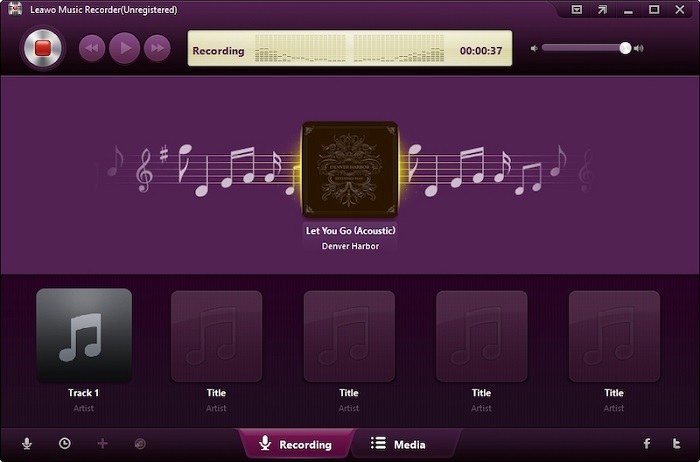
Overall, the process is easy to follow and beginner-friendly, especially with its built-in tag editor. However, since it relies on real-time recording and doesn’t support acceleration or batch playlist ripping, it’s more suitable for capturing individual songs rather than downloading large Spotify libraries efficiently.
Who It’s For
- Users who want to record audio from multiple streaming platforms, not just Spotify.
- People who only need to capture a few songs occasionally.
- Users who prefer a recording-based approach instead of stream extraction.
Not ideal for:
- Users who need fast batch playlist downloads.
- Anyone looking for automated DRM removal and 35X-speed conversion.
- Users who frequently download large Spotify libraries.
Key Features & Specs
| Feature | Description |
| Supported Platform | Windows, macOS |
| Installation Required | Yes (desktop software) |
| Interface Type | Graphical user interface |
| Audio Source | System audio recording |
| Output Formats | MP3, WAV |
| Output MP3 Bitrate | Up to 320 kbps |
| Playlist/Album Supported | No (manual recording only) |
| Batch Download | No |
| Metadata Preservation | Can auto-add basic ID3 tags |
| Conversion Speed | Real-time recording only |
| DRM Removal | No direct DRM removal (records playback) |
| Additional Compatibility | Supports recording from YouTube, AOL Music, Last.fm, etc. |
| Customer Support | Email support & documentation |
| Pricing | Paid software (trial available) |
Note: However, as Leawo Music Recorder delivers low efficiency in ripping music from Spotify - no acceleration teches or batch conversion feature provided. Instead, if you desire a faster and hassle-free way to batch rip Spotify playlists at once, TuneFab Spotify Music Converter is still the best choice for you.
Pros and Cons of Leawo Music Recorder
Pros:
- All-in-on music recorder to capture songs from Spotify and other streaming platforms;
- Easy-to-grasp recording process to rip Spotify music easily;
- Good quality preserved to output Spotify recordings;
- Available to edit ID3 tags as you desire.
Cons:
- No recording speed-up to save time in processing music recording;
- Can’t process batch recording simultaneously;
- No auto-saving feature to back up the recording and preset sudden error to lose the music.
Recommended: 4 Points
3 Best Spotify Music Rippers Online
Instead of installing third-party software, there are also some online Spotify Music rippers that can directly help rip and download Spotify songs as local files only by inputting URLs without a mobile app or desktop software. In the following, the 3 best ones are collected for you to select. Check them now!
SpotiDown Free Spotify Downloader (Best for Online & Mobile Use)
Why We Picked It
SpotiDown Free Spotify Downloader earns its place as a free, web-based Spotify ripper that works without installing software. Because it runs entirely in a browser, it supports both desktop and mobile devices. Users can paste Spotify track or playlist links to generate downloadable MP3 files. However, playlist downloads still require saving songs individually, which limits efficiency.
🔎 Spotify Ripping Process
Using SpotiDown Free Spotify Downloader is extremely straightforward and beginner-friendly. You simply copy a Spotify song, album, or playlist link from the Spotify app or web player and paste it into the website’s input box. After clicking the “Download” button, the tool processes the link and generates downloadable MP3 files.
The downloading process is quick for individual tracks, and no software installation is required since everything runs in your browser. Once the file is generated, you can save it directly to your phone, computer, or other devices for offline playback.
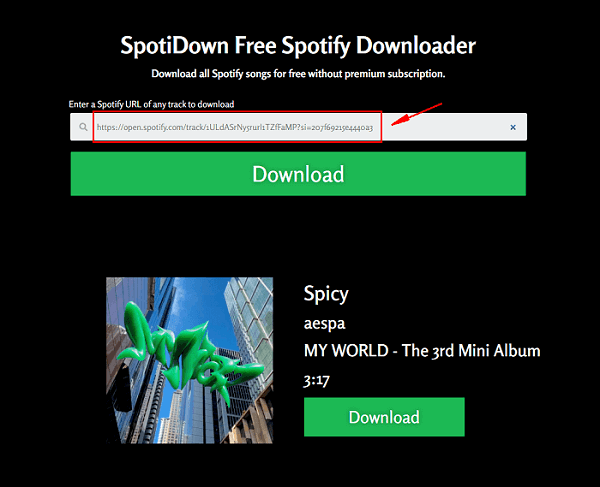
Overall, the experience is smooth and easy to understand, making it a convenient option for casual use. However, since playlist tracks still need to be downloaded one by one, it’s less efficient for large-scale Spotify ripping.
Who It’s For
- Users who don’t want to install software.
- Mobile users downloading Spotify tracks directly to their phones.
- Casual listeners who only need to save a few songs occasionally.
Not ideal for:
- Users who want full playlist batch downloads in one click.
- Anyone requiring guaranteed high-bitrate 320 kbps output.
- Users concerned about long-term stability of online download sites.
Key Features & Specs
| Feature | Description |
| Supported Platform | Web-based (Windows, macOS, Android, iOS) |
| Installation Required | No |
| Interface Type | Online website |
| Input Method | Paste Spotify track or playlist URL |
| Output Format | MP3 |
| Output MP3 Bitrate | Up to 256 kbps |
| Playlist/Album Supported | Partial (songs downloaded one by one) |
| Batch Conversion | No true batch mode |
| Metadata Preservation | Basic metadata retained |
| Conversion Speed | Depends on server load & internet speed |
| DRM Removal | Not direct DRM removal (web-based processing) |
| Customer Support | No dedicated support |
| Pricing | Free |
Pros and Cons of SpotiDown Free Spotify Downloader
Pros:
- A totally free Spotify Music ripper.
- Rip music from Spotify online on both computer and phone.
- Extract Spotify to MP3 in high output quality.
Cons:
- Doesn't support customizable settings.
Recommended: 4 Points
TuneFab Spotify Ripper Online (Best for Secure Online Playlist Downloads)
Why We Picked It
TuneFab Spotify Ripper Online stands out among web-based rippers for offering a clean, ad-light interface and more advanced functionality than most free download sites. Unlike many online tools that limit quality or block playlist parsing, this platform supports high-quality MP3 output (up to 320 kbps) and allows users to download full playlists and albums more efficiently.
🔎 Spotify Ripping Process
With TuneFab Spotify Ripper Online, the ripping workflow is clean and efficient. You simply copy the URL of a Spotify song, playlist, or album, log in to the web platform, and paste the link into the converter. The tool quickly analyzes the content and prepares it for conversion.
Once processing is complete, all selected tracks are packaged together for download, typically as a ZIP file. This makes it convenient to save entire playlists or albums in one go rather than downloading tracks individually.
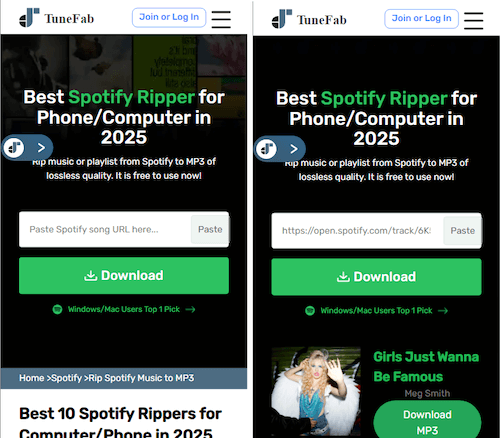
Overall, the process is streamlined and user-friendly, with clear on-screen guidance and minimal steps. The batch handling and automatic packaging significantly improve efficiency compared to many other online Spotify rippers.
Who It’s For
- Users who prefer an online solution instead of installing desktop software.
- People who want batch playlist downloads in a browser environment.
- Users concerned about intrusive ads or unsafe pop-ups.
Not ideal for:
- Users who need multiple output formats beyond MP3.
- Users downloading extremely large libraries regularly (desktop tools remain more stable).
Key Features & Specs
| Feature | Description |
| Supported Platform | Web-based (Windows, macOS, Android, iOS) |
| Installation Required | No |
| Interface Type | Online website |
| Input Method | Paste Spotify track, album, or playlist URL |
| Output Format | MP3 |
| Output MP3 Bitrate | 128 kbps – 320 kbps selectable |
| Playlist/Album Supported | Yes |
| Batch Download | Yes (playlist & album parsing supported) |
| Metadata Preservation | Full ID3 tags retained |
| Conversion Speed | Depends on network & server load |
| DRM Removal | Web-based processing |
| User Experience | Clean interface, minimal ads |
| Customer Support | Online support resources |
| Pricing | Free trial and subscriptions provided |
Pros and Cons
Pros:
- Clean interface without any listed or pop-up ads;
- Deliver the highest 320kbps to download Spotify songs to ensure the best streaming experience;
- Compatible with playlist and album conversion as well as batch downloading;
- Speedy music resolving and downloading performance ensured.
Cons:
- The service is not totally free.
Recommended: 4.9 Points
SpotifyMate (Best for Easy Browser-Based Downloads)
Why We Picked It
SpotifyMate is a long-running online Spotify to MP3 converter known for its simple workflow and free access. Unlike many short-lived download sites, it has remained relatively stable and continues to allow users to paste Spotify links and download MP3 files directly from their browser. It also provides the option to download album cover images separately as JPG files.
🔎 Spotify Ripping Process
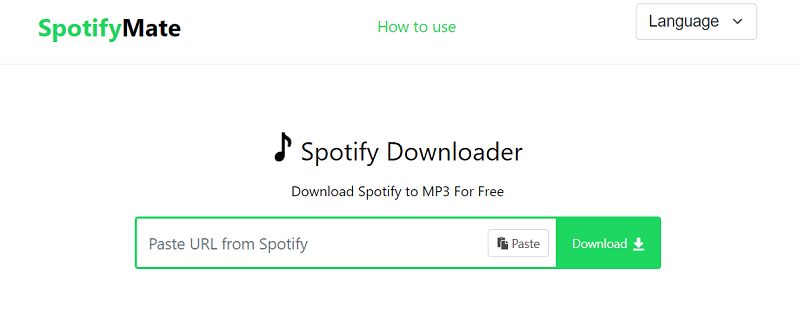
Using SpotifyMate is simple and requires no installation. You just copy a Spotify song link, paste it into the website’s search bar, and click “Download.” The tool will quickly parse the link and generate an MP3 download option for you.
After clicking “Download MP3,” you may briefly be redirected to an advertisement page. Once you close it, the file will automatically begin downloading to your browser’s default downloads folder.
Overall, the process is easy to understand and beginner-friendly. While the occasional ad redirect can slightly interrupt the experience, the actual downloading steps are straightforward and suitable for quickly extracting individual Spotify tracks.
Who It’s For
- Users who want a completely free Spotify downloader.
- Mobile users downloading music without installing apps.
- Beginners who prefer a straightforward paste-and-download process.
Not ideal for:
- Users who need 320 kbps high-quality audio.
- People downloading very large playlists frequently.
- Users who want multiple output formats beyond MP3.
Key Features & Specs
| Feature | Description |
| Supported Platform | Web-based (Chrome, Firefox, Edge, Safari; desktop & mobile) |
| Installation Required | No |
| Interface Type | Online website |
| Input Method | Paste Spotify track, album, or playlist URL |
| Output Format | MP3 |
| Output MP3 Bitrate | Up to 128 kbps |
| Playlist/Album Supported | Yes |
| Batch Download | Limited (may require downloading tracks individually) |
| Metadata Preservation | Yes (ID3 tags retained) |
| Album Cover Download | Yes (JPG format) |
| Conversion Speed | Depends on network & server performance |
| DRM Removal | Web-based processing |
| Customer Support | No official support channel |
| Pricing | Free |
Note: Remember that SpotifyMate doesn't allow you to rip music from Spotify in batches, which means you cannot rip Spotify playlists or albums. If you want to extract the entire playlist and albums, TuneFab Spotify Music Converter is your best Spotify music ripper alternative.
Pros and Cons of SpotifyMate
Pros:
- Easy and totally free to use
- Supports many browsers and devices
- Rip music album cover art as well
Cons:
- Doesn't support downloading playlists and albums in bulk
- Only rip Spotify songs at 128kbps
- Ads pop up when ripping songs
Recommended: 3.0 Points
3 Top Spotify Song Rippers for Android/iPhone
Apart from online tools, there are also reliable applications specially designed for Android and iPhone, which can deliver stabler and more efficient help to rip music from Spotify. Now, let’s also see who they are.
Telegram SpotifySavesBot (Best for Free Mobile Downloads)
Why We Picked It
Telegram SpotifySavesBot offers a quick, app-based solution for mobile users who want to download Spotify tracks without installing desktop software or visiting third-party websites. By simply sending a Spotify track URL to the Telegram bot, users receive an MP3 file directly inside the chat. The process is straightforward and entirely free, making it appealing for casual downloads.
🔎 Spotify Ripping Process
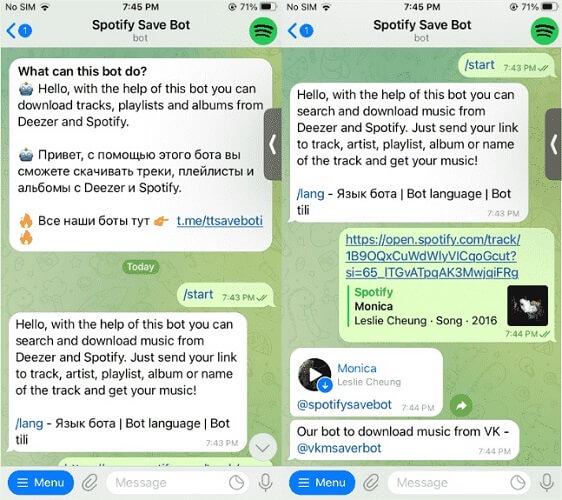
Using SpotifySavesBot on Telegram is one of the simplest mobile-based methods to extract Spotify tracks. After adding @spotifysavebot to your Telegram contacts, you only need to copy a Spotify song link and send it directly in the chat. The bot automatically analyzes the URL and processes the track for you.
Within a short time, the bot replies with a converted MP3 file inside the conversation. You can then tap the file to download and save it locally on your phone for offline playback.
Overall, the experience is smooth and extremely beginner-friendly, especially for mobile-first users. However, since it only supports single-track downloads and offers limited audio quality options, it’s best suited for quick, casual downloads rather than full playlist extraction.
Who It’s For
- Mobile-first users who primarily use Spotify on their phones.
- Telegram users who prefer in-app tools instead of websites or software.
- People who want a completely free and simple solution.
Not ideal for:
- Users who need playlist or album batch downloads.
- Anyone looking for high-bitrate (320 kbps) audio.
- Users who want advanced format or quality customization.
Key Features & Specs
| Feature | Description |
| Supported Platform | Telegram app (Android, iOS, Windows, macOS) |
| Installation Required | Telegram app required |
| Interface Type | Chatbot (via @spotifysavebot) |
| Input Method | Send Spotify track URL in chat |
| Output Format | MP3 |
| Output MP3 Bitrate | Up to 128 kbps |
| Playlist/Album Supported | No (single tracks only) |
| Batch Download | No |
| Metadata Preservation | Basic metadata retained |
| Conversion Speed | Depends on bot/server response time |
| DRM Removal | Web-based processing |
| Customer Support | No official support |
| Pricing | Free |
Pros and Cons of Telegram SpotifySavesBot
Pros:
- Only by sending URLs to get MP3 audio files automatically;
- No hidden fee is required to rip Spotify Music;
- No need to install third-party apps or extensions anymore;
- High efficiency ensured.
Cons:
- Can’t rip Spotify playlists at once and you only need to process Spotify ripping one by one;
- ID3 info can’t be preserved;
- Sudden failures will occur when the bot can’t fetch exact data.
Recommended: 3 Points
SpotiFlyer (Best Free Option for Android)
Why We Picked It
SpotiFlyer earns its place as a free Android-based Spotify ripper that supports high-quality MP3 downloads (up to 320 kbps). Designed primarily for mobile users, it allows you to download Spotify tracks for free directly to your Android device without needing a desktop computer. In addition to Spotify, it also supports other streaming platforms like SoundCloud and YouTube Music, making it a versatile mobile downloader.
🔎 Spotify Ripping Process
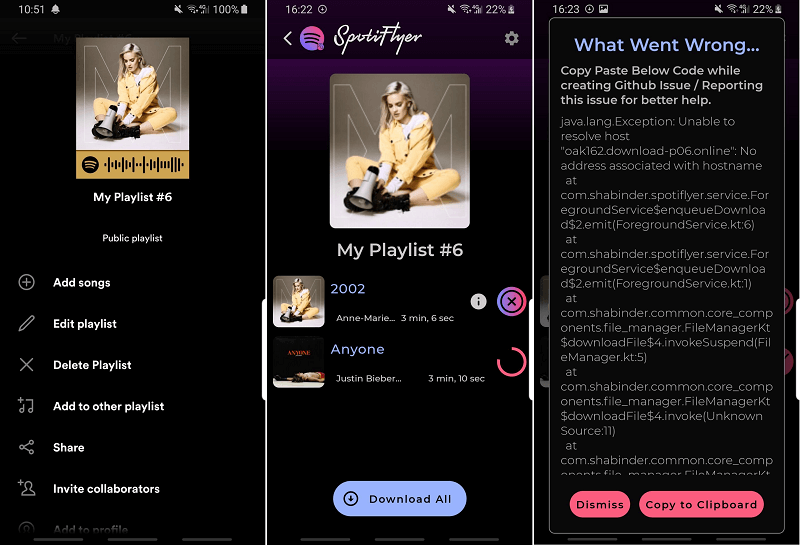
Using SpotiFlyer on Android is fairly direct once the app is installed. After downloading it (commonly via GitHub) and launching it on your device, you simply copy the shareable link of a Spotify song or playlist from the Spotify app and paste it into SpotiFlyer’s input field. Tapping the download button starts the extraction process immediately.
Downloaded tracks are saved locally on your Android device (typically under /Music/SpotiFlyer/), making them accessible for offline playback through any music player. The interface is minimal and easy to navigate, which makes the workflow beginner-friendly and convenient for mobile users.
However, since SpotiFlyer relies on matching and syncing tracks from alternative sources, occasional download failures may occur. While it supports high-quality MP3 output (up to 320 kbps), it’s better suited for individual downloads rather than large, stable batch conversions.
Who It’s For
- Android users who want to download Spotify music directly to their phones.
- Users looking for a free mobile solution without desktop software.
- People who download songs from multiple streaming platforms.
Not ideal for:
- iOS users (Android only).
- Users who need full playlist batch downloads.
- Those looking for official customer support and guaranteed long-term stability.
Key Features & Specs
| Feature | Description |
| Supported Platform | Android |
| Installation Required | Yes (Android app/APK) |
| Interface Type | Mobile app |
| Input Method | Paste Spotify track URL |
| Output Format | MP3 |
| Output MP3 Bitrate | Up to 320 kbps |
| Playlist/Album Supported | No (single tracks only) |
| Batch Download | No |
| Metadata Preservation | Yes (ID3 tags retained) |
| Additional Platform Support | Spotify, SoundCloud, YouTube Music, etc. |
| Conversion Speed | Depends on network performance |
| DRM Removal | Web-based processing |
| Customer Support | Community-based |
| Pricing | Free |
NOTE:
Sometimes, it may fail to rip Spotify music to MP3 using SpotiFlyer, which may result from its failure to match or sync songs. If you find the songs can't be ripped many times, then you can try to use TuneFab Spotify Music Converter, a smoother and more stable desktop tool, to rip them to MP3 first, and then move the MP3 files to your Android.
Pros and Cons of SpotiFlyer
Pros:
- It's free for ripping Spotify tracks, Spotify podcasts, and more.
- Support ripping music from Spotify to MP3 at 320kbps quality.
- It can keep the ID3 tags for your ripped songs.
Cons:
- It's somehow complicated and time-consuming to copy the links of songs from Spotify.
- It cannot offer a batch-ripping feature.
- Sometimes, it may fail to rip some songs.
Recommended: 3.9 Points
Spotifydl Shortcut (Best Free for iOS)
Why We Picked It
Spotifydl Shortcut is a free iOS automation shortcut that lets users extract Spotify songs directly on their iPhones. Built using Apple’s Shortcuts app (available from iOS 12 and later), it enables quick actions to process Spotify track links and convert them into MP3 files. For iOS users looking for a lightweight way to extract Spotify songs without installing desktop software, this shortcut-based method offers a convenient alternative.
🔎 Spotify Ripping Process
Using Spotifydl Shortcut through Apple Shortcuts provides a lightweight way for iPhone users to extract Spotify songs without installing desktop software. After adding the shortcut to your device, it appears directly inside the Shortcuts app and can be triggered at any time.
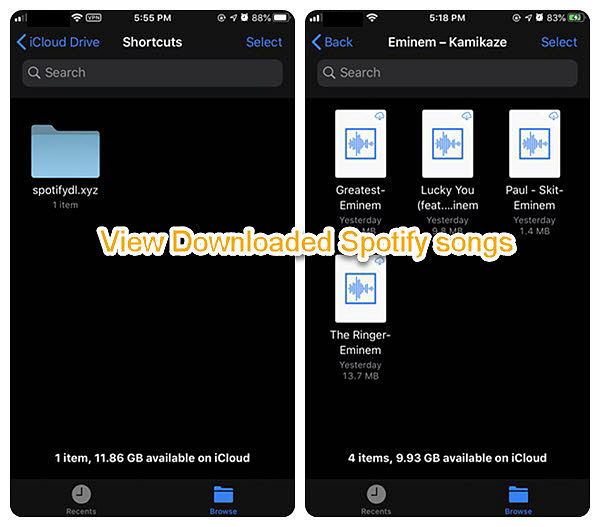
To rip music, you simply copy a Spotify track or playlist link from the Spotify app, open the Spotifydl shortcut, and paste the URL when prompted. The shortcut then processes the link and begins extracting the songs. Once completed, the MP3 files are saved to the Shortcuts folder in iCloud Drive (usually under a folder like “spotifydl.xyz”), where you can access or move them for offline playback.
Overall, the workflow is relatively smooth for users familiar with iOS automation. It feels more integrated than browser-based tools, but it may require some initial setup and manual confirmation steps. While convenient for casual use, stability and large-scale batch extraction can sometimes be limited compared to desktop-based solutions.
Who It’s For
- iPhone users (iOS 12 or later) who want to extract Spotify songs directly on their device.
- Users familiar with Apple Shortcuts automation.
- People who want a free mobile solution with high-quality output.
Not ideal for:
- Users uncomfortable installing third-party shortcuts.
- Those seeking a fully automated, one-click playlist batch extractor.
- Users who prefer official App Store applications with formal support.
Key Features & Specs
| Feature | Description |
| Supported Platform | iOS 12 or later (via Apple Shortcuts app) |
| Installation Required | Yes (install Spotifydl Shortcut) |
| Interface Type | iOS Shortcut automation |
| Input Method | Paste Spotify track or playlist URL |
| Output Format | MP3 |
| Output MP3 Bitrate | Up to 320 kbps |
| Playlist/Album Supported | Yes |
| Batch Download | Limited (may process tracks sequentially) |
| Metadata Preservation | Basic ID3 tags retained |
| Conversion Speed | Depends on network & processing time |
| DRM Removal | Web-based extraction method |
| Customer Support | Community-based |
| Pricing | Free |
NOTE:
Sometimes, the free mobile options can just rip limited songs and it may be banned easily. If you want to rip multiple songs or if you find it cannot rip Spotify music anymore, then, you can try to use TuneFab Spotify Music Converter, a smoother and more stable desktop software, to rip them to MP3 first, and then move the MP3 files to your iPhone, Android, and even more devices.
Pros and Cons of Spotifydl
Pros:
- Support ripping Spotify music to MP3 on iOS devices with 320kbps high quality.
- Easy to use no matter if you are a newbie or veteran.
Cons:
- Just can rip a few songs.
- No other music formats are available.
- Required to install the Spotify app.
- Fail to rip the album from Spotify.
- Unable to preserve the ID3 tags and metadata.
Recommended: 3.5 Points
What Should Be Considered When Choosing the Best Spotify Ripper?
Actually, there are more tools than the introduced options in this blog. If you consider finding another one instead of trying any of these 6 Spotify music rippers, you are able to follow the considering qualifications mentioned below to help better sort out the best one:
Efficiency: Especially when you get a large amount of Spotify songs or playlists to rip, you should really check whether any feature can support to help you process it without consuming much of your time. For example, if the ripper supports playlist ripping or batch conversion features will help boost efficiency quite a lot.
Music quality: For sure, no one wants compressed or lossy music quality for offline streaming after the ripping completes. Hence, you should also pay attention to whether your selected ripper is able to maintain a lossless quality to rip music from Spotify for you.
Conversion success rates: Some programs (especially those online tools) would fail the conversion because of various connection errors. So selecting a tool with a higher success rate is also a way to avoid unnecessary time-wasting jobs for you.
Security: You must not want a tool with virus or bundled malware, or adware that would easily lead to privacy disclosure or device system damage, so also pay attention to whether the tool you select is secure to use. Those without bundle extensions or software installed or with a clean interface without any malicious ads would be more trustworthy.
Comparison of the 12 Spotify Rippers
If you're still unsure which Spotify song ripper is the best fit for you after reading the features and descriptions above, take a look at the comparison table below. I've compared some key factors that a great ripper should have to help you make a quick decision.
| Best For | Rating | Supported OS | Output Format | Bitrate | Download Speed | Batch download | ID3 preservation | Stability | |
| TuneFab Spotify Music Converter | High secure and lossless music download on desktops | 4.7 | Windows & Mac | MP3, M4A, FLAC, WAV, AIFF | Up to 320kbps | High | √ | √ | High |
| Zotify | Cross-plaftorm and customizable Spotify ripping | 3.5 | Windows & Mac & Linux | AAC, FDK_AAC, M4A, MP3, OGG, OPUS, VORBIS | Up to 320kbps for Premium accounts; Up to 160kbps for free accounts | Low | √ | √ | Medium |
| SpotDL | Quick speed to batch download Spotify playlists | 3.5 | Windows & Mac & Linux | MP3, M4A, OPUS | 128kbps for regular users; 256kbps for YouTube Premium accounts | Medium | x | √ | Medium |
| Spotify2MP3 | Free download Spotify songs in MP3 or WAV formats on desktops | 3.5 | Windows & Mac | MP3 | Up to 128kbps | Medium | √ | √ | Medium |
| Chrome Audio Capture | Chrome users to flexibly record Spotify songs instantly | 3.5 | Windows & Mac | MP3, WAV | Up to 256kbps | Slow | x | x | Medium |
| Leawo | Flexibly record Spotify songs at good 320kbps quality | 4 | Windows & Mac | MP3, WAV | Up to 320kbps | Low | x | √ | Medium |
| SpotiDown | Online Spotify songs downloading in the most mainstream MP3 format | 4 | Web browser | MP3 | Up to 128kbps | Medium | x | √ | Medium |
| TuneFab Spotify Ripper Online | Safely rip Spotify songs as local files without ads | 4.9 | Web browser | MP3 | Up to 320kbps | High | √ | √ | High |
| SpotiMate | Quick download Spotify songs on Android with ID3 tags preserved | 3 | Web browser | MP3 | Up to 128kbps | Medium | x | √ | Medium |
| Telegram SpotifySaveBot | Simply send links to convert and download Spotify singles in MP3 format | 3 | All devices with Telegram installed | MP3 | Up to 128kbps | Medium | x | √ | Medium |
| SpotiFlyer | Freely rip Spotify to MP3 at the best 320kbps on Android without hassle | 3.9 | Android | MP3 | Up to 320kbps | Medium | √ | √ | Medium |
| iOS Shortcut | Quick process Spotify playlists download in a go without third-party iOS apps installed anymore | 3.5 | iOS | MP3 | Up to 320kbps | Medium | x | √ | Low |
FAQs About Ripping Music from Spotify
Q1: What kind of Spotify Ripper is the best: desktop, online, or mobile?
There's no doubt that, whether the desktop ripper or the mobile ripper can satisfy your basic need to rip music from Spotify. However, compared with a desktop, which has more memory space, the ripped songs saved on your phone may take up your limited phone memory space. And mobile rippers may be banned easily or lack maintenance, so they may fail to rip some songs from time to time.
Therefore, using a desktop tool, like TuneFab Spotify Music Converter, to rip music from Spotify seems better than using mobile ones.
Also, if you desire a more flexible way to extract only part of a Spotify song and save it as a file to enjoy Spotify offline without premium or use in any software on your devices, the music recorder is also a nice choice. However, it would take you a long time as no speed-up mode or batch recording feature is provided. For higher Spotify music ripping efficiency, TuneFab Spotify Music Converter is still the best option for you.
Q2: Can You Rip Music from Spotify Online?
If you desire a software-free way, you are able to find some online Spotify to MP3 rippers to help rip songs from Spotify directly. One of the popular options, Soundiiz is able to work for you. It will detect Spotify sources and match from YouTube as most of Spotify songs can actually be found on YouTube, too.
Hence, you are able to transfer your Spotify playlists to YouTube via Soundiiz, and then rip music from YouTube as MP3 files with so many free online YouTube to MP3 converters without paying a penny! Although there are more steps to process, this method doesn’t need to install software at all, and more importantly, it can be done on more devices, including mobile phones!
Q3: Can I burn Spotify music to a CD after ripping it?
Of course, you can burn music from Spotify to CD after all the limitations from Spotify are ripped by TuneFab Spotify Music Converter. Then, you can use iTunes, Windows Media Player, or VLC to burn Spotify songs onto a CD.
Conclusion
To consider the downloading efficiency, music quality, and security, TuneFab Spotify Music Converter delivers batch downloading functionality to save all Spotify playlists in lossless 320kbps without any failure, which all makes it the best Spotify ripper to consider. For sure, if you like software-free options, you are also able to select an online tool, web browser extension, and even a mobile app to help! Now, just pick the ideal one you need and try!

