

 Best option to extract Spotify music on Windows/Mac




Many Spotify users want to enjoy their favorite songs offline, back up playlists, or move music to other devices, but Spotify's encryption makes this nearly impossible outside its app. You can download songs for offline listening within Spotify, but they're not stored as regular audio files and can't be played freely on other players or devices.
If you've ever wondered how to save Spotify music as MP3s, transfer them to your phone, or listen offline without limits, this guide will walk you through the best solutions. We will explain how to convert Spotify songs to MP3 on Windows or Mac, how to transfer the extracted files to Android or iPhone, and how to extract Spotify music directly on your phone using the best Spotify Music converter, so you can keep your playlists with you, wherever you go.
🥖 Related Reading:
How to Remove DRM from Spotify Music [All Devices Supported]
Extract MP3 from Spotify on Computer/Phone with Professional Spotify Downloader
Verdict: Best for users who want to save Spotify songs as MP3 locally forever.
For users who want to keep Spotify songs for good or play them on other devices, Spotify's built-in download option isn't enough. Even Premium users can only listen offline inside the Spotify app, since all downloaded files are encrypted and unavailable elsewhere. To truly save Spotify music as playable files, you'll need a professional converter that can extract songs in common audio formats like MP3, and we highly recommend TuneFab tools.
TuneFab Spotify Music Converter is an extractor for Spotify that is accessible to extract music from Spotify. Not only can it help you to rip music from Spotify to MP3, but it can also rip Spotify to M4A, WAV, FLAC, AIFF, and ALAC. This powerful music converter has the ability to get rid of Spotify copy protection so that the extracted audio can be playable on various devices. Better yet, it offers you a 35X faster conversion speed to batch extract MP3 from Spotify with the original output quality (up to 320kbps).
Features of TuneFab Spotify Music Converter
- Extract music from Spotify Music at 35X faster speed, covering Spotify tracks, Spotify playlists, and albums.
- Output Spotify songs to 100% lossless quality with adjustable bitrates and sample rates features.
- Free from the problem of missing music info, such as ID tags and Metadata.
- Better Spotify music management by classifying your downloaded music files.
- Various music formats are accessible, such as MP3, M4A, FLAC, WAV, AIFF, AAC, and ALAC.
- Easy to use and batch conversion supported.
Designed with a built-in Spotify web player, TuneFab Spotify Music Converter provides you with an initiative interface, enabling you to extract Spotify music as MP3 files effortlessly. You first need to download and install this program with the download button above on your Windows or Mac. Then follow the steps below to learn how to get MP3 files from Spotify for offline listening without device limitation.
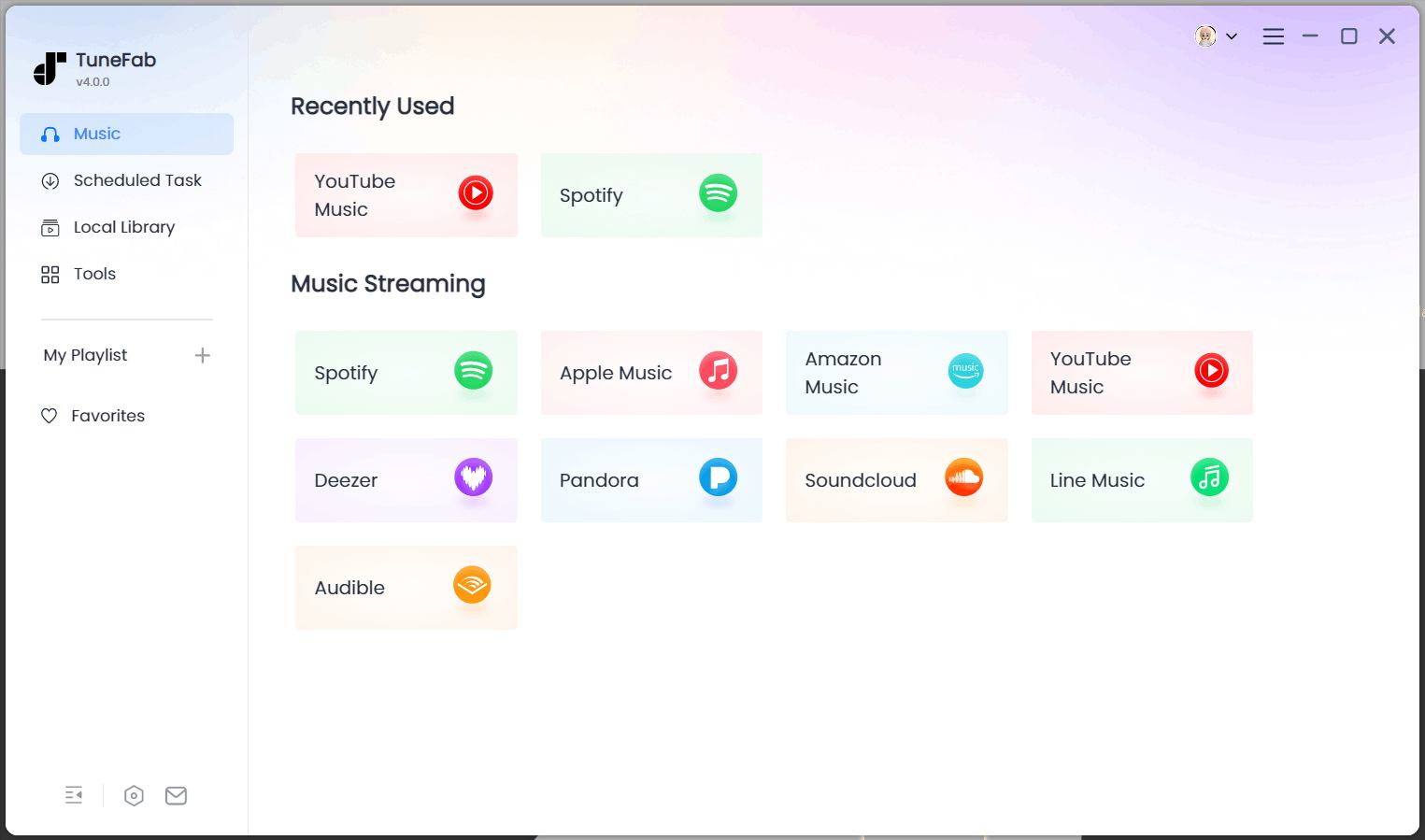
Step 1. Launch TuneFab and Choose Spotify
Open TuneFab and select Spotify to MP3 on the home screen. The built-in browser will appear, allowing you to access Spotify directly. You can browse without logging in.
Step 2. Add Songs to Convert
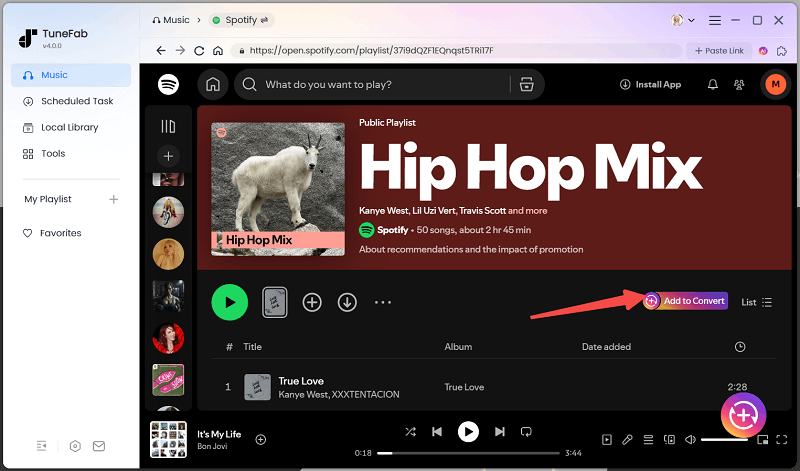
Browse Spotify and click "Add to Convert "whenever you find a song, playlist, or album you want to download. The button appears on playlist tiles, cover images, and inside playlists, making it easy to add everything you need to your conversion list.
Step 3. Set Output Preferences
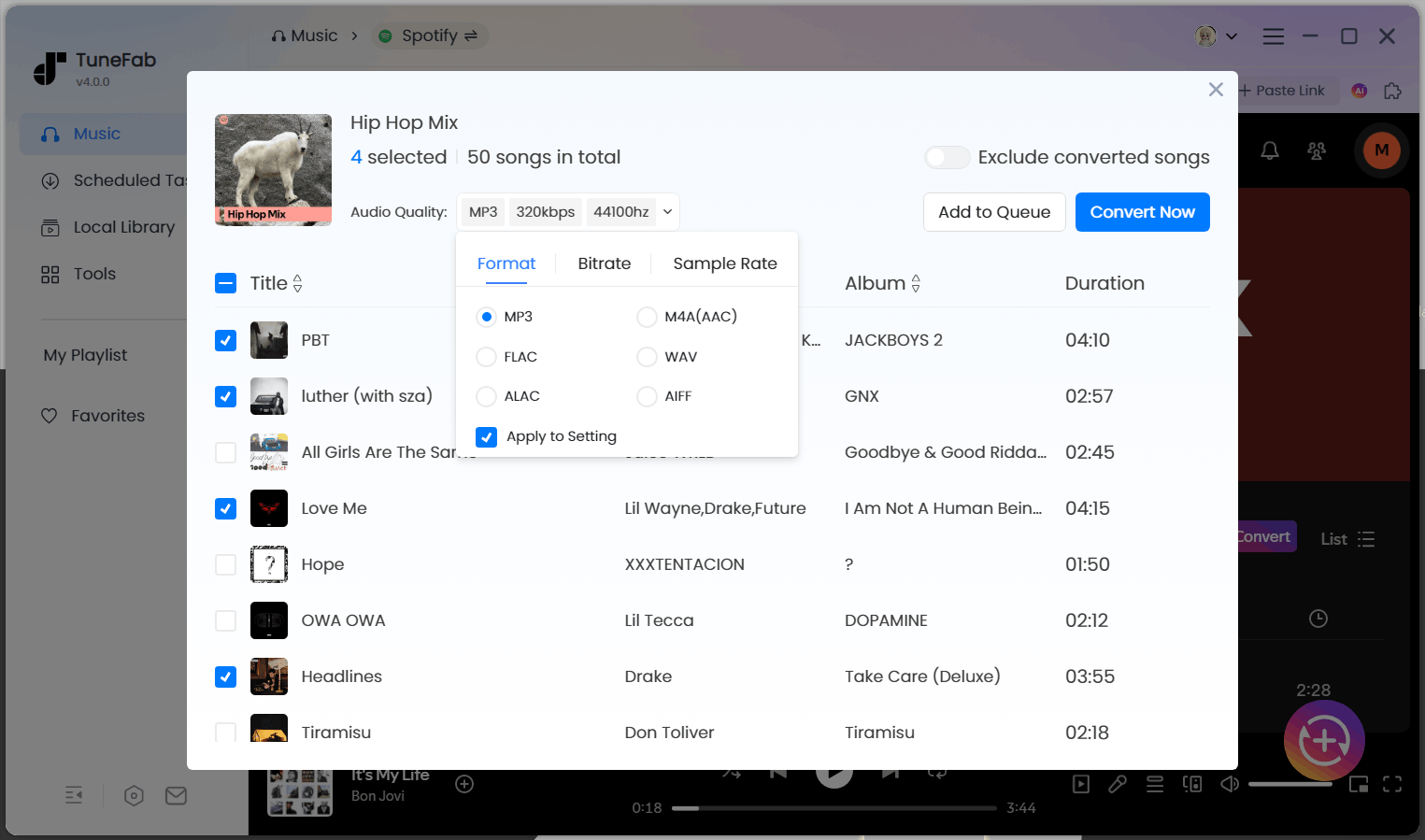
Open the conversion list to check your selections. Before starting, you can adjust the output format, bitrate (128–320 kbps), and sample rate to get the sound quality you prefer.
Step 4. Start Conversion
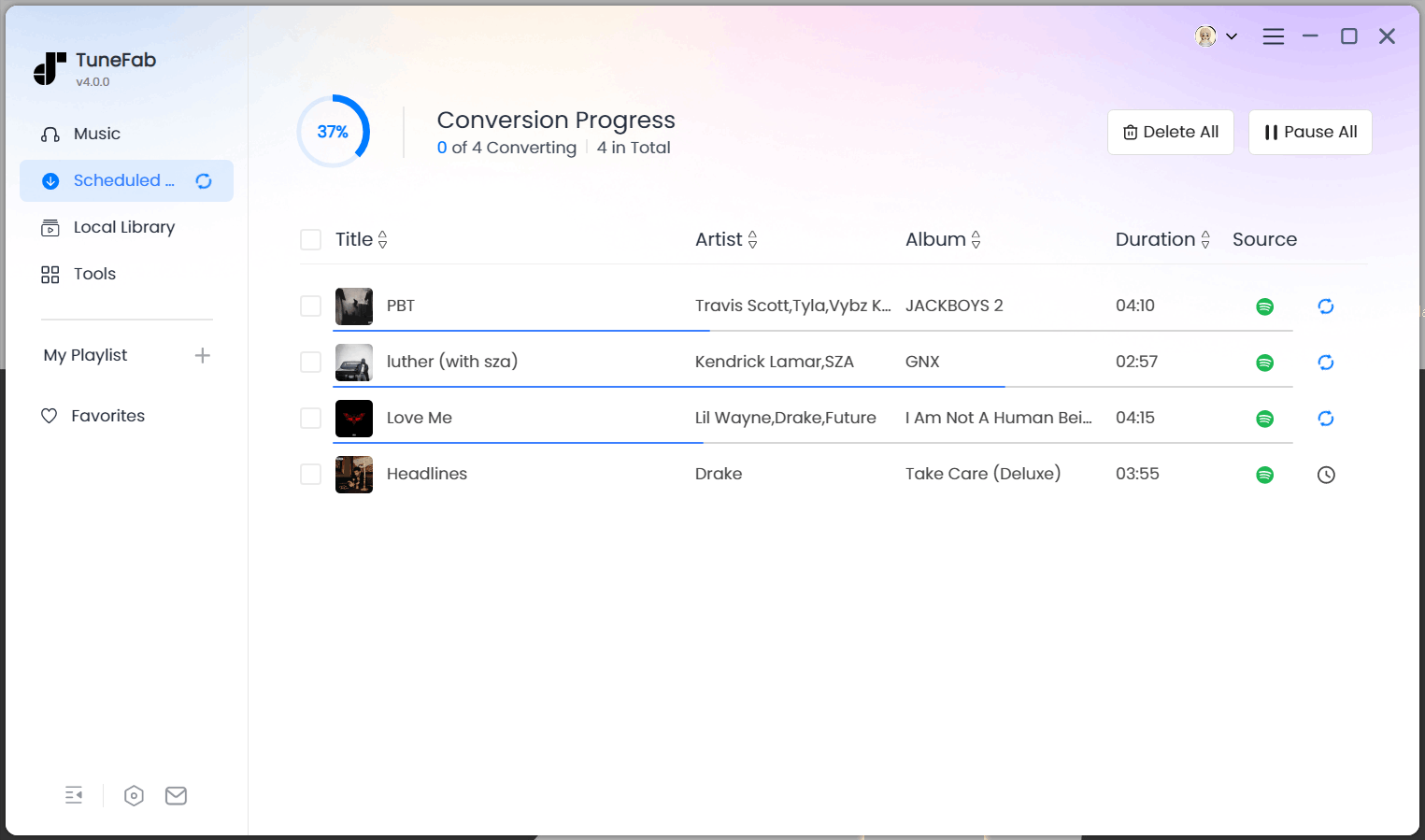
Click "Convert Now" to begin immediately or "Add to Queue" if you want to process multiple lists later. Each track will show its current status - converting, waiting, or failed - so you can easily track the progress.
Step 5. Check Your Downloads
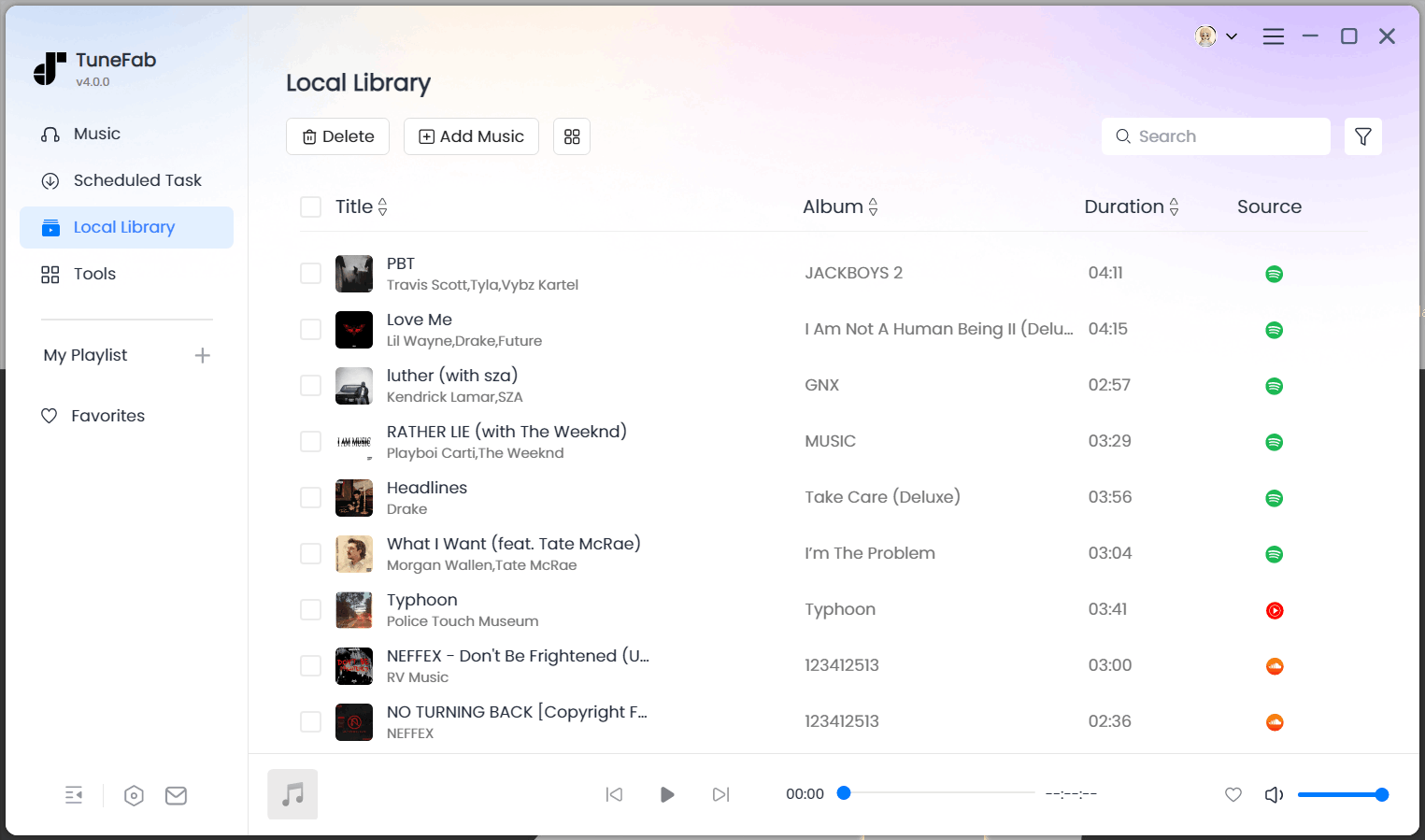
When the conversion is finished, your MP3 files will appear in the results list, ready to play or manage on your computer.
Related Articles:
Now, if you want to enjoy the downloaded Spotify MP3 files on your mobile devices, the following guide is for your reference.
How to Transfer Extracted Spotify Songs to Android/iPhone
The steps are simple for both Android and iPhone users, just follow the guide below to move your extracted Spotify music for offline playback.
On Android:
Step 1. Plug your Android device into your computer using a USB cable.
Step 2. On your Android device, use a file manager app on your Android device to create a new folder where you want to store the music.
Step 3. On your computer, open the folder where you saved the MP3 files that were extracted using TuneFab Spotify Music Converter.
Step 4. Copy the MP3 files from the folder on your computer, then open the folder you created on your Android device using the file manager and paste the copied MP3 files into the folder on your Android device.
Step 5. Safely eject or disconnect your Android device from your computer. Then open the music player app or any file manager app on your Android device to access and play the transferred MP3 files.
Tip: If it's not possible for you to use a computer to extract music, you can try using an online downloader developed by TuneFab. You can find it at the top of this article or in the TuneFab member center.
It's able to extract audio from Spotify to MP3 with ID3 information, outputting music in up to 320kbps.
On iPhone:
Step 1. Use a USB cable to connect your iPhone to your computer.
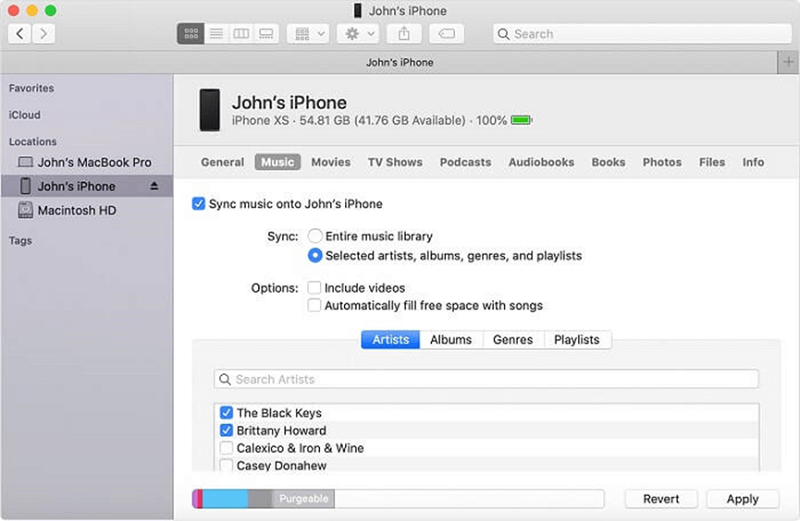
Step 2. If you're on a PC, open iTunes. For Mac users, open Finder and locate your connected iPhone under the "Locations" or "Devices" section.
Step 3. In iTunes (PC) or Finder (Mac), find and select the "Music" tab related to your connected iPhone. Choose "Sync Music > Selected playlists, artists, albums, and genres."
Step 4. Choose the songs you want to transfer to your iPhone from the extracted MP3 files obtained through TuneFab.
Step 5. Once you've selected the desired songs, click on the "Sync" button. This action will transfer the chosen tracks from your computer to your iPhone.
Step 6. After syncing is complete, disconnect your iPhone from the computer. Open the Music app on your iPhone to access and play the transferred songs.
Finding the written steps above too long? Get a quick solution with this video. It walks you through all methods in one go.
Extract Spotify Songs to Android/iPhone Directly Using Online Tool
Verdict: Best for users who don't want to download a desktop tool to extract Spotify songs.
If you'd rather skip the desktop setup and get your favorite Spotify tracks straight on your phone, TuneFab also provides mobile-friendly solutions. You can use the TuneFab Online Spotify Downloader at the top of this page for quick single-song downloads, or visit your Member Center to use the full Spotify to MP3 tool that supports playlists, albums, and batch downloads.
With this mobile-friendly tool, you can easily extract Spotify singles, playlists, and entire albums directly on your phone. The downloader supports batch downloads, saving multiple songs at once in MP3 format while preserving all ID3 tags, including song title, artist, album name, and cover art. You can also choose between 128 kbps for smaller file sizes or 320 kbps for high-quality playback, giving you full control over sound performance and storage space.
To get started on your phone, simply follow the steps below:
Step 1. Log in to the TuneFab Member Center
Open https://member.tunefab.com/personal#spotify-to-mp3 in your mobile browser and sign in with your TuneFab account.
Step 2. Choose "Spotify to MP3" from the Main Page
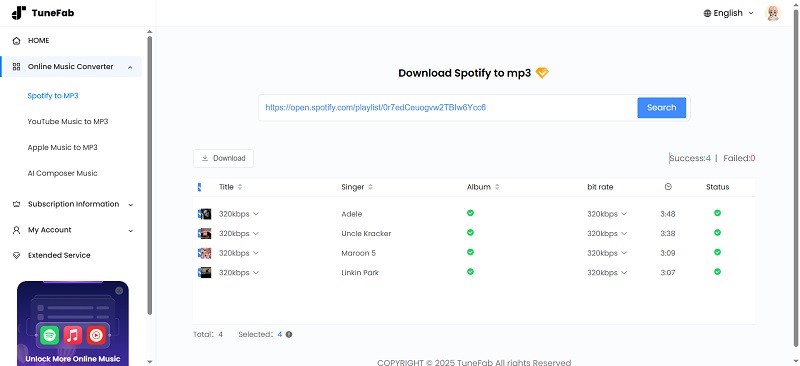
On the homepage, you'll see multiple converter options under Online Music Converter, such as Spotify to MP3, Apple Music to MP3, and YouTube Music to MP3. Select Spotify to MP3 to open the Spotify downloader tool.
Step 3. Copy the Spotify Song Link
Go to your Spotify app or web player, find the song, playlist, or album you want to download, and tap "Share > Copy link".
Step 4. Paste the Link into the Downloader
Return to the TuneFab page and paste the copied Spotify link into the search bar.
Step 5. Click "Download" to Start
Press the "Download" button, and TuneFab will begin converting your Spotify music to MP3. Once completed, your song will be ready to play offline on your phone anytime.
Bonus: Export Spotify Songs as a List (CSV Only)
Verdict: Best for saving Spotify songs metadata.
If you want to export your Spotify playlists into a spreadsheet format, you can use a free third-party tool called Exportify. It allows you to export your Spotify songs as a CSV file containing detailed information such as track name, artist, album, duration, and Spotify URL.
Here's how it works:
Step 1. Visit https://github.com/pavelkomarov/exportify and open the live web version of Exportify.
Step 2. Click "Get Started" and log in using your Spotify account.
Step 3. After logging in, you'll see all your playlists listed. Choose one or multiple playlists you want to export.
Step 4. Click "Export", and a CSV file will automatically download to your device.
This method is especially helpful if you want to back up your playlist data, analyze your listening habits, or share your playlist metadata with others.
FAQs About How to Extract Downloaded Spotify Songs
Can I export a list of songs from Spotify?
Yes. With TuneFab's Spotify Music Converter or the Online Spotify Downloader, you can download an entire list of songs, including full playlists or albums, in just one click. The tool supports batch downloads, allowing you to convert multiple tracks at once without needing to copy links one by one. Simply paste the playlist link into the tool, and it will convert all tracks at once into MP3 files.
Is it legal to extract Spotify music?
In general, Spotify's Terms of Service prohibit downloading, copying, or converting its content outside the official app. This means extracting Spotify songs for redistribution, commercial use, or sharing with others is not allowed. But if you extract Spotify music for personal use only, such as offline listening on devices that don't support the Spotify app, personal backups, or private use without redistribution. These uses are often tolerated.
Conclusion
This guide has covered several convenient ways to extract and enjoy Spotify music with TuneFab. You can use the TuneFab Spotify Music Converter on Windows or Mac to batch download songs in MP3 format, transfer the converted files to your Android or iPhone for flexible playback, or extract Spotify music directly on your phone using the TuneFab online downloader for a quick, all-in-one experience.
No matter which method you choose, TuneFab ensures smooth conversion, high-quality sound, and full preservation of ID3 tags like title, artist, album, and cover art. You can freely choose between 128 kbps and 320 kbps output and enjoy your playlists anytime, anywhere without the limits of the Spotify app. Try TuneFab Spotify Music Converter or visit your Member Center to explore more ways to download and keep your favorite Spotify songs offline.

