


Apple Music not working on Mac does not always mean the same thing. Sometimes nothing plays. Sometimes the app opens, but Search, Listen Now, or your subscription is the part that is not working. The fastest fix is to identify the broken part first.
Quick Check
| If this sounds like your problem | Start here |
| Nothing plays, or the app feels stuck | How to Fix Apple Music Not Working on Mac → |
| Search only shows local songs or incomplete results | Apple Music Search Not Working on Mac → |
| Your Mac says you need Apple Music, or Sync Library is missing | Apple Music Subscription Not Working on Mac → |
| Your library is still there, but Listen Now is blank or not loading | Apple Music Listen Now Not Working on Mac → |
| You already tried the normal fixes and just want stable music files on Mac | Need a More Stable Way to Listen on Mac? → |
- If the whole app feels wrong, start with the broad fixes below.
- If the app opens and only one part is broken, click and go straight to that section instead.
How to Fix Apple Music Not Working on Mac
Step 1. Make sure this is really an Apple Music problem
Start with one simple test. Play a song and watch the progress bar.
👉🏻 If the bar moves but you hear nothing, the problem may be your sound output, speaker, or AirPlay target, not Apple Music itself. Check your Mac volume, the selected output device, and any external speaker connection first.
👉🏻 If the bar does not move, the app keeps spinning, or songs refuse to start, keep going with the next steps.
Step 2. Check whether the issue affects everything or only certain songs
Try three kinds of content:
- one song already in your library
- one Apple Music streaming track
- one purchased track, if you have one
This helps you narrow the problem fast.
👉🏻 If everything fails, stay on this page and move on to the next step.
👉🏻 If only certain purchased or shared songs fail, that usually points to a narrower authorization issue. In that case, the better next read is iTunes songs greyed out, not another broad Mac troubleshooting page.
Step 3. Confirm the Apple Account on your Mac
A lot of Mac Apple Music problems come from an account mismatch.
Open the Music app and check the Account menu in the menu bar. Make sure your Mac is signed in with the same Apple Account that holds your Apple Music subscription.
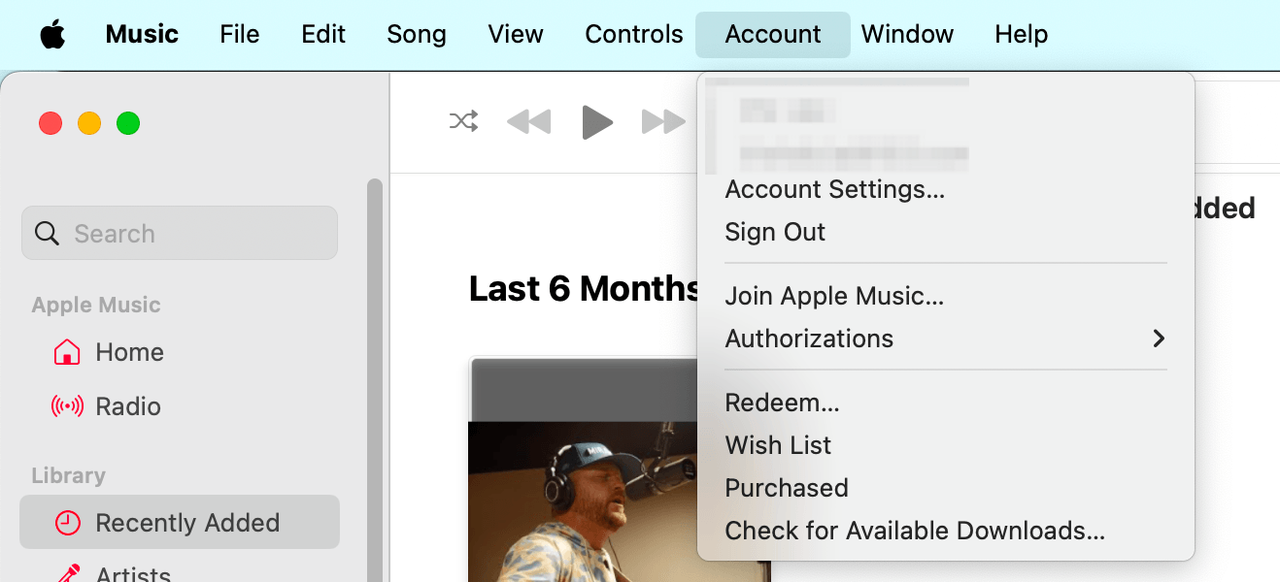
👉🏻 If the wrong account is active, Apple Music can look half-broken. The app may open, but streaming, subscription recognition, or library sync may not work correctly.
Step 4. Check Sync Library before you reset anything
Go to Music > Settings > General and see whether Sync Library is available and turned on.
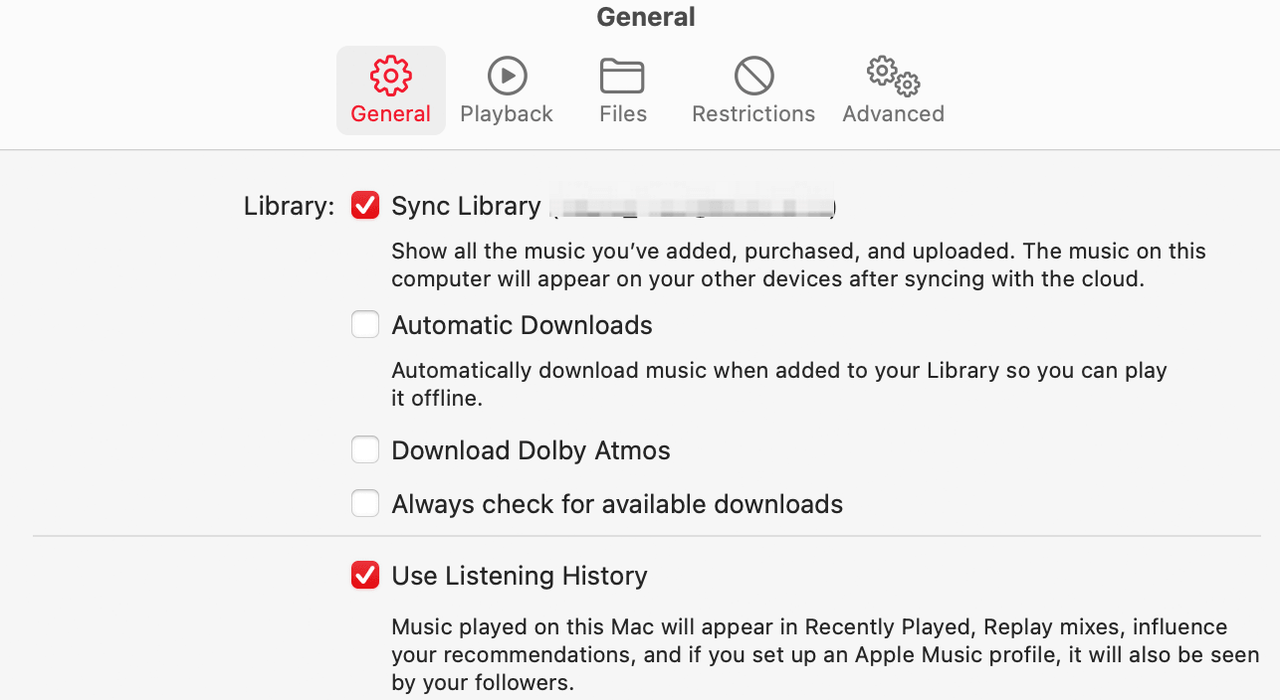
If the option is missing, that usually means one of two things:
- the wrong Apple Account is signed in
- your subscription is not being recognized on this Mac
👉🏻 If your library looks incomplete, do not rush into sign-out or reinstall steps yet. First go to File > Library > Update Cloud Library and let the app catch up.
👉🏻 If songs disappeared across devices, the better next step is to check Apple Music library not syncing.
Step 5. Turn Sync Library off and back on only if needed
This can help, but it should not be your first move.
Turning Sync Library off removes downloaded music from the device first, and larger libraries can take longer to rebuild. So save this step for later, after you check the account, Sync Library setting, and cloud library update.
👉🏻 If your main pain point is downloaded tracks that no longer play, the more useful next guide is Apple Music not playing downloaded songs.
When Only One Part of Apple Music Is Broken on Mac
Sometimes the Music app opens and most of it still works. But one important part does not.
That usually means you are dealing with a more specific Apple Music problem, not a full app failure. On Mac, the most common versions are broken Search, broken subscription recognition, and a Listen Now page that stays blank or refuses to load.
Apple Music Search Not Working on Mac
Step 1. Make sure Search is using the right source
A lot of “search not working” cases are really “search is pointed at the wrong source.”
On Mac, the Music app can search:
- Apple Music
- Your Library
- iTunes Store
So if Search only shows your local songs, that does not always mean Search is broken. It may simply mean you are searching Your Library instead of Apple Music.
Step 2. Switch the search target and test again
Click the search box and make sure Apple Music is selected on the right side. Then search for something easy and well-known, like a popular album or artist that is clearly in the Apple Music catalog.
If you want store results and do not see iTunes Store, turn that option on in Music > Settings > General first.
Step 3. Recheck the account and loading status if Search still does not work normally
If Search still returns incomplete or strange results, step back and check the broader setup:
- Is the right Apple Account signed in?
- Is Sync Library available?
- Is Apple Music loading normally in other parts of the app?
If search problems start looking more like general loading problems, the better next read is Apple Music not loading, not another generic search checklist.
Apple Music Subscription Not Working on Mac
Step 1. Check the Apple Account on this Mac first
If your Mac says you need Apple Music even though you already pay for it, do not start with playback fixes.
Start with the account.
Open the Account menu and confirm that your Mac is signed in with the same Apple Account used for your subscription. This is the most important check in this section.
Step 2. Check whether Sync Library is available
Go to Music > Settings > General and look for Sync Library.
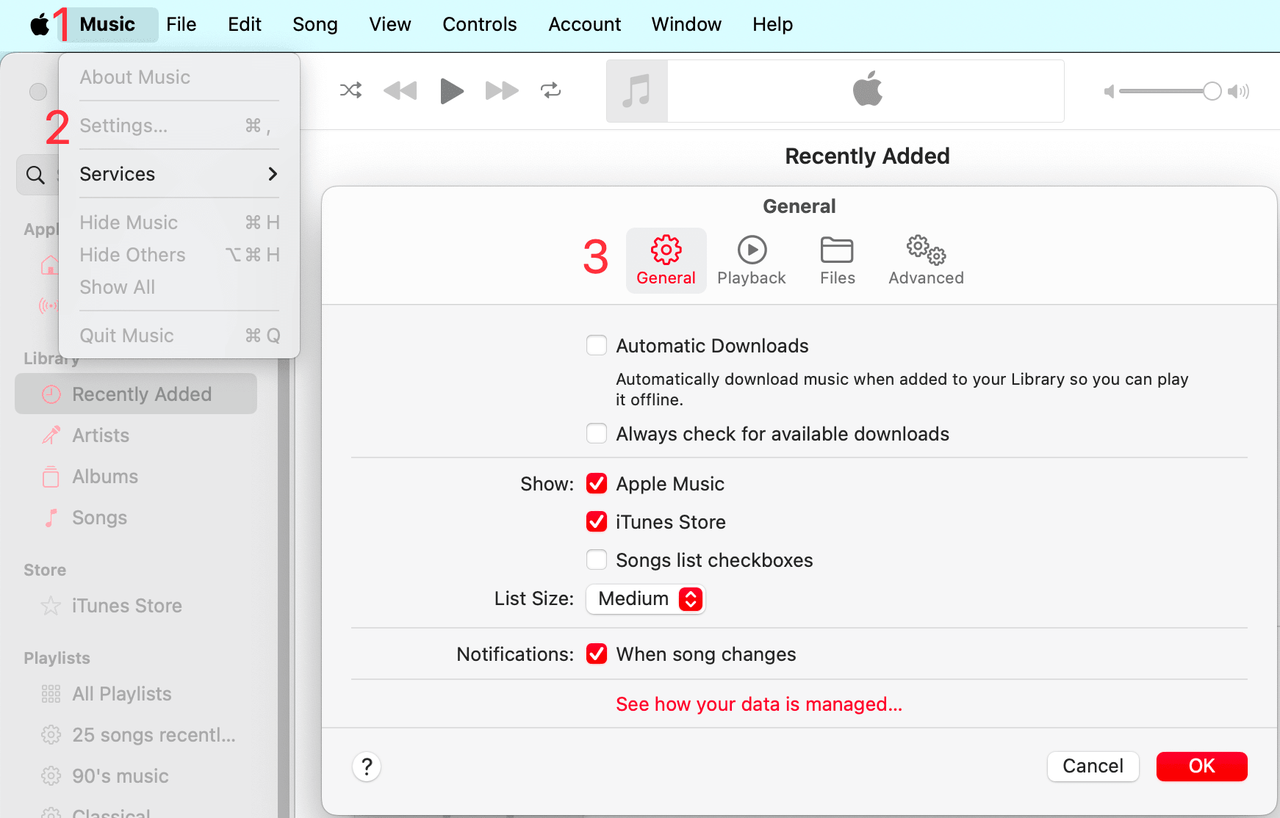
If it is missing, that usually means your Mac is not recognizing the subscription correctly, or the wrong Apple Account is signed in. If it is there but off, turn it on and give the app time to sync.
Step 3. Wait for the library to update
Do not assume the problem is fixed the second you turn Sync Library on.
If the library is large, your Mac may need time to rebuild and refresh. Watch for library update activity before doing more drastic steps.
Step 4. Only then move to deeper sync-related fixes
If your subscription is recognized but songs are still missing, the better next step is to check songs missing from Apple Music library.
Apple Music Listen Now Not Working on Mac
Step 1. Check whether Listen Now is the only broken part
If your library is still there, but Listen Now is blank, stuck, or not refreshing, do not treat it like a full library failure right away.
First ask a simpler question: Is only Listen Now broken, or are other parts of Apple Music failing too?
If only Listen Now looks wrong, the issue is often narrower than the whole app.
Step 2. Recheck your account before you touch the library
When one tab breaks but the rest of the app still loads, it makes more sense to recheck the signed-in Apple Account than to rebuild the whole library.
Confirm the right account on Mac first. Then see whether Search, Library, and streaming playback still work normally.
If they do, your library itself may not be the problem.
Step 3. Check connection or sign-in issues before you reset the library
If this starts to look more like a connection or sign-in problem, the better next step is cannot connect to iTunes Store.
Need a More Stable Way to Listen on Mac?
If the normal Apple Music fixes still do not help, you may need a more stable workaround. Offline playback inside the Music app works for many people, but it still depends on the app, your account, and sync working normally. If your goal is to keep music as local files on your Mac, a converter workflow can be the more practical fallback.
TuneFab Apple Music Converter fits here as a stability option, not as a fake repair tool. The point is simple: if Apple Music still does not work well on your Mac, keeping songs in a local format can give you more stable playback and more control over your files.
If you want a more flexible file format, read how to convert Apple Music to MP3. If you want songs saved to your computer first, read how to download Apple Music to computer.
FAQ About Apple Music Not Working on Mac
Why does Apple Music only show my library on Mac?
Often, the search target is set to Your Library instead of Apple Music. Switch the search target in the search field first, then test again.
Why does my Mac say I need Apple Music when I already have a subscription?
The most common reason is an account mismatch. Your Mac needs to be signed in with the same Apple Account used for your Apple Music subscription, and Sync Library depends on that too.
Why is Listen Now blank on Mac but my library is still there?
That usually points to a smaller sign-in, connection, or home-page loading issue, not a full library failure. If the rest of the app still works, check your account and connection first before rebuilding the library.
Should I turn Sync Library off right away?
Usually no. Check the account, make sure Sync Library is available, update the cloud library, and only then use the off-and-on reset if needed.
Conclusion
Most Apple Music problems on Mac fall into two groups: either the whole app is not working, or only one part is. Start with the broad checks if nothing works. If the app opens but one feature is broken, move straight to Search, Subscription, or Listen Now. If the normal fixes still do not help, a local-file fallback may be the simpler next step.

