


You put on your Fitbit for a workout, start Apple Music on your phone, and expect the watch to work with it. Then you look for Apple Music on the device or try the music controls people mention online, only to find that it does not work the way you expected.
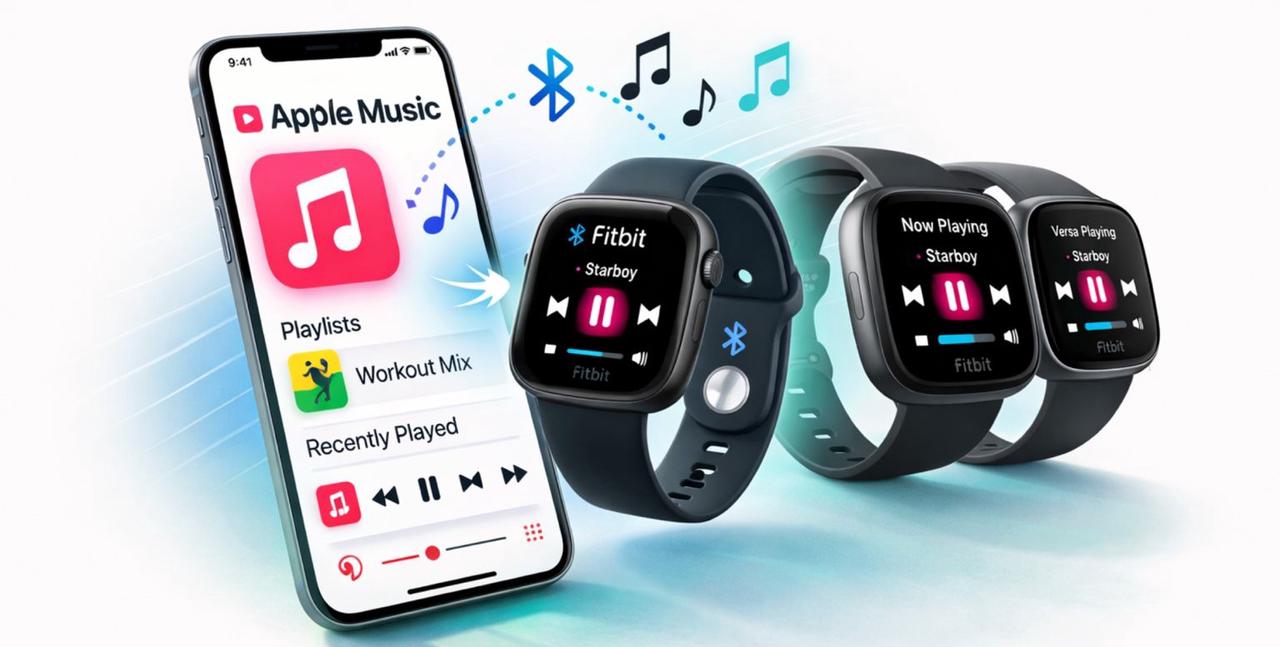
Here is the short answer: Fitbit does not directly support Apple Music. Apple Music does not simply run on Fitbit the way it does on Apple Watch. What happens next depends on your model.
- Does Fitbit Support Apple Music?
- Which Fitbit Models Work Best with Apple Music?
- How to Use Apple Music with Fitbit in a Limited Way
- Way 1: Play Apple Music on your phone and control it from Fitbit
- Way 2: Use local audio files on older Fitbit models
- Extra Tips: How to Move Local Music Files to Older Fitbit Watches
- FAQ about Apple Music on Fitbit
- Conclusion
Does Fitbit Support Apple Music?
First, let’s clear up the main question: the answer is no. Fitbit does not directly support Apple Music.
What makes this confusing is that different Fitbit models handle music differently, so a simple yes-or-no answer is usually not enough. To make that easier to understand, here is the simplest breakdown:
| What you want to do | Does Fitbit support it? | What this means |
| Install Apple Music on Fitbit | ❌No | There is no official Apple Music app for Fitbit. |
| Play Apple Music directly from the watch | ❌No | Fitbit is not built to stream Apple Music as its own music service. |
| Control Apple Music already playing on your phone | ⚠️Yes, on some models | Some Fitbit devices can work as basic playback controls for your phone. |
| Use Apple Music on Fitbit the same way as on Apple Watch | ❌No | Fitbit does not offer the same level of Apple Music integration. |
| Use newer Fitbit music controls with Apple Music | ⚠️Usually no | Newer models like Charge 6, Sense 2, and Versa 4 focus more on YouTube Music controls instead. |
| Treat basic music control as full Apple Music support | ❌No | Controlling playback is not the same as having Apple Music on the watch. |
So before you go any further, keep this in mind: Fitbit is not a direct Apple Music device. The next step is to check what your specific model can actually do.
Which Fitbit Models Work Best with Apple Music?
If you already know your Fitbit model, this is the part that matters most. Some Fitbit watches can still help with basic Apple Music control from your phone, while others are a weak match from the start.
To make that easier to judge, here’s a quick model-by-model summary:
| Your Fitbit | Apple Music fit | What you can do | What you should not expect |
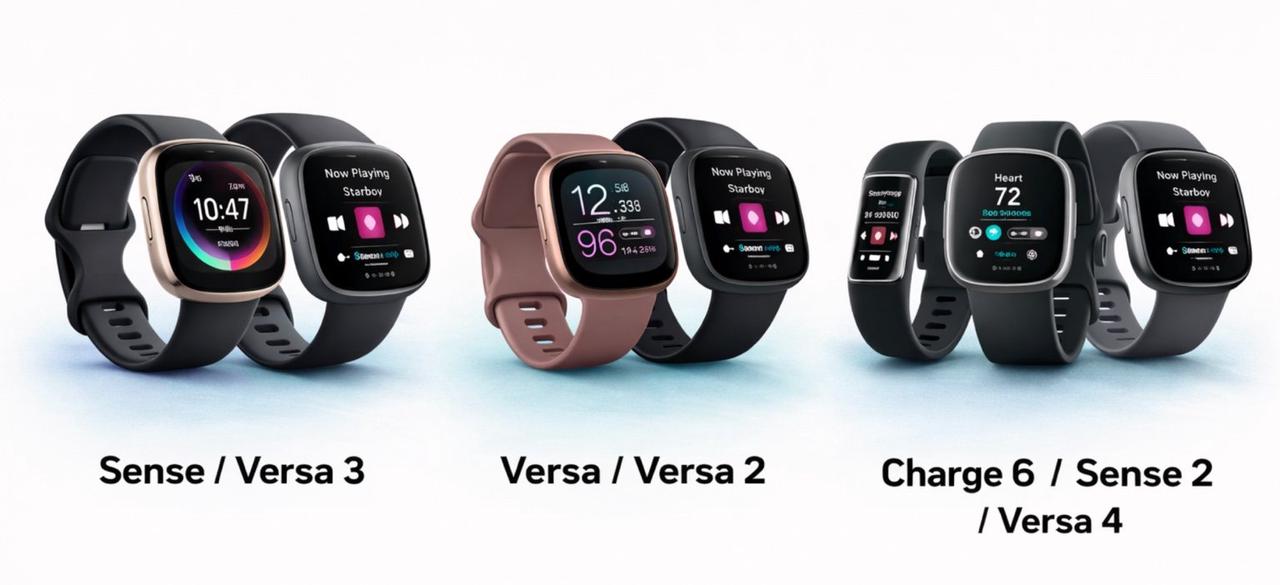
| Sense / Versa 3 | Best for basic control | Start Apple Music on your phone, then use the watch for simple controls. | Do not expect Apple Music to run on the watch itself. |
| Versa / Versa 2 | Usable, but still limited | Keep Apple Music on your phone and use supported phone music controls from the watch. | Do not expect direct Apple Music playback on the watch. |
| Charge 6 / Sense 2 / Versa 4 | Poor match | Keep Apple Music on your phone and use Fitbit mainly for fitness. | Do not expect meaningful Apple Music support from the watch. |
💡 If you only remember one thing
- Sense / Versa 3: best if you only need simple phone music controls
- Versa / Versa 2: still usable, but not true Apple Music watches
- Charge 6 / Sense 2 / Versa 4: not a good match if Apple Music matters a lot to you
That is the real line to keep in mind: if by Apple Music on Fitbit you mean phone playback plus simple wrist control, some models may still do enough. If you mean direct Apple Music use on the watch, Fitbit is still not built for that.
How to Use Apple Music with Fitbit in a Limited Way
Even though Fitbit does not directly support Apple Music, you still have two realistic paths: control Apple Music from your phone, or use regular local audio files on older Fitbit watches that still support watch-based music features. Fitbit’s current help page still shows watch-based music source switching on some older models, while newer models like Charge 6, Sense 2, and Versa 4 focus more on YouTube Music controls instead.
Way 1: Play Apple Music on your phone and control it from Fitbit
|
⭐️ Best for
|
🙅🏻 Not for
|
|
|
This is the simplest setup for most people. Start Apple Music on your phone first, then use your Fitbit for basic actions like play, pause, skip, or going back to a track during workouts. Fitbit’s help page still ties music control on Sense, Versa 3, Versa, and Versa 2 to the phone as the music source, which is why this is the most workable path for those models.
Way 2: Use local audio files on older Fitbit models
|
⭐️ Best for
|
🙅🏻 Not for
|
|
|
Some older Fitbit watches still show watch-based music features in Fitbit’s support documentation, including references to music stored on your watch. That means regular local music files are still part of the picture on older models such as Versa, Versa 2, Sense, and Versa 3.
But Apple Music songs are not the same as normal local audio files. Apple Music is not a supported Fitbit music service, and Apple Music subscription tracks still come with restrictions that regular MP3 or M4A files do not. Apple user discussions reflect the same issue when people try to move Apple Music tracks to Fitbit or other non-Apple devices.
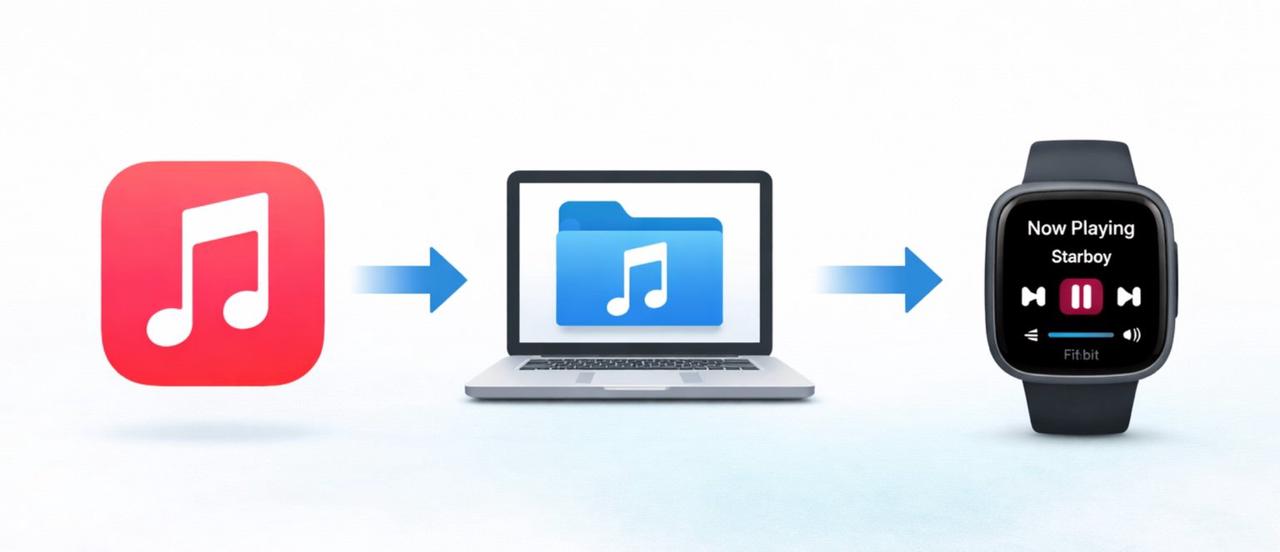
So if you want to use Apple Music through a watch-based music path, the realistic idea is not “install Apple Music on Fitbit.” The realistic approach is first to convert Apple Music to a standard local audio format, then use that file as your Fitbit model allows. That is exactly where the next step comes in.
Extra Tips: How to Move Local Music Files to Older Fitbit Watches
If you want to use the local music path on an older Fitbit, you first need regular audio files. That is exactly where TuneFab Apple Music Converter fits this setup. Instead of leaving your songs locked inside Apple Music, it helps save them as regular local audio files on your computer, so they are much easier to move, store, and use on Fitbit setups that do not support Apple Music directly.
Once your files are ready, the rest is much simpler.
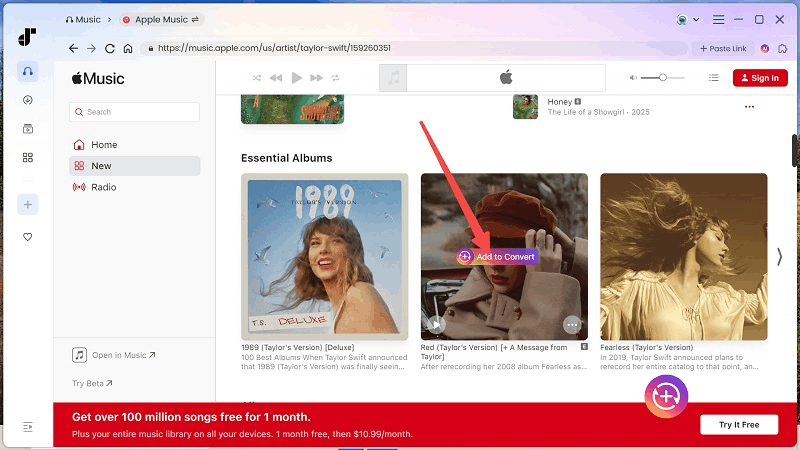
Step 1. Convert Apple Music into regular local audio files
Start by converting the Apple Music tracks you want on your computer. This is the key first step, because Apple Music itself is not a supported Fitbit music service.
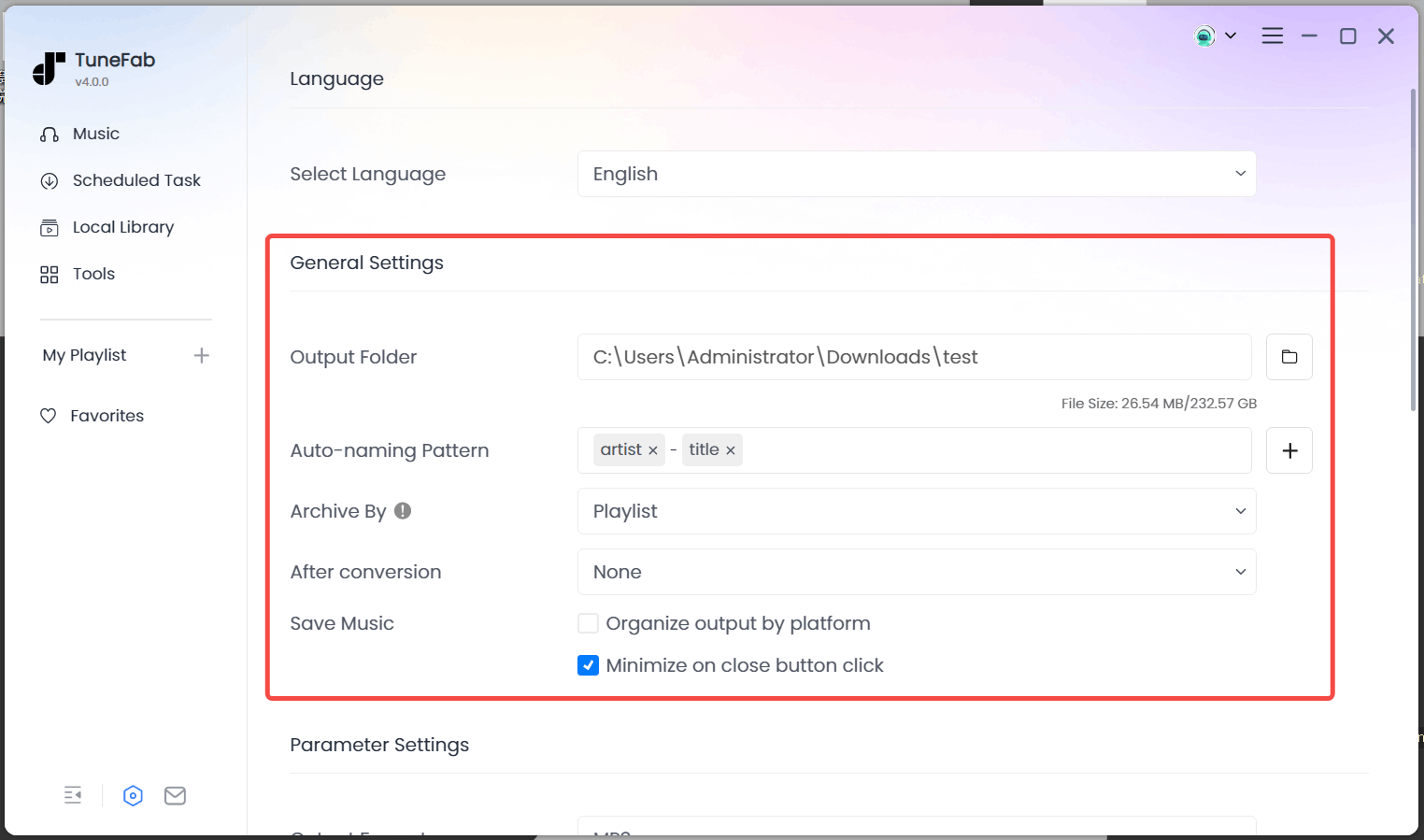
Step 2. Save the files in one folder
Put the converted songs in one easy-to-find folder on your computer. This makes the transfer step easier, especially if you want to add several songs at once.
Step 3. Open the music setup your Fitbit model still supports
On older Fitbit watches that still support watch-based music or stored music, open the music path your model allows. Fitbit’s current help page still refers to music stored on your watch and switching the music source between your phone and your watch on some older models, including Versa, Versa 2, Sense, and Versa 3.
Step 4. Add or sync the local files to Fitbit
Once the files are ready, add or sync them through the music workflow your Fitbit model supports. The exact screens may vary by model, but the main point stays the same: you need regular local audio files first.
Step 5. Switch to the watch music source when needed
If your Fitbit still supports both phone and watch as music sources, switch to the watch side when you want to play stored music instead of controlling music from your phone. Fitbit still documents this source-switching behavior on supported older models.
FAQ about Apple Music on Fitbit
1. Can you play Apple Music directly on Fitbit?
No. Fitbit does not directly support Apple Music as a built-in music service. There is no official Apple Music app for Fitbit, and newer models like Charge 6, Sense 2, and Versa 4 focus more on YouTube Music controls instead.
2. Can Fitbit control Apple Music on your phone?
Sometimes, yes. On compatible models, Fitbit can work as a basic controller for music already playing on your phone. That is why some users feel Apple Music “kind of works” on Fitbit, even though the watch is really controlling phone playback rather than running Apple Music itself. Fitbit’s help page still documents phone-based music control on supported models.
3. Does Fitbit Charge 6 work with Apple Music?
Not in a meaningful Apple Music-first way. Fitbit’s official help page says Charge 6 uses the YouTube Music Controls app to manage playback in the YouTube Music app on your phone, not Apple Music. Fitbit Community discussions also show users asking for broader music controls on Charge 6 because the current setup feels too limited.
4. Does Fitbit Versa 3 work with Apple Music?
Only in a limited way. Versa 3 can still make sense if you want simple music control from your wrist while Apple Music plays on your phone. But it is not the same as having Apple Music on the watch. Fitbit’s help page still documents music-source switching behavior on older supported models like Versa 3.
5. Can you transfer Apple Music songs to Fitbit as local files?
Not directly as Apple Music subscription tracks. Apple Music is not a supported Fitbit music service, and Apple user discussions show that Apple Music songs can run into DRM limits when people try to move them to Fitbit or other non-Apple devices. The more realistic workaround is to turn them into regular local audio files first, if your older Fitbit model still supports a watch-based music path.
Conclusion
Fitbit does not directly support Apple Music, so you cannot use it like Apple Watch. Still, some older Fitbit models can do enough if you only need simple phone controls or a local-file workaround, while newer models like Charge 6, Sense 2, and Versa 4 are a much weaker fit for Apple Music.
So the key is simple: if you just want light music control during workouts, Fitbit may still be enough. But if you want Apple Music to work as a real watch-based music service, Fitbit is not built for that. And if your older Fitbit still supports local music, the missing step is usually turning Apple Music into a regular audio file first.
TuneFab Apple Music Converter
One click to remove DRM from Apple Music without quality loss.

