


When looking for a reliable Spotify music converter in 2025, you've likely come across MusicFab Spotify Converter more than once. But does it truly live up to the hype? Is it safe and trustworthy? And is it worth the price? Don't worry.
This article will serve as your ultimate 2025 guide. We're here to offer you an in-depth review of MusicFab Spotify Converter, covering its major features, safety, pricing, pros and cons to reveal the real answer. If you're still on the fence, keep reading. This review will help you make a smart and confident decision.
Main Features of MusicFab Spotify Converter
Available for both Windows and Mac, MusicFab Spotify Converter is desktop software built for music lovers to remove Spotify's DRM and convert songs, playlists, albums, and even podcasts into common audio formats. Then, users are able to access their favorite Spotify music library on any device without limitations. Now, let's first take a closer look at the key features of MusicFab Spotify Converter.
#1 Convert Spotify Music to 6 Audio Formats
MusicFab Spotify Converter can rip Spotify songs into six mainstream audio formats, including MP3, FLAC, WAV, AAC, M4A, and OPUS. These formats are all DRM-free, which means you can keep the downloaded files permanently and play them on any device. The output supports up to 320 kbps / 24-bit, 44.1 kHz, ensuring high-quality audio for everyday listening.
#2 Preserve Lyrics and Full ID3 Tags
During the conversion process, MusicFab is able to preserve lyrics files and full ID3 metadata, including song title, artist, album cover, track number, genre, and more. This ensures that your music library stays organized across all devices. Besides, it's much easier for you to manage and search for your collection.
#3 Batch Download Playlists, Albums, Podcasts & Audiobooks
Whether it's an album, playlist, podcasts, or even audiobooks, MusicFab Spotify Converter allows you to download with just one click. Downloading an entire playlist only takes a few minutes. This feature is especially useful for users with large music collections or anyone who wants to quickly build an offline music library.
#4 Built-in Browser for Seamless Music Selection
Unlike many other Spotify converters, MusicFab Spotify Converter comes with a built-in Spotify Web Player. You don't need to go through the hassle of copying and pasting links. Instead, you can log in to Spotify directly within MusicFab, browse your library, search for songs, and select the tracks you want to download. The entire process is smooth, fast and intuitive.
#5 Compatible With All Spotify Plans and Regions
As we all know, Spotify offers different features for Free and Premium users, and it also has regional restrictions. In some countries or regions, Spotify's full music library may not be accessible, or certain features may be limited. MusicFab breaks these limitations, allowing all users to freely access and download Spotify songs regardless of account type or location.
How to Use MusicFab Spotify Converter?
With the built-in web player, all operations can be completed within the software, without switching between multiple programs. Here's a step-by-step guide to downloading a Spotify track as an MP3 in MusicFab Spotify Converter:
Step 1. Download and install MusicFab Spotify Converter on your computer, then launch the software.
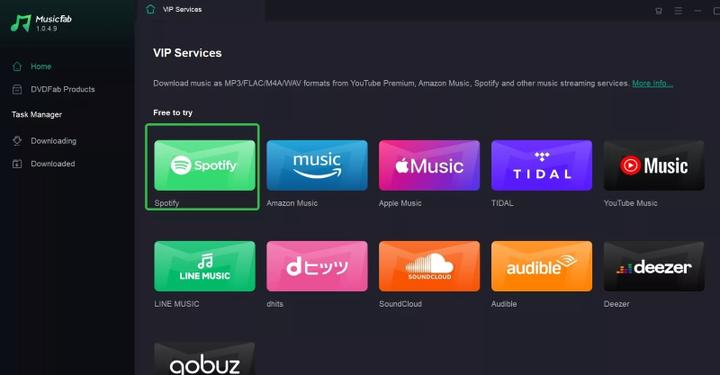
Step 2. From the main menu, select the "Spotify" service and log in to your account.
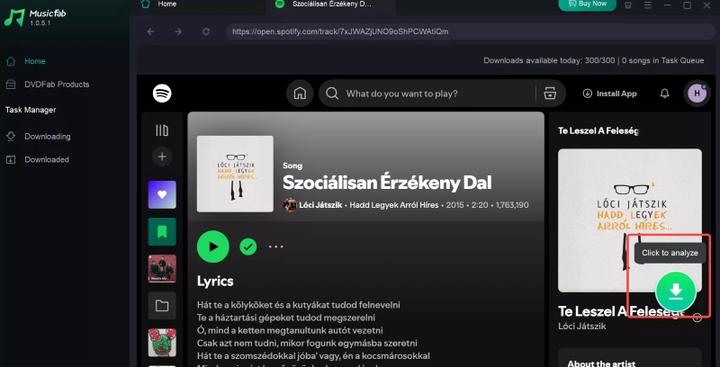
Step 3. Search for the song you want in your library. Select it and click the "Arrow" button on the right side of the screen. The software will automatically recognize and analyze the track.
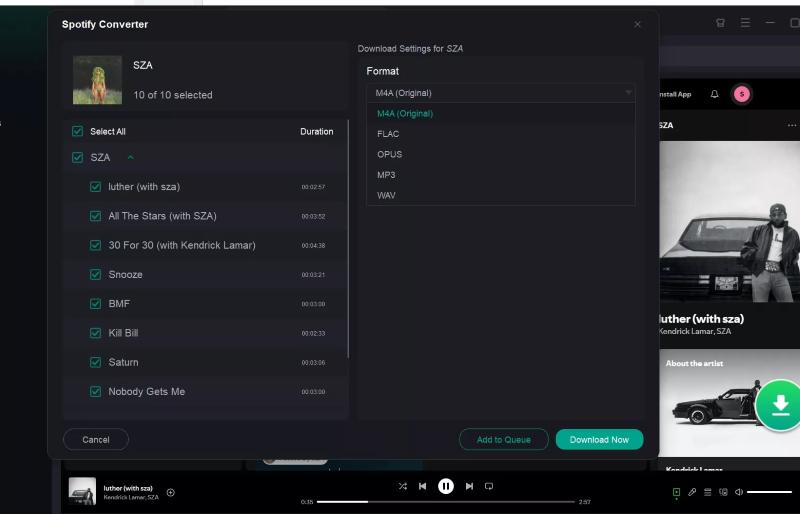
Step 4. Choose the output format and customize audio quality settings. Click "Download Now" to start downloading.
Step 5. After the download is complete, go to the "Downloaded" section to view and access your downloaded files.
Is MusicFab Spotify Converter Safe to Use?
As one of the best Spotify converter, MusicFab Spotify Converter is a legitimate and well-maintained desktop program. MusicFab claims that its product is 100% safe and free from viruses or malware. Based on our testing, this appears to be true. The installation process contains no bundled programs, unwanted add-ons, or adware.
However, it's important to note that Spotify music converters, including MusicFab, generally operate in a legal gray area. While the software itself is safe and reliable, any songs downloaded using MusicFab Spotify Converter are strictly intended for personal use only. The software explicitly prohibits sharing downloaded content with third parties, as well as any unauthorized uploading, redistribution, or distribution.
Pricing of MusicFab Spotify Converter
MusicFab Spotify Converter offers several pricing options depending on your device needs and subscription preference. Here's a clear overview:
| Plans | Devices |
| $69.99/Year | 1 device |
| $99.99/Lifetime | 1 device |
| $129.99/Lifetime | 3 device |
Free Trial: Allows users to convert and download up to 3 songs before purchasing.
Purchase Link: https://musicfab.dvdfab.cn/spotify-converter.htm
Pros and Cons of MusicFab Spotify Converter
We've gone over a lot of details about MusicFab Spotify Converter, so let's briefly sum up its main pros and cons.
Pros:
- Easy to Use
- High-Speed Downloads
- Batch Conversion
- Built-in Web Player
- Multiple Output Formats
- Metadata Preservation
Cons:
- Relatively high price and no monthly plan. For users who only use it occasionally, the value of money may not be ideal.
- After downloading a certain number of songs, you need to wait before continuing.
- Sometimes downloads may fail.
- Technical support responds slowly.
MusicFab Spotify Converter Alternative: TuneFab Spotify Music Converter
If you're not completely satisfied with MusicFab Spotify Converter's performance, don't worry. In this section, we present an alternative solution: TuneFab Spotify Music Converter.
Highlights of TuneFab Spotify Music Converter
This Spotify to MP3 converter allows you to download Spotify songs for free in common audio formats, including MP3, FLAC, M4A and more. Like MusicFab, it also comes with a built-in Spotify Web Player, so you can easily drag and drop or click to download songs. However, what sets TuneFab apart is that it doesn't even require login to start downloading, making the entire process much more streamlined and user-friendly.
In addition to individual songs, TuneFab enables you to convert entire playlists, albums, podcasts, or even an artist's entire discography with just one click. The software downloads the content in native lossless audio at a blazing fast 35X speed. So, you can get the best quality without waiting long. Before downloading, you can also adjust settings such as bitrate and sample rate to customize the audio quality according to your preferences.
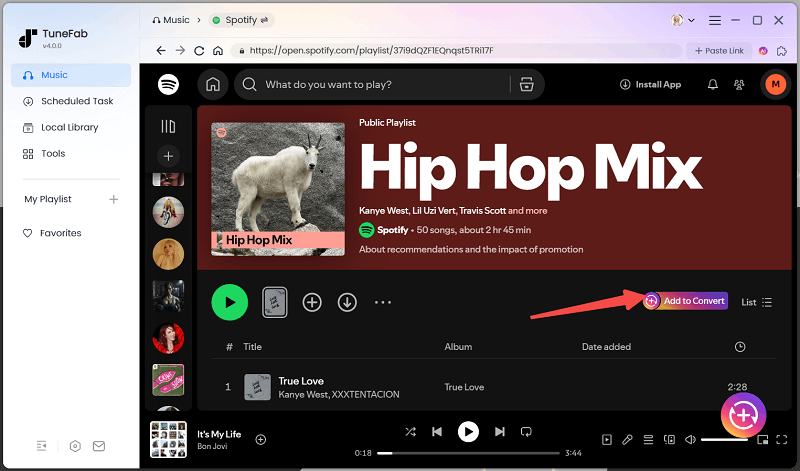
MusicFab vs. TuneFab
| Feature | MusicFab Spotify Converter | TuneFab Spotify Music Converter |
| Supported Formats | MP3, FLAC, WAV, AAC, M4A, OPUS | MP3, M4A, WAV, FLAC, AIFF, AAC, and ALAC |
| Batch Download | Yes | Yes |
| Lyrics & ID3 Tags | Preserved | Preserved |
| Built-in Browser | Yes | Yes |
| Download Speed | 20X | 35X |
| Pricing | $69.99/Year $99.99/Lifetime |
$25.95/Month $79.95/Year $99.95/Lifetime |
| Download Stability | Occasional failures | Stable |
Conclusion
In this article, we have provided a comprehensive review of MusicFab Spotify Converter, covering aspects like functionality, pricing, and safety. If you are unsure about whether this software is the right choice for you, we believe this article will help you make a more informed decision. At the end of the article, we also introduced an alternative solution, TuneFab Spotify Music Converter, which performs exceptionally well in downloading Spotify music to MP3. If you're interested, feel free to check it out!

