


You came here for a direct way to connect Apple Music to Discord. Bad news: there is not one. Apple Music does not connect to Discord like Spotify does, so what usually works instead is a desktop tool that shows your music in Discord status or activity. On iPhone and other mobile devices, the options are much more limited.
This is where people usually get mixed up. “Connect Apple Music to Discord” can mean linking an account, or it can just mean making your music show up on Discord. Those are different goals, so the setup is different too. Let’s figure that out first, then see what actually works on desktop and what you can expect on mobile.
- Can You Connect Apple Music to Discord?
- How to Show Apple Music on Discord from a Computer
- Apple Music app + Rich Presence tool
- Apple Music web player + browser extension
- Can You Connect Apple Music to Discord on iPhone or Mobile?
- Beyond Discord Status: When Displaying a Song Is Not Enough
- Apple Music and Discord FAQ
- Conclusion
Can You Connect Apple Music to Discord?
Not as a built-in Discord connection.
Apple Music does not have the same native connection option that Spotify has in Discord, so there is no official way to link your Apple Music account inside Discord Connections. What still works today is not a real account connection, but a way to make Apple Music show up on Discord in limited forms instead.
Before getting into the steps, one thing needs to be clear: when Apple Music appears on Discord, it usually shows up as status or activity, not as a true built-in profile connection.
Discord status and activity
This is what most people actually want.
They are not trying to fully link Apple Music as an account inside Discord. They just want Discord to show the song they are playing. On desktop, that can work through extra tools that pass Apple Music playback info to Discord.
Profile connections vs. third-party tools
This is where people often get confused.
A profile connection is built into Discord. A third-party tool is not. So even if Apple Music appears in your Discord status or activity, that still does not mean Discord officially supports Apple Music as a native connection.
How to Show Apple Music on Discord from a Computer
If you want Apple Music to show up on Discord, a computer is still the easiest place to set it up. Right now, the most practical options are using the Apple Music desktop app with a Rich Presence tool, or using the Apple Music web player with a browser-based activity tool. Both can work.
Quick Look: Which one should you try first?
- You already listen in the desktop app: Try the Apple Music app + Rich Presence tool
- You mainly use Apple Music in a browser: Try the Apple Music web player + browser extension
Apple Music app + Rich Presence tool
This works best if you already use the Apple Music app on your computer. A third-party tool reads your Apple Music playback and sends that information to Discord, so your song can appear in status or activity. Tools in this category include Music Presence and similar Apple Music Discord RPC tools.
Step 1: Open Discord on your computer, then open the Apple Music app and play a song.
Step 2: Install a Rich Presence tool that supports Apple Music. The setup may look a little different on Windows and Mac, depending on the tool you use.
Step 3: Open the tool, allow any needed permissions, and make sure it can detect Apple Music playback.
Step 4: Keep Discord, Apple Music, and the Rich Presence tool running at the same time.
Step 5: Check your Discord status or activity to see whether your current track appears.
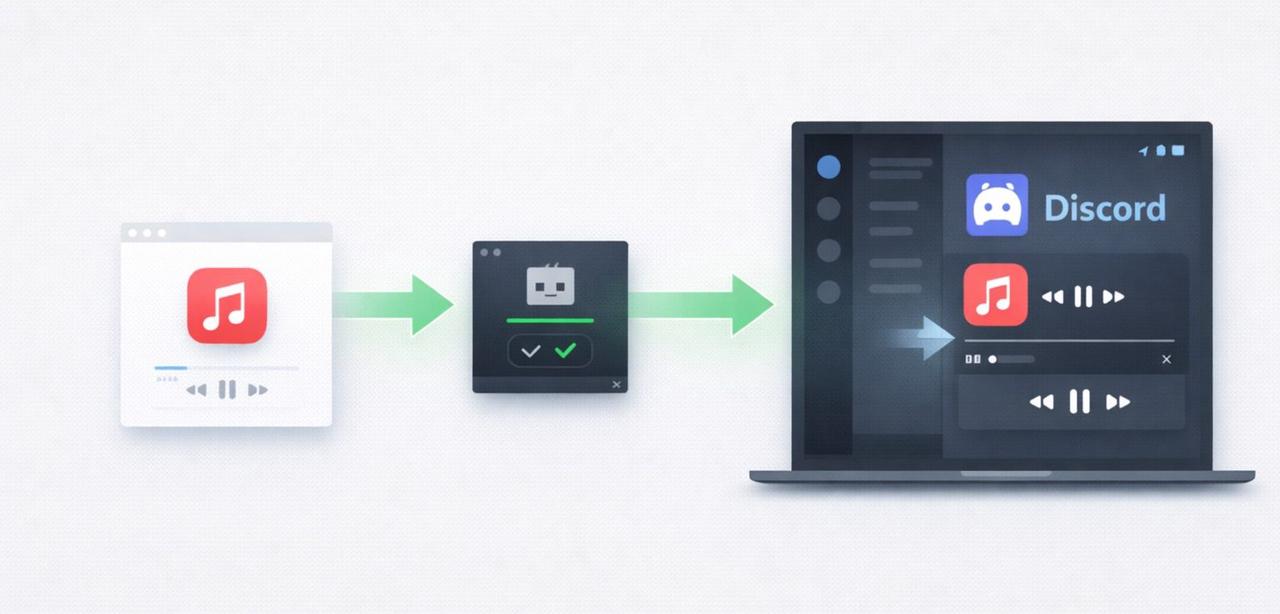
This is the closest option if you want Apple Music to feel connected to Discord, even though it still is not an official Apple Music integration.
Apple Music web player + browser extension
This makes more sense if you use Apple Music in a browser instead of the desktop app. In this setup, a browser-based tool reads what is playing on the Apple Music website and passes that activity to Discord. PreMiD is one of the better-known tools for this type of setup, and Apple Music appears in its activity library.
Step 1: Open Discord first and keep it running on your computer.
Step 2: Open the Apple Music web player in your browser and sign in if needed.
Step 3: Install the browser-based Discord activity tool. Some tools, such as PreMiD, need both a browser extension and a desktop app.
Step 4: Turn on the Apple Music activity inside the tool if it is not enabled by default.
Step 5: Play a song, then refresh the page or reopen Discord if the status does not update right away.
Step 6: Check whether your Apple Music listening activity appears in Discord.
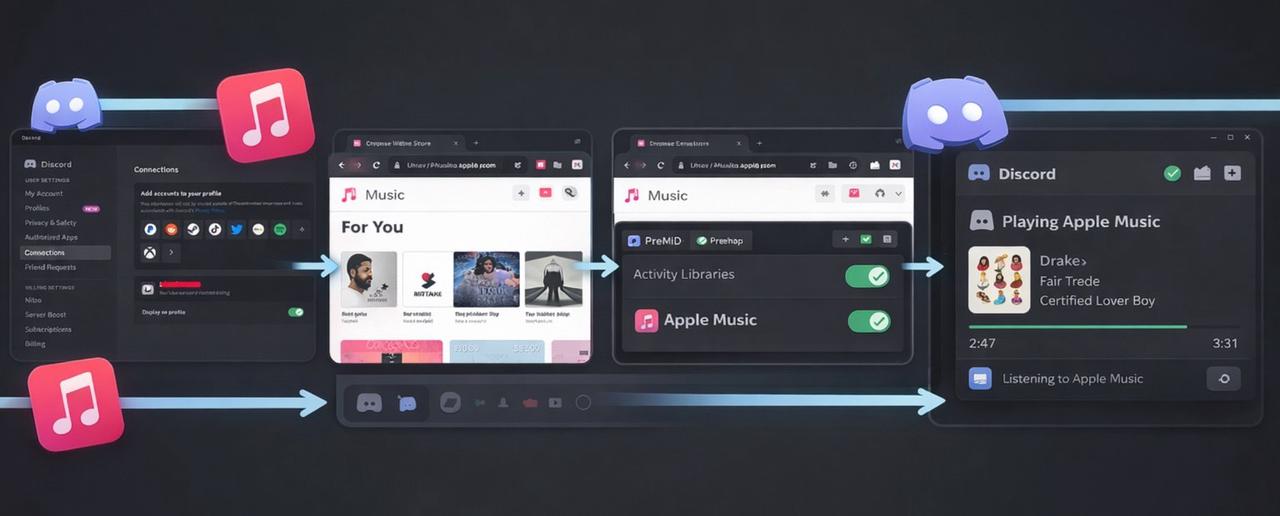
This is usually the better choice if you mainly listen through the Apple Music web player.
Tip:
1. If neither works, the problem is usually not your Apple Music account. It is more often the tool, permissions, or the tool you are using.
2. If your goal is to play music in a Discord server instead of showing your listening status, that is a different setup. In that case, a Discord music bot may help, but that is a different setup from showing Apple Music in your Discord status or activity.
Can You Connect Apple Music to Discord on iPhone or Mobile?
No, you cannot do it in the same way as on a computer. On iPhone and most mobile setups, there is still no native Apple Music connection inside Discord. The usual desktop workarounds also do not translate well to mobile, which is why Apple Music is much harder to show on Discord from a phone.
If your goal is to make Apple Music appear in Discord status or activity, a computer is still the more realistic option. Most tools that do this are built around desktop apps, browser extensions, or desktop Discord itself, not mobile Discord on iPhone or Android.
So the short answer is simple: you cannot expect the same setup on iPhone or mobile that you can on a computer. If you mainly use Apple Music on your phone, the easiest path is usually to switch to a desktop setup first, then use one of the computer methods above.
Beyond Discord Status: When Displaying a Song Is Not Enough
Showing a song in Discord status only solves one small part of the problem. People can see what is playing, but that does not give you a file you can keep, move, upload, or use somewhere else. Once the goal goes beyond status, Discord is no longer the main issue. The real issue is the song file itself.
That is where the direction changes. Rich Presence tools and browser-based Discord workarounds are fine for display, but they do not turn Apple Music into something you can actually keep and use outside the app. If that is what you need, a converter tool makes more sense than a Discord status setup.
A tool like TuneFab Apple Music Converter fits that job better. It can save Apple Music tracks in common audio formats such as MP3, M4A, WAV, or FLAC, which is much more useful when the goal is storage, sharing, uploads, or broader playback instead of just showing a title in Discord. That route is different from the desktop methods above, but it is the more practical one once status display stops being enough.
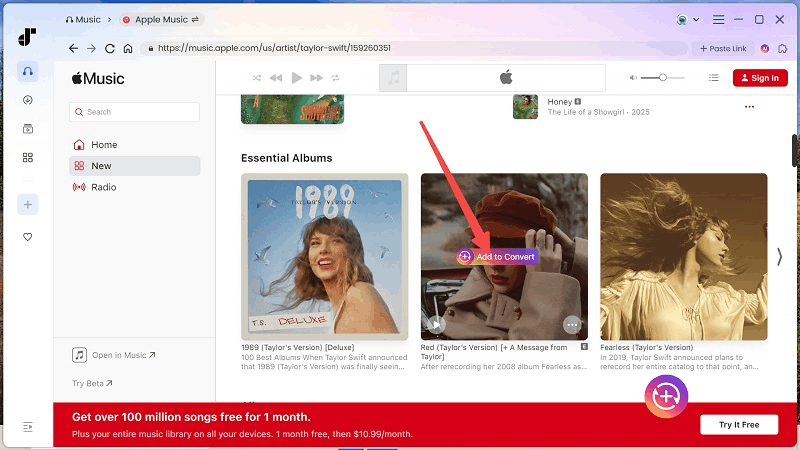
At that point, the real next step is getting Apple Music into a usable file. That is exactly what [How to Convert Apple Music to MP3] and [How to Download Apple Music Songs] are for.
Apple Music and Discord FAQ
Can Apple Music show on Discord without installing extra tools?
No. There is still no built-in Apple Music connection in Discord, so Apple Music does not show up the way Spotify does by default. If you want Apple Music to appear in Discord status or activity, you usually need a third-party desktop tool or a browser-based activity tool.
Why doesn’t Discord have Apple Music integration?
Discord has not added Apple Music as a native account connection. That is the only part that can be stated clearly from public evidence. Community requests asking for Apple Music integration have been around for years, which shows the demand is real, but neither Discord’s official connection help nor Apple’s support materials offer a built-in Apple Music setup for Discord right now.
Why is Apple Music still not showing on Discord after setup?
In most cases, the problem is the tool or setup, not your Apple Music subscription. Rich Presence tools and browser-based activity tools usually need Discord to be running, the right activity or player to be enabled, and sometimes extra permissions or a refresh before they work. Some tools also depend on the desktop Discord client or the web player route, so the setup can fail if the wrong app or environment is being used.
Are Apple Music Rich Presence tools safe to use?
They are not official Apple or Discord features, so they should be treated as third-party tools, not built-in integrations. That does not automatically mean they are unsafe, but it does mean you should be careful about where you download them from, what permissions they ask for, and whether the project is still maintained. Using the official project page or documentation is the safer approach than downloading from random repost sites.
Do Discord music bots work the same way as Rich Presence tools?
No. They solve a different problem. Rich Presence tools are meant to show what you are listening to in Discord status or activity. Music bots are closer to server playback or shared listening inside Discord, so they are not the same as making Apple Music appear as your personal listening status.
Conclusion
Apple Music does not connect to Discord the way Spotify does, so there is no built-in button that links the two directly. If your goal is simply to show what you are listening to, the most practical options right now are still desktop-based workarounds, such as a Rich Presence tool for the Apple Music app or a browser-based activity tool for the Apple Music web player. Mobile is far more limited, which is why a computer remains the easier setup.
The main thing is to stay clear about the goal. Showing a song in Discord status is one thing. Getting a real audio file you can keep and use is another. Once that is the priority, Discord is no longer the main issue, and the next step is to work with the song file itself. Try Tunefab Apple Music Converter for free now and let it do the converting job for you!
From that point on, saving Apple Music on your computer or moving it somewhere else matters more, which is exactly what [How to Download Apple Music to Computer] and [How to Put Apple Music on a USB Drive] cover.

