


You may build huge libraries over time, including thousands of songs, albums, and playlists collected from years of listening. When switching devices, preparing offline playback, or organizing a local backup, a common question arises: Can you download all songs on Apple Music at once? Unfortunately, Apple Music does not provide a one-click "Download All" button for your entire library. Normally, you would have to download albums or playlists one by one, which can be slow and inconvenient for large collections.
The good news is that there are still several practical ways to download all songs on Apple Music more efficiently. Depending on your device, you can create a playlist or Smart Playlist, enable Automatic Downloads, select all songs on a Mac or Windows computer, or redownload purchased music from iTunes. If you are looking for a way to download all Apple Music at once and keep the tracks as permanent local files for backup or transfer, using a dedicated Apple Music converter can be a more flexible solution.
- Official Ways to Download All Songs on Apple Music at Once
- 1. Create a Playlist to Download All Apple Music Songs
- 2. Use Smart Playlist to Download the Entire Apple Music Library
- 3. Turn on Automatic Downloads for Future Apple Music Songs
- 4. Select All Songs in Apple Music on Mac/PC to Download
- 5. Redownload All Purchased Songs from the iTunes Store
- Limitations of Downloading All Songs on Apple Music Officially
- Best Way to Download All Apple Music Songs as Local Audio Files 🔥
- Official Apple Music Download vs TuneFab Converter: Which is Better?
- FAQs About Downloading All Songs on Apple Music
- Final Verdict
Official Ways to Download All Songs on Apple Music at Once
Although Apple Music does not offer a dedicated "download all songs" feature for your entire library, there are still several official ways to download multiple songs efficiently. Depending on your device and how your Apple Music library is organized, you can scroll down to choose from the 5 options below.
Method 1. Create a Playlist to Download All Apple Music Songs
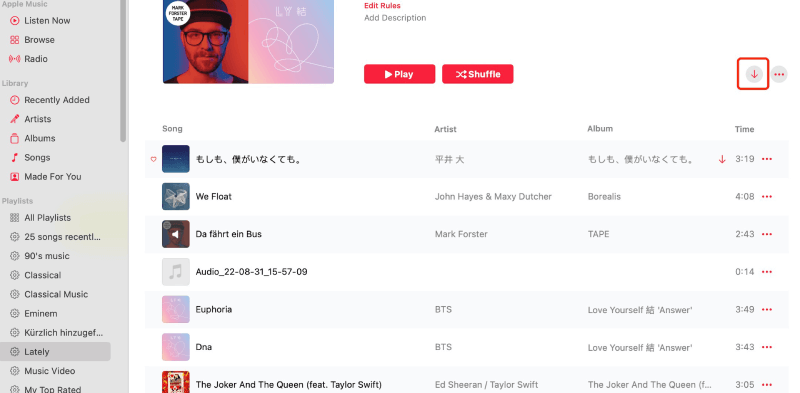
One of the simplest ways to download all songs on Apple Music is to compile them into a single playlist and download that playlist. This method works especially well for iPhone or Android users who want to make their entire music collection available for offline listening. Instead of downloading albums or songs one by one, you can organize your Apple Music library into one playlist and download everything together.
While Apple Music doesn't provide a direct "download all songs" button, creating a playlist is a practical workaround for those wondering how to download all songs on Apple Music quickly. Once all songs are added to the playlist, you can download them at once using the built-in download option in the Apple Music app.
Step 1. Open the Apple Music app on your iPhone or Android device. Go to "Library", tap "Playlists", then create a new playlist where you will store all the songs you want to download.
Step 2. Browse your library and add albums or songs to the newly created playlist. You can add multiple tracks from your Apple Music library so they are gathered in one place.
Step 3. Open the playlist you created and tap the "Download" button at the top of the screen. Apple Music will begin downloading all songs in that playlist so you can listen offline without an internet connection.
Method 2. Use Smart Playlist to Download the Entire Apple Music Library
If you have a large music collection, using the "Smart Playlist" feature is a more efficient way to download the entire Apple Music library. Unlike a regular playlist that requires manual organization, it automatically gathers songs based on rules you set. This makes it particularly useful for users who want to download all Apple Music at once without manually selecting every track.
Smart Playlist works best on a Mac or Windows computer because you need to create the rule from the Apple Music app or iTunes first. Once the Smart Playlist is created, it will automatically collect all songs in your library. You can then download the entire playlist on your device, making it one of the most practical ways to download all songs on Apple Music.
Step 1. Launch the Apple Music app on Mac or iTunes on Windows, and sign in with your Apple ID that is linked to your Apple Music subscription.
Step 2. After signing in with your Apple ID, go to "Files" on the menu bar and then choose "New" to select "Smart Playlist…".
Step 3. In the Smart Playlist window, set the rule to "Time is greater than 00:00", then click "OK". A new playlist will be created automatically, containing all songs in your Apple Music library.
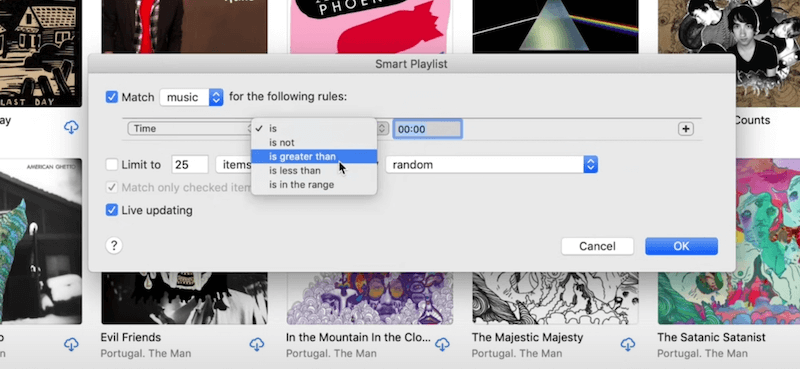
Step 4. Open this Smart Playlist in the Apple Music app on your device and tap the "Download" button. Apple Music will then begin downloading all songs in the playlist for offline listening.
Method 3. Turn on Automatic Downloads for Future Apple Music Songs
Automatic Downloads is useful if you want newly added Apple Music songs to download automatically, but it is not the best option for batch-downloading your current full library. Instead of downloading all existing songs at once, this feature automatically saves any music you add to your library in the future.
For users who regularly add albums, playlists, or individual tracks to their Apple Music library, enabling the Apple Music automatic downloads can be a convenient long-term solution. Once turned on, newly added songs will download automatically for offline listening, helping you keep your library available without manually downloading every track.
Step 1. Go to the "Settings" app, scroll down, and tap "Music" from the list.
Step 2. Find the "Automatic Downloads" option and switch it on. After this setting is enabled, any songs
you add to your Apple Music library will automatically download to your device.

Tips: Automatic downloads may use significant storage if you frequently add new music. Make sure your device has enough available space so Apple Music can keep all downloaded songs available offline.
Select All Songs in Apple Music on Mac/PC to Download
If you use Apple Music on a computer, selecting all songs in your library and downloading them at once is one of the fastest official methods. Compared with organizing playlists manually, this approach lets you download all Apple Music songs at once on Mac or Windows with just a few clicks.
This method works best for users managing their library from the Apple Music app on Mac or iTunes on Windows. By selecting all songs in the "Library > Songs" view, you can quickly start downloading your entire Apple Music collection for offline listening on your computer.
Step 1. Launch the Apple Music app (Mac) or iTunes (Windows) and sign in with your Apple ID.
Step 2. Navigate to "Library > Songs", so all tracks in your Apple Music library appear in a single list.
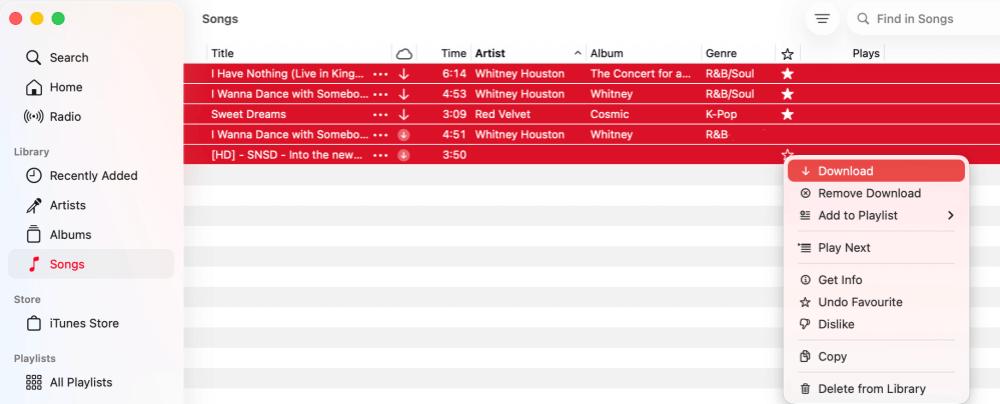
Step 3. Press "Command + A" on Mac or "Ctrl + A" on Windows to highlight all songs.
Step 4. Right-click (or Control-click) the highlighted songs and choose "Download". Apple Music will begin downloading all selected tracks to your computer.
Method 5. Redownload All Purchased Songs from the iTunes Store
If the music in your library was purchased from the iTunes Store, Apple also provides an option to download all purchased songs at once. This method is different from downloading songs from the Apple Music streaming catalog. It only applies to tracks you have bought with your Apple ID and stored in your purchase history.
Also, if you want to redownload purchased music from the iTunes Store, this can be a convenient way to restore your collection on a new device without downloading songs individually. Apple allows you to access your purchase history and download the songs again directly from the iTunes Store app.
Note: This method only works for music you have purchased from the iTunes Store. Songs from the Apple Music subscription catalog cannot be permanently downloaded this way and still depend on your active subscription.
Step 1. Launch the "iTunes Store" app and make sure you are signed in with the Apple ID used to purchase the music.
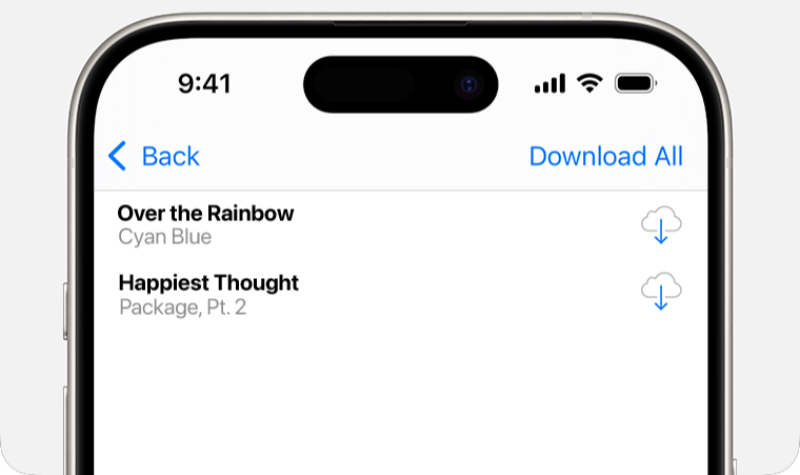
Step 2. Tap "More > Purchased", then select "Music" to view all songs and albums associated with your account.
Step 3. Tap "All Songs", then select "Download All" to restore your purchased music to the device.
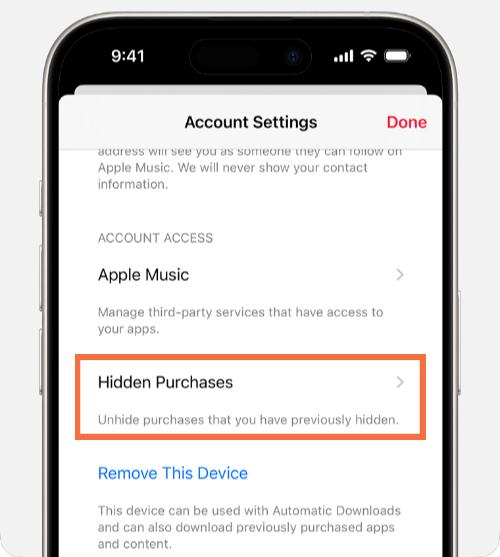
If you changed your Apple ID but still have purchased items in your old account, you may find them back under "Apple Music > Account Settings > Hidden Purchases".
Limitations of Downloading All Songs on Apple Music Officially
Although the methods above can help you download multiple songs on Apple Music, they still come with limits. Apple Music is primarily designed for streaming and app-based offline listening, which means its download feature does not function like traditional music downloads. There are still some restrictions to be aware of:
- No true "Download All" button: Apple Music does not provide a dedicated button to download your entire library at once. You'll need to rely on workarounds like Smart Playlists or selecting songs manually.
- Downloads depend on your Apple Music subscription: Songs downloaded through the Apple Music app are tied to your active subscription. If the subscription ends, those downloads may no longer be playable.
- Downloaded songs are not standard audio files: Apple Music downloads are not saved as normal audio files, as they remain protected within the Apple Music ecosystem and can only be played through the app.
- Limited flexibility for backup or device transfer: Since the downloads stay inside the Apple Music app, they cannot be moved to USBs, MP3 players, DJ software, car stereos, or other offline music libraries.
So, if you want more flexibility, like saving songs as local files, backing up a large library, or transferring music freely between devices, using a dedicated tool to download Apple Music songs as local audio files may provide a more practical solution. Let's discover it in the next part.
Best Way to Download All Apple Music Songs as Local Audio Files
If you want to download all Apple Music songs at once while enjoying more flexibility, the official Apple Music app is often not enough. As mentioned earlier, Apple Music downloads are limited to offline playback inside the app and remain tied to your subscription. This means they cannot be freely transferred, backed up, or used on other devices.
In this case, a dedicated tool like TuneFab Apple Music Converter offers a more practical solution. It allows you to download all Apple Music at once as local files and convert songs into widely supported formats such as MP3, M4A, WAV, or FLAC. With its built-in Apple Music web player, you can access your entire library, select playlists or albums, and download Apple Music to your computer in bulk without limits.
100% Secure
100% Secure
Why Choose TuneFab Apple Music Converter?
- Batch download Apple Music songs and playlists: Add entire playlists or albums from the built-in Apple Music web player and download them in batches with ease.
- Convert Apple Music to common audio formats: Save songs to MP3, M4A, WAV, FLAC, ALAC, and AIFF for playback on almost any device or media player.
- Keep original ID3 tags and metadata: Artist names, album titles, and cover art are preserved for easier music library organization.
- Up to 35X faster conversion speed: Advanced acceleration enables fast batch downloads of large Apple Music libraries.
- Flexible output and file organization: Customize output folders, file names, and audio quality settings to manage downloaded songs more conveniently.
How to Download All Apple Music Songs at Once with TuneFab
After getting more familiar with TuneFab Apple Music Converter, let's see how to download all Apple Music your Mac or PC all at once using the software.
Step 1. Sign in to the Apple Music web player in TuneFab
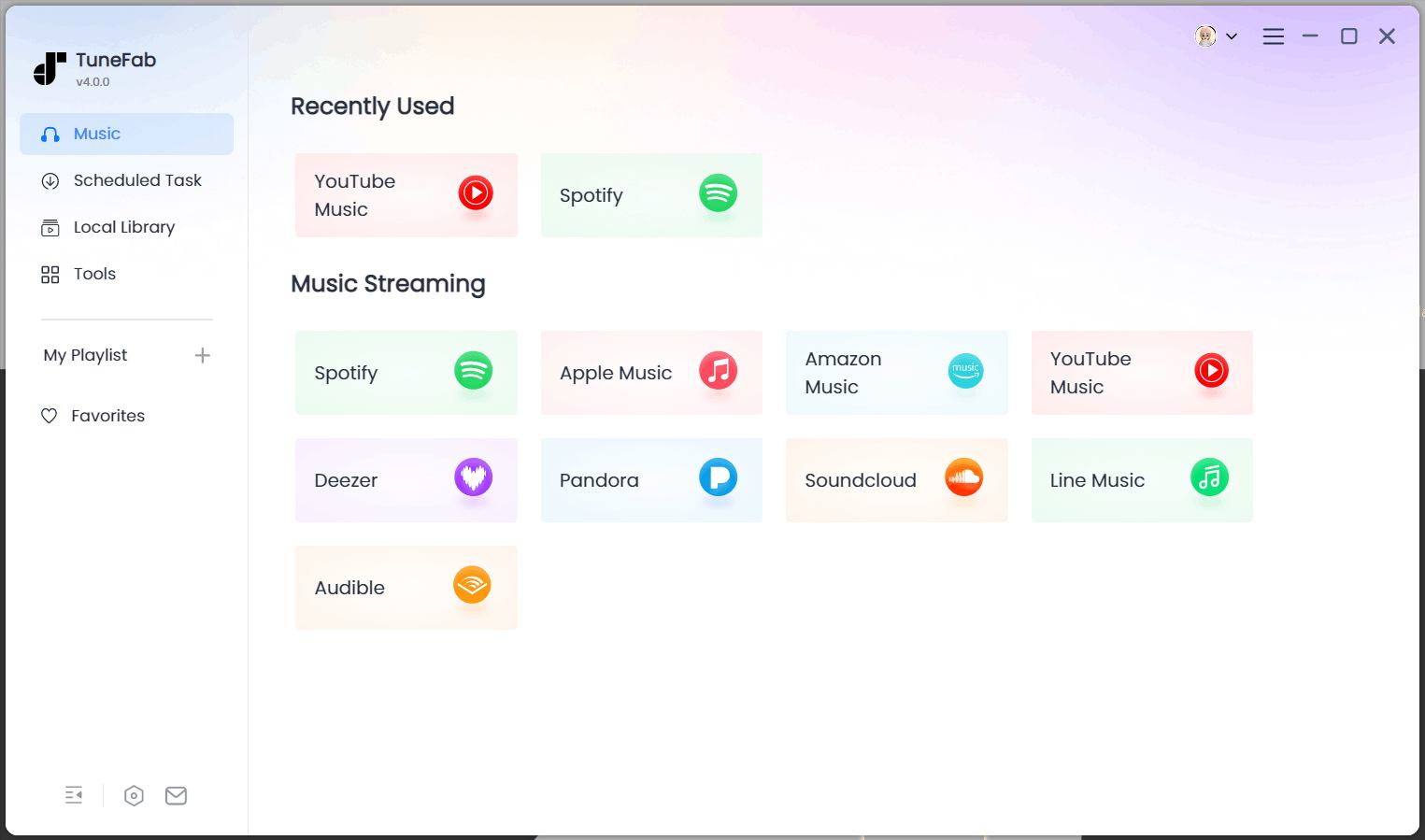
Install TuneFab Apple Music Converter, click "Apple Music" to enter the embedded Apple Music Web Player.
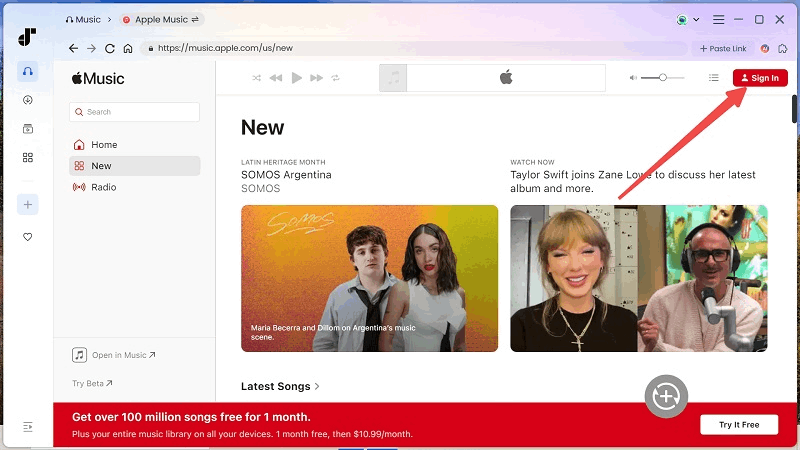
Log in with your Apple Music ID (subscription required). You can choose not to sign in, but signing in will improve the overall performance of song downloads.
Step 2. Add your playlists or library songs to the conversion list
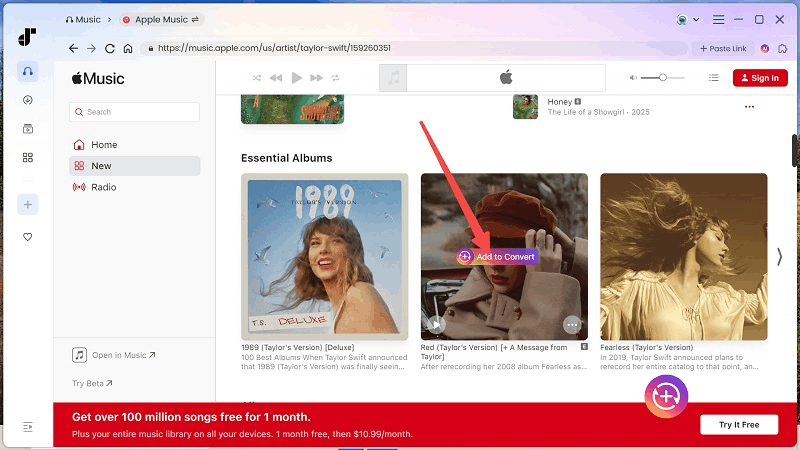
Search for any Apple Music song, playlist, or album, and click on the "Add to Convert" button that appears on it. Once they are added to the playlist, you are creating a new one to download all the Apple Music at once!
Step 3. Configure output quality and format
Now, you can set the parameters, including output format, smaplerate, and bitrate, for the songs one by one on the converting interface. Or, you can turn to "Preferences" to adjust these parameters applied to all the songs.
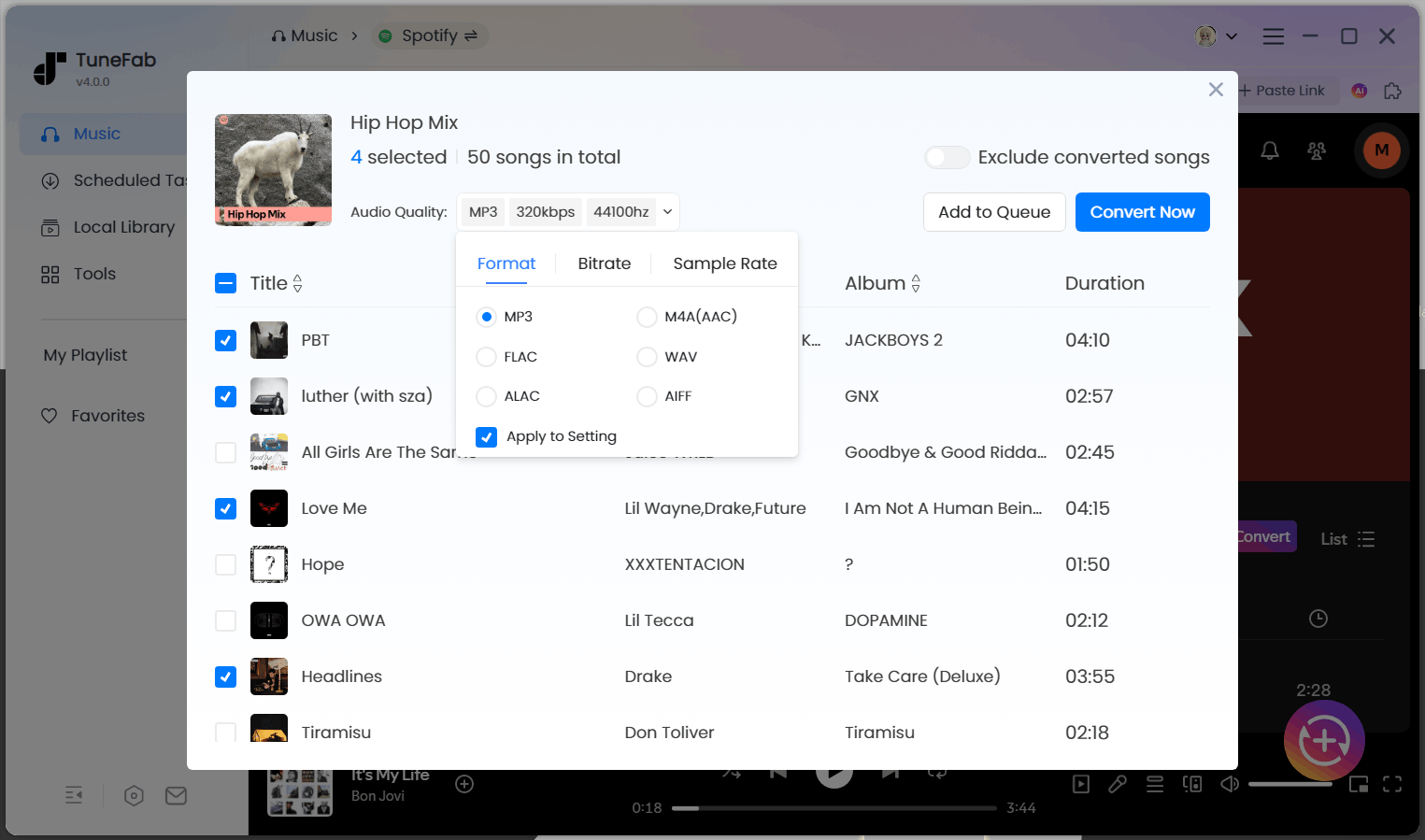
Step 4. Download all Apple Music songs at once to your computer
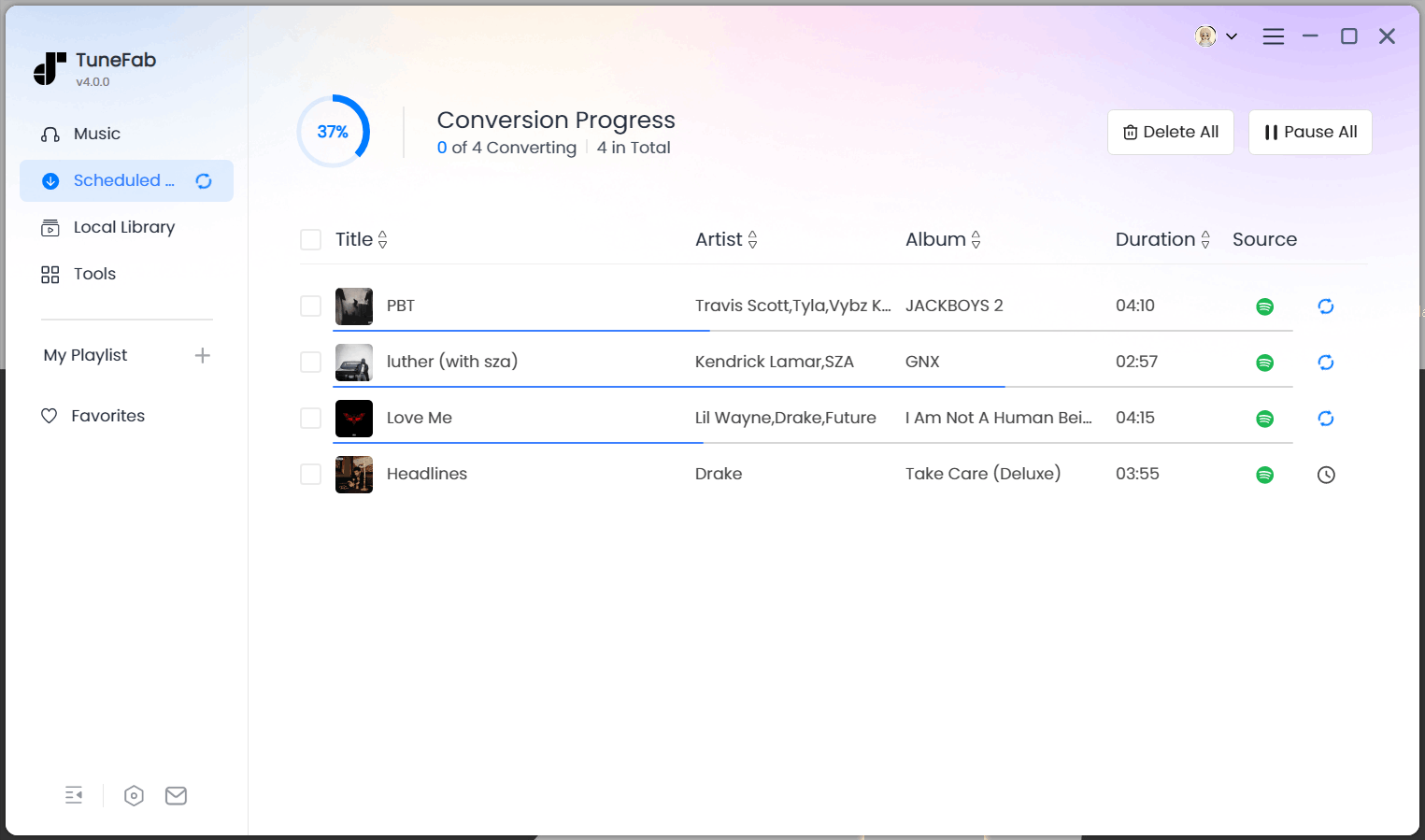
After completing the settings, just click the "Convert All" button to download all Apple Music. TuneFab Apple Music Converter will initiate the conversion and download all of them for you at once!
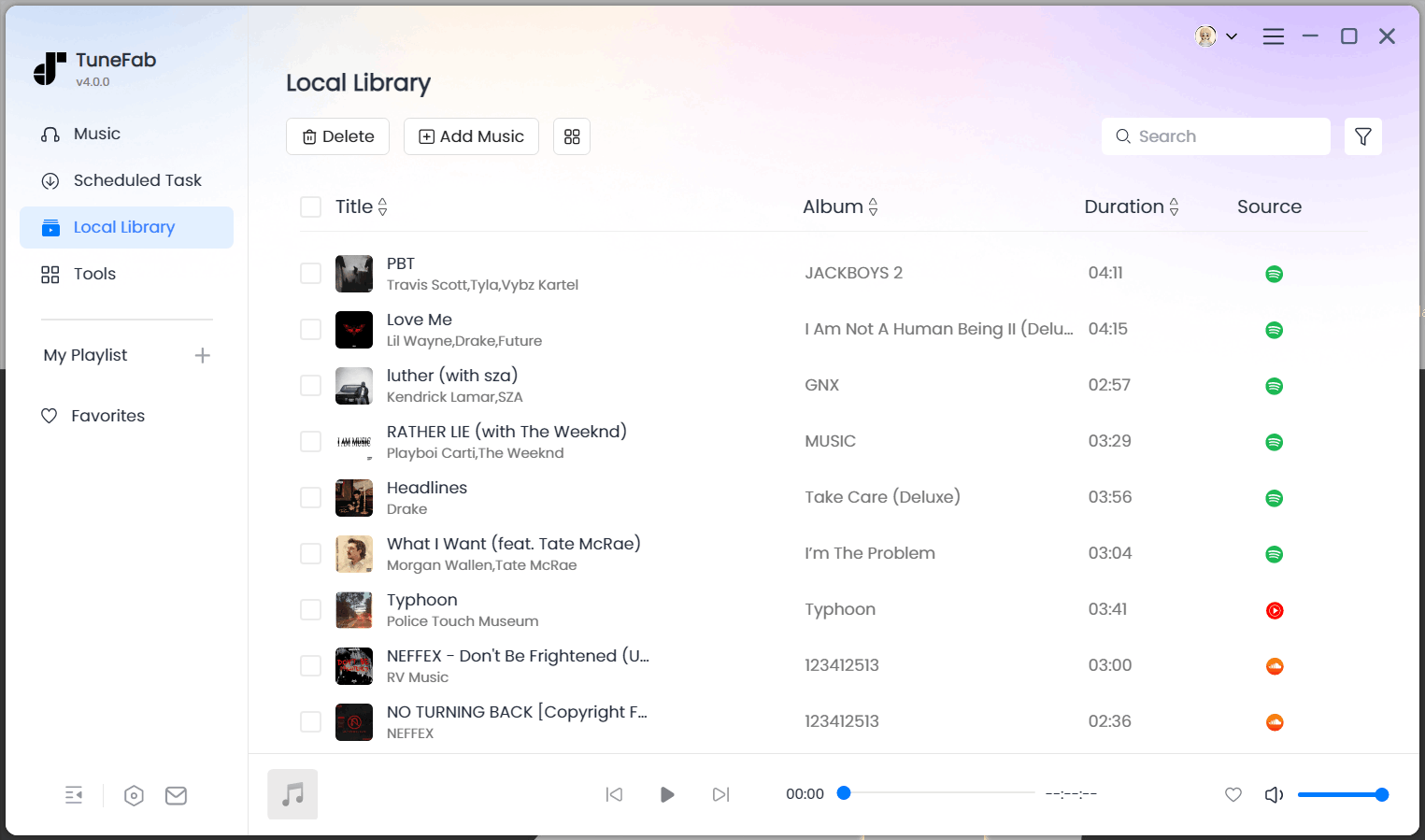
When the conversion is completed, the downloads will be moved to the "Library" module. Now, you can access the downloaded songs to listen to Apple Music offline without any restrictions!
Related Articles:
Comparison: Official Apple Music Download vs TuneFab Converter
As shown above, Apple Music offers several built-in ways to download songs for offline listening. However, these official methods mainly focus on in-app playback, while tools like TuneFab Apple Music Converter provide more flexibility for saving and managing music files locally. The comparison below highlights the key differences to help you choose the most suitable method.
| Feature/Capability | Official Apple Music Download | TuneFab Apple Music Converter |
| Best for | Offline listening within the Apple Music app | Saving songs as permanent local audio files |
| Download all current songs | Possible via playlists or desktop selection | ✅ Yes, batch download playlists or libraries easily |
| Auto-download future songs | ✅ Yes (Automatic Downloads feature) | Manually add songs to download in bulk |
| Save as local audio files | ❌ Not supported | ✅ Export to MP3, M4A, WAV, FLAC, ALAC, or AIFF |
| Keep songs after subscription ends | ❌ No | ✅ Local files remain playable |
| Transfer to USB or other devices | ❌ Limited to Apple Music ecosystem | ✅ Freely transfer to USB, players, or other devices |
| Difficulty | Medium (requires manual organization) | Easy batch download and conversion |
| Supported devices | iPhone, iPad, Mac, Windows (inside the app) | Mac & Windows (download and manage locally) |
In short, official Apple Music downloads are ideal for temporary offline listening within the app, especially if you mainly use Apple devices. However, if you want more control over your music, such as downloading all Apple Music songs at once as MP3 files, backing up a large library, or transferring tracks to other devices, using a dedicated converter like TuneFab can be a more flexible option.
FAQs About Downloading All Songs on Apple Music
Can you download all songs on Apple Music at once?
Apple Music does not provide a dedicated “Download All” button for your entire library. However, you can still download multiple songs in batches by creating a playlist, using Smart Playlist, enabling Automatic Downloads, or selecting all songs in the Apple Music app on a Mac or Windows computer. These methods allow you to download most or all songs in your library more efficiently than downloading tracks one by one.
Why can't I download my entire Apple Music library at once?
Apple Music is designed primarily for streaming, so its download features are limited to offline listening inside the app. Because of this, Apple does not offer a single option to download your whole library instantly. Users usually need to rely on workarounds such as playlists, Smart Playlists, or desktop selection. In addition, songs from Apple Music subscriptions and songs purchased from the iTunes Store are managed differently.
Do downloaded Apple Music songs expire?
Yes. Songs downloaded through the Apple Music app remain tied to your active Apple Music subscription. If your subscription expires or you sign out of your Apple ID, the downloaded tracks may no longer be playable. These downloads are intended only for temporary offline listening within the Apple Music ecosystem.
Can I download all Apple Music songs as MP3 files?
No. Apple Music does not allow users to download songs as standard MP3 or other local audio formats. Official downloads stay within the Apple Music app and are protected by Apple's system. If you want to save Apple Music songs as MP3 files for backup or transfer, you would need a dedicated Apple Music converter that can export songs as local audio files.
What is the easiest way to download all Apple Music songs on a computer?
On a Mac or Windows computer, one of the easiest official methods is to open the Apple Music app or iTunes, go to Library > Songs, select all tracks using Command + A (Mac) or Ctrl + A (Windows), and then choose Download. This allows you to batch download your library for offline listening. If you want to download songs as permanent local files instead of app-only downloads, a converter tool may provide a more flexible solution.
Final Verdict
Although Apple Music does not offer a "download all songs" button, there are still several practical ways to download your library more efficiently. Methods such as creating playlists, using Smart Playlists, enabling Automatic Downloads, or selecting all songs on a computer can help you download multiple Apple Music songs at once for offline listening inside the app.
If your goal is simply to enjoy music offline within the Apple Music ecosystem, these official methods may be sufficient. However, if you want to download all Apple Music songs as permanent local files for backup, USB transfer, or playback on other devices, using a dedicated tool like TuneFab Apple Music Converter can provide a more flexible and convenient solution.
TuneFab Apple Music Converter
One click to download all Apple Music songs as local files without quality loss.

