


Yes, Apple Music works on iPod touch. You can stream songs, download music for offline listening, and access your playlists through the built-in Music app, as long as you have Wi-Fi and an active Apple Music subscription.
However, this only applies to iPod touch (5th, 6th, and 7th generation) running iOS 8.4 or later, because these models can install and run the Music app normally. If you're using an iPod touch 4th generation or earlier, or other iPod models like nano/shuffle/classic, Apple Music streaming won't work the same way, since the device can't access the Apple Music catalog or support subscription playback features.
In the guide below, you'll learn how to play and download Apple Music on supported models. If your device doesn't support Apple Music directly, we'll also cover a practical alternative so you can still get music onto your iPod and listen smoothly.

Tips: If you are using older iPod models, you can check out the specific guides as follows.
1. How to Play and Download Apple Music on iPod Touch
If you are using an iPod touch (5th, 6th, or 7th generation) with iOS 8.4 or later, you can use the built-in Music app to stream Apple Music directly. After signing in with your Apple ID and activating an Apple Music subscription, you can browse the catalog, play songs online, and download music for offline listening.
Before downloading songs, make sure "Sync Library" is enabled on your device. Go to "Settings > Music", then turn on "Sync Library". This allows your Apple Music library and playlists to appear across all devices signed in with the same Apple ID.
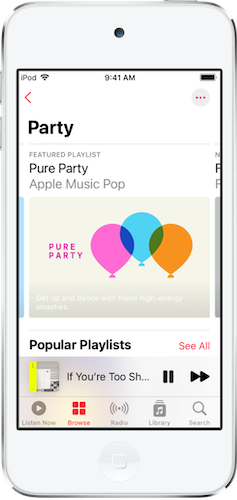
Note: Apple Music works on older supported models, but the iPod touch 7th generation generally provides the best performance for streaming and downloading music.
Once everything is set up, follow these steps to download Apple Music on iPod touch:
Step 1. Open the Music app and search for the song, album, or playlist you want..
Step 2. Tap "Add to Library" to save the music to your library.
Step 3. Tap the "Download" button to store the songs on your iPod touch.
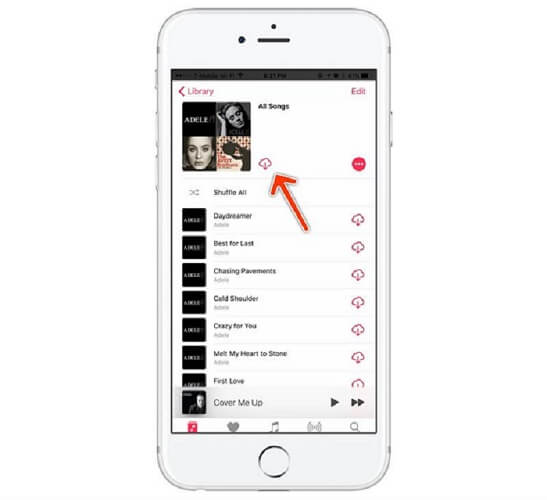
After the download finishes, the music will be available in the "Library", and you can listen offline without Wi-Fi.
2. How to Sync Apple Music Playlists to Your iPod Touch
Besides streaming or downloading music directly in the Music app, you can also sync playlists from your computer to your iPod touch. This method is useful if you want to manage your music library manually or transfer local audio files to the device.
For example, if you have songs that were purchased from the iTunes Store, they can be downloaded to your computer as local audio files (such as M4A or MP3) and added to your library. Once the music is stored locally in your Music app (Mac) or iTunes library (PC or Mac running old macOS systems), you can easily organize the songs into playlists and sync them to your iPod touch.
Step 1. First, make sure the songs you want to transfer are stored in your Music app (Mac) or iTunes library (PC or Mac running old macOS systems). You can add songs by choosing "File > Add to Library", or simply dragging the audio files into the Music/iTunes library window.
Step 2. Create a new playlist in Music or iTunes and drag the songs you want into it. Using a playlist helps you control exactly which tracks will be synced to your iPod touch.
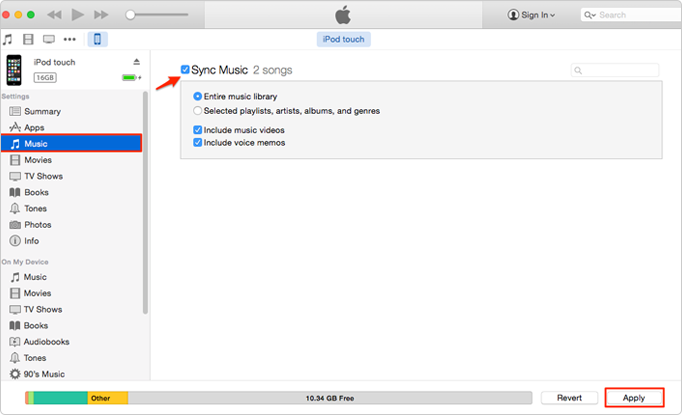
Step 3. Connect your iPod touch to the computer with a USB cable, open Finder or iTunes, and select your device. Go to the "Music" section, choose "Sync Music", select the playlist you created, and click "Apply/Sync". After syncing, the playlist will appear in the Music app on your iPod touch for offline listening.
3. Alternative: Get Apple Music on Older iPod Touch Models
If you're using an older iPod touch model that cannot install the Apple Music app, you won't be able to stream or download songs directly from the Apple Music service. This limitation usually affects iPod touch 4th generation and earlier, which cannot access the Apple Music catalog or verify subscription playback.
In this situation, a practical workaround is to convert Apple Music tracks into MP3, M4A, or other common formats, then transfer those files to your device just like normal local music. Once the songs are stored as local files, they can be synced to an iPod touch and played without relying on the Apple Music app.
To do this, you can use TuneFab Apple Music Converter. The software integrates the Apple Music Web Player, allowing you to sign in with your Apple ID and convert albums or playlists into common audio formats that work with iPod touch and other devices.
More Features of TuneFab Apple Music Converter:
● Convert Apple Music songs to MP3, M4A, WAV, and other common formats
● Preserve original audio quality and ID3 tags for easier music management
● Support batch conversion of Apple Music songs up to 35× faster
● Built-in Apple Music Web Player for browsing and selecting songs directly
● Output files are fully compatible with iPod, iPhone, iPad, and other players
Next, also check the guide and try using TuneFab Apple Music Converter to download Apple Music albums and playlists, and then transfer to iPod Touch for streaming offline without any limitations:
Step 1. Open TuneFab Apple Music Converter after installing it on your computer. Then select Apple Music from the home screen. You will be guided to sign in using your Apple ID.
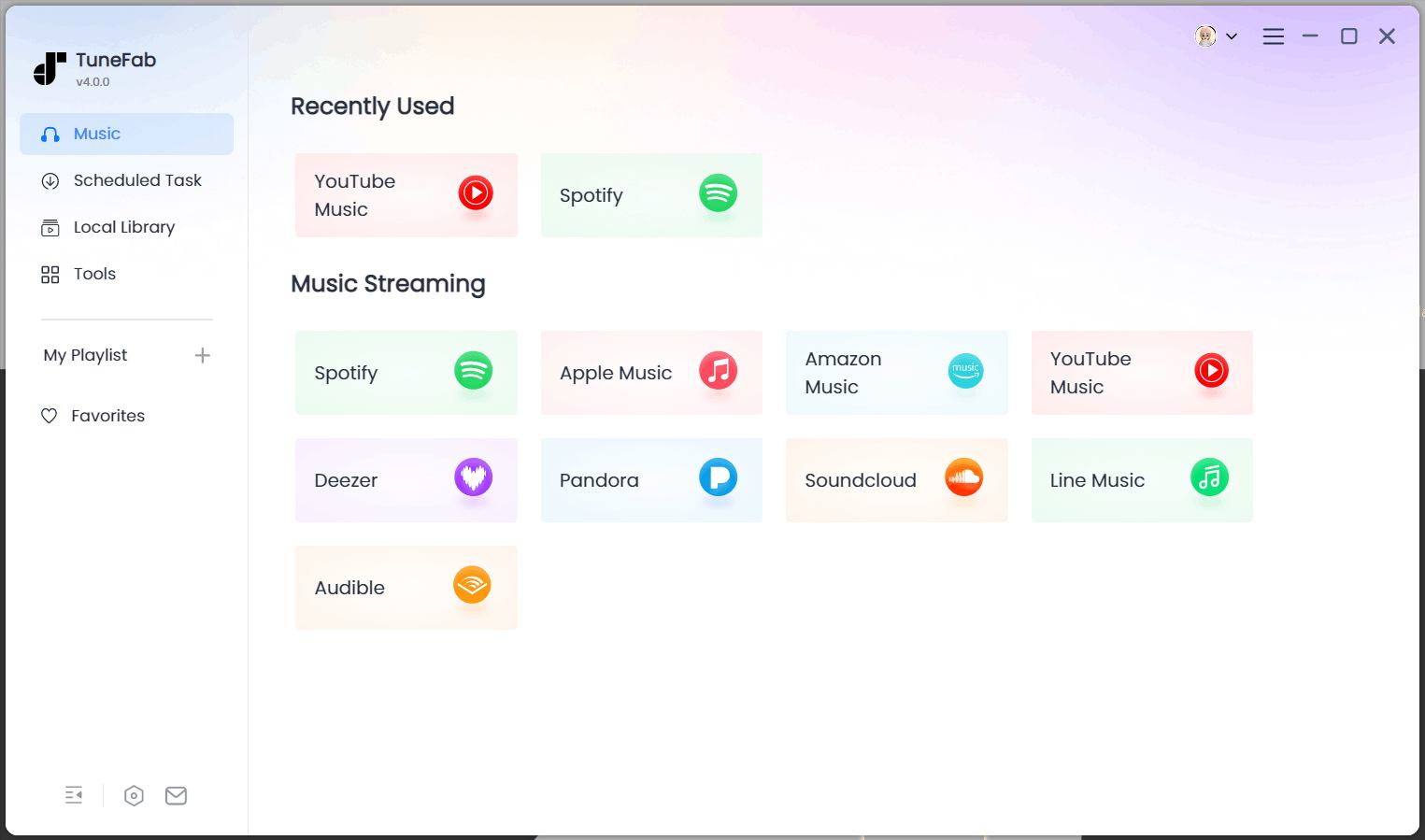
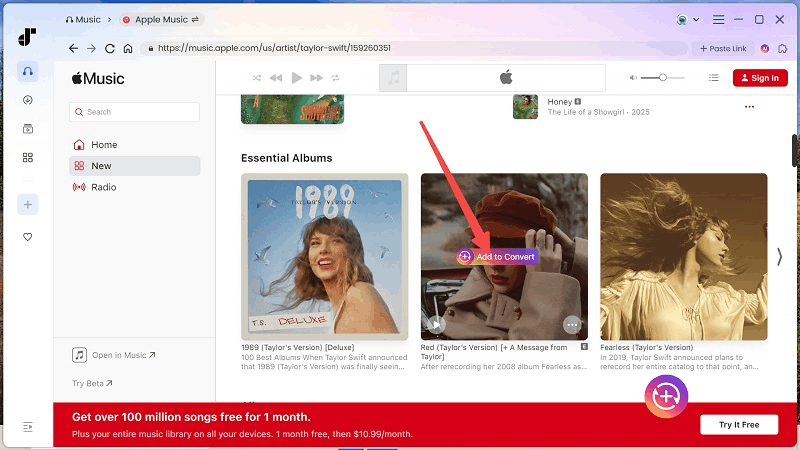
Step 2. Once accessing Apple Music Web Player inside the software, directly search for any album or playlist you'd like to download and later play on iPod Touch. Simply drag them to the "+" button or click the floating “Add to Convert” button.
Step 3. Now, adjust the output format and quality based on your needs. For playing on iPod Touch, selecting MP3 can be a good choice. Simply choose it from the top-right "Convert all files to" menu. In addition, you can also adjust quality options such as the frame rate and bitrate to adjust the offline streaming quality as you need.
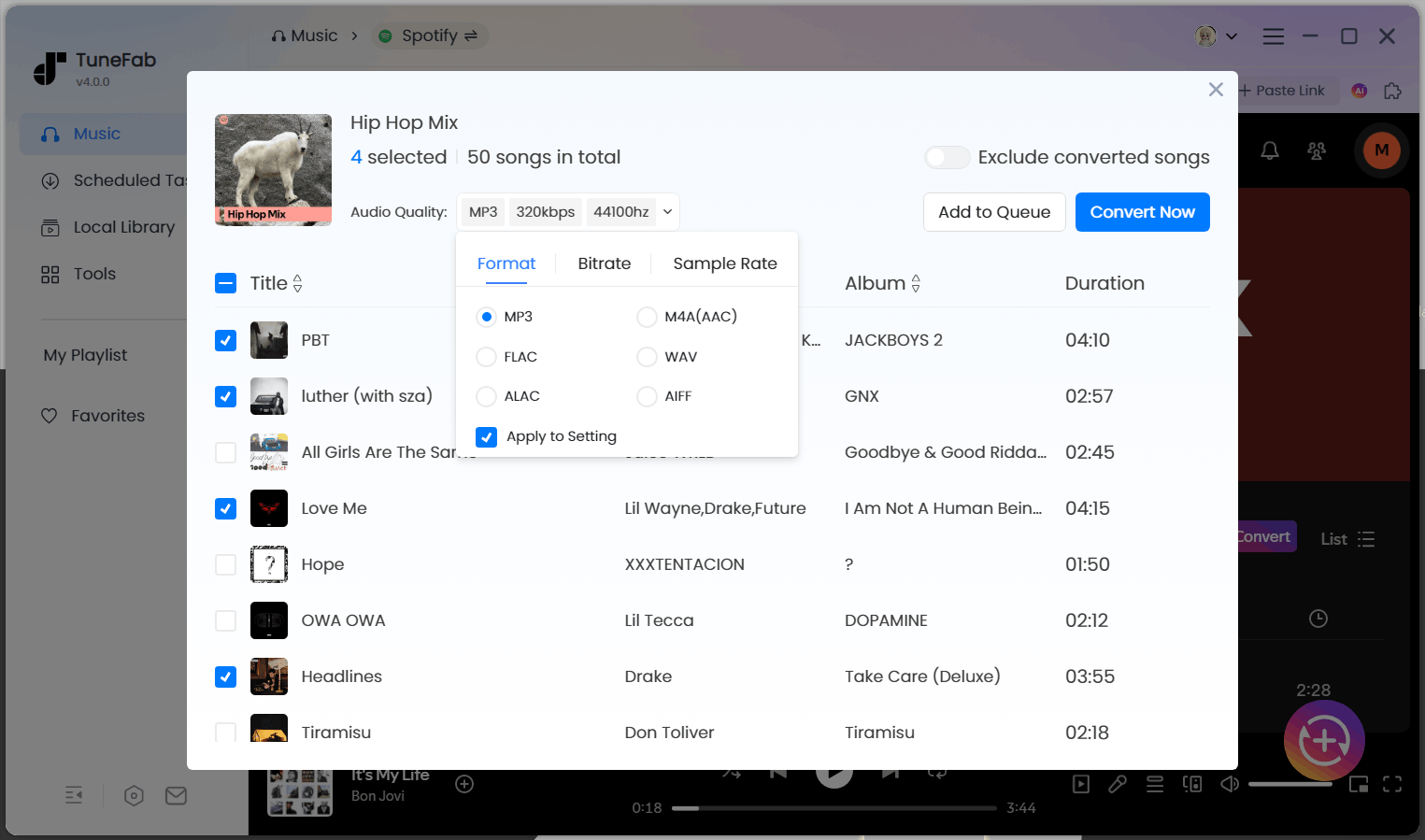
Step 4. Finally, simply press the "Convert Now" button to process the music download immediately. TuneFab Apple Music Converter will immediately start downloading the music playlists in batches quickly for you.
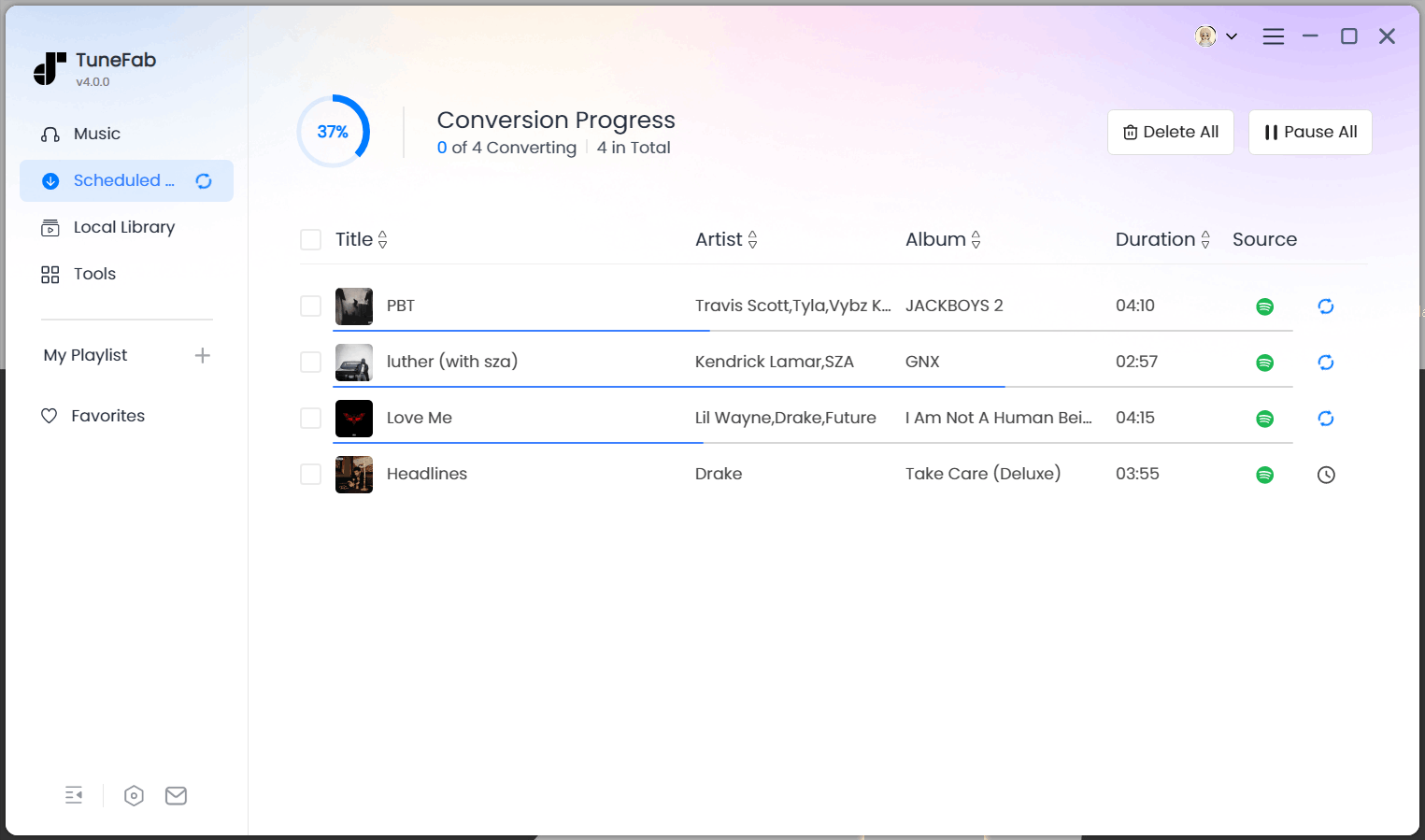
Step 5. After conversion, the songs will be saved as local audio files on your computer. You can then sync them to your iPod touch or any other iOS device using the same method described in Part 2 above.
Further Info: If you want to download Apple Music to more mobile devices, check out the posts below.
4. FAQs About Using Apple Music on Your iPod Touch
Does the iPod Touch support Apple Music?
Yes, Apple Music works on iPod touch (5th, 6th, and 7th generation) running iOS 8.4 or later. These models can install and use the built-in Music app to stream songs, browse the Apple Music catalog, and download tracks for offline listening. Older devices, such as iPod touch 4th generation or earlier, cannot run the Apple Music app and therefore cannot access the streaming service directly.
How do I add Apple Music to my iPod Touch?
If your iPod touch supports Apple Music, simply open the Music app, sign in with your Apple ID, and subscribe to Apple Music. You can then search for songs, albums, or playlists and add them to your Library. To listen offline, tap the Download button to save the music locally on your device.
Can I still download music on my iPod touch?
Yes. If you have an Apple Music subscription, you can download songs, albums, or playlists inside the Music app for offline playback. Alternatively, you can also sync local music files from your computer using Finder or iTunes, which allows you to store and play songs on your iPod touch without relying on streaming.
In Conclusion
Although Apple Music officially supports only iPod touch (5th to 7th generation), there are still several ways to enjoy Apple Music on your iPod touch. If your device supports the Music app, you can simply stream Apple Music or download songs for offline listening with an active Apple Music subscription. You can also sync Apple Music playlists or other local music from your computer using Finder or iTunes to manage your music library manually.
For older iPod touch models that cannot run the Apple Music app, tools like TuneFab Apple Music Converter provide a practical solution. By converting Apple Music tracks into standard audio files, you can sync them to your iPod touch and enjoy Apple Music playback offline without device limitations.
TuneFab Apple Music Converter
Download Apple Music as local files to add them into any iPod Touch model!

