


If you're looking to make your Google Slides presentation more engaging, adding background music can help set the mood and capture your audience's attention. Music has the power to transform a basic presentation into a more dynamic experience, whether you're showcasing a project, delivering a pitch, or simply making your slides more interactive. And with Spotify offering a vast selection of songs and playlists, it's an ideal platform to source your music. So, how to add Spotify music to Google Slides?
While Google Slides doesn't natively support directly adding Spotify music to slides, there are still workarounds to embed Spotify song in Google Slides seamlessly. Due to the official limitations, we'll guide you through two methods to overcome this and help you add the perfect soundtrack to your slides. Keep reading to find out which method works best for you!
Key takeaway:
1. There are two ways to add Spotify songs to Google Slides:
- Embed a Spotify track via link → You can click the link during your presentation to open and play it on Spotify.
- Download the track and insert it as audio → Convert the Spotify song into a Google Slides–supported format, then embed the audio file so you can play it directly in your presentation.
2. Audio formats supported by Google Slides:
- MP3 – A compressed format with a smaller file size; ideal for most presentations
- WAV – An uncompressed format with higher audio quality but larger file size
In most cases, MP3 is the better choice, as it offers a good balance between sound quality and compatibility. This is especially important for ensuring smooth playback without issues caused by large file sizes.
Method 1. Add Spotify Music to Google Slides as MP3 Audio File
If you want to embed Spotify in Google Slides, converting the track into an MP3 file is the best option. Since Spotify music is encrypted with DRM protection, you can't directly use it in Google Slides. To make it work, you need to convert the music into a universal format like MP3. TuneFab Spotify Music Converter is a great tool for this, as it removes the DRM and lets you download Spotify tracks as MP3 files that can easily be uploaded to Google Drive and embedded into your slides.
TuneFab Spotify Music Converter is a versatile tool that allows you to effortlessly download and convert Spotify music into various formats like MP3, M4A, and FLAC. It's perfect for anyone who wants to enjoy their Spotify songs offline or use them in other applications like Google Slides. The software supports batch downloading, retains high-quality audio, and preserves important metadata like artist names and album titles. With its fast download speeds and user-friendly interface, TuneFab is a reliable solution for anyone looking to extract and convert music from Spotify for a variety of uses.
Key Features of TuneFab Spotify Music Converter:
- Multiple Output Formats - Converts Spotify tracks to MP3, M4A, FLAC, and WAV with both free and Premium Spotify accounts.
- Batch Conversion - Downloads and converts entire Spotify playlists, albums, or individual songs with a single click.
- High-Quality Audio - Retains original audio quality, ensuring clear, high-fidelity sound.
- Metadata Preservation - Keeps all ID3 tags intact, including artist name, album title, and track info.
- Fast Download Speeds - Supports up to 35X faster download speeds for quick and efficient conversions.
Now that you have a reliable tool for converting Spotify music, let's walk through the steps of downloading your tracks, uploading them to Google Drive, and embedding them into your Google Slides.
If you need your music to play automatically during a presentation or work without internet, this method is the most reliable choice. It gives you full control over playback and avoids interruptions caused by switching tabs or logging into Spotify.
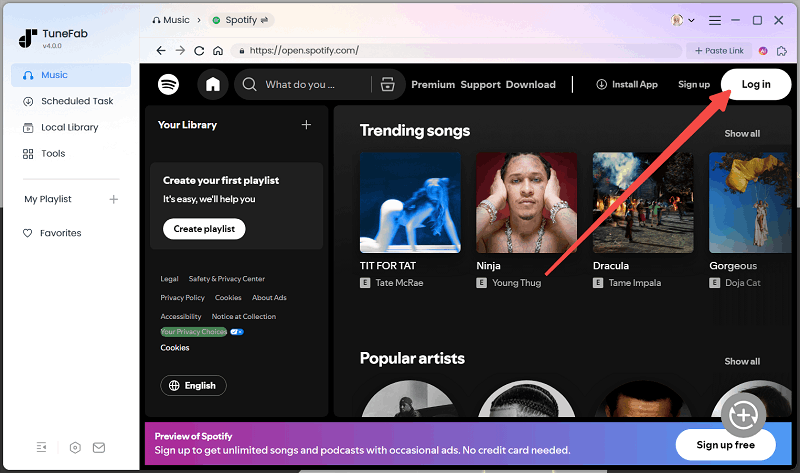
Step 1. Launch the Software and Log in to Spotify
Open TuneFab Spotify Music Converter and log in to your Spotify account directly within the software. You will be prompted to sign in with your credentials if you're not already logged in.
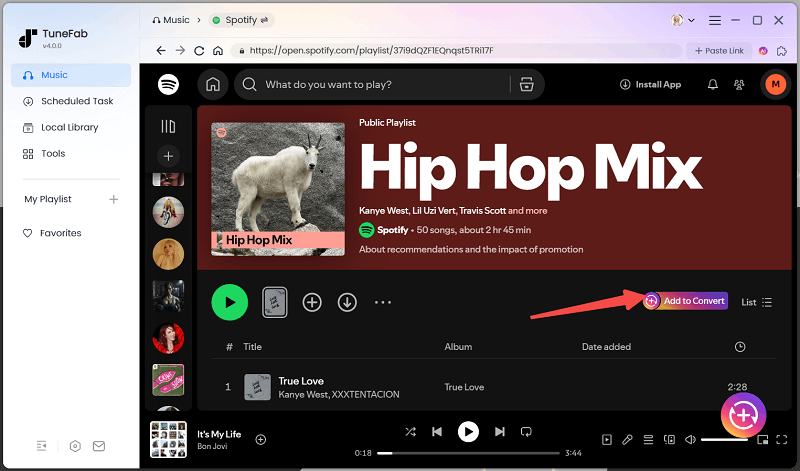
Step 2. Select the Spotify Songs or Playlist to Convert:
Once logged in, browse Spotify directly within the program to find the tracks, albums, or playlists you want to convert. Simply click the "Add to Convert" button to add your desired music.
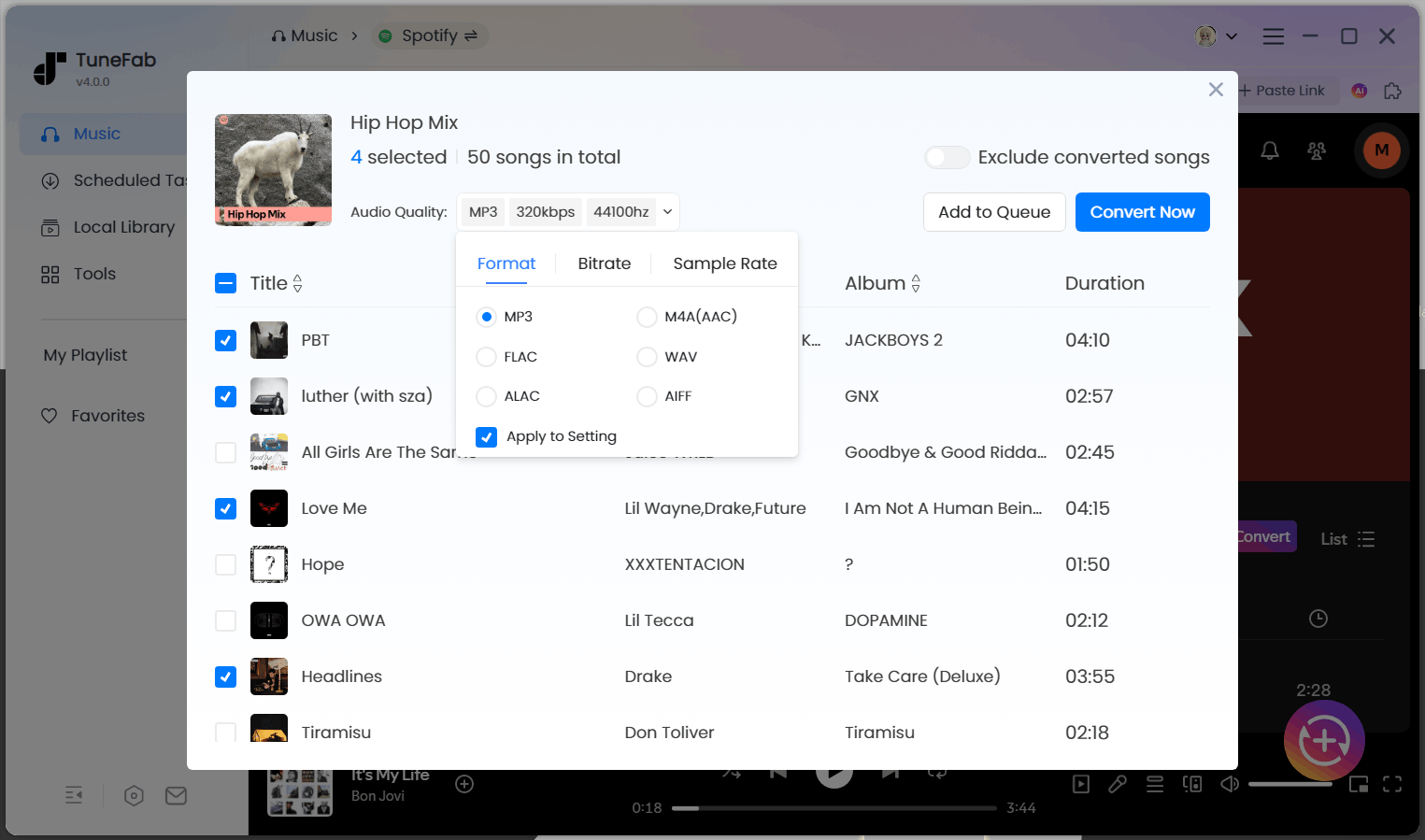
Step 3. Choose the Output Format and Start Conversion
In the settings section, choose MP3 as the output format. You can also adjust other settings, such as audio quality and output folder, to ensure the conversion matches your preferences, then click the "Convert Now" button to get started. Once done, the MP3 files will be saved to the designated output folder on your computer. From there, you can easily import them into PowerPoint or Google Slides for your presentations.
Step 4. Upload MP3 Files to Google Drive
Now that your music is in MP3 format, go to Google Drive and upload the MP3 files you just converted. You can drag and drop the files directly into Google Drive or use the "New > File Upload" option.

Step 5. Insert MP3 Files into Google Slides:
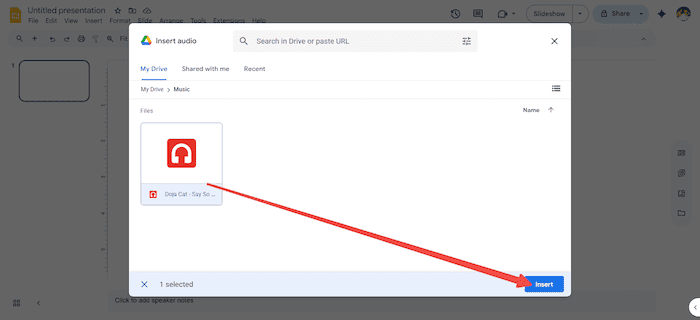
Open your Google Slides presentation and navigate to the slide where you want to add the music. Click on "Insert" > "Audio" from the top menu. A window will pop up, prompting you to select the MP3 file you uploaded to Google Drive. Choose the file and click "Insert".
Once the audio is added, you can customize how it plays during your presentation. For example, you can:
- Set the audio to autoplay when the slide opens
- Enable looping for continuous background music
- Adjust the volume based on your presentation environment
- Hide the speaker icon for a cleaner slide design
- Choose whether the audio stops when switching slides
These options help ensure smoother playback and a more polished presentation overall.
Pros:
- Enables autoplay and looping for seamless background music
- Works offline without relying on an internet connection
- No interruptions from switching tabs or logging into Spotify
- Full control over playback settings (volume, timing, slide behavior)
- More professional and suitable for live presentations
Cons:
- Requires extra steps to convert Spotify music first
- Needs additional software to remove DRM and export audio
- Takes more time compared to simply embedding a link
Method 2. Embed Spotify in Google Slides with Sharing Link
If you prefer a simpler method to add Spotify music to Google Slides, embedding a Spotify song link is a great option. This method allows you to directly share Spotify music with your audience, without the need to download or convert files. You can easily embed the link into any text or image on your slide, creating an interactive experience for your viewers.
Here's how you can add Spotify song link in Google Slides:
Step 1. Open Spotify and find the song, album, or playlist you want to share. Right-click on the track or playlist, then select "Share" > "Copy Song Link" (or "Copy Playlist Link" to embed Spotify playlist in Google Slides).
Step 2. Go to your Google Slides presentation and navigate to the slide where you want to add the music link.
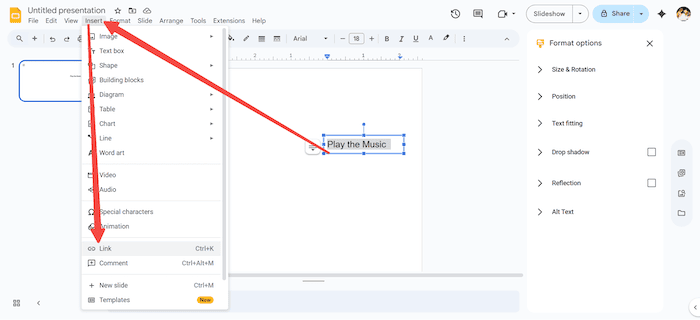
Step 3. If you want to use text, select the text box where you want the link to appear, then paste the Spotify link. If you prefer using an image, select the image you want to make clickable. Then, click on "Insert" > "Link" from the top menu, paste the Spotify link, and click "Apply".
Pros:
- Quick and easy to set up with no extra tools required
- No need to download or convert Spotify songs
- Ideal for sharing music references or playlists
- Keeps the original Spotify streaming experience
Cons:
- Requires a stable internet connection
- Redirects to Spotify, interrupting the presentation flow
- Requires manual playback and login
- Cannot autoplay or run as background music
- Limited control over playback during slides
Comparison of the 2 Methods
Here's a quick comparison of the two ways to embed Spotify song in Google Slides, highlighting the key differences to help you choose the best approach for your needs.
| Criteria | Download Spotify Music as MP3 | Embed Spotify Link |
| Ease of Use | ⭐️⭐️⭐️ | ⭐️⭐️⭐️⭐️⭐️ |
| Playback Smoothness | ⭐️⭐️⭐️⭐️⭐️ | ⭐️⭐️⭐️ |
| Software/Tool Requirement | Yes, requires Spotify Music Converter (e.g., TuneFab). | No additional software required, just Spotify and Google Slides. |
| Internet Requirement | No internet required after conversion. | Internet connection required to stream music from Spotify. |
| Spotify Account Requirement | No account needed once downloaded. | No. But requires premium account for ad-free. |
| File Size and Storage | Requires Google Drive storage for MP3 files. | No file storage needed, streams directly from Spotify. |
| Synchronization with Slides | Can sync with slide transitions for continuous playback. | Does not automatically sync with slides; music must be manually started. |
| Use Case Recommendation | Ideal for formal presentations that require offline playback and ad-free music. | Best for casual presentations or instant sharing where stable internet is available. |
Why Add Music to Google Slides?
Adding music to your presentation isn’t just for decoration. It can significantly improve how your content is received. Compared to slides that rely only on text and images, audio helps create a more immersive and engaging experience for your audience.
For example, background music can immediately set the tone of your presentation, whether you want something energetic, emotional, or professional. It also helps maintain audience attention, especially during longer presentations where static slides may feel monotonous.
More importantly, music can enhance storytelling. When used at the right moments, such as introductions, transitions, or key highlights, it can reinforce your message and make it more memorable.
- Create atmosphere: Set the mood from the very first slide
- Increase engagement: Keep your audience focused and interested
- Enhance storytelling: Strengthen emotional impact and key messages
Whether you're teaching a lesson, pitching an idea, or presenting a project, well-placed audio can make your slides feel more polished and impactful.
Common Issues When Adding Audio to Google Slides
Although adding audio to Google Slides is relatively straightforward, you may still run into a few common issues that affect playback or overall performance. Most of these problems are related to file compatibility, permissions, or playback settings.
One of the most frequent issues is audio does not play during the presentation. This often happens when the file isn’t properly shared in Google Drive or when the volume and playback settings are not configured correctly. In other cases, large file sizes or unsupported formats can also prevent audio from loading smoothly.
Another common limitation is how audio behaves across slides. By default, audio may stop when you switch slides unless specific playback options are enabled, which can disrupt the presentation flow.
Here are some typical problems and how to address them:
- No sound during playback → Check volume settings and ensure the file is properly shared in Google Drive
- Audio not loading → Make sure the file format is supported (MP3 or WAV) and fully uploaded
- File too large → Compress or trim the audio to improve performance
- Audio stops between slides → Adjust playback settings like looping or slide behavior
By understanding these common issues in advance, you can avoid unexpected interruptions and ensure your presentation runs smoothly.
FAQs About Adding Spotify Music to Google Slides
Can You Add a Playlist to Google Slides?
Officially, you can only embed a Spotify playlist link in Google Slides, which will redirect the audience to Spotify's web player to play the playlist. If you prefer not to redirect to Spotify, you can download the Spotify playlist as MP3 or another format and then insert it into your slide. However, Google Slides only allows one audio file per slide, so to play multiple songs, you would need to create separate slides for each song or use audio editing software to merge the tracks into a single file.
Is There Any Spotify Google Slides Template?
Yes. While Google Slides itself doesn't offer a built-in Spotify template, you can easily find third-party Spotify Google Slides template, which can enhance the look and feel of your presentation. For instance, SlideChef provides a free Spotify template that you can customize to match your content. These templates often include vibrant designs, Spotify icons, and music-related graphics, making them a great choice for presentations about music, playlists, or even Spotify-related topics.
Why Spotify Music Won’t Play in Google Slides
Google Slides only supports audio files uploaded through Google Drive in formats like MP3 or WAV. This means Spotify songs must be converted into a compatible format before they can be embedded and played inside a presentation.
If you’ve already downloaded your Spotify music as MP3 but it still won’t play in Google Slides, the issue is likely related to file setup or playback settings rather than the format itself.
Here are some common reasons to check:
- The audio file is not properly shared → Make sure the file in Google Drive is accessible (e.g., set to “Anyone with the link can view”)
- Upload or sync issues → The file may not be fully uploaded or synced to Google Drive yet
- Browser or network problems → Playback may fail due to unstable internet or browser restrictions
- Audio settings not configured → The volume may be muted or playback is set to “click to play” instead of autoplay
- File compatibility issues → Even if it’s MP3, the file may be corrupted or encoded in an unsupported way
To ensure smooth playback, double-check your file permissions, re-upload the audio if needed, and test the playback settings before presenting.
Does Google Slides Support Background Music?
Yes, Google Slides supports background music, but only through inserted audio files. Once you upload an MP3 or WAV file to Google Drive and insert it into your slide, you can configure it to autoplay and loop.
However, background music typically applies per slide, so you may need to adjust playback settings or duplicate audio across slides for continuous playback.
Why Does Spotify Song Stop When Switching Slides?
Audio in Google Slides is usually tied to a single slide by default. This means the music will stop when you move to the next slide unless you configure playback settings properly.
To reduce interruptions, you can enable looping or carefully plan where audio starts and stops. However, continuous playback across multiple slides may still require manual setup or combining audio into a single file.
Conclusion
Adding Spotify music to Google Slides isn’t as direct as inserting text or images, but it can still be done in two practical ways depending on your needs.
If you only want to share a song or playlist, embedding a Spotify link is the quickest option. However, it depends on an internet connection and offers limited control during presentations, which can interrupt the flow.
For a smoother and more professional experience, using TuneFab Spotify Music Converter to convert Spotify music into MP3 and inserting it as an audio file is the better choice. It allows you to control playback settings like autoplay, looping, and volume, making your presentation more seamless and reliable, especially in live or offline scenarios.
In most cases, choosing the MP3 method ensures your music works exactly as intended without unexpected interruptions.

