


"Does Serato Work with Apple Music?"
Yes. Apple Music now works in Serato DJ Pro through official streaming integration. To use it, you need an active Apple Music subscription and Serato DJ Pro 3.3.0 or later. This guide shows what you can do with it, how to set it up, and what limits still matter before you rely on it.
What Can You Do With Apple Music Direct Streaming in Serato DJ?
In March 2025, Apple Music launched the "DJ with Apple Music" feature, allowing DJs to tap directly into Apple Music's massive library of over 100 million tracks right inside Serato DJ and other major DJ software and platforms. As long as you have an Apple Music subscription, you can enjoy direct streaming in Serato DJ Pro/Lite 3.3.0 or later.
What can you actually do with this integration? Here are the main features:
- Stream Apple Music playlists: Play any song from Apple Music's massive library directly in Serato DJ.
- Create Apple Music playlists: Build and modify Apple Music playlists right inside Serato DJ.
- Search the Full Library: Use the dedicated streaming search to quickly find any track among over 100 million songs.
- Access Curated Content: Browse Apple Music's "Top Charts" and "Featured Playlists," plus exclusive DJ mixes and playlists curated by Serato.
- Analyze Tracks and Set Performance Data: You can analyze Apple Music streaming tracks in Serato and work with cue points, loops, and beatgrids, but the workflow is still not identical to a traditional local-file library.
How to Use Apple Music for streaming in Serato DJ
Now that you know what Apple Music streaming in Serato can do, here is the quickest way to get started. The main setup is simple: enable Apple Music, sign in, search and load tracks, then build or use playlists as needed. Optional display settings can be adjusted afterward.
1. Enable Apple Music
Step 1. Open Serato DJ Pro/Lite 3.3.0 or later, and click the gear icon in the top right corner.
Step 2. In the pop-up window, select Library + Display and scroll down to Music Streaming.
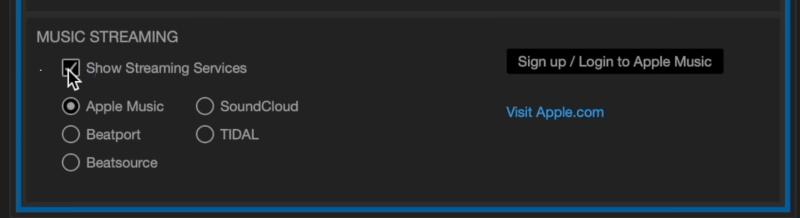
Step 3. Check Show Streaming Services and select Apple Music.
2. Log in
Step 1. In the same settings section, click Sign Up/Login to Apple Music.
Step 2. A browser window will open to Apple’s sign-in page. Enter your Apple Music account credentials.
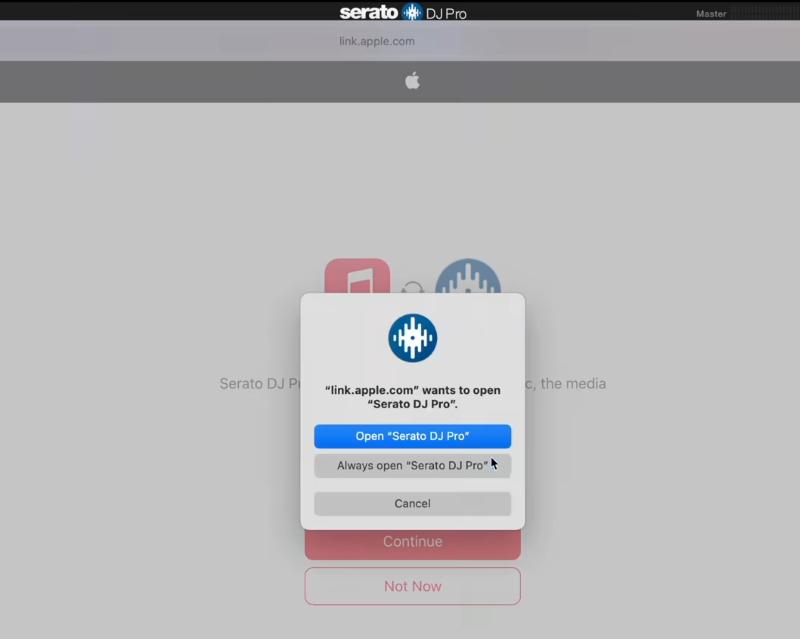
Step 3. After clicking Continue, confirm that you want to open Serato DJ Pro/Lite.
Step 4. Once logged in, the Apple Music logo and your saved songs and playlists will appear inside Serato DJ Pro/Lite.
3. Search and Load Tracks
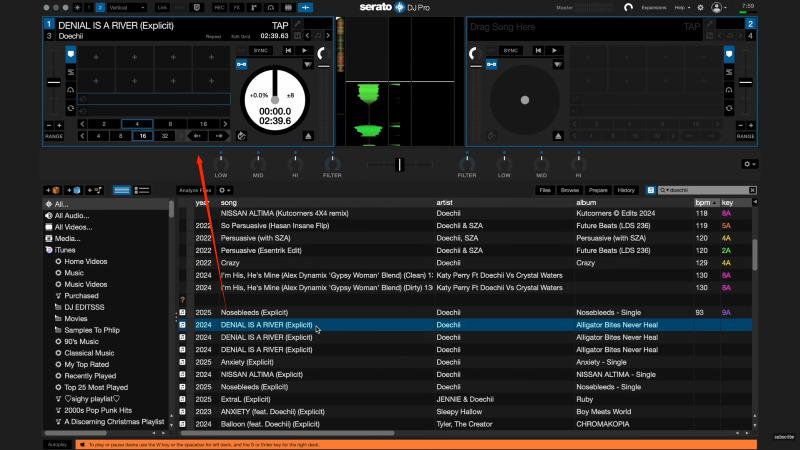
Step 1. Click the 🎵 icon in the center of the interface and switch to the ALL library.
Step 2. Use the search bar on the right to find the track you want.
Step 3. Double-click the track to load it to the left or right deck, or drag and drop it directly onto a deck.
4. Create or Use Playlists
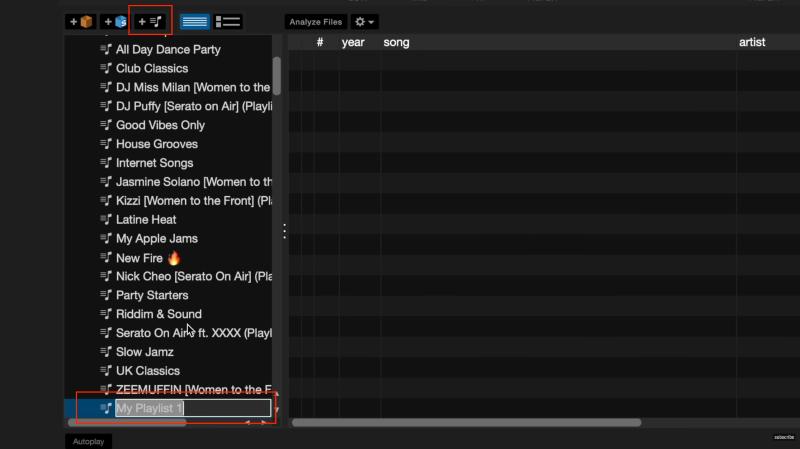
Step 1. Click the New Streaming Playlist button if you want to create a playlist inside Serato.
Step 2. Name the playlist, then add tracks by dragging and dropping them into it.
Tips:
You can also edit playlists on Apple Music’s web player, and changes should sync with Serato. Likewise, playlists created or edited in Serato can sync back to Apple Music.
5. Optional Settings
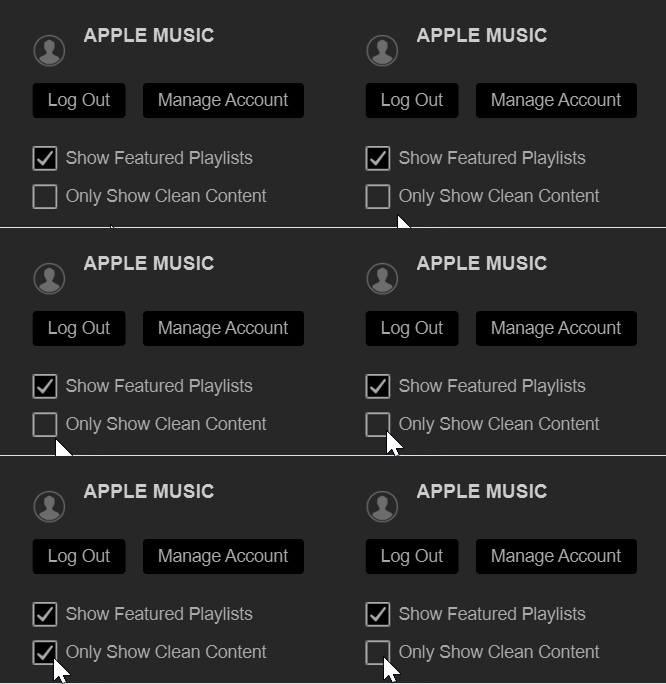
- Show Featured Playlists: Go to Settings > Library + Display, then check Show Featured Playlists if you want to browse top charts and featured content.
- Only Show Clean Content: In the same section, check Only Show Clean Content if you want to filter out explicit tracks.
Limits of Using Apple Music in Serato DJ
Apple Music's integration with Serato DJ frees you from the limits of local storage and removes the hassle of downloading, organizing, and syncing files. With a huge catalog available on demand, Apple Music streaming can be a convenient way for DJs to explore tracks, test ideas, and practice without building a full local library first.
However, streaming Apple Music in Serato does come with a few limitations. In this section, we've put together a summary of what you need to know.
1. Missing Features
- No Stems support: You can't use Serato Stems to separate vocals or instruments on Apple Music streaming tracks.
- Can't record mixes: The internal recording feature in Serato is disabled whenever an Apple Music track is loaded on a deck.
- Can't add to local crates: Streaming tracks can't be added to your local Crates or Smart Crates. They live exclusively in Streaming Playlists.
2. Usage Restrictions
- Requires constant internet: Apple Music streaming needs an active connection. Offline playback isn't supported.
- Unstable for live performances: Apple Music streaming in Serato requires a constant internet connection. Even with a stable connection, streaming tracks can take 10–20 seconds to load. If the venue Wi‑Fi is weak, you may run into library loading failures or playback stuttering.
3. Differences in Data & Audio Quality
- No data carries over: If you previously set beatgrids, cue points, or loops on local files, that data won't automatically sync to the streaming version of the same track.
- Audio quality difference: Apple Music streams at 256kbps AAC, which sounds perfectly fine for most situations, but it doesn't quite match the fidelity of local lossless or high-bitrate files on a large sound system.
The reason behind these limitations is pretty simple: streaming tracks and local files belong to two different systems. Streaming tracks come from the cloud under a licensing model, so they are not handled the same way as standard local DJ files. Local tracks, by contrast, give you much more freedom for analysis, tagging, storage, recording, and long-term library control.
None of this means Apple Music streaming in Serato is not useful. It clearly is. But it is still a streaming workflow, not a full replacement for owned local files.
When a Local-File Workflow Makes More Sense
If you need more file control, easier long-term library management, better portability, or a setup that does not depend on streaming limits, then a local-file route may still make more sense.
For DJs who still need a local-file route, TuneFab Apple Music Converter can be one practical way to prepare tracks before bringing them into a broader DJ workflow.
FAQs About Apple Music and Serato
Q1. Why Is My iTunes Library Not Showing Up in Serato?
There are a few common reasons why your local iTunes or Apple Music library might not appear in Serato DJ.
1. Show iTunes Library is turned off
In Serato DJ, go to Setup > Library + Display and make sure "Show iTunes Library" is checked.
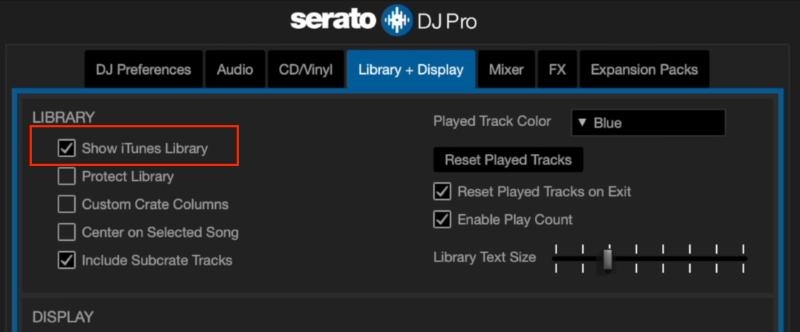
Note: Turning on Apple Music streaming in Serato does not automatically enable your local iTunes or Music app library. As mentioned earlier, these are accessed through different settings.
2. iTunes XML sharing is disabled (Windows)
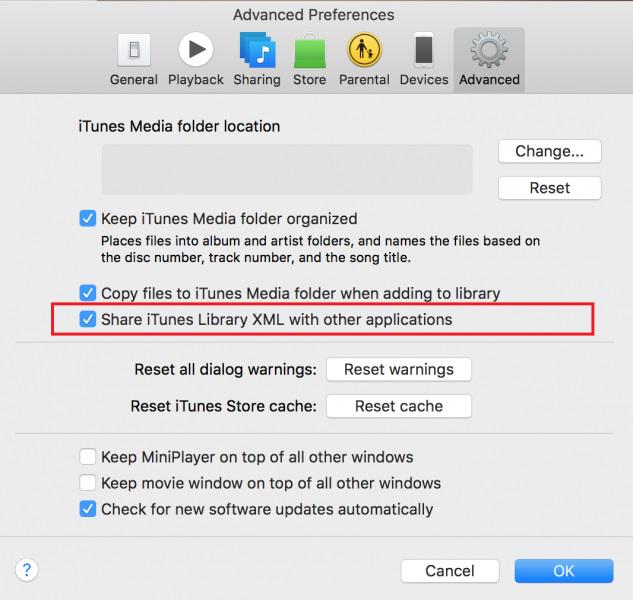
If you're on Windows, iTunes needs to share its library XML file with other applications. Go to iTunes > Edit > Preferences > Advanced, and check the box for "Share iTunes Library XML" with other applications. Without this, Serato can't read your iTunes library.
Q2. How to Delete Tracks from an Apple Music Playlist in Serato DJ?
Apple Music playlists can be created and updated through Serato’s streaming workflow, but playlist behavior depends on how your Apple Music library is configured. If you run into editing limits, you can also manage the same playlist through Apple Music on the web or Apple’s Music app, and the changes should sync back.
Q3. What's the Difference Between Serato DJ Pro and Serato DJ Lite When It Comes to Using Apple Music?
Serato DJ Lite is the free, streamlined entry-level version, while Serato DJ Pro is the paid one, with all the advanced tools for performance and production. When it comes to Apple Music streaming access itself, Serato DJ Lite and Serato DJ Pro are very similar. The main differences still come from the wider performance and production tools available in Pro.
Conclusion
Apple Music in Serato is now a real streaming option for DJs, but it still works best as a tool for discovery, practice, and set planning rather than a full replacement for a local DJ library.
Overall, Apple Music in Serato works best as a powerful streaming tool for discovery, practice, and set planning rather than a full replacement for a local DJ library. It is easy to start with, but it still comes with workflow limits around recording, stems, offline use, and long-term file control.

