


If you're trying to play Apple Music directly on an Android TV, there's an immediate roadblock: Apple has never released a dedicated Apple Music app for Android TV. Officially, Apple Music is supported on iPhone, iPad, Apple Watch, Mac, Windows PC, Android phones and tablets, Apple TV, HomePod, CarPlay, and several smart platforms like Samsung and LG smart TVs, PlayStation, Xbox, and the web player. Android TV, however, is not included. Even though Android phones can run Apple Music smoothly, it doesn't extend to Android TV systems.
That doesn't mean you're out of options. The good news is that there are multiple practical ways to make it work, including both Apple-supported solutions and alternative methods. In this guide, we'll walk you through five effective ways to play Apple Music on Android TV, clearly explaining what works, what doesn't, and which option fits your setup best.
Part 1. Official Ways to Use Apple Music on Android TV (3 Options)
Though there's no official access to Apple Music on Android TV, you can also use other methods that are officially supported. Here we'll introduce 3 official ways to you for playing Apple Music on Android TV smoothly.
Method 1. Play Apple Music on Android TV with Web Player
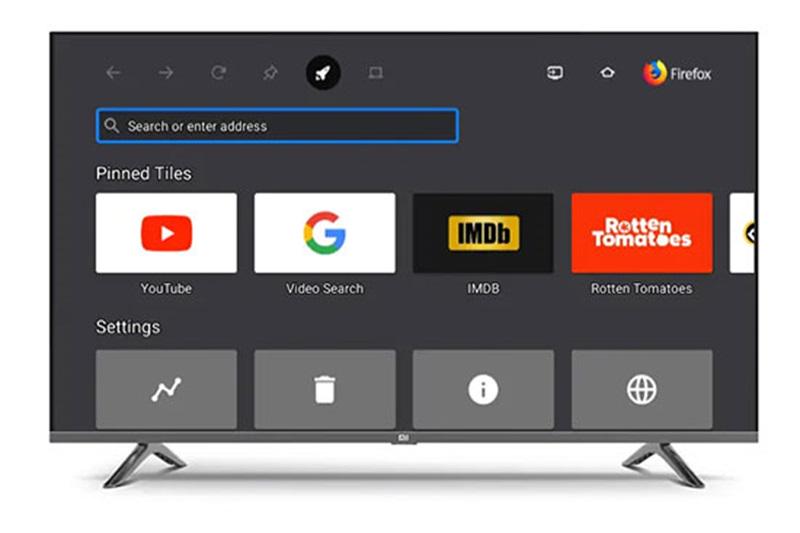
If you're an Apple Music subscriber yearning to listen on your Android TV, there's a clever workaround that doesn't require any fancy tech-savvy skills. You can directly access the Apple Music Web Player directly on your TV screen. Below, we'll walk you through the easy steps to load a web browser on your Android TV and start streaming Apple Music in no time.
Step 1. Launch your Android TV and fire up a web browser application on your TV.
Step 2. In the browser's search bar, key in "https://music.apple.com/" and press the search or enter button.
Step 3. Proceed to log in using your Apple ID. Simply input your username and password when prompted, and allow the system to verify your credentials.
Step 4. Once your login is successful, you're all set to enjoy Apple Music on your Android TV. Navigate through the web interface using your TV remote or game controller, and start streaming your favorite playlists, albums, or radio stations in high-quality audio.
Method 2. Cast Apple Music to Android TV with Android Phone
If you think that using a web browser on TV to access Apple Music is not easy for you or you want to listen to it offline, you can also choose to cast Apple Music to Android TV with your Android phone. Casting may not be available for all of you due to device compatibility. However, if your setup supports it, you can effortlessly stream Apple Music from your Android smartphone to your TV. Here's how:
Step 1. Connect your Android phone and TV to the same WIFI.
Step 2. Open the Apple Music app on your Android phone and pick a song from your library to play.
Step 3. Go to the Now Playing screen, and locate the Cast icon (a rectangle with a Wi-Fi signal). Tap it to proceed.
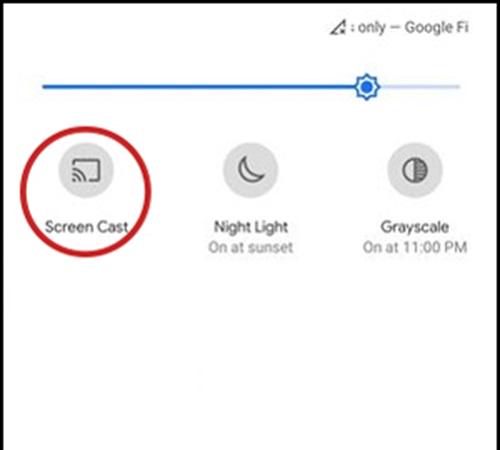
Step 4. Select your Android TV from the list of devices. Once connected, your Apple Music will stream directly to the TV, delivering improved audio and visual quality.
Method 3. AirPlay Apple Music to Android TV with iPhone
For iPhone users, you can directly stream Apple Music on Android TV from the Apple Music app on your iPhone, iPad, or Mac if your TV is AirPlay-compatible. Here are steps for how to get Apple Music on Android TV with iPhone:
Step 1. Ensure that your Android TV and iPhone are connected to the same Wi-Fi network.
Step 2. Launch the Apple Music app on your Apple device and start playing your favorite playlist.
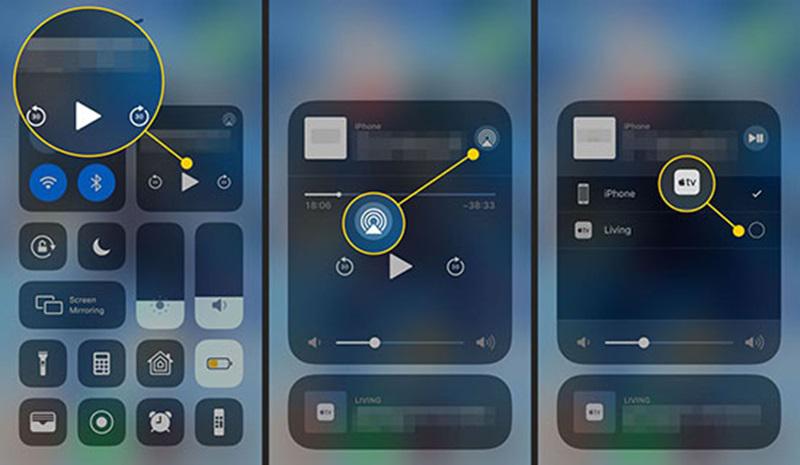
Step 3. Look for the AirPlay icon—it's a triangle with small circles around it. Tap on it to view a list of compatible devices.
Step 4. Find your Android TV in the list and select it. Once connected, your music will start playing on the TV, and you can control playback using either your Apple device or your TV remote. Simple and convenient!
Part 2. Alternative Ways to Play Apple Music on Android TV (2 Choices)
Thanks to third-party tools, you can try streaming Apple Music on Android TV directly. In this part, 2 methods are provided and you can choose the one that suits you most.
Note: Although third-party tools are more effective for playing Apple Music on Android TV, they are not officially recommended, which means they might not be that stable.
Method 4. Install Apple Music APK on Android TV
If you don't want to depend on your mobile phone for Apple Music listening on Android TV, installing Apple Music APK and play music on it is a recommended way for you. Let's walk through the detailed introduction of how to achieve it.
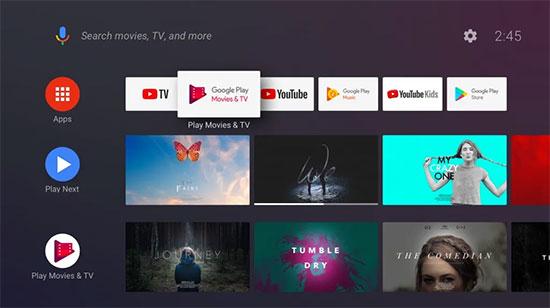
Step 1. Turn on your Android TV, navigate to the Home screen, open the Google Play Store, and install the Downloader app by searching for "Downloader by AFTV News".
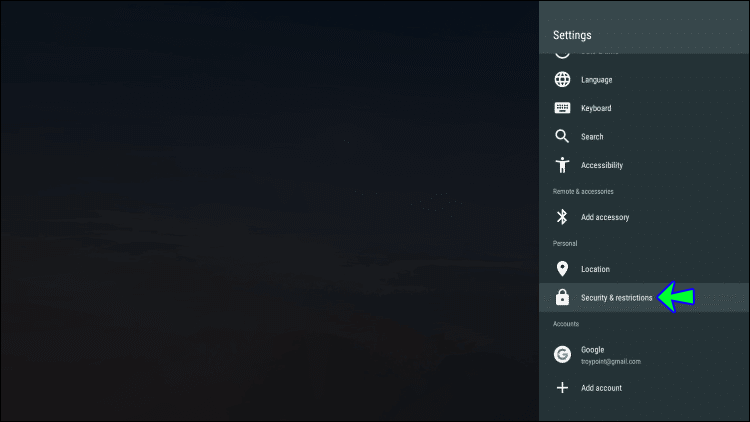
Step 2. Enable Unknown Sources in the Security & Restrictions settings menu on your Android TV.
Step 3. Launch the Downloader app, enter the Apple Music APK link (bit.ly/3ugkjOs) in the URL box, and download the APK file. Once downloaded, click on the Install button to install Apple Music on your Android TV.
Step 4. Launch the Apple Music app, log in with your Apple ID, and enjoy listening to your favorite songs like you do on an Android mobile.
Method 5. Stream Apple Music as MP3 on Android TV Without Internet
The methods above usually require a stable internet connection to stream music smoothly on your TV or to download songs on your phone. If your home internet isn't great and you don't want to use up your phone's storage, you can try using TuneFab Apple Music Converter, to download songs as MP3s or other common audio formats on your computer. Then, save them to a USB drive and plug it into your TV to listen.
TuneFab Apple Music Converter features a built-in Apple web player, allowing you to easily convert Spotify tracks, playlists, and albums into popular audio formats like MP3, M4A, FLAC, and WAV. With up to 35X faster conversion speed and original quality preservation, TuneFab ensures seamless offline playback across various devices, such as Android TV. Now let's explore the full tutorial to stream Apple Music on Android TV.
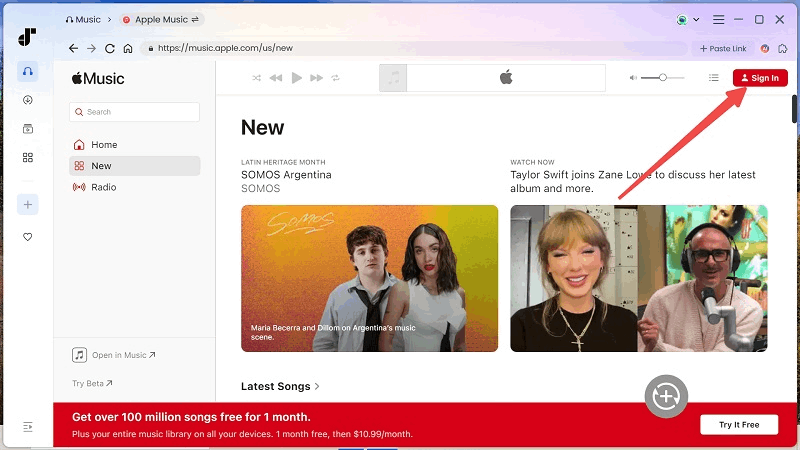
Step 1. Download and launch TuneFab Apple Music Converter on your PC. Then log in with your Apple Music Account information.
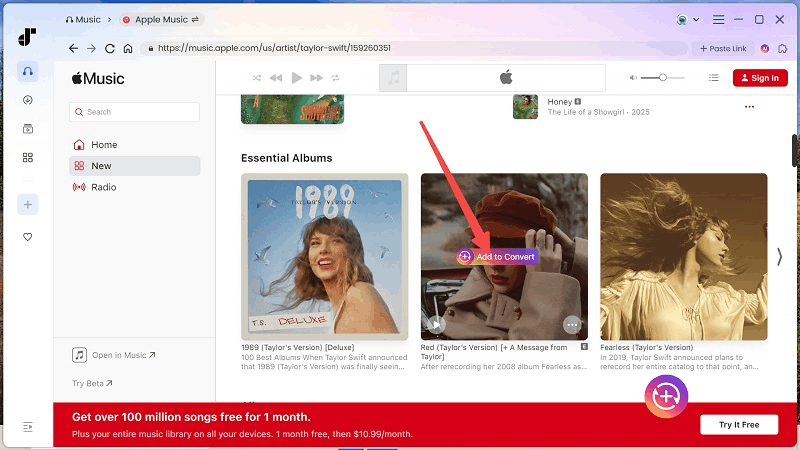
Step 2. After logging in, use the Apple Music web player's search feature to find any song or album you want to download. Simply drag your selection to the conversion list on the right, or click the floating red button on a track, album, or playlist to add it to the queue.
Step 3. In the conversion queue, you can choose an output format for individual songs or apply the same format to all tracks at once.
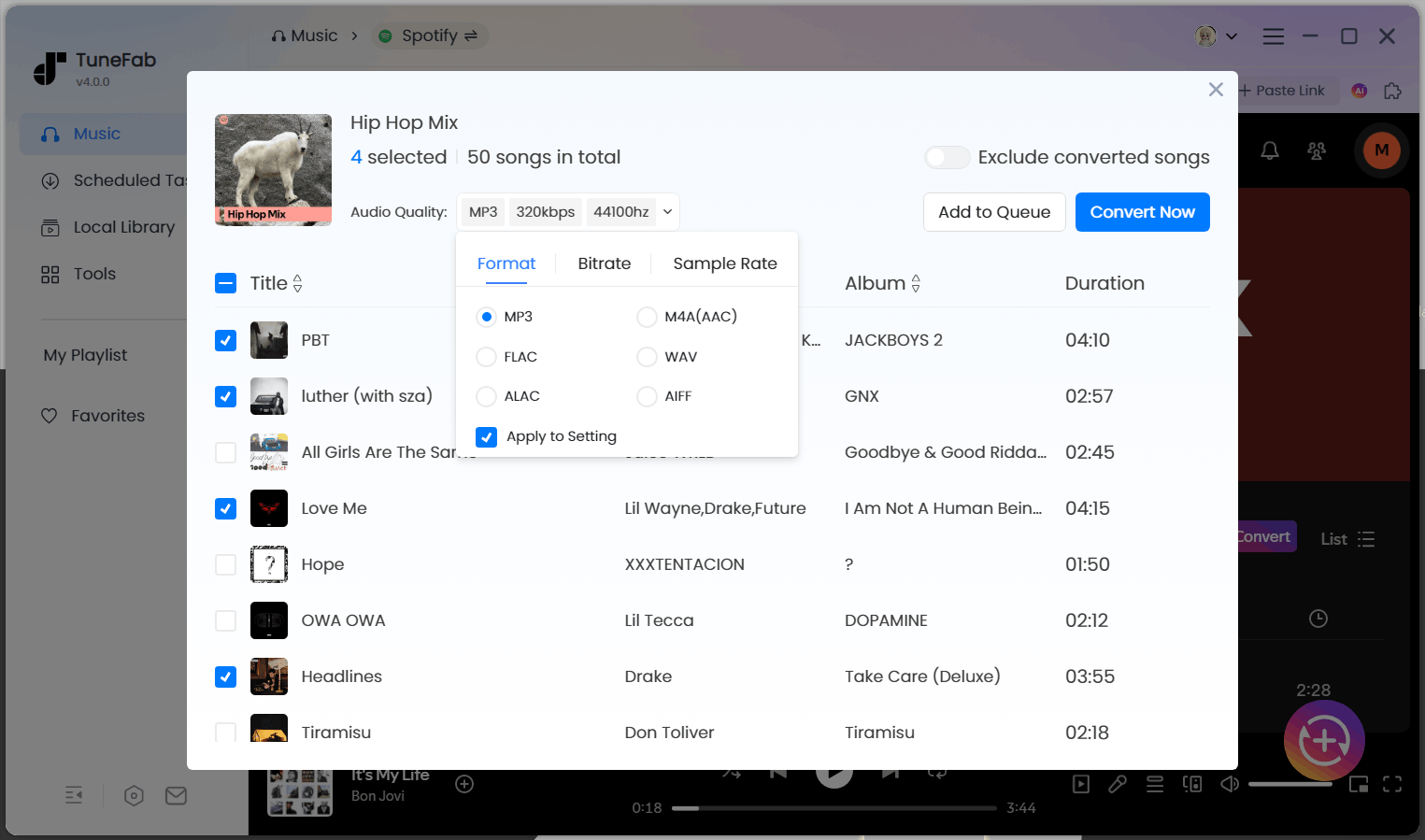
Step 4. Once your settings are finalized, click the "Convert All" button. TuneFab Apple Music Converter will process the selected tracks, converting and downloading them into formats like MP3, WAV, FLAC, AIFF, AAC, or ALAC.
If you download Apple Music in MP3, you can change the bitrate to 320kbps and samplerate to 44100hz to match Apple Music 320kbps quality.
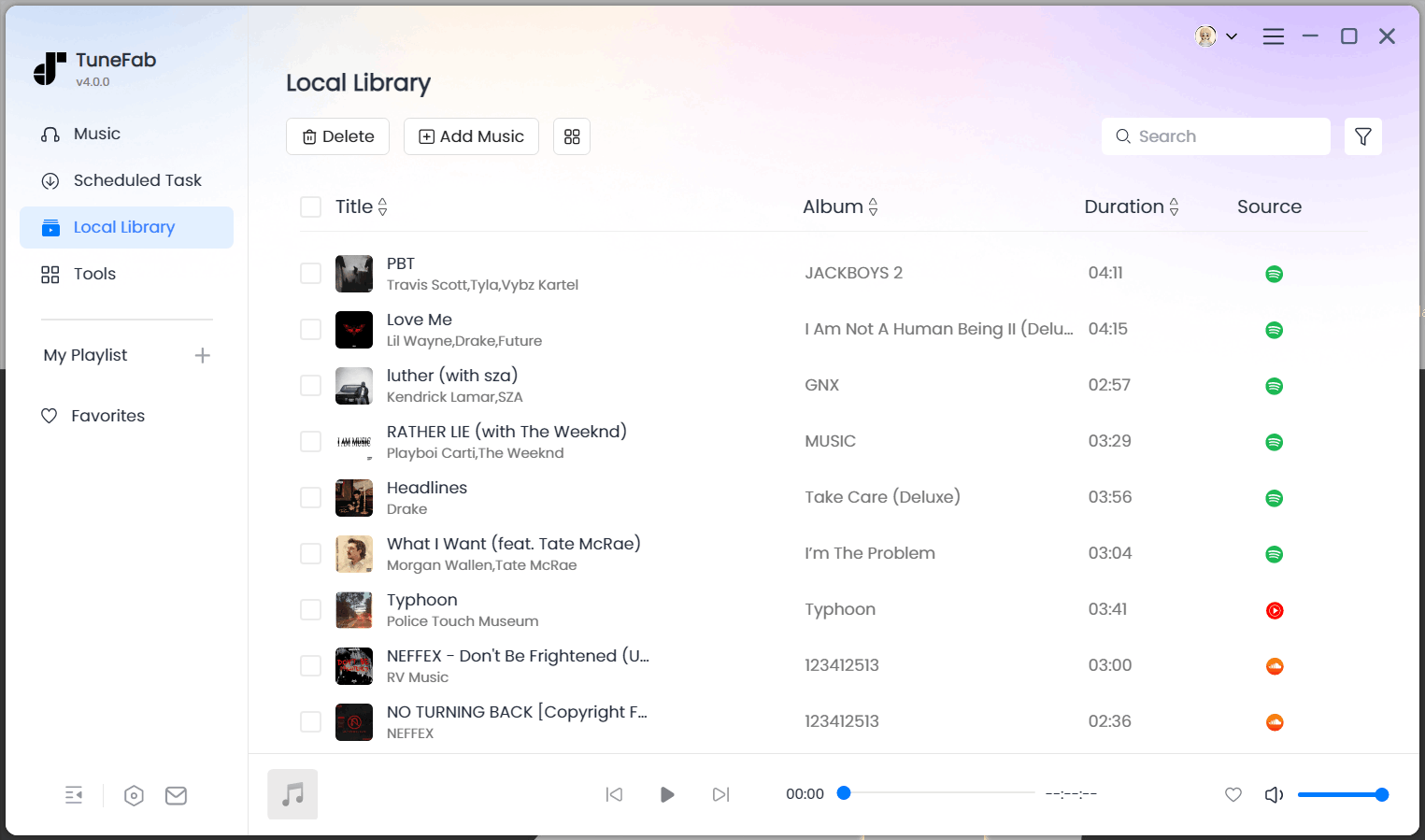
After the download is complete, you can check your converted files in the "Finished" section. Click the folder icon to open the output folder and access your offline Apple Music tracks for seamless listening anytime! Now you can transfer these downloaded tracks to a targeted USB without any limitations and play them on your Android TV permanently and hassle-free.
Part 3. Which Way Is Best for You? (Quick Comparison)
Now you've looked through all 5 workarounds, and might still not be sure which one is most suitable for you. No worries, here we'll offer you a comparison table to help you make the choice easier.
| Method | Playlists Download | Internet Required | Official Support | Audio Quality | Ease of Use |
| Web Player | Occasional listening | Yes | ✅ Official | High | Medium |
| Cast from Android | Android users | Yes | ✅ Official | High | Easy |
| AirPlay | iPhone users | Yes | ✅ Official | High | Easy |
| APK Install | App-like experience | Yes | ❌ Unofficial | High | Medium |
| MP3 via USB Using TuneFab | Offline playback | No | ❌ Unofficial | Very High | Medium |
FAQs About Apple Music on Android TV
Can I download Apple Music songs directly on Android TV?
No. Android TV does not support offline downloads for Apple Music. Since there is no official Apple Music app designed for Android TV, Apple does not provide any built-in way to download songs directly to the TV for offline playback. Even when you stream Apple Music through a browser, casting, or AirPlay, the music is played in real time and still requires an internet connection. Offline downloads are only supported on officially supported devices such as iPhone, iPad, Android phones and tablets, Apple TV, and computers running the Apple Music app.
Is there an Apple Music app for Android TV on GitHub?
Some GitHub projects may claim to offer Apple Music clients, modified APKs, or third-party scripts, but these are not maintained or approved by Apple and often stop working due to DRM restrictions, login failures, or API changes. Using such projects can also pose security and account risks.
Conclusion
In conclusion, there are five workable ways to help you enjoy Apple Music on Android TV. For third-party tool, the most suggestible method is TuneFab Apple Music Converter. It allows you to download an array of songs from Apple Music into DRM-free formats at 35X. With this tool, you can stream any Apple Music on Android TV without the internet at anytime. Now just try it to immerse yourself in the enhanced music world at home.

