


"I tried importing my Apple Music tracks into VirtualDJ, but nothing happened. Is there something I'm missing?"
This is a question that pops up frequently on VirtualDJ forums. If you're looking for the answer too, you've come to the right place. In this article, we'll walk you step by step through how to add Apple Music to VirtualDJ so your DJing experience can be smoother. Let's get started.
Can You Use Apple Music in VirtualDJ?
Unfortunately, no. VirtualDJ does not currently offer official Apple Music integration. Apple Music now works in some DJ ecosystems, but VirtualDJ is not one of the officially supported routes. That is why Apple Music subscription tracks do not behave like normal local DJ files inside VirtualDJ.
Here is the key difference:
- VirtualDJ supports some streaming services, such as TIDAL, SoundCloud, Beatport, Beatsource, and Deezer.
- Apple Music supports some DJ platforms, such as djay, Serato, and rekordbox.
- But VirtualDJ and Apple Music do not currently overlap.
If you want the broader platform picture, check out "DJ with Apple Music: Features, Platforms, and Limitations."
Why Your Apple Music Tracks Don't Appear in VirtualDJ?
You might be wondering: since VirtualDJ doesn't support direct Apple Music streaming, can I just download Apple Music tracks and drag them into VirtualDJ, or add them to my iTunes library so they show up in VirtualDJ? Unfortunately, you still can't.
|
Track Type
|
Shows in VirtualDJ | Usable in VirtualDJ |
| Apple Music subscription tracks | Sometimes | ❌ |
| iTunes Library.xml | ✅ | ❌ |
| iTunes purchased tracks | ✅ | ✅ |
| Local audio files | ✅ | ✅ |
Here's why it won't work:
1. Local, unprotected files onlyVirtualDJ can load and mix audio files that are stored locally and are DRM-free, such as purchased iTunes tracks or standard formats like MP3, WAV, or AIFF. As shown in the table, both iTunes purchased tracks and local audio files appear and are usable in VirtualDJ.
2. Apple Music tracks: DRM-protected Apple Music subscription tracks are not normal local DJ files. Even if you download them inside Apple Music, those downloads are still tied to Apple’s own playback system rather than saved as standard files you can freely load into DJ software. That is why they may appear in your library in some cases but still fail to load or play in VirtualDJ.
3. iTunes Library.xml: metadata onlyVirtualDJ can read your iTunes database from the iTunes Library.xml file, so tracks appear in the library view. However, the XML file alone does not bypass DRM; if a track is not a local DRM-free file (like an Apple Music subscription track), VirtualDJ cannot play it—even though it shows up in the list.
⭐️ The real way to bypass Apple’s locks for VirtualDJ
Since VirtualDJ works best with standard local audio files, the practical workaround is to first save Apple Music tracks as usable local files and then import them into VirtualDJ.
TuneFab Apple Music Converter is one tool built for that workflow. It converts Apple Music tracks into common local formats like MP3, so they are easier to manage and import like other local files in your DJ library.
Now let's walk through how to use TuneFab Apple Music Converter to download Apple Music as MP3 files:
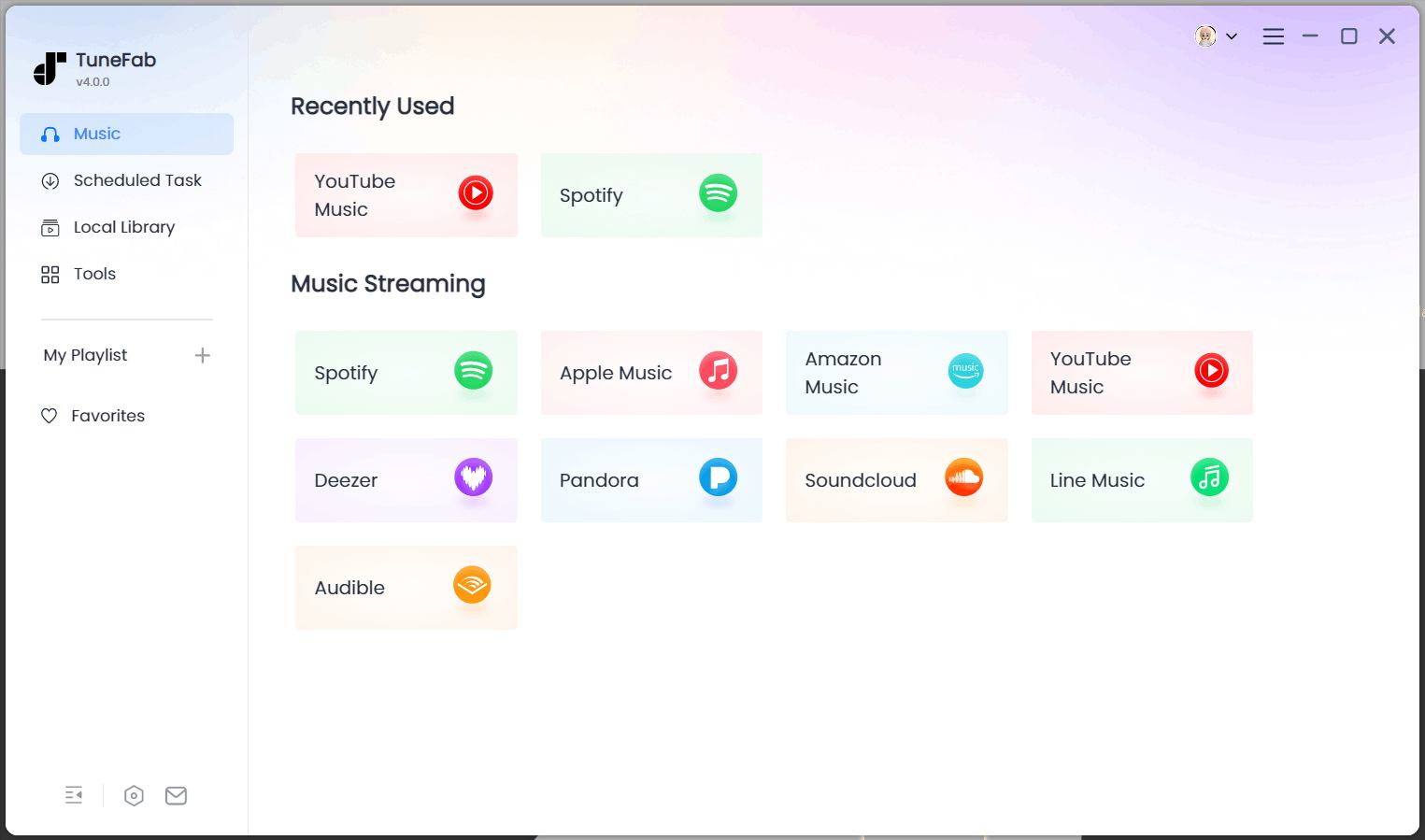
Step 1. Run TuneFab Apple Music Converter
Download and install TuneFab Apple Music Converter on your computer. Then select "Apple Music" from the main interface.
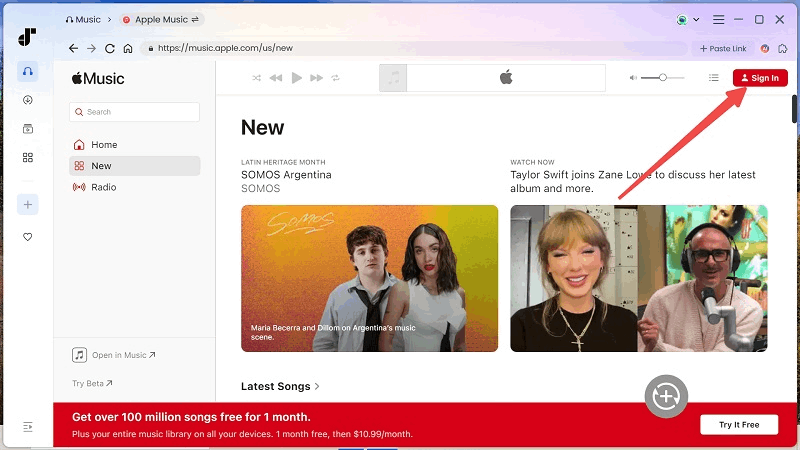
Step 2. Log in to Apple Music Web Player
Once you enter the built-in web player, click the "Sign In" button in the top-right corner and log in to your account.
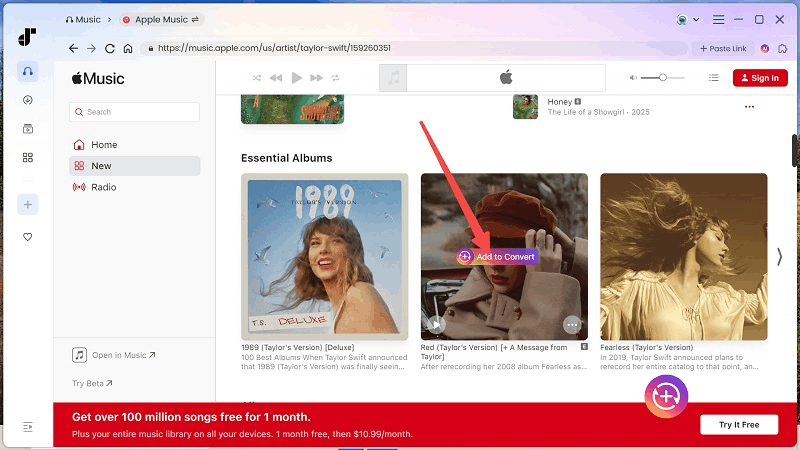
Step 3. Add Apple Music Songs to Conversion List
After logging in, search for the songs you want. Click the "+" button on the right, or simply drag and drop tracks into the conversion list.
Step 4. Customize Output Format and Parameters
In the conversion list, choose your preferred output format and audio quality.
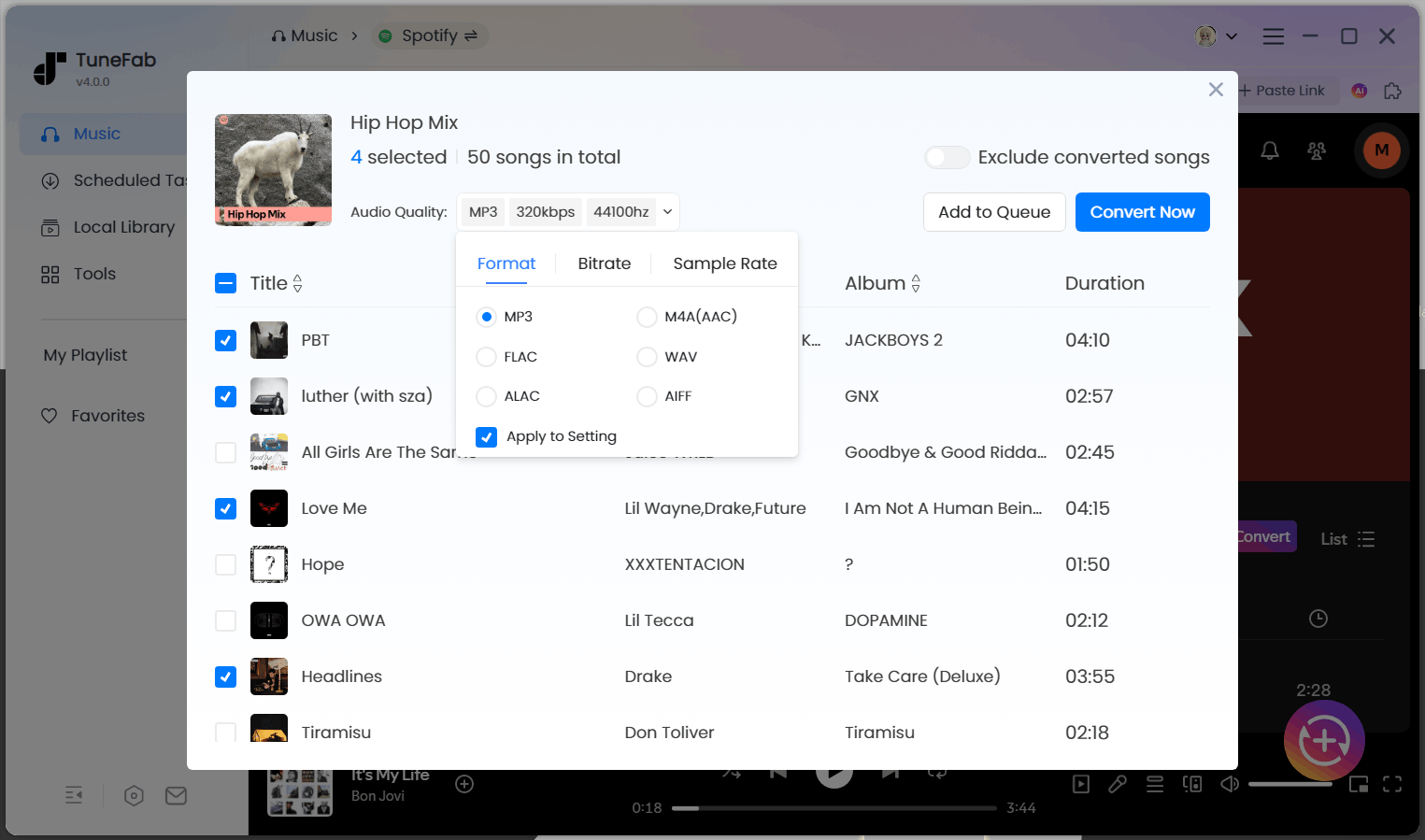
Step 5. Convert Apple Music to MP3
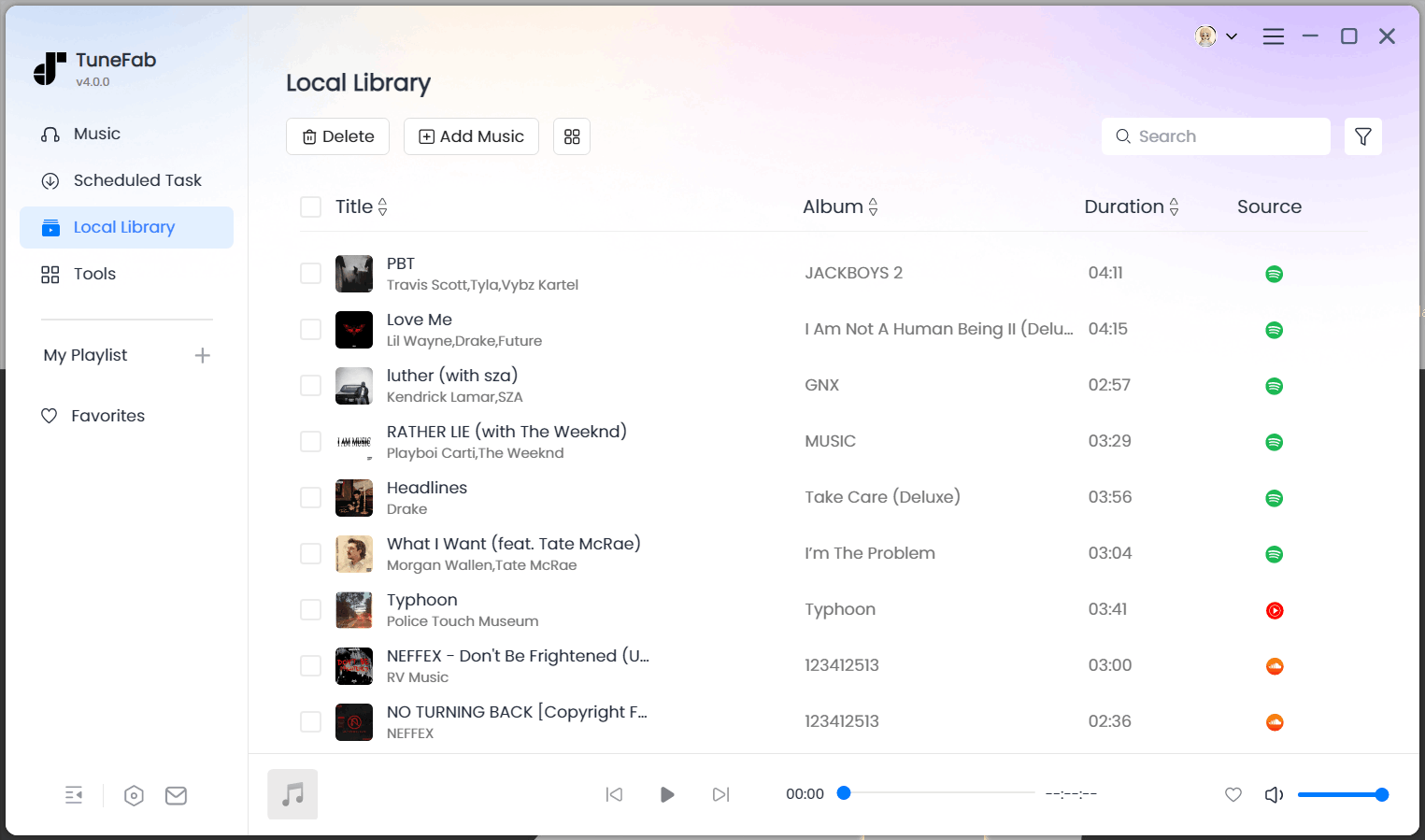
Finally, click "Convert Now" in the top-right corner to start the process. Once it's done, you can find your downloaded files in the "Local Library" folder.
How to Add Apple Music to VirtualDJ
Once your Apple Music tracks have been turned into usable local files, adding them to VirtualDJ is much simpler. You can either import them directly from a local folder or add them through your iTunes / Music library, depending on how you prefer to manage your tracks.
How to Import Apple Music to VirtualDJ Directly
This is the quickest and most straightforward method to import local audio files into VirtualDJ if you already have the converted tracks saved on your computer.
Step 1. Launch VirtualDJ on your PC or Mac.
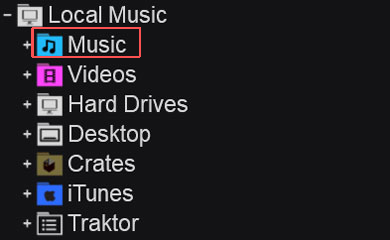
Step 2. Simply drag the converted tracks or folders directly into VirtualDJ's main window, side list, or a deck. Alternatively, use the Browser panel on the left-hand side in VirtualDJ and click on "Local Music" > "Music". Then, navigate to the folder where your converted tracks are stored and select the tracks.
Step 3. When the tracks appear in VirtualDJ, you can start your mixing.
How to Import Apple Music into VirtualDJ via iTunes
If you prefer to keep your music organized in iTunes, you can add the converted MP3 files there first and then import them into VirtualDJ through your iTunes library. Alternatively, if you've previously purchased songs from iTunes, you can use the same method to import them directly. Here's how to do it:
Step 1. Open iTunes. Click "File" in the top-left corner, then choose "Add File to Library" or "Add Folder to Library."
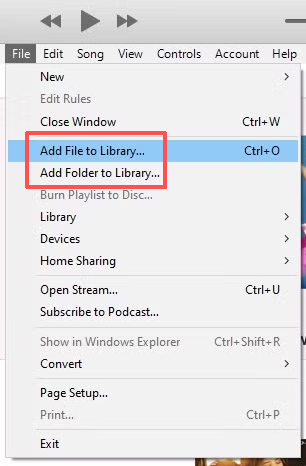
Step 2. Select the folder that contains your converted tracks or purchased songs, and add them to your iTunes library.
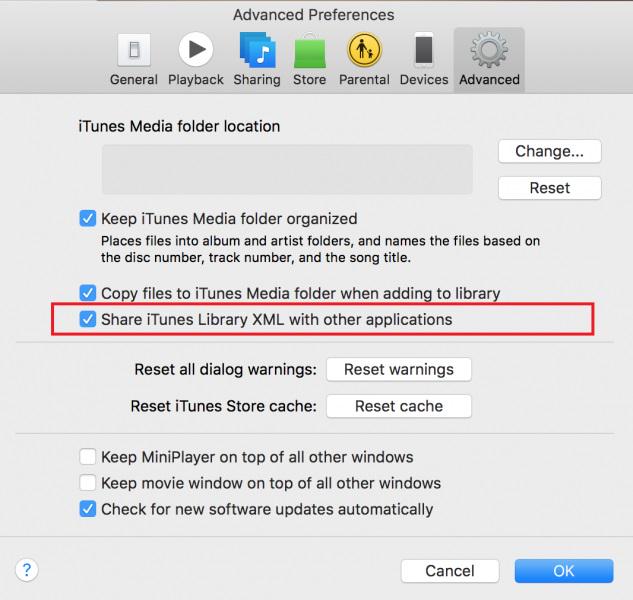
Step 3. Click "Edit" in the top menu, then go to "Preferences" > "Advanced". Check "Share iTunes Library XML with other applications." Once enabled, click "OK."
Step 4. Open VirtualDJ. In the left-hand Browser panel, go to Local Music" > "iTunes", then locate and load your tracks into VirtualDJ.
If you want a cleaner long-term setup for DJ use, you can also check [ TuneFab Music Converter for DJ ].
FAQs about VirtualDJ Apple Music
Can downloaded Apple Music tracks keep their original quality in VirtualDJ?
It depends on the converter you use. If you're using TuneFab Apple Music Converter, the audio quality won't be compressed during the conversion process. It can preserve the original 320 kbps quality or even output lossless formats like FLAC or WAV. This means that after importing the converted files into VirtualDJ, you can still enjoy high-quality playback without noticeable loss in sound.
Do iTunes purchased songs work in VirtualDJ?
Yes, if they are normal local files that VirtualDJ can read and load. The key difference is not whether the track came from Apple, but whether it is a standard local audio file rather than an Apple Music subscription track.
Why do Apple Music songs show up in iTunes or Music but still not play in VirtualDJ?
Because library data and playable files are not the same thing. VirtualDJ can read iTunes / Music library information, but Apple Music subscription tracks are still not normal local files, so appearing in the library view does not guarantee that the track can actually load and play.
Conclusion
VirtualDJ still does not support Apple Music as a direct streaming source. That is why Apple Music subscription tracks cannot be used the same way as normal local DJ files.
The practical path is simple: first turn the tracks you want into usable local files, then import them into VirtualDJ either directly or through your iTunes / Music library. If your goal is to mix Apple Music tracks in VirtualDJ today, that is still the clearest workable route.
If needed, a tool like TuneFab Apple Music Converter can help you prepare those tracks before you bring them into VirtualDJ.

