


Good news: Apple Music now works directly in Djay Pro. That means you can sign in, pull tracks from your Apple Music library, and start mixing without going through the old local-file workaround first.
But direct support does not mean zero limits, so this guide focuses on what works, how to connect it, and where the workflow still feels different from using your own DJ files.
What Can You Do with Apple Music in Djay Pro?
In March 2025, Apple officially launched a program called "DJ with Apple Music," opening up integration to major platforms like AlphaTheta, Serato, and Denon DJ. By comparison, djay Pro had already introduced a deep integration with Apple Music back in February 2024. And in practice, it gives you way more room for actual DJing and creative work when you tap into Apple Music.
With Djay Pro's seamless Apple Music integration, you can:
- Access over 100 million tracksBrowse and search the full Apple Music catalog directly within Djay Pro, load songs onto your decks in real time, and start mixing on the spot.
- Add streaming tracks to your librarySave songs to your library or playlists in the Apple Music app, and they'll automatically show up in Djay Pro for easy access.
- DJ performance controlsYou can load Apple Music tracks, set cue points, create loops, and use many core mixing controls inside the app. But the workflow is still not identical to using fully owned local files.
- Apple Music "Match" recommendationsBased on what you're playing and your listening history, the software suggests suitable next tracks to help with track selection.
How to Add Apple Music to Djay Pro?
Before you start using Apple Music on Djay Pro, make sure you have active subscriptions for both Apple Music and Djay Pro. Once that's confirmed, you can follow our step-by-step guide to see how easy it is to connect Apple Music with Djay Pro across different devices.
On Windows PC/Mac
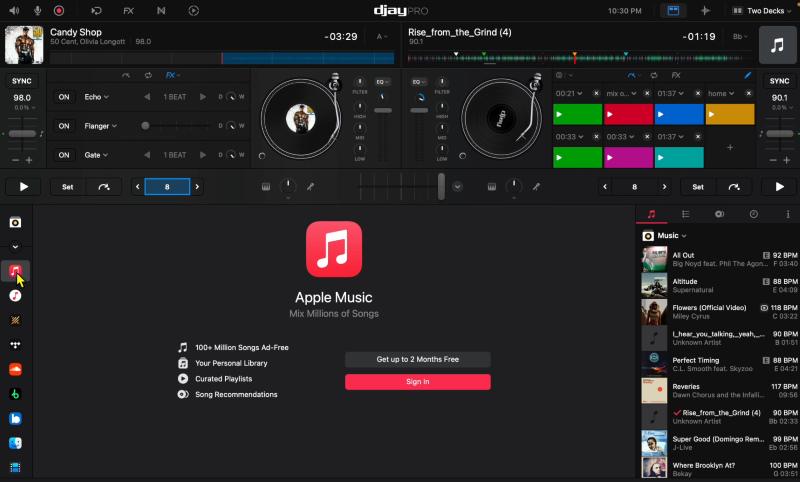
Step 1. Install and launch the latest version of Djay Pro on your Windows PC or Mac.
Step 2. find the library browser in the lower half of the Djay Pro.
Step 3. Select Apple Music. Click the "Sign In" button and follow the prompts to enter your Apple ID and password.
Step 4. Once signed in, you can browse your Apple Music library directly within Djay Pro. Simply drag and drop your chosen tracks onto a deck in Djay Pro to start mixing.
On iPhone and iPad
Step 1. Open the Djay Pro app on your iPhone or iPad.
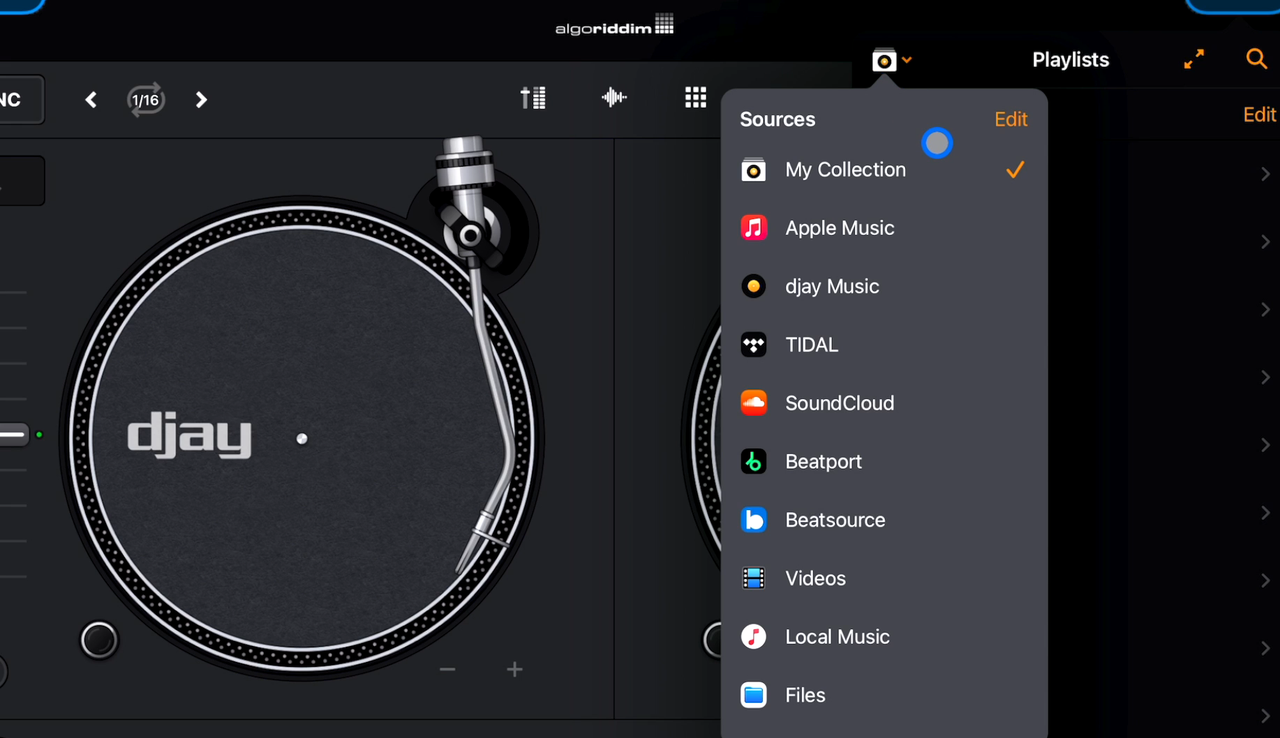
Step 2. Tap the blinking music icon in the topright or topleft corner, then tap the hidden dropdown menu that appears.
Step 3. Select "Apple Music" from the Sources list. A popup will ask for your Apple ID.
Step 4. Enter your Apple ID and password, then tap "Sign In." Once you're logged in, you can browse your playlists, albums, or the full Apple Music catalog.
On Android
Step 1. Open Djay Pro on your Android device.
Step 2. Tap the music selection button in the topleft or topright corner. Then tap the dropdown menu in the topleft to bring up the music "Sources". Select "Apple Music".
Step 3. A sign-in prompt will appear. Enter your Apple ID and tap "Sign In."
Step 4. Your Apple Music playlists and songs will now show up in the library panel. Tap a track to play it, or drag it onto a deck to start mixing.
On Apple Vision Pro
Step 1. Open Djay and go to the music source panel.
Step 2. Select Apple Music and sign in with your Apple ID.
Step 3. Once connected, browse your Apple Music library and load tracks into djay to start mixing.
Common Issues When Using Apple Music in Djay Pro
Apple Music integration in Djay Pro is generally simple to use, but streaming-based workflows can still run into sync and playback issues. The most common problems are playlists not appearing correctly and feature limits around Neural Mix and recording.
Problem 1: Apple Music Playlists Not Showing in Djay Pro
This is a hot topic on the Algoriddim forums—some users report that their playlists appear fine in Apple Music with all the tracks, but then don't show up in Djay Pro once connected.
This usually points to sync delay, a temporary account refresh issue, or a network problem. Start by waiting a little, then refresh your Apple Music connection in Djay by signing out and back in. If the playlist still does not appear, restart djay and make sure your Apple Music library has finished syncing.
Problem 2: Apple Music Streaming Can't Use Neural Mix / Recording
Neural Mix is one of Djay Pro's signature AI features. It lets you split a track into separate stems in real time. But if you're streaming directly from Apple Music inside Djay Pro, you'll find that this feature, along with recording, isn't available. That's mainly due to streaming service licensing. Since Apple Music is a streaming platform, its songs are protected by DRM, which prevents thirdparty apps from doing things like stem separation or recording.
The usual workaround is to use a professional thirdparty Apple Music converter, like TuneFab Apple Music Converter, to download the tracks you need to your local device. Then, in djay Pro, just switch to the "Local Music" section to play them, and both Neural Mix and recording will work as normal.
For DJs who still want Neural Mix, recording, and more dependable file control in Djay Pro, a local-file workflow is the better fit. You can see a more DJ-focused route here: [ Music Converter for DJs ].
FAQs About Adding Apple Music to Djay Pro
Can I use Apple Music with Djay Pro offline?
No, you can't use Apple Music tracks offline in Djay Pro. Because the integration relies on streaming, you need an active internet connection to access the songs. While djay Pro allows you to mix and apply effects in real time, the tracks themselves aren't downloaded as local files, so offline playback isn't supported.
What is the maximum audio quality when streaming Apple Music in Djay Pro?
When streaming Apple Music in Djay Pro, the maximum quality is 256 kbps AAC, which is sufficient for most DJ scenarios. But if you're doing heavy tempo shifts or adding effects, lossy files can start to show their limits. For your key tracks, it's safer to go with lossless or local DRMfree files.
Can I export Apple Music tracks after mixing?
No. You cannot export Apple Music tracks as separate files from Djay Pro. Also, if your mix includes Apple Music streaming tracks, Djay’s built-in mix recording is not available. If you need recording or file export flexibility, you will need a local-file workflow instead.
Conclusion
Apple Music in djay Pro works best as an official streaming workflow for quick access, discovery, and flexible mixing across supported devices. But it is still not the same as a full local-file DJ workflow, especially if you need Neural Mix, recording, or more dependable long-term file control.
While some features, like djay Pro's Neural Mix, aren't yet available for Apple Music streaming, the integration already gives DJs more creative freedom and possibilities than most other software. Hopefully we'll see even more feature support in the future.

