


Have you ever found that your downloaded Apple Music songs suddenly stopped playing, appeared as unsupported audio files, or only played in the Apple Music app? This usually happens because Apple Music tracks are protected by DRM, which limits where and how you can play them. As a result, some songs may not work on unauthorized computers, MP3 players, DJ software, or after your subscription expires.
The good news is that there are still several ways to play protected Apple Music depending on your situation. In this guide, you'll learn how to check whether your songs are protected, restore playback through official Apple methods, and even play protected Apple Music on any device permanently without app or subscription limits. Let's get started right away!
Related Articles:
- Before You Start: How to Tell If Apple Music Songs are Protected?
- Method 1. Re-authorize Your Computer to Play Purchased Apple Music
- Method 2. Re-download Old Purchased Songs as DRM-Free Versions
- Method 3. Renew Your Apple Music Subscription to Restore Playback
- Method 4. Play Protected Apple Music Anywhere Permanently 🔥
- FAQs About How to Play Protected Apple Music
- Conclusion
Before You Start: How to Tell If Apple Music Songs are Protected?
Before trying any fixes, it's important to check whether your Apple Music songs are actually DRM-protected. In the Apple Music app or iTunes, right-click a song and select "Get Info" (Windows) or "Song Info" (Mac). Under the "File" tab, look for the file type.
Here are the most common Apple Music file types and what they mean:
| File Type | DRM Protected? | Description |
| Apple Music AAC audio file | Yes | Songs streamed or downloaded from an Apple Music subscription |
| Protected AAC audio file | Yes | Old iTunes purchases made before 2009 |
| Purchased AAC audio file | No | DRM-free iTunes Plus purchases after 2009 |
| Matched AAC audio file | No | Songs matched from your own library via iTunes Match |
| MPEG audio file (MP3) | No | Standard MP3 audio format |
| AIFF audio file | No | Uncompressed CD-quality audio |
| WAV audio file | No | Uncompressed Windows-compatible format |
| Apple Lossless audio file (ALAC) | No | Lossless audio format for imports or conversions |
If your songs appear as "Apple Music AAC audio file" or "Protected AAC audio file", they are DRM-protected and may not play on unauthorized devices, third-party apps, or after your Apple Music subscription expires. Then, we will explain 4 ways below to help.
Method 1. Re-authorize Your Computer to Play Purchased Apple Music
If you're unable to play older Apple Music or iTunes purchases, the issue is often not the file itself but your device authorization. Apple requires each computer to be explicitly authorized with the Apple ID used to purchase the music. If that authorization is missing or outdated, protected or purchased tracks may fail to play even though they are technically accessible.
To fix this, you can re-authorize your computer in a few simple steps.
Step 1. Open the Apple Music app (Mac) or iTunes (Windows), and sign in with the Apple ID used for your music purchases.
Step 2. Go to "Account > Authorizations > Authorize This Computer".
Step 3. Enter your Apple ID password when prompted, and then restart the app and try playing your purchased songs again.
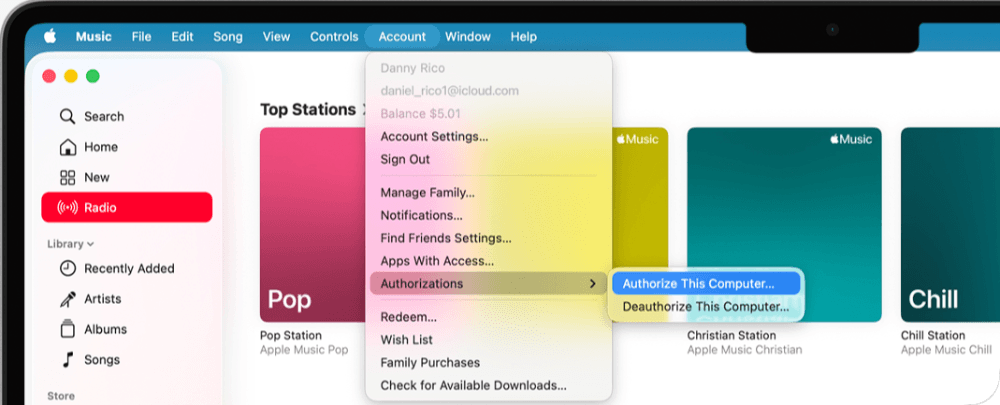
Once re-authorized, your purchased Apple Music content should become playable again on that device, as long as the files themselves are valid and still associated with your account.
Method 2. Re-download Old Purchased Songs as DRM-Free Versions
In some cases, older iTunes purchases may still be in a legacy protected format or may not have been downloaded correctly from your library. Apple has since upgraded many past purchases to DRM-free versions (iTunes Plus), which means simply re-downloading the same songs can resolve playback issues without any additional tools or settings.
If your purchased tracks are not playing properly, try re-downloading them using the steps below.
Step 1. Open the Apple Music app or iTunes on your computer, and sign in with the Apple ID used for your purchases.
Step 2. Go to "Account > Purchased", or "Purchased" in the sidebar.
Step 3. Find the songs or albums that are not playing correctly, and click the download icon to re-download the content.
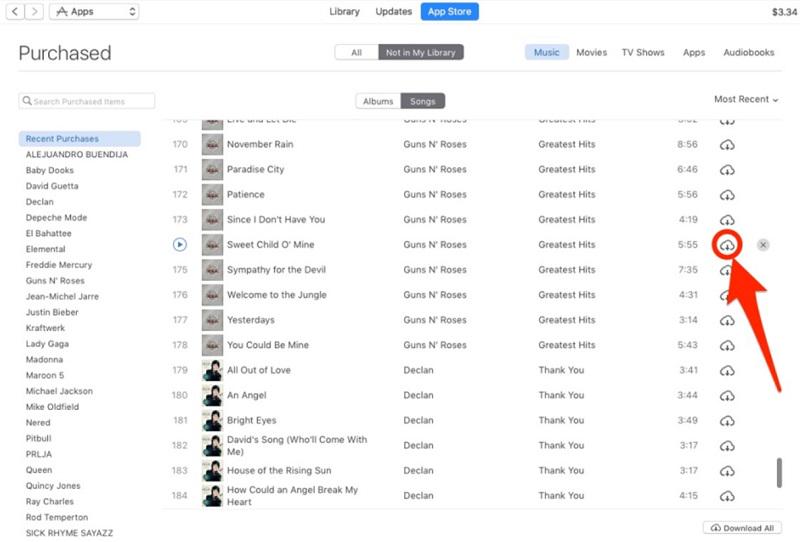
After re-downloading, the updated version of the track will usually be DRM-free (if eligible), meaning it can be played on supported devices and apps without the previous restrictions.
Method 3. Renew Your Apple Music Subscription to Restore Playback
When Apple Music songs stop playing unexpectedly, one of the most common reasons is that the subscription has expired or is no longer active. Unlike purchased iTunes music, Apple Music streaming downloads are tied directly to an active subscription and will become unplayable once access is lost. In this case, the issue isn't with the files themselves, but with the playback license being revoked.
To restore playback, simply renewing your Apple Music subscription is usually enough. Here are the steps.
Step 1. Open the "Settings" app on your iPhone or the "Apple Music/iTunes" app on your computer.
Step 2. Sign in with the Apple ID associated with your Apple Music account.
Step 3. Go to your subscription settings and select "Apple Music", choose a valid plan, and confirm payment.
Step 4. Once reactivated, reopen Apple Music and re-download or stream your songs.
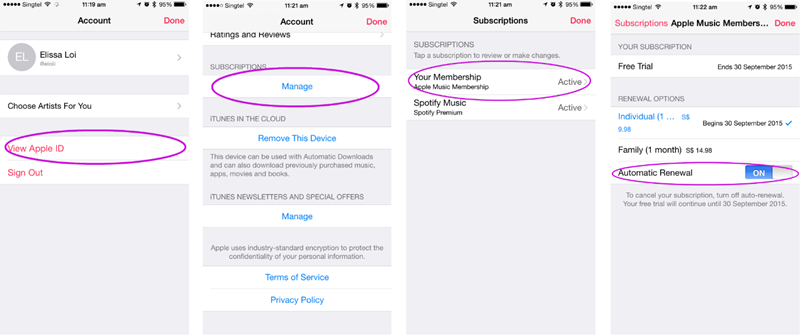
After renewal, your previously downloaded Apple Music tracks will become playable again within the Apple Music app, as long as they remain part of the active subscription library.
Method 4. Play Protected Apple Music Anywhere Permanently
All the methods above can help restore playback in specific situations, but they share the same limit: they don't actually remove Apple Music's built-in restrictions. The songs are still tied to DRM protection or account authorization, which means playback can stop again once conditions change, such as subscription status, device limits, or app compatibility. If your goal is to truly play Apple Music anywhere, even outside the Apple ecosystem or after restrictions apply, you'll need a more permanent solution.
This is where a dedicated tool like TuneFab Apple Music Converter comes in. It is designed to help users remove playback limitations from Apple Music tracks and convert protected songs into common audio formats such as MP3, WAV, M4A, or FLAC. Once converted, the music becomes standard audio files that can be played on any device, including MP3 players, smartphones, car systems, or DJ software, without relying on the Apple Music app or an active subscription.
100% Secure
100% Secure
Here's how to use TuneFab to make your protected Apple Music content free for any device or player.
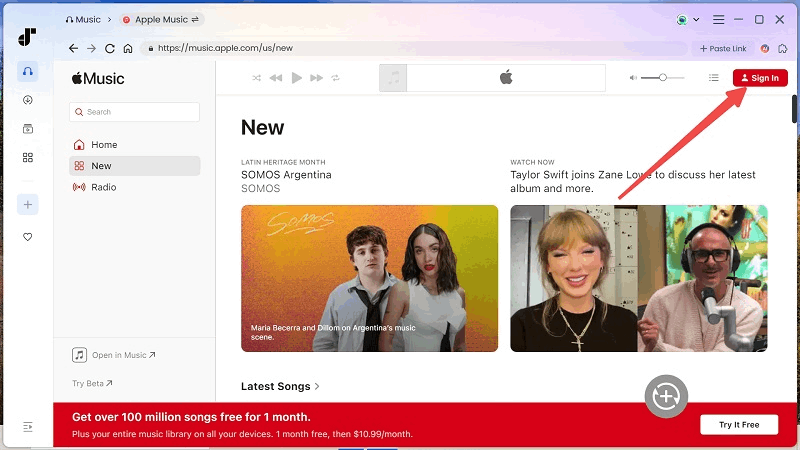
Step 1. Download and install TuneFab Apple Music Converter on your PC/Mac. Launch it, choose "Apple Music" to open the built-in Apple Music web player directly inside the software.
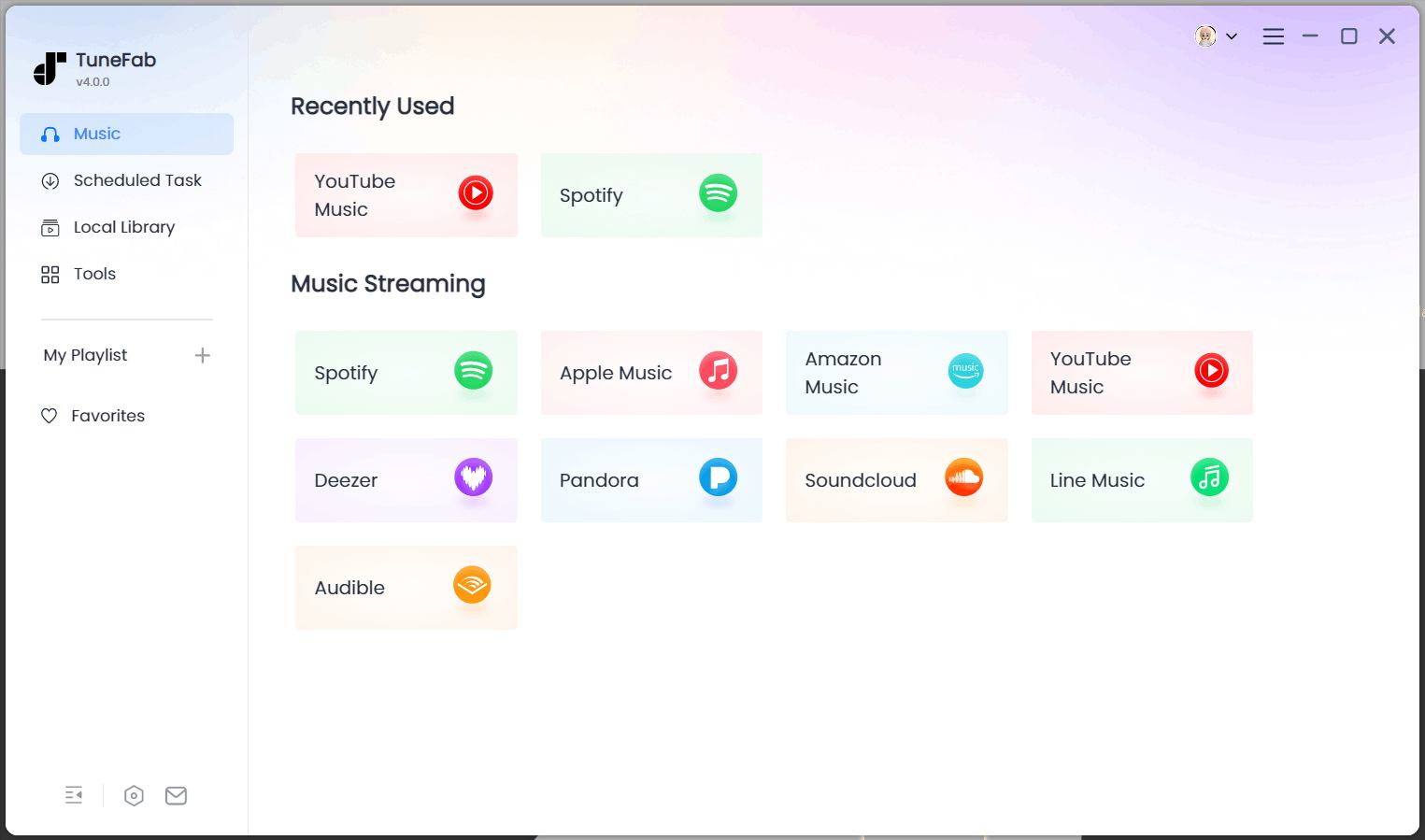
On the Apple Music web player, log in with your Apple ID with an active subscription.
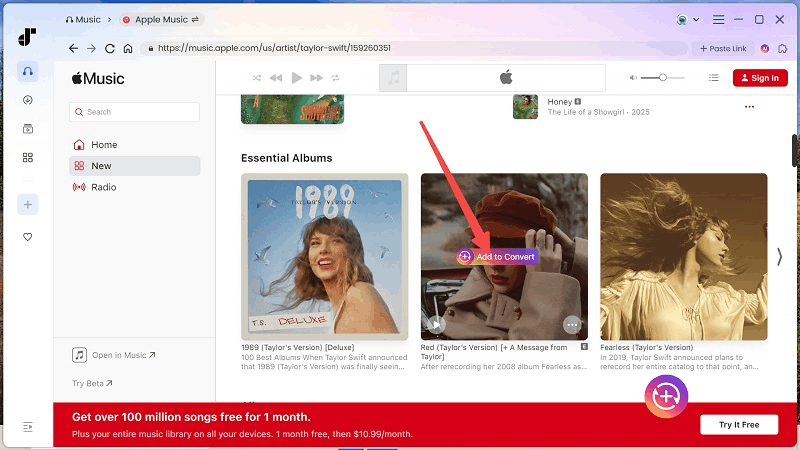
Step 2. After you access your Apple Music library, browse and select the songs you want to convert. Simply click the "Add to Convert" button to add them to your conversion list.
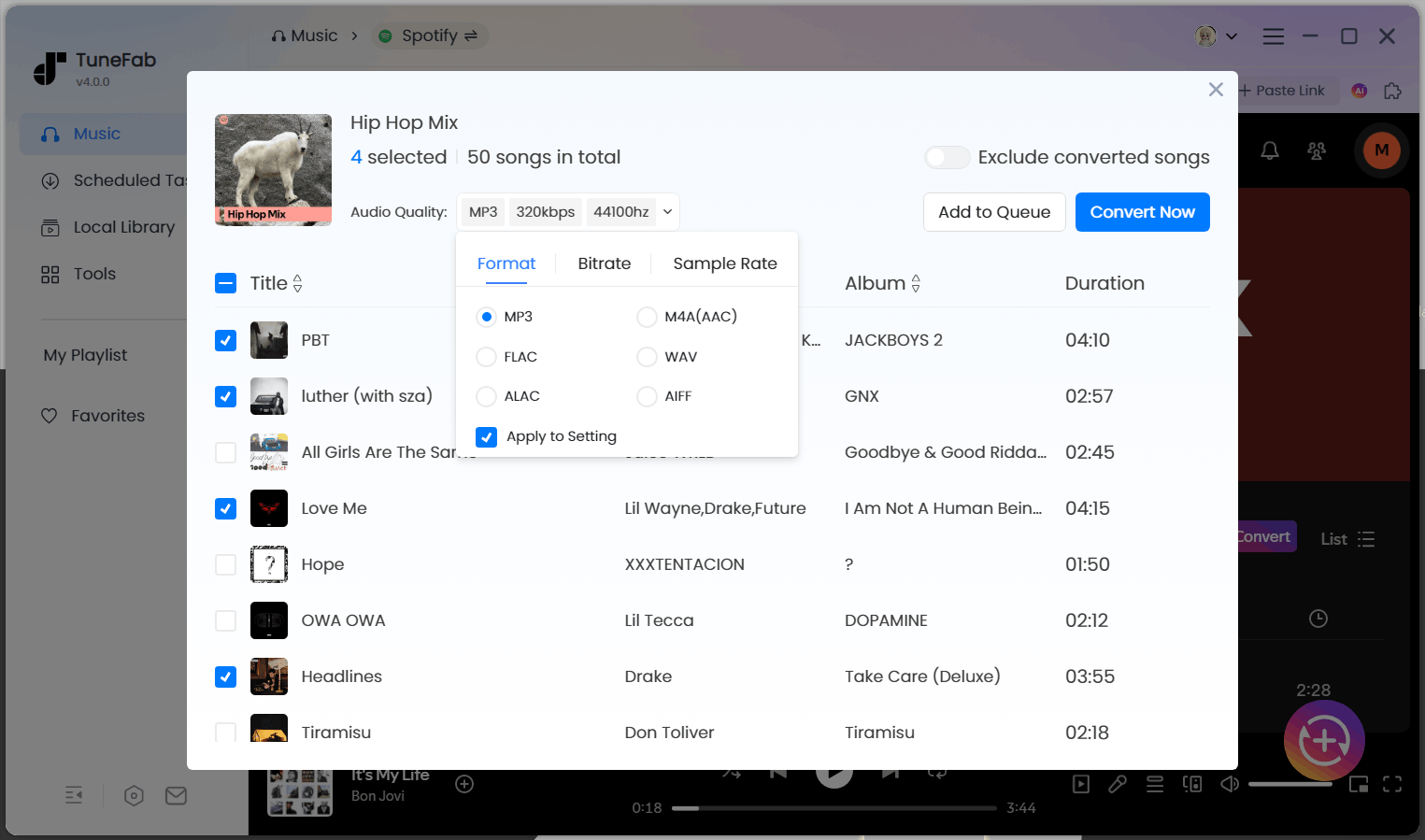
Step 3. Before converting, choose an output format based on your needs, such as MP3 for wide compatibility, M4A for Apple devices, or WAV and FLAC for higher audio quality.
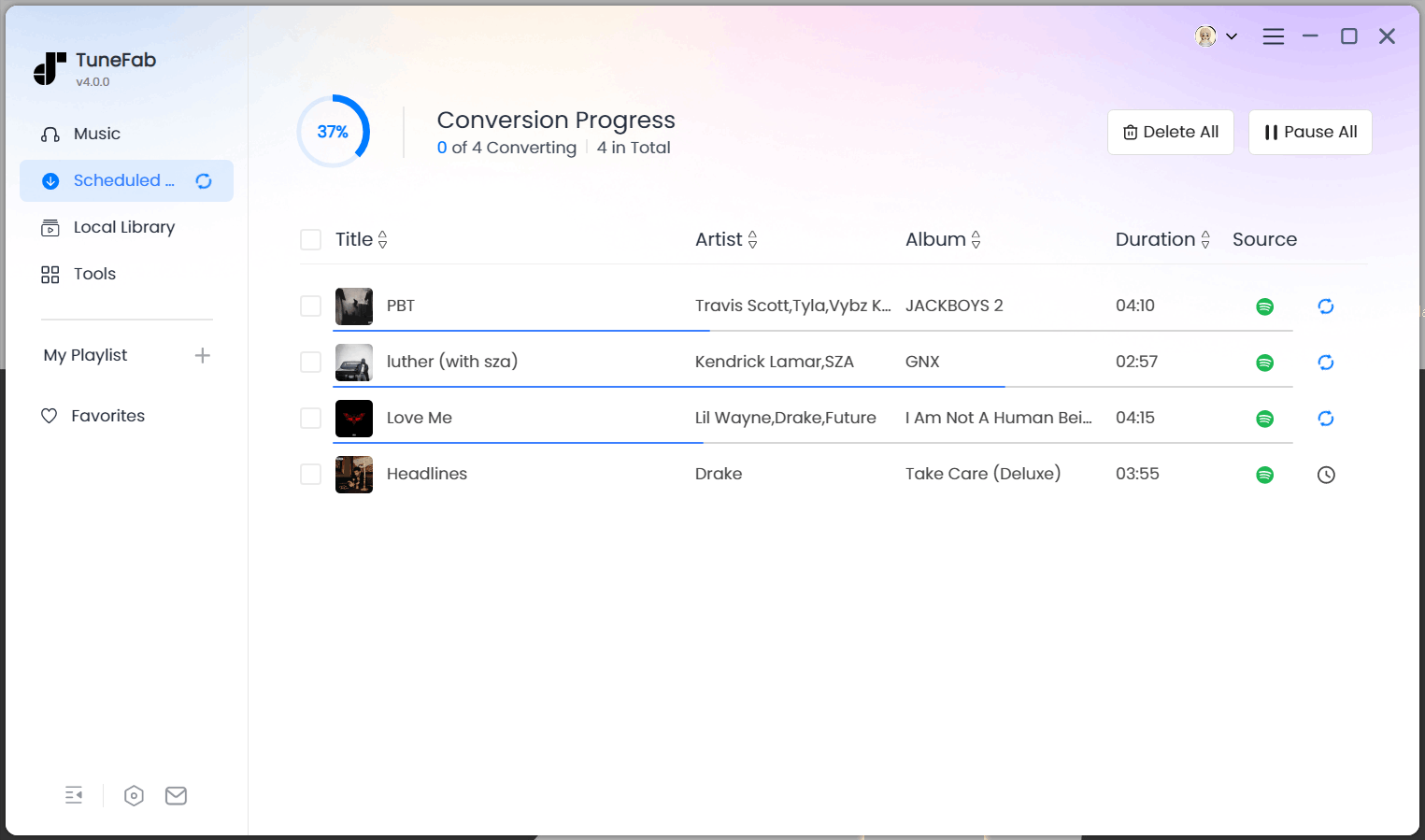
Step 4. Finally, click "Convert Now" to begin processing. The selected Apple Music tracks will be downloaded and converted into local audio files, and you can keep Apple Music songs forever, as well as play them on any device without limits.
FAQs About Playing M4P Files Without iTunes
Can protected Apple Music be played without subscriptions?
No, Apple Music streaming songs are tied to an active subscription. Once your subscription ends, downloaded tracks become unplayable because the DRM license is revoked. Only purchased music (such as iTunes Plus songs) or converted DRM-free files can be played without an ongoing subscription.
Can I play protected Apple Music on MP3 players?
In most cases, no. Protected Apple Music files are not compatible with standard MP3 players because they require Apple's DRM authorization. MP3 players can only play DRM-free formats like MP3, WAV, or similar, which is why Apple Music downloads usually won't work unless they are converted.
Is Apple Music still using M4P files?
Apple Music itself uses DRM-protected AAC-based formats for streaming downloads, which behave similarly to the older M4P files used in early iTunes purchases. However, modern purchased songs from the iTunes Store are typically DRM-free (iTunes Plus), while subscription downloads remain protected and restricted to the Apple ecosystem.
Before You Start: How to Tell If Apple Music Songs are Protected?
In summary, playing protected Apple Music mainly depends on the type of file you have and the source of your music. Some issues can be resolved through official methods, such as re-authorizing your computer, re-downloading older purchased songs in DRM-free versions, or renewing an active Apple Music subscription. However, these solutions are still limited by Apple's ecosystem rules and do not fully remove playback restrictions across different devices and apps.
If you want to truly play Apple Music without limits across any device, and even after subscription restrictions, a more permanent solution is needed. TuneFab Apple Music Converter helps you convert protected Apple Music tracks into common formats like MP3, WAV, M4A, or FLAC, allowing unrestricted offline playback anytime. You can try it to unlock your Apple Music library and enjoy your songs freely on any device you prefer.
TuneFab Apple Music Converter
One click to remove DRM and play protected Apple Music on any device.

