How to Add Music to TuneFab Player
 Quick Answer
To add music to TuneFab Player, Android users can scan local music files directly from their phone. iPhone and iPad users need to import songs from the Files app. If your songs are on a computer, you can use WiFi Transfer or copy the files to your phone with a USB cable.
Add Music by Device
Music is added differently on iOS and Android. Select your device to see the best import method.

iOS (iPhone & iPad)
Add music manually from the Files app.
- Import from Files
- Send from Computer via WiFi
- Transfer Music via USB, then Import from Files

Android
Let TuneFab Player find local music automatically.
- Scan local music
- Send from Computer via WiFi
- Transfer Music via USB, then Scan Local Music
Send Music from Computer to Phone via WiFi
Use this method when your songs are stored on a computer and both devices are connected to the same WiFi.
1
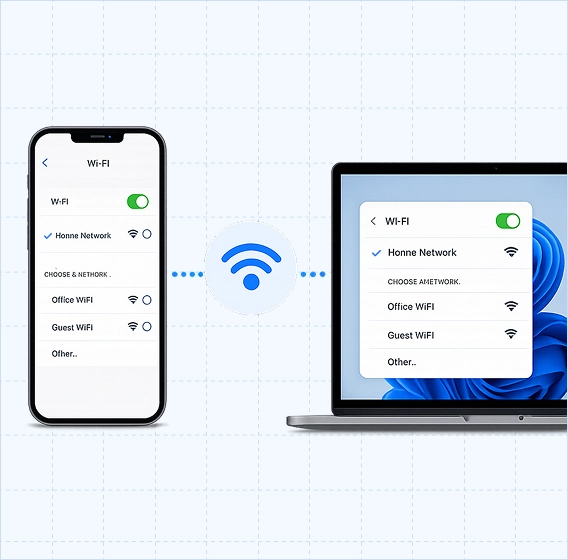
Connect to the same WiFi
Make sure your phone and computer are on the same WiFi network.
2
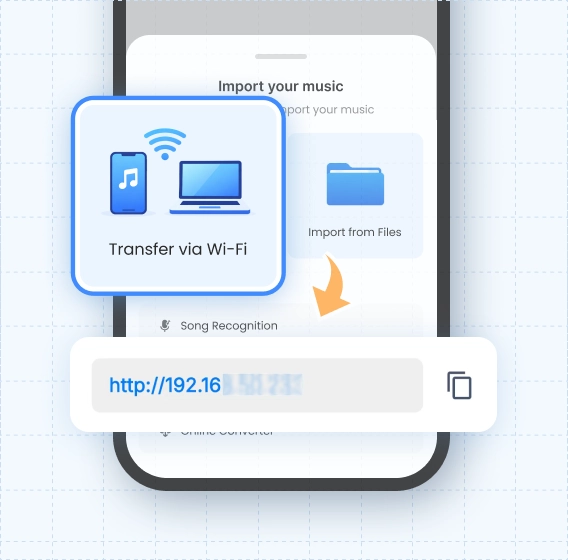
Open Transfer via WiFi
In TuneFab Player, tap Transfer via WiFi to get a transfer address.
3
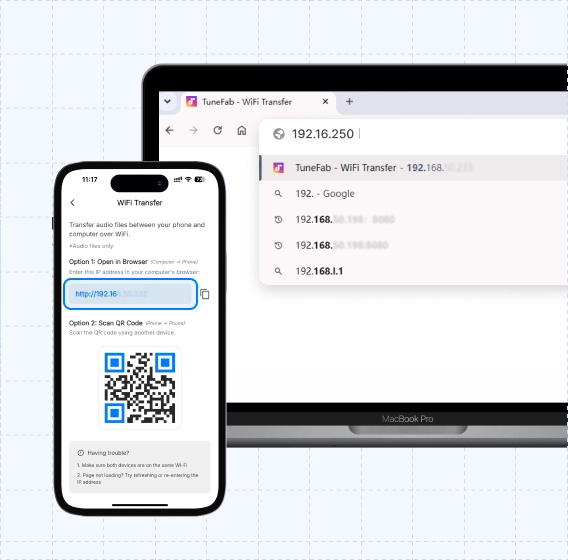
Open the address on your computer or another device
Enter the address in a browser on your computer, tablet, or another phone, then upload songs.
Where are you stuck?
1. I don’t know where to start
- If you’re using an Android phone and already have music files stored on your device, TuneFab Player will automatically scan your local music library. Just open the app and you can start playing your songs.
- If you’re using an iPhone or iPad, choose Import from Files to manually add songs from the Files app.
2. My browser can’t open the address
Please make sure your phone and computer are connected to the same Wi-Fi network. Then copy the full transfer address shown in TuneFab Player and open it in your computer browser.
If the address still won’t open, try these checks:
- Make sure TuneFab Player stays open on the Wi-Fi transfer screen.
- Do not lock your phone or switch to another app.
- Try another browser, such as Chrome, Safari, Edge, or Firefox.
- Check whether your Wi-Fi is a public, school, office, hotel, or guest network. Some networks block local device connections.
- Turn off VPN, proxy, or firewall settings temporarily and try again.
- If Wi-Fi transfer still does not work, you can use a USB cable to transfer music files to your phone instead.
3. My phone and computer can’t connect
Wi-Fi transfer only works when your phone and computer can find each other on the same local network.
Please check:
- Your phone and computer are connected to the same Wi-Fi.
- They are not connected to different networks, such as one on 2.4GHz and the other on a guest Wi-Fi.
- VPN, proxy, company network, public Wi-Fi, or router isolation is not blocking the connection.
- TuneFab Player is open and staying on the transfer page.
- The transfer address is typed correctly in your browser.
- If the connection still fails, we recommend using USB transfer instead.
4. Transfer works, but I can’t find songs
After transfer or import is complete, please check your local music library in TuneFab Player.
If you still can’t find the songs:
- Make sure the upload or import process was fully completed.
- Check whether the file format is supported.
- Try searching by song title, artist, or album.
- Restart TuneFab Player and wait for the library to refresh.
- For Android, newly added local songs may be scanned automatically.
- For iPhone and iPad, songs must be imported through Import from Files before they appear in TuneFab Player.
5. I don't have a computer right now.
That's okay. WiFi transfer requires another device, such as a computer, tablet, or another phone, to open the transfer address and upload music files.
If you don’t have another device nearby right now, you can come back later and try again.
If you already have music files on your current phone:
- On Android, TuneFab Player may automatically scan and display local music files.
- On iPhone or iPad, you can use Import from Files to manually import songs from the Files app.
 Use USB Transfer If WiFi Doesn’t Work
If WiFi Transfer does not work, you can use a USB cable to copy music files to your phone. Android users can scan the copied local music files in TuneFab Player. iPhone and iPad users need to import copied songs from the Files app.
Ready to transfer?
Open TuneFab Player and choose the best import method for your device.