



To download a YouTube Music playlist, first decide how you want to listen to it. YouTube Music Premium lets you download entire playlists for offline listening within the app, but these downloads cannot be exported as regular audio files. If you want to save playlist tracks as MP3s or other local audio formats for use on an MP3 player or other devices, you'll need a file-export method for content you are authorized to download.
Downloading a full playlist also involves more than simply saving audio files. You need to make sure every intended track is recognized and downloaded, preserve the original playback order, and check for any skipped or unfinished songs.
Whether you prefer using official methods through YouTube Music Premium or want more flexible options via third-party tools, this guide will walk you through the 4 best ways to download YouTube Music playlists. Let's help you take your favorite tracks offline without hassle.
App downloads vs local files
The two routes produce different results. Compare the output before choosing a method, especially if your goal is to move the playlist into another player.
| What you need | Premium app downloads | Playlist export to local files |
| Listen inside YouTube Music without a connection | The official route | Uses a separate local player |
| Copy MP3s into another music library | Not an MP3 export | Possible with supported, authorized exports |
| Keep a curated sequence | Play the downloaded playlist | Recreate or verify order in the destination player |
| Check a complete batch | Check the playlist in Downloads | Reconcile selected, completed, failed, and skipped entries |
| Handle later playlist edits | App-managed refresh | Compare changes before exporting again |
Choose Premium for in-app listening or the TuneFab YouTube Music Converter for a local playlist library. The Online and YTDLnis sections cover browser-based batches and Android file downloads. Whichever route you choose, check the whole list rather than assuming every song was saved.
- How to Download a YouTube Music Playlist with Premium
- How to Download YouTube Music Playlists to MP3 with TuneFab
- How to Download a YouTube Music Playlist Online
- How to Download YouTube Music Playlists with YTDLnis on Android
- Tips: How to Update and Transfer Your Downloaded Playlist
- FAQs about Downloading YouTube Music Playlists
- Conclusion
How to Download a YouTube Music Playlist with Premium
For those who want the simplest and most official way to download playlists on YouTube Music, YouTube Music Premium is the go-to option. And if you have YouTube Premium, you'll automatically get access to all YouTube Music Premium features.
As a Premium subscriber, you can download entire playlists, albums, or individual tracks directly through the YouTube Music app on your iOS or Android device, making it a seamless experience without the need for third-party tools.
Note:
- Make sure you're using the YouTube Music app, as the standard YouTube app doesn't support playlist downloads.
- Downloaded content is encrypted and can only be played within the app.
- You must reconnect to the internet at least once every 30 days to keep offline access valid.
- If your subscription expires, you'll lose access to previously downloaded content.
YouTube Music offers two download options: Smart Downloads and Manual Downloads. Below are the detailed steps.
Using Smart Downloads to Download YouTube Music Playlist Automatically
Smart Downloads is perfect for those who want their offline library to stay up-to-date without manual effort. It automatically downloads songs based on your listening habits and refreshes content daily when connected to Wi-Fi and with at least 40% battery.
Step 1. Open the YouTube Music app on your mobile device. Tap on the profile image in the top-right corner of the screen and choose "Downloads" from the list.
Step 2. Then tap the "Gear" icon on the upper-right corner. On the new page, scroll down and find "Smart downloads". Turn on the button to enable the automatic smart download feature.

Once enabled, the app will keep your library fresh and available offline without manual intervention. And you can drag the slider below to set the number of songs that can be downloaded on your device.
Download a Specific YouTube Music Playlist Manually
If you want more control over your offline library, Manual Downloads are perfect for downloading specific playlists, albums, or songs.
Step 1. Open YouTube Music and locate the playlist or album you want to download.
Step 2. Tap the "three-dot" icon next to the playlist's name and choose "Download" from the pop-up list.
The playlist will start downloading immediately and be saved under your "Library > Downloads" section.

NOTE: Google's offline download instructions says downloaded playlists refresh daily in the background over Wi-Fi. Separately, you must reconnect at least once every 30 days to maintain downloads. Smart Downloads selects music from listening history, so it should not replace explicitly downloading your chosen playlist.
How to Download YouTube Music Playlists to MP3 with TuneFab
If you're tired of worrying about subscription limits, app restrictions, or internet dependency, the most flexible solution is to convert YouTube Music playlists to MP3 files and keep them forever. Among the tools available, TuneFab YouTube Music Converter stands out for its ease of use, speed, and format support.
TuneFab YouTube Music Converter is a powerful tool that enables you to download playlists in multiple formats, including MP3, FLAC, and WAV. The MP3 format supports high-quality 320kbps audio to ensure an optimal listening experience. With batch download functionality, you can quickly download entire playlists with just a click, all while preserving the ID3 tags for better organization.
With this YouTube Music downloader, you can easily download YouTube songs and playlists without subscribing or even logging into your YouTube account. This is the ideal choice for users who want an fast and reliable way to download and save YouTube Music playlists for offline listening in the format of their choice.
Key Features of TuneFab YouTube Music Converter:
- Downloads entire playlists at speeds up to 35X faster, with support for multiple formats like MP3/FLAC/WAV/M4A.
- Easily enjoy offline playback on various devices like MP3 players, iPods, or even burn music to CD/DVD.
- One-click batch conversion for entire playlists, albums, or artist pages, saving time and effort.
- Maintains original audio quality with lossless conversion, while preserving ID3 metadata like artist name and album cover.
- Tailors the download process with options to adjust output format, bitrate, and sample rate for a personalized music experience.
Here is a tutorial on how to download YouTube Music to MP3 with TuneFab YouTube Music Converter.
Step 1. Download TuneFab YouTube Music Converter
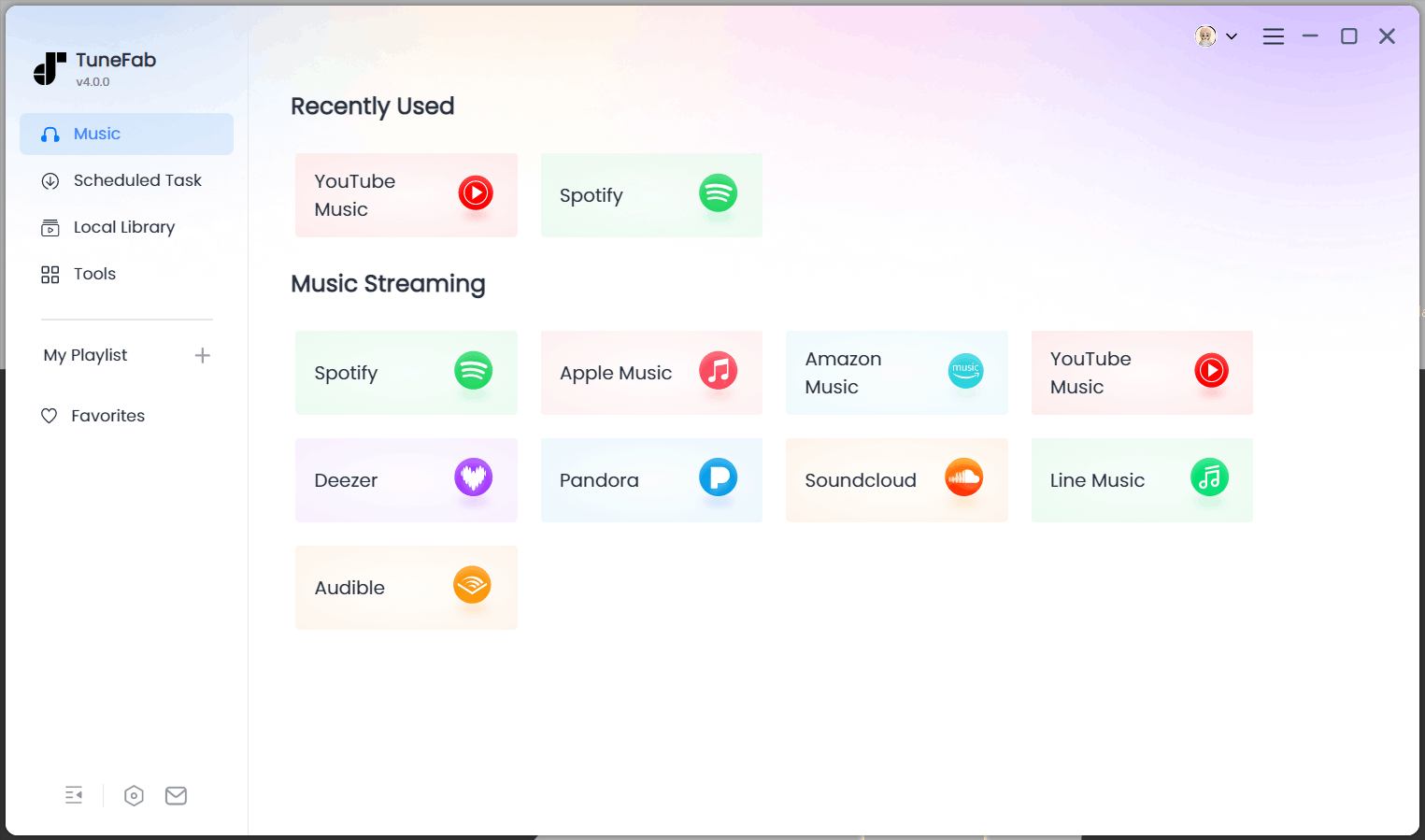
Install and launch TuneFab on Windows or Mac, then select the YouTube service. Open the playlist in the built-in player. Sign in if you need to access playlists saved to your account.
Step 2. Add the Playlist and Select Songs
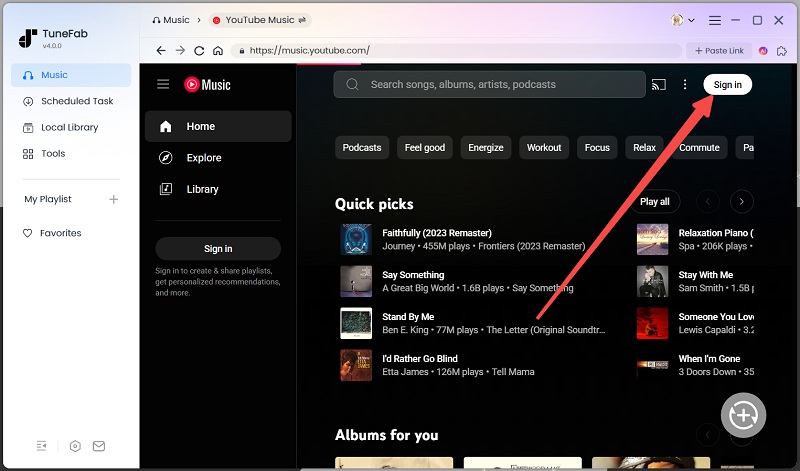
Click Add to Convert or the plus icon to add the playlist to the queue. Review the entries and keep the songs you want to export.
Compare the loaded entries with the source list, especially the first and last songs. If only one song appears, return to the playlist page instead of adding the currently playing track. A song link containing a playlist parameter does not prove that the full list was recognized.
Step 3. Choose MP3 for the Playlist
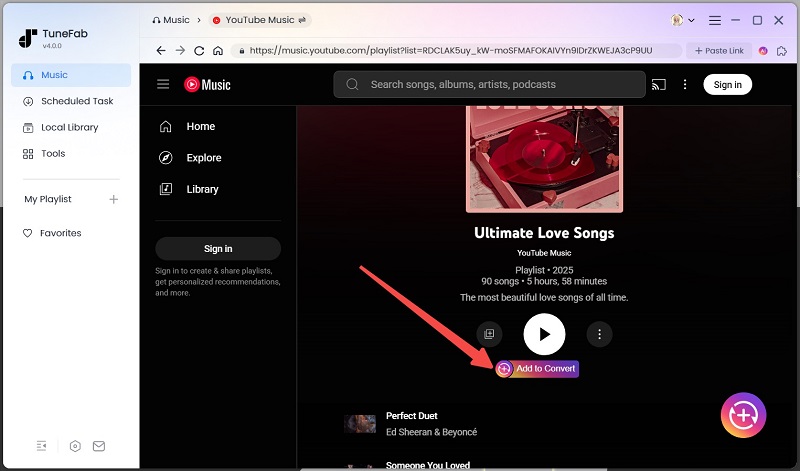
When you have selected the playlists you want to download, adjust the output format and quality. For example, you can choose the widely supported MP3 format to output YouTube Music downloads for playback on all devices and media players that support MP3. You can also adjust the bitrate and sample rate, and customize the output settings to produce 320 kbps MP3 at 48 kHz.
Step 4. Download the Selected Songs in a Batch
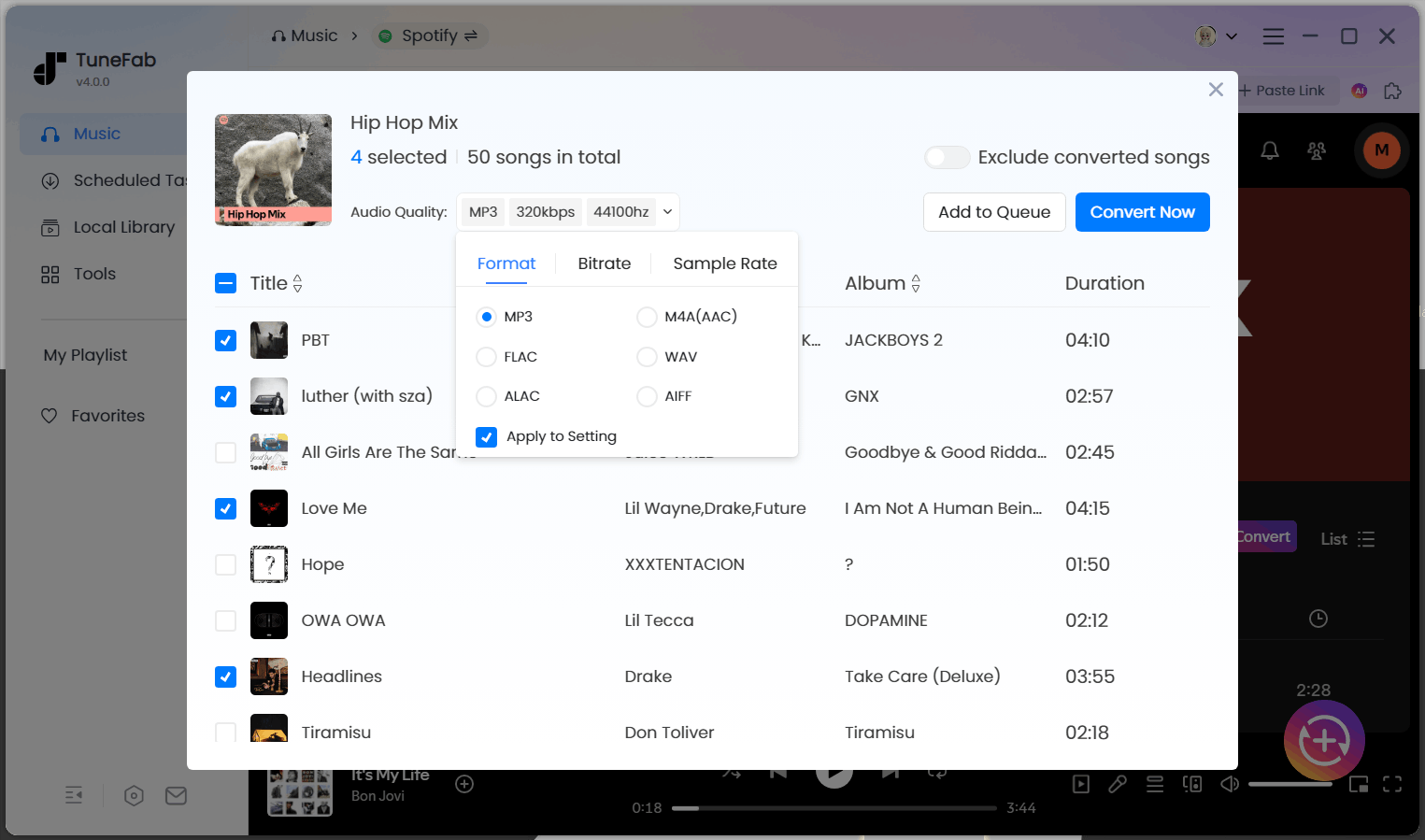
Click Convert Now to start. Monitor progress and note any unfinished songs before closing the queue.
During testing, we downloaded a playlist containing 50 songs. Of these, 48 tracks were downloaded successfully, with only two failures, considerably more stable than most online tools we tested.
Step 5. Find and Check the Downloaded Files
Open Local Library and click the file icon to locate the saved tracks.
Compare completed files against your selected entries. Open several files, including the first and last expected songs, and check their duration and playback. Count unique files separately from repeated playlist positions. If something is missing, identify that entry before restarting the whole queue.
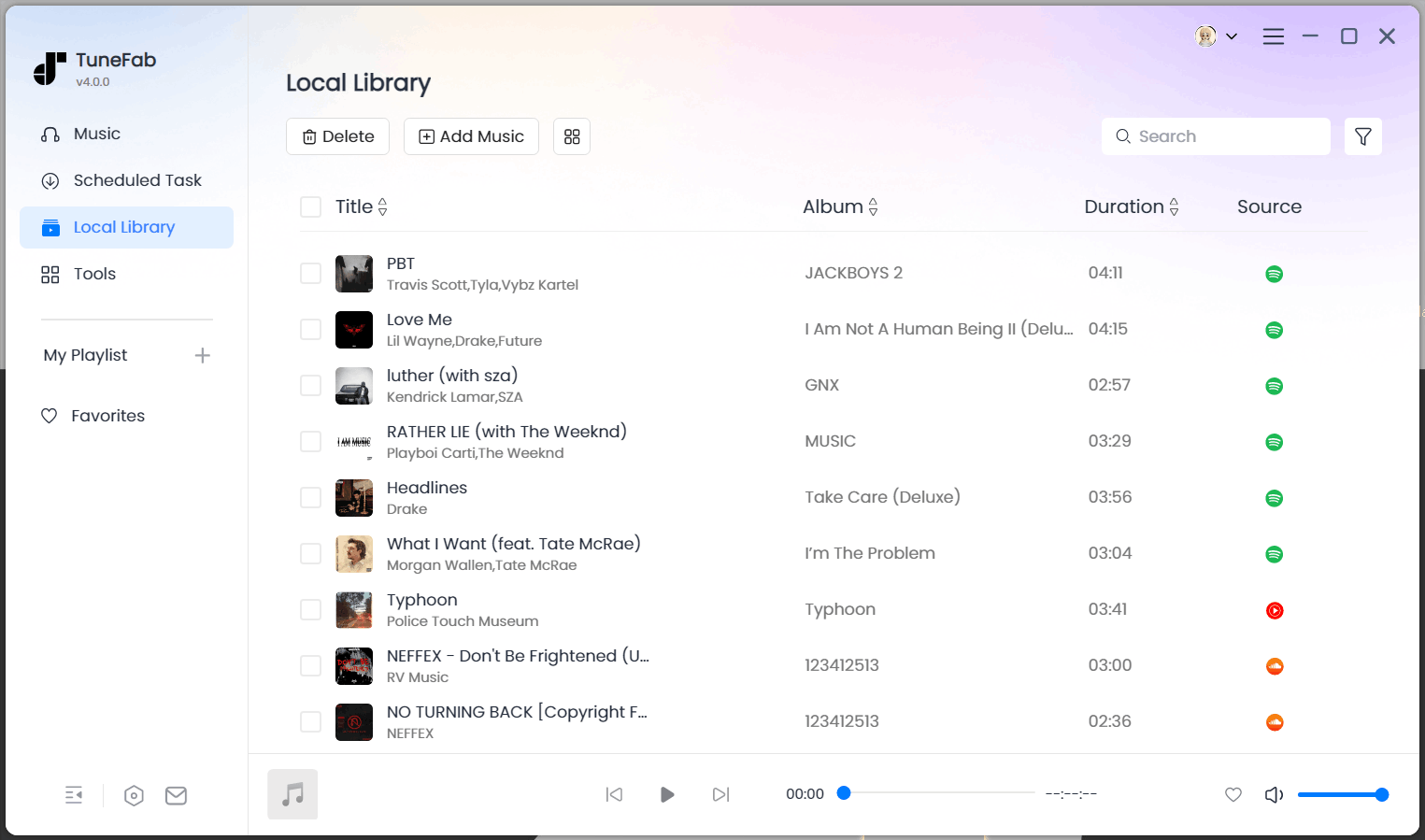
Check playlist sequence and metadata: Verify the playlist order via an exported M3U file, or add zero-padded prefixes (e.g., 001) to filenames if you prefer name-based sorting. Also, confirm the ID3 tags (title, artist, album, artwork) in your player. Note that album artwork doesn't have to match the playlist cover.
How to Download a YouTube Music Playlist Online
If you prefer not to install a desktop app, use the playlist tool in the TuneFab member center. This browser-based route saves MP3 files in smaller batches, so a long playlist needs more selection and completion checks than the main desktop workflow.
This web-based tool supports MP3 downloads of up to 10 tracks per session in both 128kbps and 320kbps, while preserving ID3 metadata like artist, title, and album info. With just the playlist URL, you can batch download entire playlists, which will be neatly packaged into a ZIP file, ideal for organizing and extracting all your songs at once.
Here are the steps to download YouTube music playlist for free with TuneFab Online YouTube Playlist Downloader:
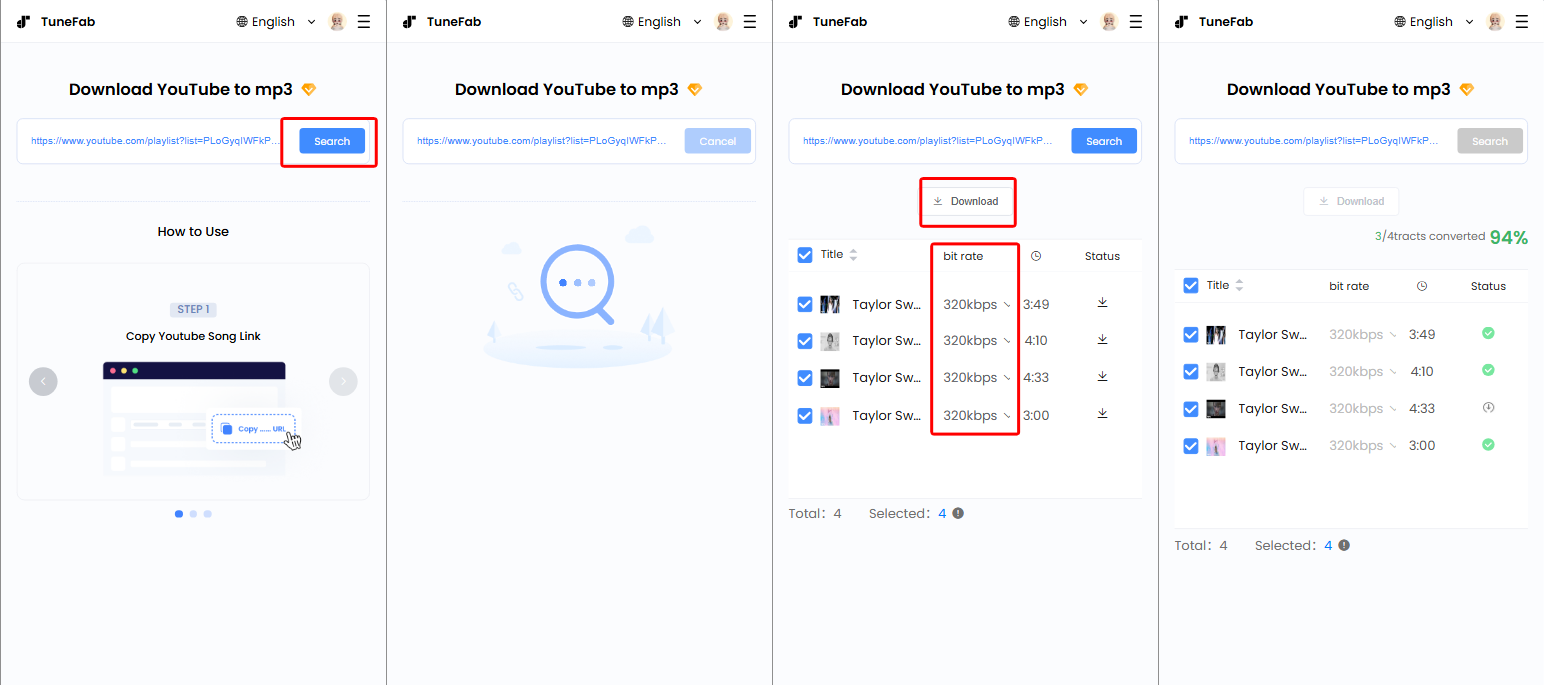
Step 1. Visit the TuneFab Online YouTube Playlist Downloader page from your browser on any device (PC, mobile, or tablet) and log in to your TuneFab member center to begin the download process.
Step 2. Copy the URL of the YouTube playlist you want to download and paste it into the provided field in the downloader.
Step 3. Choose between 128kbps or 320kbps MP3 quality depending on your preference for file size or audio quality.
Step 4. Click the "Download" button to start the process. The tool will batch download all tracks in the playlist and package them into a ZIP file for easy extraction.
Step 5. Once the download is complete, you can extract the ZIP file and enjoy your music offline!
How to Download YouTube Music Playlists with YTDLnis on Android
For local playlist files directly on a phone, YTDLnis is a free, open-source option for downloading YouTube Music on Android 7.0 and later. It processes playlists with yt-dlp and supports shared batch settings. YT-DLnis provides full flexibility to download MP3 or M4A formats, with quality options up to 320kbps. Unlike third-party software that often comes with limitations, YT-DLnis gives you complete control over your playlist downloads, without the need for a paid subscription or external apps.
To download music playlist from YouTube with GitHub open source, here are the steps:
Step 1. Go to https://ytdlnis.com or the GitHub project page to learn more about the tool and choose the version for your platform.
Step 2. Download and install the APK file directly on your mobile device.
Step 3. Open the app and paste the YouTube playlist link you want to download into the input field.
Step 4. Choose the desired format, such as MP3 or M4A, and set the audio quality (128kbps, 192kbps, 256kbps, or 320kbps).
Step 5. Click the "Download" button to start batch downloading the entire playlist. Files will be saved to your designated folder.

Tips: How to Update and Transfer Your Downloaded Playlist
Add New Songs Without Downloading Everything Again
A folder of exported songs does not automatically become a synchronized copy of the source playlist. Before exporting again, compare the current source list with the files you already have.
- Record the current song list and order.
- Identify additions, removed entries, and replacements. Compare track links or IDs when available, since different recordings can share a title.
- Select only new or changed songs for the next export. Use an exclude-converted option if your version provides it, then review the selection.
- Update the local playlist order. Remove a reference from the playlist when appropriate without automatically deleting a file used elsewhere.
Keep the previous local playlist until the updated version plays correctly. This gives you a way to recover from an accidental removal or a mistaken song match.
Save the Playlist on a Computer or Phone
Once the files and sequence are checked, transfer both the audio and any local playlist file. Moving an M3U alone will not move the songs, and changing folder paths may break its references.
FAQs about Downloading YouTube Music Playlist
Can I Download All Music from YouTube Playlist and Add It to My iTunes Playlist?
It depends on the way you use to download the playlist.
Similar to most music streaming platforms, songs downloaded from YouTube Music are encrypted with DRM protection. So, you can't transfer or play them on other players.
If you want to add a YouTube playlist to iTunes, you can use a third-party YouTube playlist downloader such as TuneFab YouTube Music Converter to convert those songs to an iTunes-supported format such as MP3, AIFF, WAV, MEPG-4, AAC, and Apple Lossless (.m4a).
Then open the iTunes app on your computer and choose File > Add File to Library or Add Folder to Library. Locate the folder and click "Open". Or you can directly drag the YouTube Music playlist you've converted to the iTunes window.
How to Download Music Playlist on YouTube Site?
The official YouTube website doesn't support direct playlist downloads, even for Premium users. However, you can use browser-based tools like TuneFab Online YouTube Playlist Downloader. Just paste your playlist URL into the tool, select MP3 quality (128kbps or 320kbps), and it will generate a ZIP file with all your songs.
Why Are Some Songs Missing After a Batch Download?
Recognition, duplicate filtering, unavailable source entries, and failed conversions can all affect the result. Compare the source positions, unique selected songs, and completed files. Check unresolved entries individually rather than assuming the completion message covers the whole source list.
Will ID3 Tags Preserve the Original Playlist Order?
Not by themselves. Album track numbers and title tags do not encode a custom playlist sequence reliably across players. Use a local playlist file or verified numbered filenames, and check playback with shuffle disabled.
Will New Songs Appear Automatically in My Exported Folder?
Do not assume so. Recheck the source playlist, select additions or replacements, and update your local playlist. Automatic refresh inside YouTube Music is separate from maintaining exported files.
Conclusion
Choose Premium for offline listening inside YouTube Music, TuneFab YouTube Music Converter for the main batch-export workflow, Online for browser-based batches, or YTDLnis for local files on Android 7.0 and later. For file exports you are authorized to make, verify the recognized list and saved files, keep the intended order, and retry only unresolved songs.

